1. Introduction
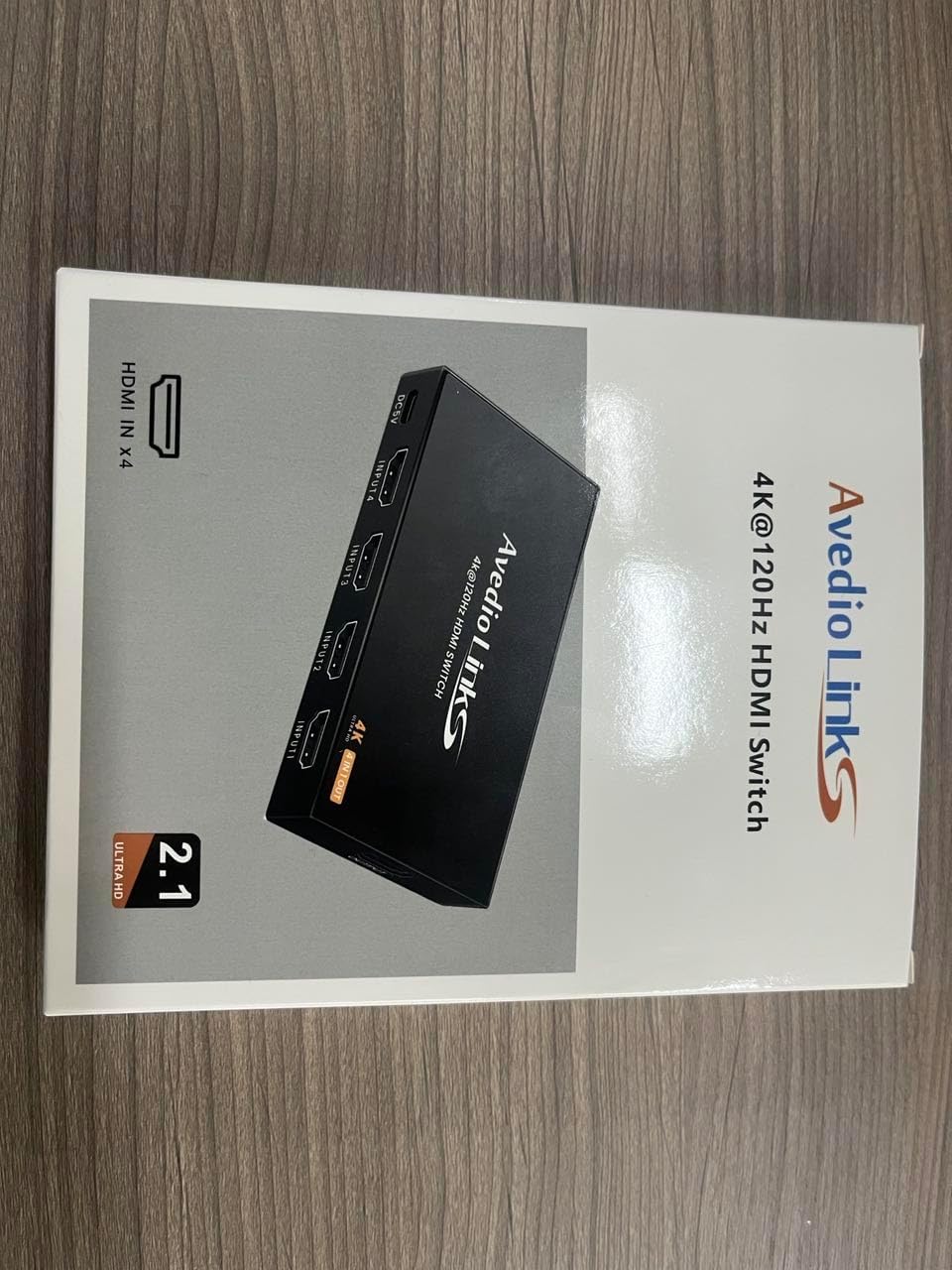
Thank you for choosing the avedio links 4X1 HDMI Switch 4K@60Hz. This device allows you to connect up to four HDMI source devices to a single HDMI display, providing seamless switching between inputs. It supports high-resolution video up to 4K@60Hz, HDR, and 3D, enhancing your viewing and gaming experience. This manual provides detailed instructions for setup, operation, and troubleshooting to ensure optimal performance of your HDMI switch.

2. Package Contents
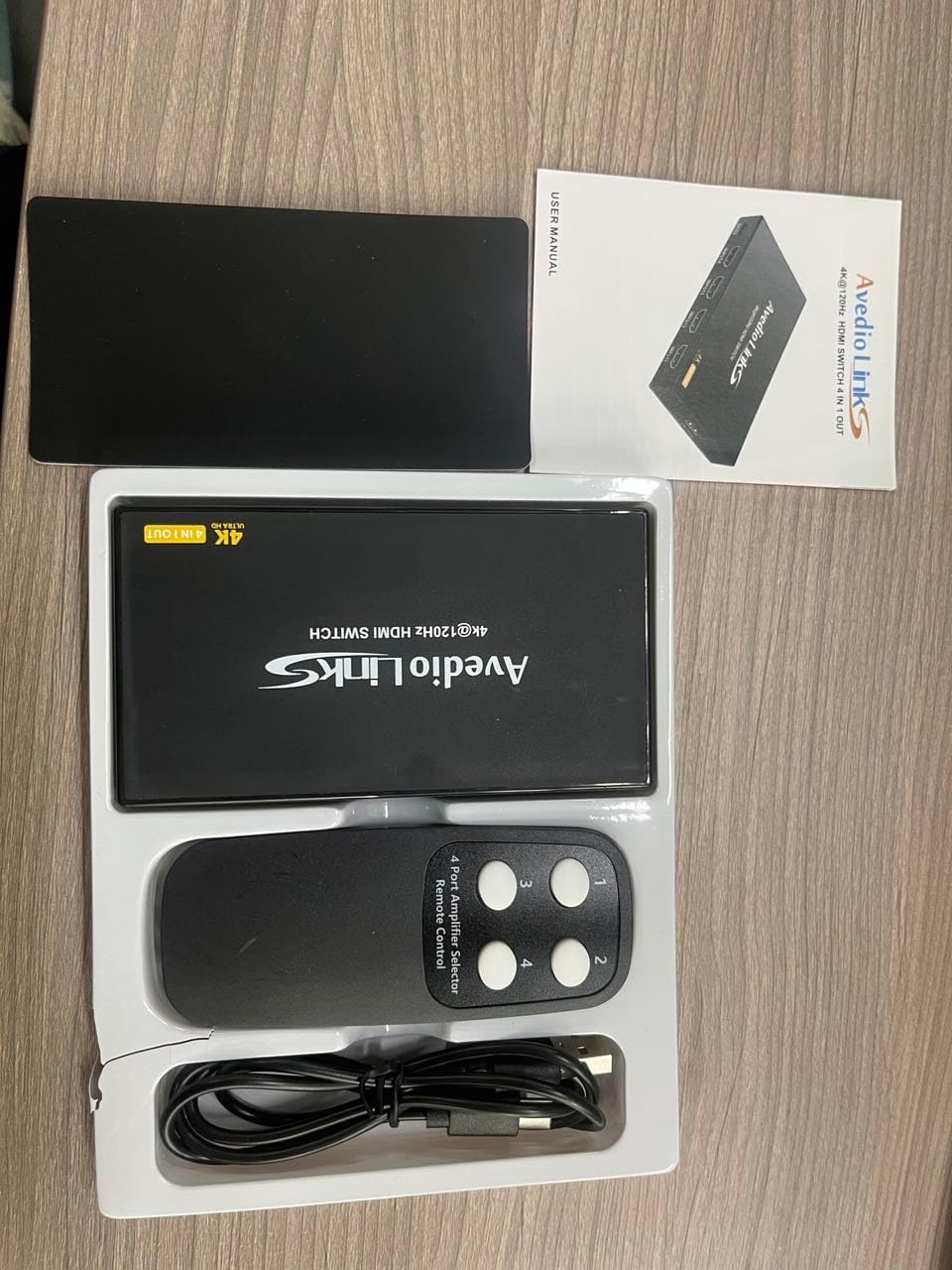
Please verify that all items are present in your package:
- 1 x avedio links 4X1 HDMI Switch 4K@60Hz
- 1 x IR Remote Control
- 1 x USB Power Cable (DC5V)
- 1 x User Manual

3. Key Features
- 4 In 1 Out HDMI Switching: Connects up to four HDMI source devices to one HDMI display.
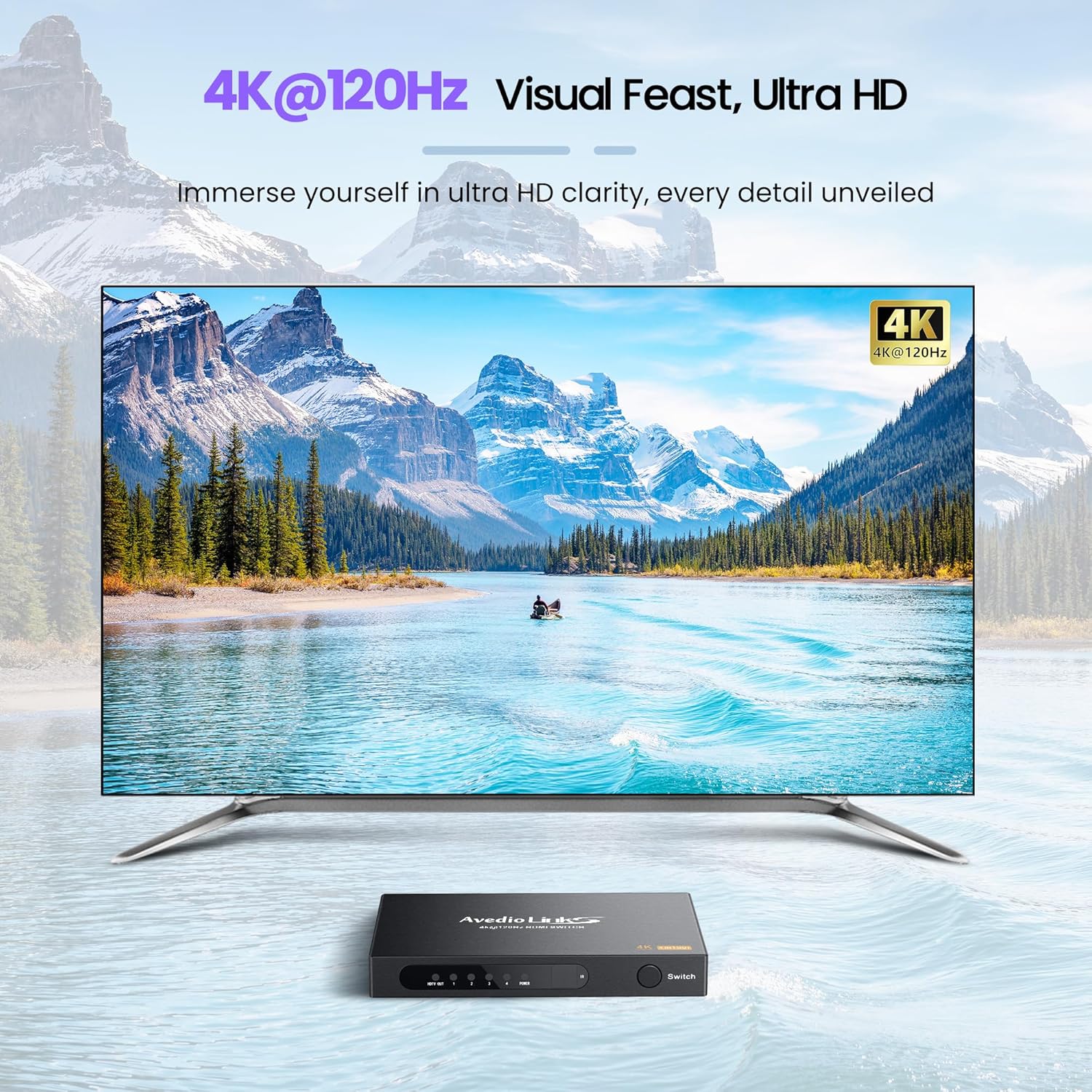
- High Resolution Support: Compatible with 4K@60Hz, 4Kx2K, and 1080P resolutions.
- Advanced HDMI Standards: Supports HDMI 2.0/1.4, HDCP 2.2/1.4, 3D, 18Gbps bandwidth, and HDR.
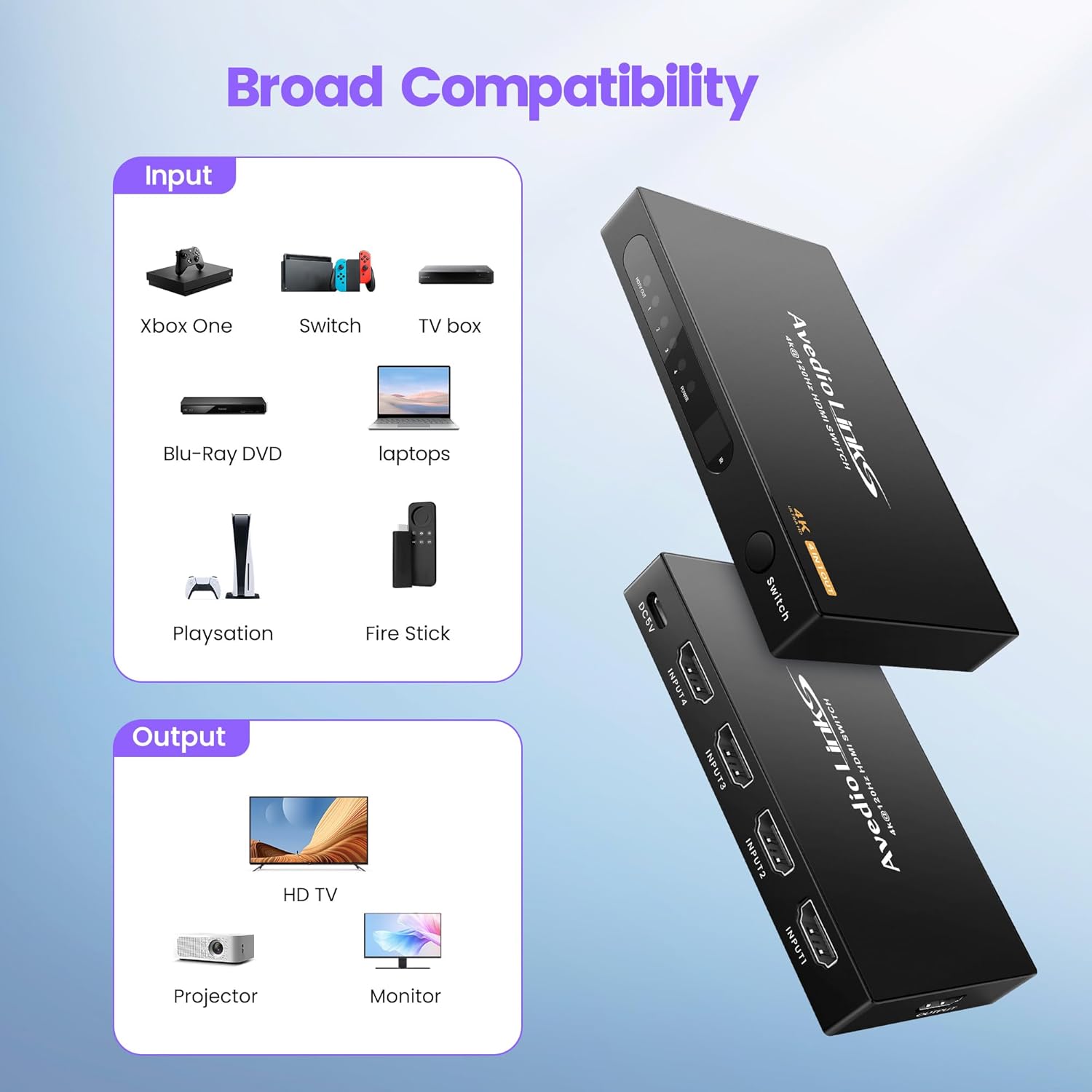
- Broad Device Compatibility: Works with devices such as Fire Stick, Xbox, PS4/PS5, Blu-ray players, laptops, HDTVs, projectors, and monitors.
- Multiple Switching Methods: Features automatic switching, manual button switching, and remote control switching.
- Stable Signal Transmission: Utilizes an advanced integrated circuit chip for smooth 18Gbps signal transmission.
- USB Power Supply: Ensures stable performance and prevents signal loss.

4. Specifications
| Feature | Detail |
|---|---|
| Model Number | 4X1 HDMI Switch 4K@60Hz |
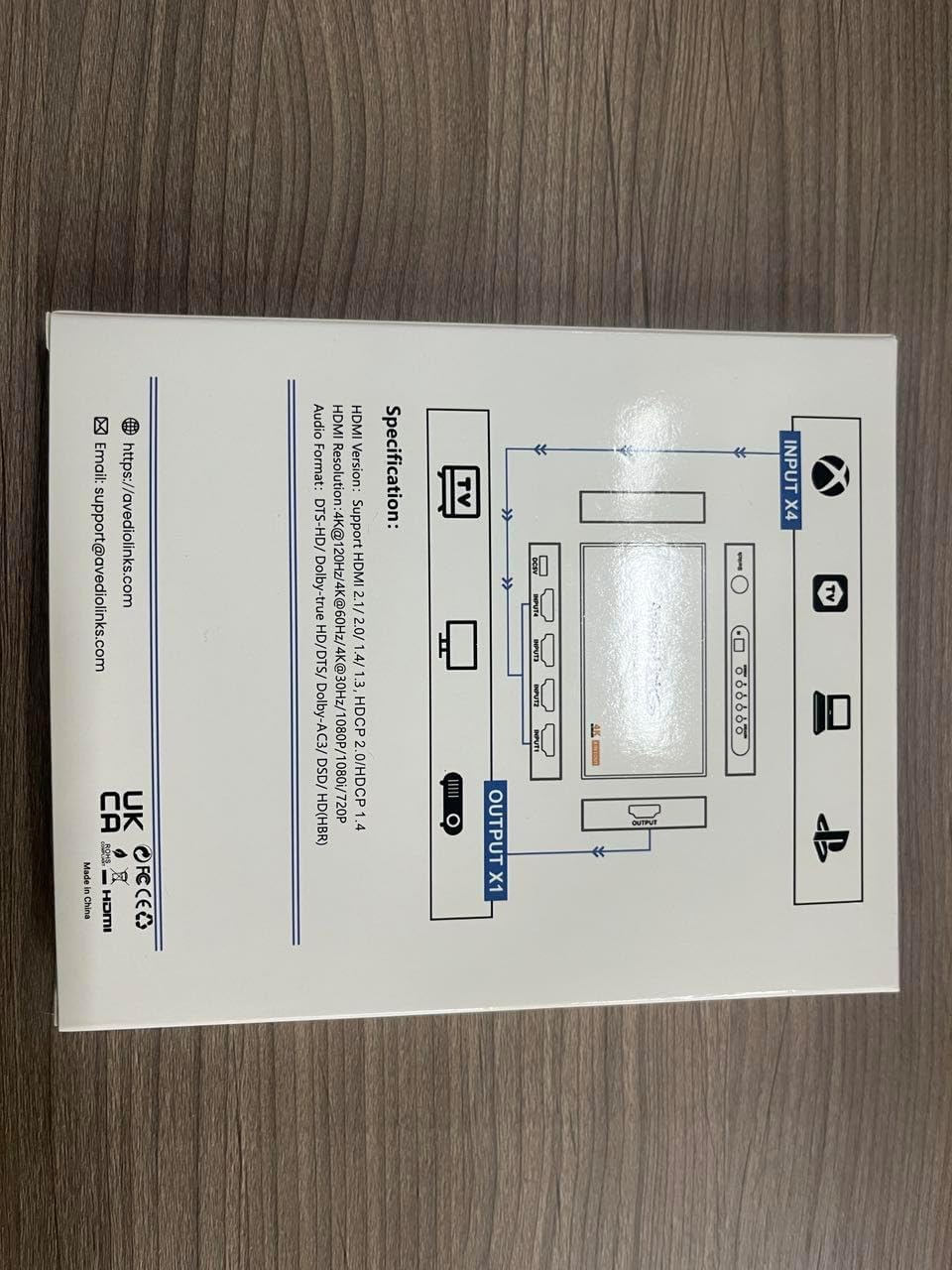
| HDMI Version | HDMI 2.0/1.4 |
| HDCP Version | HDCP 2.2/1.4 |
| Max Resolution | 4K@60Hz (4Kx2K) |
| Bandwidth | 18Gbps |
| Color Support | Deep Color 8/10/12 bit |
| 3D Support | Yes |
| HDR Support | Yes |
| Audio Format | DTS-HD/Dolby-trueHD/DTS/Dolby-AC3/DSD/HD(HBR) |
| Power Supply | DC 5V (via USB cable) |
| Dimensions (L x W x H) | Approximately 4.52 x 2.44 x 0.59 inches |
| Item Weight | 7 ounces |


5. Setup Instructions
- Connect HDMI Input Devices: Connect up to four HDMI source devices (e.g., game consoles, Blu-ray players, streaming sticks) to the HDMI IN 1-4 ports on the switch using HDMI cables.
- Connect HDMI Output Display: Connect your HDMI display (e.g., TV, monitor, projector) to the HDMI OUT port on the switch using an HDMI cable.
- Connect Power: Connect the provided USB power cable to the DC 5V port on the switch and then to a USB power source (e.g., a USB port on your TV, a USB wall adapter).
- Insert Remote Batteries: Open the battery compartment of the IR remote control and insert two AAA batteries (not included), ensuring correct polarity.
Note: For optimal performance, especially with 4K@60Hz content, it is recommended to use high-quality HDMI 2.0 cables (AWG 26-28, up to 2 meters for input and 2 meters for output).

6. Operating Instructions
6.1. Switching Inputs
The avedio links 4X1 HDMI Switch offers three methods for switching between connected HDMI input devices:
- Manual Button Switching: Press the "Switch" button on the front panel of the device to cycle through the HDMI inputs (Input 1, Input 2, Input 3, Input 4).
- Remote Control Switching: Use the included IR remote control. Press the corresponding number button (1, 2, 3, or 4) to directly select the desired HDMI input.
- Automatic Switching: The switch supports an automatic switching function. When a new HDMI device is turned on or connected, the switch will intelligently detect the active signal and switch to that input. If the currently active input device is turned off, the switch will automatically switch to the next active input.

7. Maintenance
To ensure the longevity and optimal performance of your avedio links 4X1 HDMI Switch, follow these maintenance guidelines:
- Cleaning: Use a soft, dry cloth to clean the exterior of the device. Avoid using liquid cleaners or abrasive materials, as they may damage the finish or internal components.
- Ventilation: Ensure the device is placed in a well-ventilated area to prevent overheating. Do not block any ventilation openings.
- Storage: When not in use for extended periods, store the switch in a cool, dry place away from direct sunlight and extreme temperatures.
- Cable Management: Avoid bending or kinking HDMI and power cables excessively, as this can damage the cables and affect signal quality.
8. Troubleshooting
If you encounter issues with your avedio links 4X1 HDMI Switch, please refer to the following common problems and solutions:
- No Signal or Flickering Image:
- Ensure all HDMI cables are securely connected to both the source devices, the switch, and the display.
- Try using shorter, high-quality HDMI 2.0 cables, especially for 4K@60Hz content.
- Verify that the switch is receiving power via the USB cable and that the power indicator light is on.
- Try power cycling the switch by unplugging the USB power cable, waiting a few seconds, and then plugging it back in.
- Test each input device directly connected to the display to confirm they are functioning correctly.
- Ensure your display is set to the correct HDMI input.
- Remote Control Not Working:
- Check if the batteries in the remote control are correctly inserted and not depleted. Replace them if necessary.
- Ensure there are no obstructions between the remote control and the IR receiver on the HDMI switch.
- Point the remote directly at the IR receiver on the switch.
- Automatic Switching Not Functioning:
- Ensure that the input devices are fully powered on or off for the switch to detect the signal change.
- Some devices may not provide a consistent "power on" signal that triggers auto-switching. In such cases, use manual or remote switching.
- Audio Issues (No Sound or Distorted Audio):
- Verify that your display's audio settings are correctly configured.
- Ensure that the HDMI cables support audio transmission.
- Try power cycling the switch and all connected devices.
9. Warranty and Support
For warranty information or technical support, please contact avedio links customer service.
- Email: support@avediolinks.com
- Website: Refer to the official avedio links website for the most current support information.
Please retain your proof of purchase for any warranty claims.


