
1. Introduction
Thank you for choosing the MekedeTech DUDUAUTO DUDU7 Car Multimedia Head Unit. This advanced system is designed to enhance your in-car entertainment and navigation experience with its powerful Android 13 operating system, large QLED display, and comprehensive connectivity features. This manual provides essential information on installation, operation, maintenance, and troubleshooting to ensure you get the most out of your device.
Please read this manual thoroughly before using the product and keep it for future reference.
2. Product Overview
2.1 Key Features
- 12.3-inch 1920*720 QLED car screen with Android 13 operating system.
- High-capacity 12G RAM and 512G ROM for smooth performance.
- DUDU OS 3.0 custom system with intelligent innovation and customizable layouts.
- Support for wireless CarPlay and Android Auto for seamless smartphone integration.
- Qualcomm 3031 Bluetooth 5.1 chip for low power consumption, faster transmission, and stable signal.
- Supports TYPE-C touch-screen convenience screen for dual-screen functionality (Type-C extension cable sold separately).
- UIS7870 8-Core CPU (A76 2.7Ghz 6nm processor) for superior performance.
- UFS 3.1 Memory Type for fast data read speeds (1700M+).
- Dual Band 6 mode GPS (L1 L5 B1 B2a E1 E5a) for precise navigation.
- Digital Noise Cancellation Microphone for clear voice communication.
- Multiple USB ports: USB 3.2 GEN1*1 (TYPE-C) and USB 2.0*3.
- TDA7808 Digital AB type Power Amplifier and AKM7739 DSP Velvet Audio Technology for high-quality sound.
- Optical + Coaxial, RCA 5.1 Channel Audio Outputs.
- 802.11a/b/g/n/ac WiFi with 5G support.
- Support for 360 panoramic image system (requires additional 360 chip).
2.2 Components and Display

Figure 2.1: Front view of the MekedeTech DUDUAUTO DUDU7 car multimedia head unit, displaying a navigation map interface. The large QLED screen is clearly visible, showcasing its wide aspect ratio and user interface.

Figure 2.2: This graphic illustrates various screen size options available for MekedeTech DUDUAUTO head units, including 13-inch, 11.5-inch, 10.36-inch, 9.5-inch, and three styles of the 12.3-inch screen (Style A, B, C), along with their respective dimensions in millimeters.
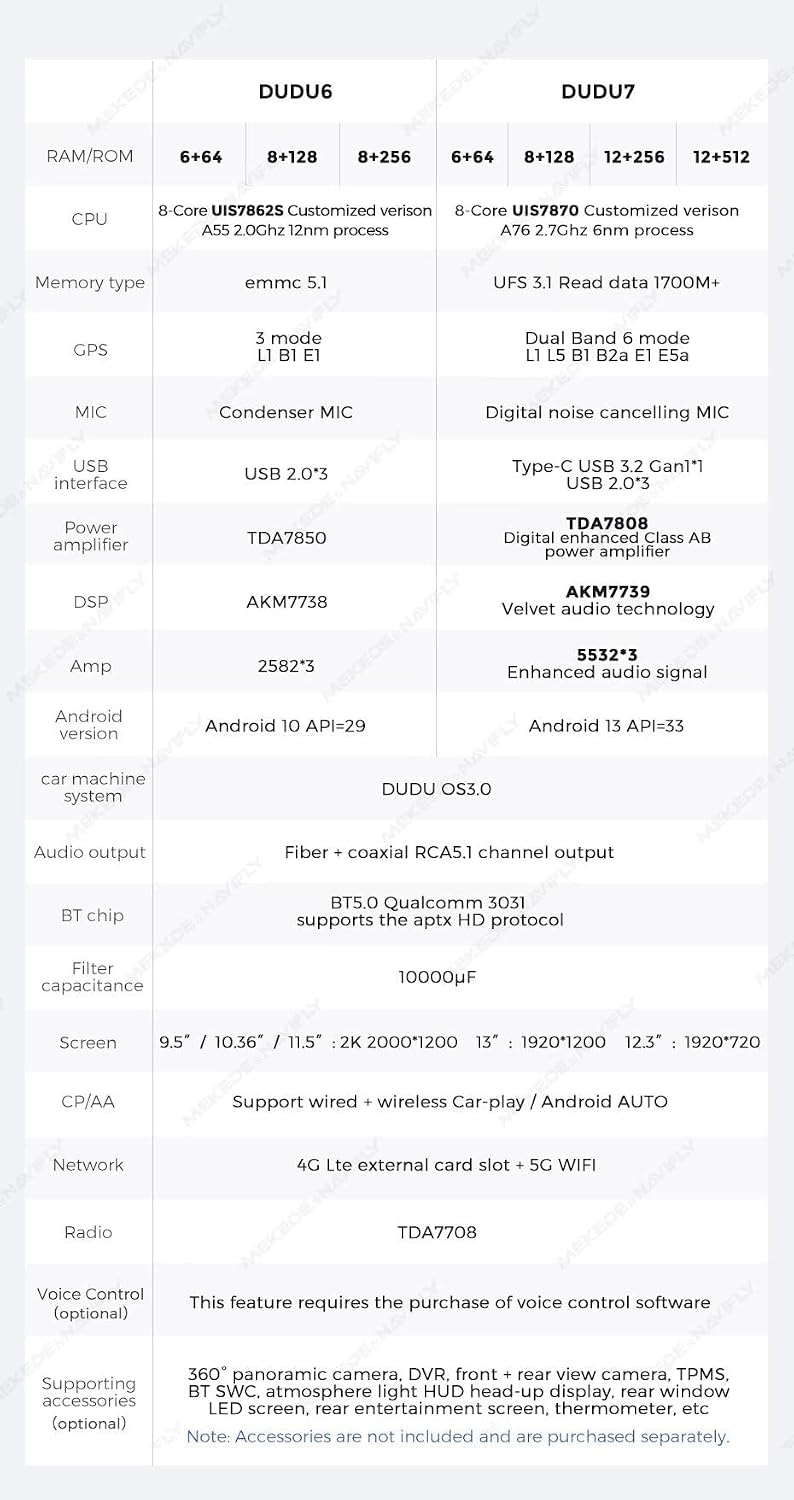
Figure 2.3: This table provides a detailed comparison of specifications between the DUDU6 and DUDU7 models, covering aspects such as RAM/ROM configurations, CPU, memory type, GPS, microphone, USB interface, power amplifier, DSP, Android version, car machine system, audio output, Bluetooth chip, filter capacitance, screen types, CarPlay/Android Auto support, network, radio IC, voice control, and optional supporting accessories.
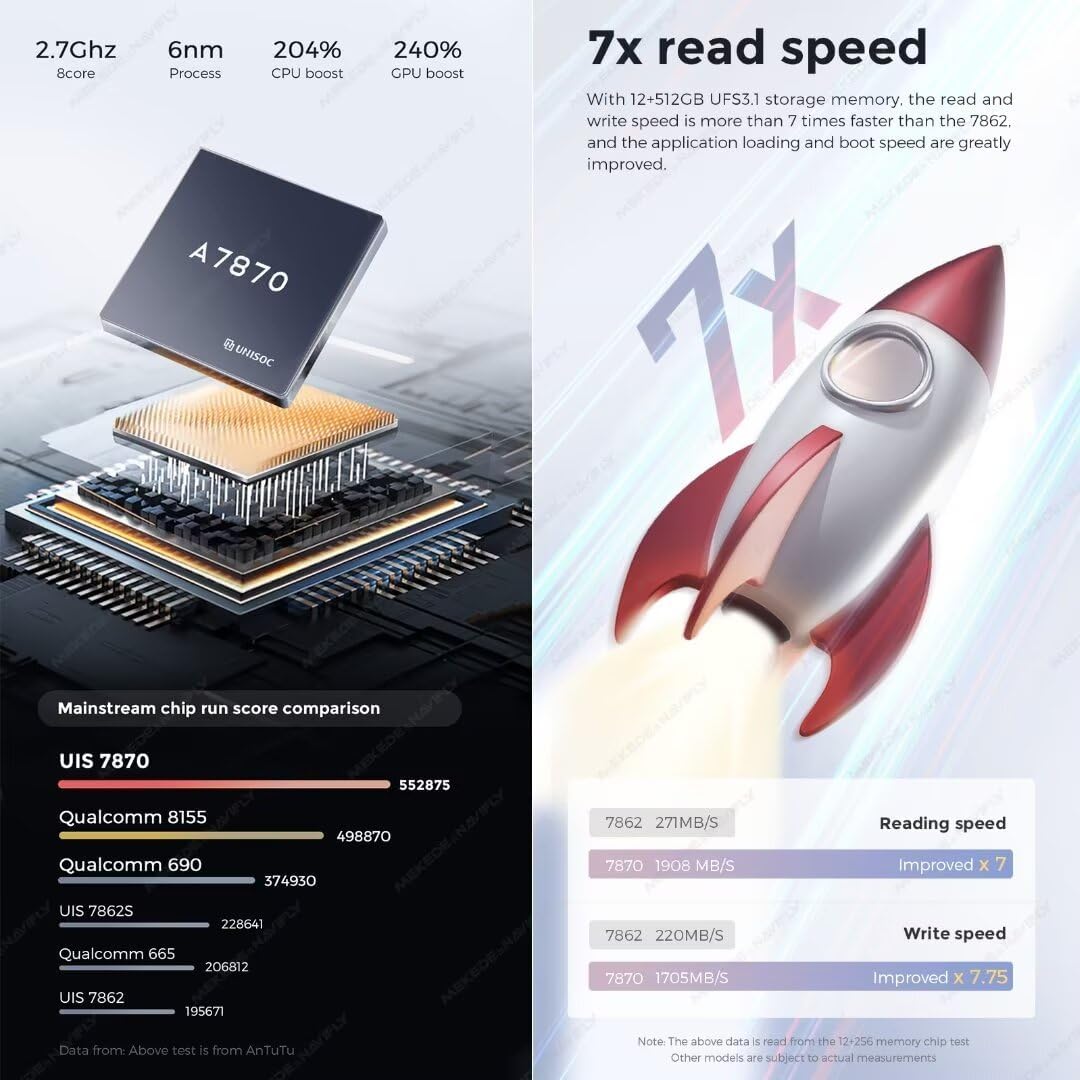
Figure 2.4: This graphic highlights the UIS7870 8-core processor used in the DUDU7, detailing its 2.7GHz speed, 6nm process, 204% CPU boost, and 240% GPU boost. It also illustrates the 7x faster read speed achieved with UFS 3.1 storage compared to previous generations, emphasizing improved application loading and boot times.

Figure 2.5: This image explains the benefits of the DUDU7's Dual Band GPS (L1+L5) for better positioning and signal accuracy, showing a car navigating on a highway. It also details the Digital Noise Cancelling Microphone, which uses a 24-bit ADC module and AKM audio algorithm to deliver clear voice quality by reducing ambient noise.

Figure 2.6: This graphic focuses on the audio components of the DUDU7, featuring the AKM7739 DSP with 'Velvet Audio Technology' for enhanced sound quality and a sense of presence. It also shows the TDA7808 digital amplifier and a 10000µF filter capacitance, indicating robust audio processing capabilities.
3. Setup and Installation
The MekedeTech DUDUAUTO DUDU7 is a universal double din head unit designed for broad compatibility. However, professional installation is highly recommended to ensure proper wiring and functionality, especially for complex vehicle systems.
3.1 Before Installation
- Ensure your vehicle's battery is disconnected before starting any electrical work.
- Verify the compatibility of the head unit with your vehicle's dashboard opening and wiring harness. Adapter kits may be required.
- Gather all necessary tools: screwdrivers, wire strippers, crimpers, electrical tape, etc.
3.2 Wiring Diagram (General Guidance)
Refer to the specific wiring diagram provided with your product packaging for detailed connections. General connections typically include:
- Power: Constant 12V (Yellow), Accessory 12V (Red), Ground (Black).
- Speakers: Connect positive and negative wires for each speaker channel (e.g., Front Left +, Front Left -).
- Antenna: Connect the radio antenna cable.
- USB Ports: Connect external USB devices as needed.
- GPS Antenna: Mount the GPS antenna in a location with a clear view of the sky.
- Reverse Camera Input: Connect if a reverse camera is installed.
- Steering Wheel Controls: Connect to your vehicle's steering wheel control interface (if applicable).
3.3 Mounting
Secure the head unit into the double din opening of your vehicle's dashboard using the provided mounting brackets and screws. Ensure it is firmly in place and does not obstruct any vehicle controls.
4. Operating Instructions
4.1 Basic Operation
- Power On/Off: Press and hold the power button (usually located on the front panel or a soft button on the screen) to turn the unit on or off. A short press typically mutes/unmutes audio.
- Volume Control: Adjust volume using the physical rotary knob (if present) or on-screen volume controls.
- Touch Screen: Navigate the DUDU OS 3.0 interface by tapping, swiping, and pinching on the QLED touch screen.
4.2 Wireless CarPlay & Android Auto
The DUDU7 supports both wireless CarPlay and Android Auto, allowing seamless integration with your smartphone.
- Ensure your phone's Wi-Fi and Bluetooth are enabled.
- On the head unit, open the CarPlay or Android Auto application.
- Follow the on-screen prompts to pair your phone via Bluetooth. Once paired, the system will automatically establish a Wi-Fi connection for wireless CarPlay/Android Auto.
- You can now access navigation, music, calls, and messages directly from the head unit's screen.
4.3 Bluetooth Connectivity
Connect your smartphone or other Bluetooth devices for hands-free calling and audio streaming.
- Go to the Bluetooth settings on the head unit.
- Enable Bluetooth and make the unit discoverable.
- On your phone, search for available Bluetooth devices and select the DUDU7.
- Confirm the pairing code on both devices.
4.4 Navigation and Multimedia
- Navigation: Utilize the built-in GPS with pre-installed maps or download your preferred navigation apps from the Google Play Store. The Dual Band GPS ensures accurate positioning.
- Multimedia Playback: Play audio and video files from USB drives, streaming apps, or via Bluetooth. The unit supports various formats.
- Radio: Access FM/AM radio stations using the integrated radio tuner.
4.5 DUDU OS 3.0 Interface

Figure 4.1: This image showcases the DUDU OS 3.0 user interface with its new custom dynamic wallpaper feature. It displays various screen layouts and modes, including parking assist, music player, trip information, radio, and options for light and dark modes, highlighting the system's customization capabilities.
DUDU OS 3.0 offers a highly customizable and intuitive user experience. Explore the various settings and applications to personalize your head unit:
- Home Screen: Customize widgets and shortcuts for quick access to frequently used functions.
- Settings: Adjust display, audio, network, and system preferences.
- Applications: Download and install apps from the Google Play Store to expand functionality.
- Multi-tasking: Utilize split-screen mode for running two applications simultaneously.
5. Maintenance and Care
- Screen Cleaning: Use a soft, lint-free cloth specifically designed for electronic screens. Do not use abrasive cleaners or solvents. Gently wipe the screen to remove dust and fingerprints.
- General Cleaning: Wipe the unit's exterior with a soft, damp cloth. Avoid getting liquids inside the unit.
- Software Updates: Periodically check for and install software updates to ensure optimal performance and access to new features. Updates can usually be found in the system settings or on the manufacturer's website.
- Temperature: Avoid exposing the unit to extreme temperatures, both hot and cold, as this can affect its performance and lifespan.
- Power Supply: Ensure a stable power supply to prevent damage to the unit.
6. Troubleshooting
If you encounter issues with your DUDUAUTO DUDU7 head unit, refer to the following common problems and solutions:
| Problem | Possible Cause | Solution |
|---|---|---|
| Unit does not power on. | No power connection; Blown fuse; Incorrect wiring. | Check power cables (Yellow, Red, Black) for secure connection. Inspect vehicle's fuse box and the unit's inline fuse. Verify wiring against the diagram. |
| No sound from speakers. | Speaker wires disconnected; Volume too low; Mute function active; Incorrect audio output settings. | Check all speaker wire connections. Increase volume. Disable mute. Verify audio output settings in system. |
| GPS signal weak or inaccurate. | GPS antenna obstructed or improperly placed; Software issue. | Ensure GPS antenna has a clear view of the sky. Relocate antenna if necessary. Restart the unit. Check for system updates. |
| Bluetooth connection unstable. | Interference; Out of range; Device compatibility. | Ensure devices are within range. Remove other Bluetooth devices causing interference. Re-pair the device. Update unit firmware. |
| CarPlay/Android Auto not connecting. | Wi-Fi/Bluetooth off on phone; App not running; Compatibility issue. | Ensure phone's Wi-Fi and Bluetooth are on. Restart phone and head unit. Re-pair Bluetooth. Check for app updates on phone and unit. |
| Touch screen unresponsive. | System freeze; Dirt on screen. | Restart the unit (long press power button). Clean the screen thoroughly. If issue persists, a factory reset might be needed (backup data first). |
If the problem persists after trying these solutions, please contact MekedeTech customer support for further assistance.
7. Technical Specifications
| Feature | Specification |
|---|---|
| Model Number | DUDU7-12.3A |
| Operation System | Android 13 |
| CPU | 8 Core UIS7870 Customized version A76 2.7Ghz 6nm processor |
| Memory Type | UFS 3.1 Read data 1700M+ |
| RAM / ROM | 12G RAM / 512G ROM (as per current product variant) |
| GPS | Dual Band 6 mode L1 L5 B1 B2a E1 E5a |
| Microphone | Digital Noise Cancellation Microphone |
| USB Interface | USB 3.2 GEN1*1 (TYPE-C), USB 2.0*3 |
| Power Amplifier | TDA7808 Digital AB type |
| DSP | AKM7739 Velvet Audio Technology |
| Bluetooth Chip | Qualcomm 3031 (Supports aptx HD protocol, BT5.0) |
| Audio Output | Optical + Coaxial, RCA 5.1 Channel Outputs |
| WiFi Type | 802.11a/b/g/n/ac Support 5G WIFI |
| Radio IC | TDA7708 |
| Work Voltage | 9V~16V |
| Display Type | QLED |
| Display Resolution | 1920x720 |
| Connectivity Technology | Wireless |
| Compatible Devices | Smartphone, Speaker |
| Voice Command | Buttons, Keyboard, Microphone, Touchscreen |
| CarPlay / Android Auto | Support Wired and Wireless |
| 360 Panorama Support | Yes (requires additional 360 chip) |
8. Warranty and Support
For information regarding product warranty, please refer to the warranty card included with your purchase or visit the official MekedeTech website. Warranty terms and conditions may vary by region and retailer.
If you require technical assistance, have questions about installation, or need to report a defect, please contact MekedeTech customer support. Provide your product model number (DUDU7-12.3A) and purchase details when contacting support to expedite the process.
You can typically find contact information on the MekedeTech official website or through your point of purchase.