
1. Introduction
Thank you for choosing the Everest SM-BT09 2-in-1 Wireless Mouse. This device offers versatile connectivity options, allowing you to connect via 2.4GHz wireless technology using a USB receiver or via Bluetooth. It is designed for use with a variety of devices, including desktop computers, laptops, personal computers, smartphones, and tablets. Please read this manual carefully to ensure proper setup and operation.
2. Package Contents
- Everest SM-BT09 Wireless Mouse
- USB 2.4GHz Receiver
- User Manual
3. Product Overview
Familiarize yourself with the components of your Everest SM-BT09 wireless mouse.
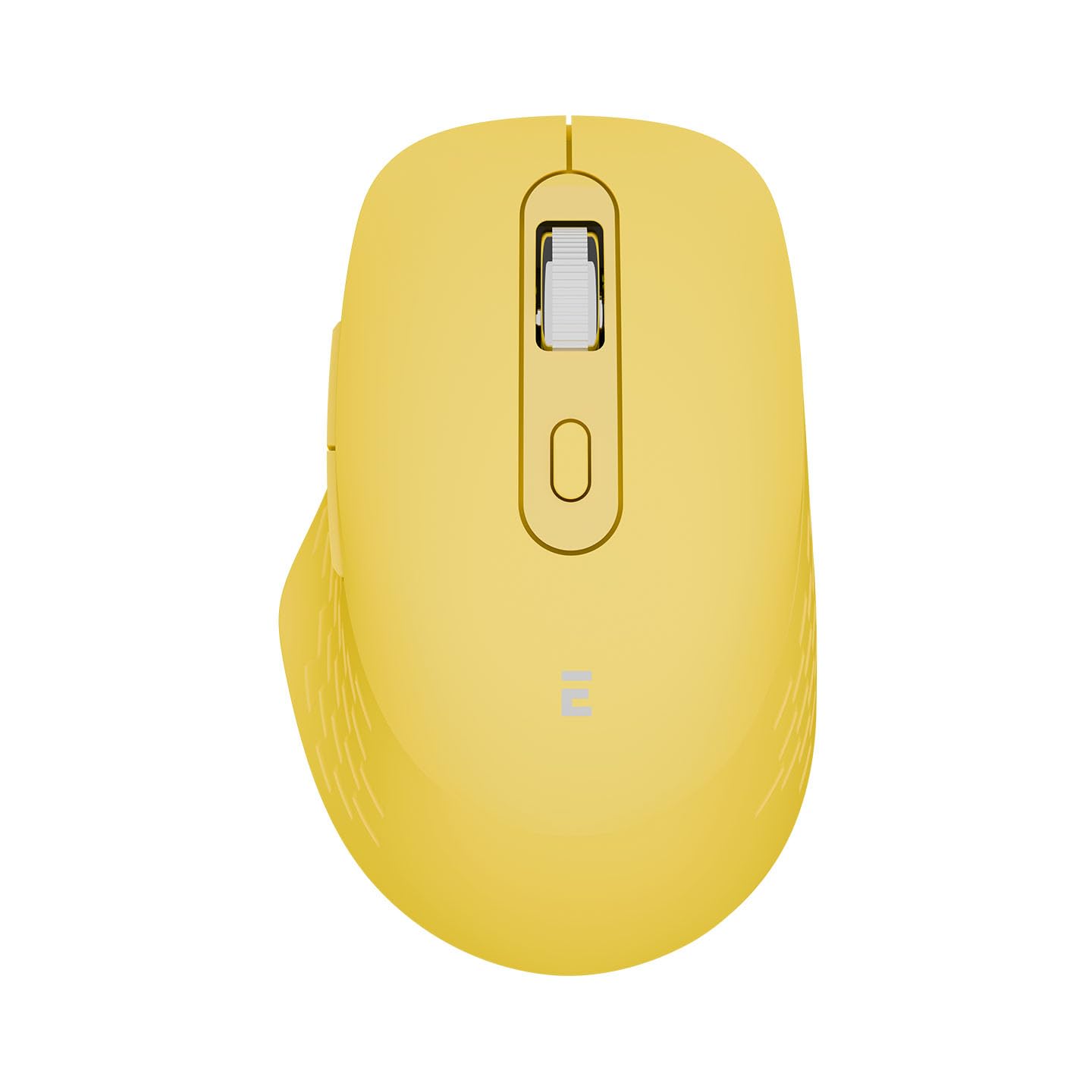
Figure 1: Top-angled view of the Everest SM-BT09 Wireless Mouse, showing the left and right click buttons, scroll wheel, and a button behind the scroll wheel (likely for DPI adjustment).

Figure 2: Side-angled view of the Everest SM-BT09 Wireless Mouse, highlighting the two side buttons on the left side of the mouse.
- Left Click Button: Primary function button.
- Right Click Button: Secondary function button.
- Scroll Wheel: For vertical scrolling and can also function as a middle click button.
- DPI Adjustment Button: Located behind the scroll wheel, used to cycle through different cursor speeds (DPI settings).
- Side Buttons: Two programmable buttons, typically for forward/backward navigation in web browsers.
- Power/Mode Switch: Located on the underside of the mouse, used to turn the mouse on/off and switch between 2.4GHz and Bluetooth modes.
- USB Receiver Storage Slot: Located on the underside of the mouse for convenient storage of the 2.4GHz USB receiver.
4. Setup
4.1 Powering On the Mouse
The Everest SM-BT09 mouse is battery-powered. Locate the power switch on the underside of the mouse and slide it to the 'ON' position. If the mouse does not power on, ensure it is charged or has a functional battery installed.
4.2 2.4GHz Wireless Connection
- Locate the USB 2.4GHz receiver, usually stored in a compartment on the underside of the mouse.
- Insert the USB receiver into an available USB port on your computer or compatible device.
- Slide the power/mode switch on the mouse to the 2.4GHz mode (often indicated by a specific icon or position).
- The mouse should automatically connect to your device. No additional drivers are typically required.
4.3 Bluetooth Connection
- Slide the power/mode switch on the mouse to the Bluetooth mode (often indicated by a Bluetooth icon or 'BT' position).
- The mouse will enter pairing mode. An indicator light on the mouse may flash to show it is discoverable.
- On your computer, smartphone, or tablet, enable Bluetooth and search for new devices.
- Select "Everest SM-BT09" from the list of available devices to initiate pairing.
- Once paired, the indicator light on the mouse will typically stop flashing and remain solid or turn off.
5. Operating the Mouse
- Basic Functions: Use the left and right click buttons for primary and secondary actions. The scroll wheel allows for vertical navigation.
- DPI Adjustment: Press the DPI button (behind the scroll wheel) to cycle through different cursor speeds. This allows you to adjust the mouse sensitivity to your preference.
- Side Buttons: The two side buttons typically function as 'Forward' and 'Backward' in web browsers and file explorers. Their functionality may be customizable through your operating system's mouse settings.
- Switching Modes: To switch between 2.4GHz and Bluetooth connectivity, simply slide the power/mode switch on the underside of the mouse to the desired position.
6. Maintenance
- Cleaning: Use a soft, dry cloth to clean the mouse. For stubborn dirt, slightly dampen the cloth with water. Avoid using harsh chemicals or abrasive materials.
- Storage: When not in use, store the mouse in a clean, dry environment. If storing for an extended period, turn off the mouse to conserve battery life.
- Battery Care: If your mouse has a rechargeable battery, avoid fully discharging it frequently. Charge it regularly to maintain battery health.
7. Troubleshooting
- Mouse Not Responding:
- Ensure the mouse is turned on.
- Check the battery level.
- For 2.4GHz, ensure the USB receiver is securely plugged into a working USB port. Try a different USB port.
- For Bluetooth, ensure Bluetooth is enabled on your device and the mouse is correctly paired. Try re-pairing the mouse.
- Ensure the mouse is within the effective operating range of your device.
- Erratic Cursor Movement:
- Clean the optical sensor on the underside of the mouse.
- Use the mouse on a clean, non-reflective surface. A mouse pad is recommended.
- Connection Drops Frequently:
- Reduce interference from other wireless devices.
- Ensure the mouse is close to the receiver or Bluetooth device.
8. Specifications
| Brand | Everest |
| Model | SM-BT09 |
| Connectivity | 2.4GHz Wireless, Bluetooth |
| Movement Detection | Optical |
| Number of Buttons | 3 (Primary: Left, Right, Scroll Click. Additional side and DPI buttons are present.) |
| Compatible Devices | Desktop Computer, Laptop, Personal Computer, Smartphone, Tablet |
| Power Source | Battery Powered |
9. Warranty and Support
For warranty information and technical support, please refer to the documentation provided with your purchase or visit the official Everest website. Keep your proof of purchase for warranty claims.


