
Introduction
This manual provides essential instructions for the setup, operation, maintenance, and troubleshooting of your CIDETTY 14" Triple Monitor Laptop Screen Extender, Model S2. Please read this manual thoroughly before using the product to ensure proper functionality and to prevent damage.
Package Contents
Verify that all items listed below are included in your package:
- 1 x CIDETTY 14" Triple Monitor Laptop Screen Extender
- 2 x USB-C to USB-C Cable
- 2 x USB-A to USB-C Power Supply Cable
- 1 x HDMI to USB-C Cable
- 1 x Protective Case
- 1 x User Guide (this document)

Image: The package contents laid out, showing the triple monitor unit, various cables (USB-C to USB-C, USB-A to USB-C, HDMI to USB-C), a protective case, and the user guide.
Product Overview
The CIDETTY 14" Triple Monitor Laptop Screen Extender (Model S2) is designed to expand your laptop's display capabilities, offering a portable multi-screen workstation. It features two 14-inch FHD 1080P IPS screens with blue light filtering and anti-glare technology. The unit includes built-in speakers and multiple connectivity options.
Key Features:
- Display: 14-inch FHD 1080P IPS panels.
- Eye Protection: Blue light filtering and anti-glare technology.
- Audio: Integrated speakers.
- Portability: Ultra-slim design (0.24 inches screen thickness) with a protective case.
- Connectivity: Two USB Type-C ports and one HDMI to USB-C port.
- Compatibility: Windows, macOS, Linux, PS, Xbox, Switch. (Note: Not compatible with MacBook M1, M2, or M3 chips or Surface devices with only one Type-C port).

Image: A CIDETTY triple monitor setup attached to a laptop, showcasing the three screens in use. The central screen displays the CIDETTY logo with "1080 FULL HD 16:9 IPS HDR" indicators, while the side screens show vibrant desktop backgrounds.
Setup Instructions
Follow these steps to set up your CIDETTY Triple Monitor Extender:
- Unpack the Device: Carefully remove the monitor extender and all accessories from the packaging.
- Position the Extender: Place the extender on a stable surface. The central part of the extender is designed to attach to the back of your laptop screen.
- Connect Cables:
The connection method depends on your laptop's available ports:
- Option 1: Two Full-Function USB-C Ports
Connect each side monitor to a separate full-function USB-C port on your laptop using the provided USB-C to USB-C cables. This single cable provides both video and power.
- Option 2: One Full-Function USB-C Port and One HDMI Port
Connect one side monitor to a full-function USB-C port using a USB-C to USB-C cable. For the second side monitor, connect the HDMI to USB-C cable to your laptop's HDMI port and the monitor's USB-C port. Additionally, connect a USB-A to USB-C power supply cable from your laptop's USB-A port (or a power adapter) to the second monitor's USB-C port for power.
Important Note:
- Ensure your laptop has the necessary ports (two full-function Type-C ports OR one full-function Type-C port and one HDMI port) for both screens to operate simultaneously.
- If your laptop has only one Type-C port, it may not be compatible with this triple monitor setup.
- MacBook models with M1, M2, or M3 chips are not compatible.
- Surface devices with only one Type-C port are not compatible.
- Option 1: Two Full-Function USB-C Ports
- Power On: Once connected, the monitors should automatically power on and detect the signal. If not, press the power button on the monitor.
- Adjust Display Settings:
- Windows: Right-click on the desktop, select "Display settings." You can arrange the displays, change resolution, and set display modes (Extend, Duplicate, Show only on 1/2/3).
- macOS: Go to "System Settings" > "Displays." You can arrange displays, adjust resolution, and select display modes.

Image: A diagram illustrating two primary connection methods for the CIDETTY triple monitor. Method 1 shows connecting two monitors via two full-function USB-C ports using USB-C to USB-C cables. Method 2 shows connecting one monitor via a full-function USB-C port and the second monitor via HDMI and a USB-A power cable.
Operating Instructions
Display Modes:
- Extend Mode: Each screen displays different content, expanding your desktop workspace. This is ideal for multitasking.
- Mirror Mode: All screens display the same content as your primary laptop screen. Useful for presentations or sharing content.
- Portrait Mode: The side monitors can be rotated to a vertical orientation, providing a portrait display. This is beneficial for viewing documents or code.
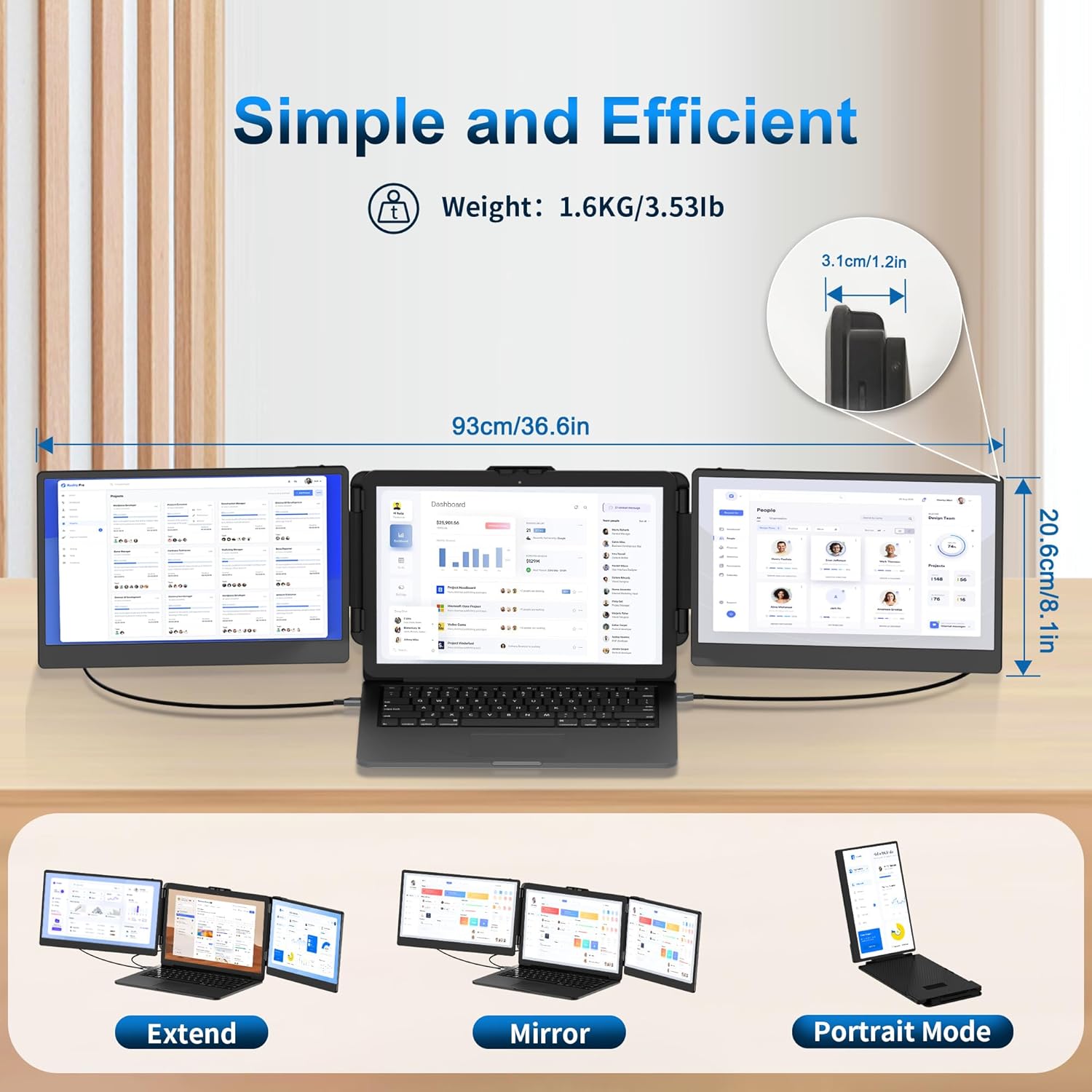
Image: A visual representation of the CIDETTY triple monitor in various application modes: Extend, Mirror, and Portrait Mode, demonstrating how the screens can be configured for different uses.
Adjusting Settings:
The monitor features a multifunction button for adjusting various display parameters.
- Power (Multifunction) Button: This button is used to adjust brightness, sound contrast, and other parameters. Refer to the on-screen display (OSD) menu for detailed options.

Image: A close-up view of the side of the CIDETTY S2 monitor, highlighting and labeling its ports and buttons: Power (Multifunction) Button, Type-C1 & Type-C2 ports, HDMI Port, and Speaker location.
Maintenance
- Cleaning the Screen: Use a soft, lint-free cloth slightly dampened with water or a screen-cleaning solution. Avoid harsh chemicals or abrasive materials.
- Cleaning the Casing: Wipe the exterior with a soft, dry cloth.
- Storage: When not in use, fold the extender and store it in the provided protective case to prevent scratches and damage.
- Cable Care: Handle cables gently. Avoid bending them sharply or pulling them forcefully from the ports.
Troubleshooting
| Problem | Possible Cause | Solution |
|---|---|---|
| No display on one or both screens. |
|
|
| Screens flicker or display unstable image. |
|
|
| No sound from built-in speakers. |
|
|
| Laptop battery drains quickly. |
|
|
Specifications
| Feature | Detail |
|---|---|
| Model Number | S2 |
| Screen Size | 14 Inches (each monitor) |
| Resolution | FHD 1080p (1920 x 1080 Pixels) |
| Panel Type | IPS |
| Aspect Ratio | 16:9 |
| Refresh Rate | 60Hz |
| Voltage | 5 Volts |
| Connectivity | 2 x USB Type-C, 1 x HDMI (via USB-C adapter) |
| Product Dimensions | 13.85 x 8.08 x 1.52 inches |
| Item Weight | 6.78 pounds |
| Manufacturer | CIDETTY |
Warranty and Support
For warranty information and customer support, please refer to the documentation included with your purchase or contact CIDETTY customer service directly. If you encounter any connection issues or require assistance, please contact our customer service for support.
Contact Information: Please refer to the CIDETTY official website or your purchase platform for the most up-to-date customer service contact details.
Safety Information
- Do not expose the device to water or excessive moisture.
- Avoid extreme temperatures.
- Do not attempt to disassemble or repair the device yourself. Contact qualified personnel for service.
- Keep out of reach of children.
- Use only approved power cables and adapters.


