
OffiGo B0DC5Z3KW6
OffiGo Electric Standing Desk (Model B0DC5Z3KW6) Instruction Manual
Brand: OffiGo
Introduction
This manual provides detailed instructions for the assembly, operation, and maintenance of your OffiGo Electric Standing Desk, Model B0DC5Z3KW6. Please read this manual thoroughly before use to ensure proper function and safety.

Image: The OffiGo Electric Standing Desk in a white finish, featuring dual monitors, a keyboard, mouse, and various desk accessories. The integrated LED lighting under the monitor shelf is illuminated, and the two fabric drawers and keyboard tray are visible.
Safety Information
To prevent injury or damage to the desk, observe the following safety precautions:
- Always ensure the desk is stable and properly anchored to the floor before use.
- Do not exceed the weight limit of the desk.
- Keep electrical components dry and away from any heat sources.
- Always unplug the desk when not in use or when adjusting the height.
- Keep the desk and its components away from children and pets.
- Ensure no obstructions are present during height adjustments.
Product Features
The OffiGo Electric Standing Desk is designed with several features to enhance your workspace:
- Electric Height Adjustment: Seamlessly switch between sitting and standing positions with a height range of 30.7 inches to 47.6 inches. Includes 3 memory presets.
- Integrated Power Outlets: Features a built-in power socket with 3 AC outlets and 2 USB ports (5V/2A) for convenient device charging.
- LED Lighting: Customize your ambiance with 20 dynamic lighting modes.
- Storage Solutions: Two fabric drawers provide storage for office supplies, and a slide-out keyboard tray offers additional space for a keyboard, mouse, or small items.
- Full-sized Monitor Shelf: An ergonomic monitor stand helps reduce neck and back strain and provides extra storage.
- Cable Management: A hidden cable management tray keeps your desktop organized and clutter-free.

Image: An overhead view of the OffiGo Electric Standing Desk highlighting its practical multi-functionality, including integrated charging, storage options, and ergonomic design for a tidy workspace.
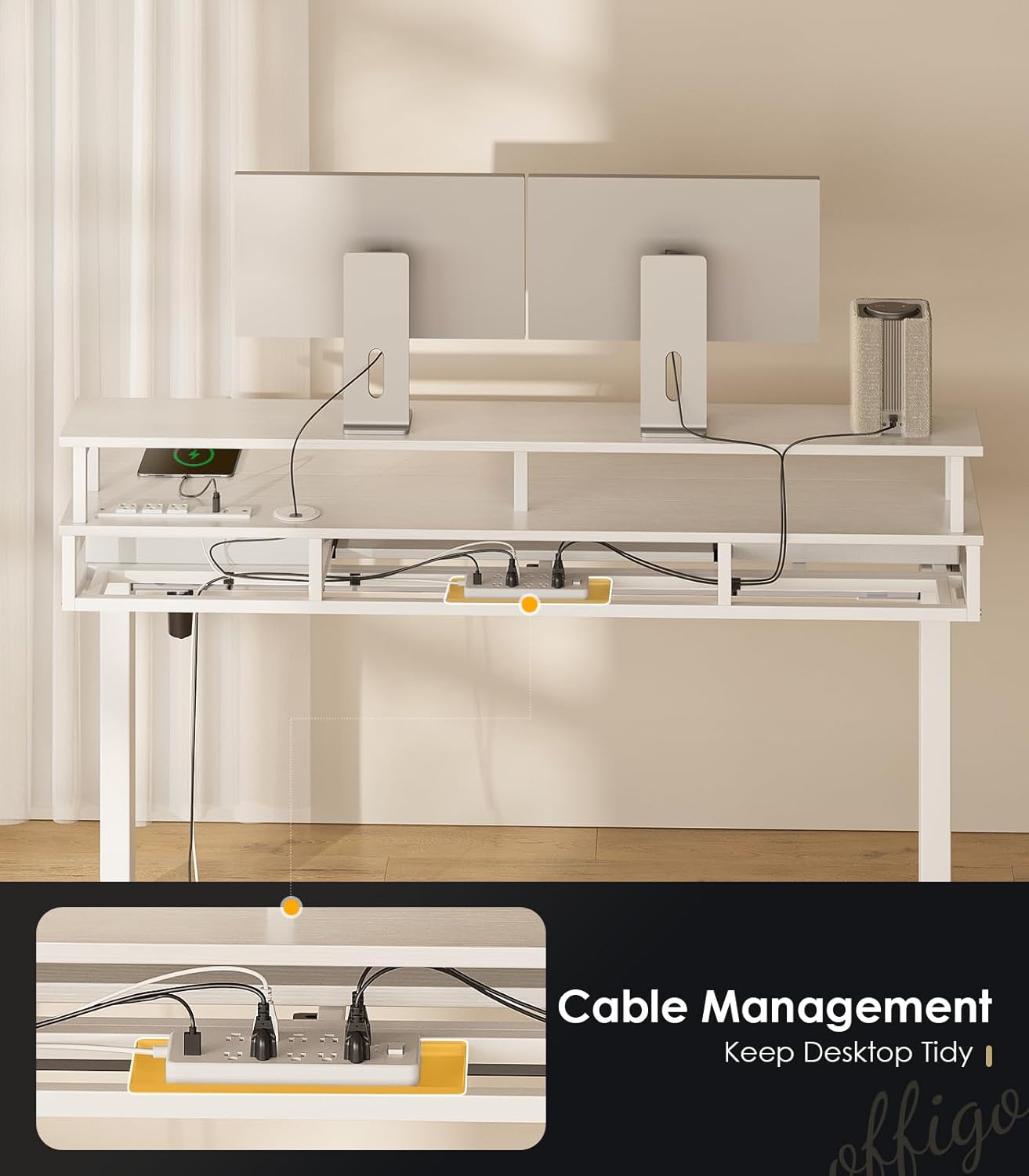
Image: A view of the underside of the OffiGo Electric Standing Desk, revealing the hidden cable management tray designed to keep wires organized and the desktop clutter-free.
Setup and Assembly
The OffiGo Electric Standing Desk requires assembly. Detailed instructions and all necessary parts are included in the packaging. It is recommended to have two people for assembly to ensure stability and ease of construction.
- Unpack Components: Carefully remove all parts from the packaging and verify against the parts list provided in your assembly guide.
- Assemble Frame: Follow the step-by-step instructions to assemble the desk frame, ensuring all screws are tightened securely.
- Attach Desktop: Secure the desktop to the assembled frame.
- Install Drawers and Keyboard Tray: Mount the fabric drawers and slide-out keyboard tray according to the instructions.
- Connect Electrical Components: Connect the motor, control panel, power outlets, and LED lights as indicated in the manual. Ensure all connections are firm.
- Cable Management: Utilize the integrated cable management tray to organize power cords and other cables.
- Initial Power-Up: Plug the desk into a grounded power outlet. Perform an initial calibration if required by your specific model's instructions.

Image: A diagram illustrating the product dimensions of the OffiGo Electric Standing Desk, showing its height range from 30.7 inches (sitting) to 47.6 inches (standing), along with desktop and shelf measurements.
Operating Instructions
Height Adjustment
The desk features an electric motor for smooth height adjustments. Ensure no objects obstruct the desk's movement during operation.
- Adjusting Height: Use the up and down arrows on the control panel to raise or lower the desk to your desired height.
- Memory Presets: The desk has 3 programmable memory buttons. To set a preset, adjust the desk to your preferred height, then press the "M" button followed by a number button (1, 2, or 3). The desk will beep to confirm the setting. To recall a preset height, simply press the corresponding number button.

Image: A visual representation of the OffiGo Electric Standing Desk's height adjustment capabilities, showing its minimum height of 30.7 inches and maximum height of 47.6 inches.

Image: A woman using the OffiGo Electric Standing Desk in a standing position, demonstrating the ergonomic benefits of the adjustable height feature.
Power Outlets and USB Ports
The integrated power strip provides convenient access to power for your devices.
- AC Outlets: Plug in your computer, monitor, or other AC-powered devices into the 3 standard outlets.
- USB Ports: Use the 2 USB ports (5V/2A) to charge smartphones, tablets, or other USB-powered accessories.

Image: A detailed view of the integrated power strip on the desk, highlighting the three AC outlets and two USB ports, with various devices connected for charging.
LED Lighting
The desk includes integrated LED lights with multiple modes.
- Activating Lights: Use the dedicated button on the control panel to turn the LED lights on/off.
- Changing Modes: Cycle through the 20 available lighting modes (including 10 static colors and 10 dynamic effects) by pressing the mode button.
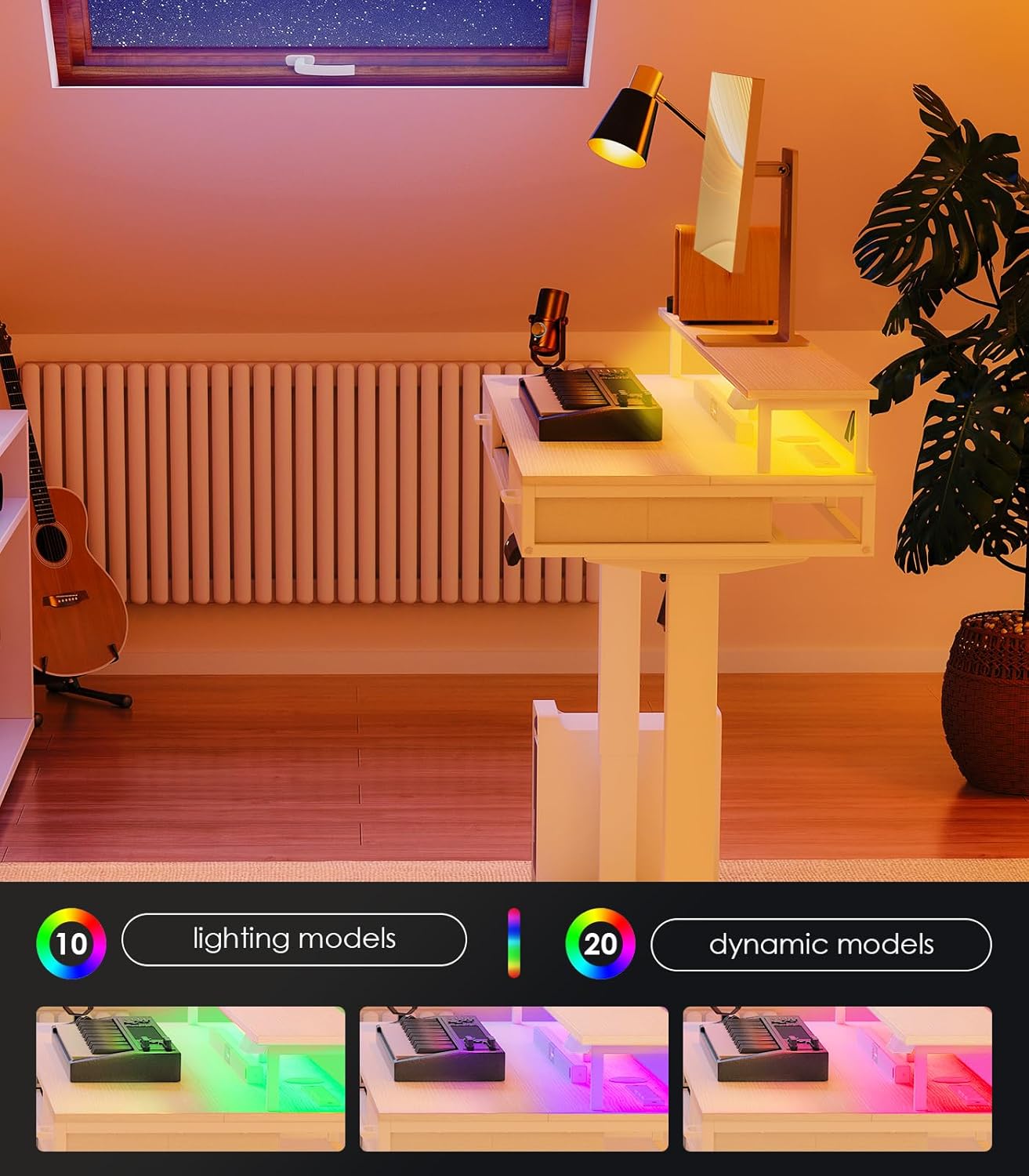
Image: The OffiGo Electric Standing Desk with its LED lights displaying a range of colors and dynamic effects, illustrating the customizable lighting options.
Drawers and Keyboard Tray
The desk is equipped with two fabric drawers and a slide-out keyboard tray for enhanced organization.
- Fabric Drawers: Gently pull the handles to open the drawers. Avoid placing excessively heavy items in the fabric drawers to prevent damage.
- Keyboard Tray: The tray slides out for use and can be pushed back in when not needed. Ensure the tray is fully extended or retracted to avoid obstruction.

Image: An aerial view of the OffiGo Electric Standing Desk, displaying the two open fabric drawers filled with office supplies and the extended keyboard tray holding a keyboard and mouse.
Maintenance
Regular maintenance ensures the longevity and proper function of your OffiGo Electric Standing Desk.
- Cleaning: Wipe the desk surfaces with a soft, damp cloth. Avoid abrasive cleaners or harsh chemicals that may damage the finish.
- Electrical Components: Keep all electrical connections dry and free from dust. Periodically check the power cord for any signs of damage.
- Moving Parts: Ensure the lifting columns are free from obstructions. Do not apply lubricants to the lifting mechanism unless specifically instructed by OffiGo support.
- Weight Distribution: Distribute weight evenly across the desktop to prevent strain on the lifting mechanism.
Troubleshooting
If you encounter issues with your OffiGo Electric Standing Desk, refer to the following common troubleshooting steps:
| Problem | Possible Cause | Solution |
|---|---|---|
| Desk does not move or respond to controls. | Power cord disconnected, circuit breaker tripped, motor overload. |
|
| Desk moves unevenly or makes grinding noises. | Obstruction, damaged lifting column, motor issue. |
|
| LED lights are not working. | Loose connection, power issue, faulty LED strip. |
|
| Memory presets are not saving. | Incorrect saving procedure. |
|
Specifications
| Feature | Detail |
|---|---|
| Brand | OffiGo |
| Model | B0DC5Z3KW6 |
| Product Dimensions (D x W x H) | 21.2"D x 55.1"W x 30.9"H |
| Color | White |
| Height Adjustment Range | 30.7" to 47.6" |
| Base Material | Alloy Steel |
| Top Material Type | Engineered Wood |
| Power Outlets | 3 AC Sockets (125V/12A) |
| USB Ports | 2 USB Ports (5V/2A) |
| LED Lighting Modes | 20 (10 static, 10 dynamic) |
| Drawers | 2 Fabric Drawers |
| Keyboard Tray | 1 Slide-out Keyboard Tray |
| Assembly Required | Yes |
Warranty and Support
The OffiGo Electric Standing Desk comes with a Limited Warranty. For specific terms and conditions, please refer to the warranty card included with your product or contact OffiGo customer service.
OffiGo is committed to providing comprehensive after-sales service, including installation guidance and maintenance support. If you require assistance with assembly, operation, or troubleshooting that is not covered in this manual, please contact our customer support team.
For customer support, please visit the OffiGo Store on Amazon or refer to the contact information provided in your product packaging.
Ask a question about this manual
Ask about setup, troubleshooting, compatibility, parts, safety, or missing instructions. Manuals+ will review the question and use this page’s manual context to help answer it.