1. Introduction
This manual provides detailed instructions for setting up, operating, and maintaining your DEVIA Smart Watch WT1. Please read this manual thoroughly before using the device to ensure proper function and optimal performance. Keep this manual for future reference.
2. Package Contents
Ensure all items are present in the package:
- DEVIA Smart Watch WT1
- Charging Cable
- User Manual (this document)
3. Product Overview
Familiarize yourself with the components of your DEVIA Smart Watch WT1.

Figure 3.1: Front view of the DEVIA Smart Watch WT1 with its black strap. The watch features a round display and a sleek design.
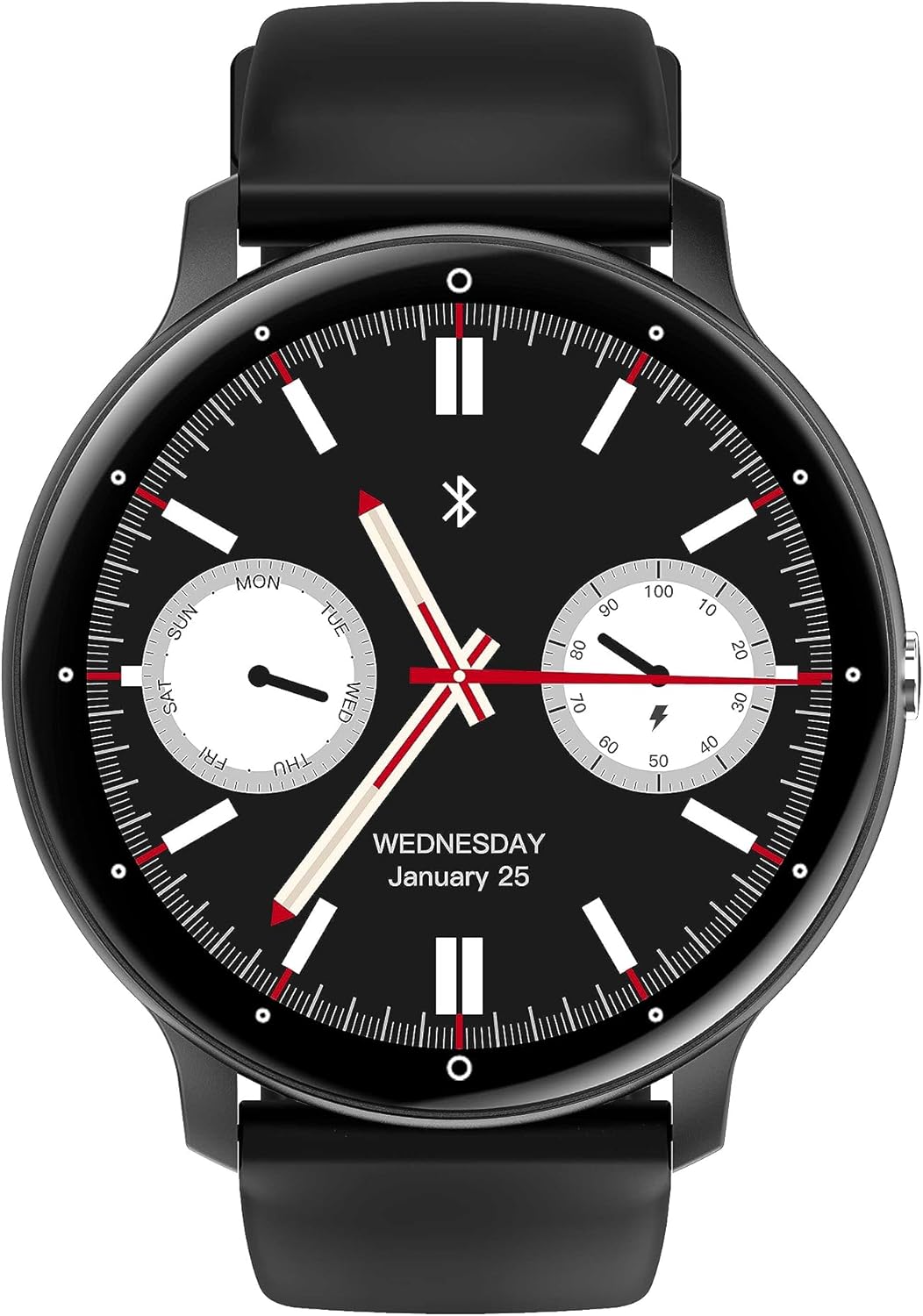
Figure 3.2: Close-up of the watch face, displaying the current time, date (Wednesday, January 25), and two sub-dials for activity tracking, along with a Bluetooth connection icon.

Figure 3.3: The rear of the watch, showing the optical heart rate sensors and magnetic charging contacts. Regulatory marks such as CE are also visible.

Figure 3.4: Side view of the DEVIA Smart Watch WT1, illustrating its profile and the single physical button on the right side of the casing.
4. Setup
4.1. Charging the Device
Before first use, fully charge your Smart Watch WT1.
- Connect the magnetic charging cable to the charging contacts on the back of the watch.
- Connect the USB end of the cable to a standard USB power adapter (not included) or a computer's USB port.
- The watch display will show a charging indicator.

Figure 4.1: The DEVIA Smart Watch WT1 magnetically attached to its charging cable.

Figure 4.2: The watch display indicating that the device is charging, with a battery icon and 'Charging' text.
4.2. Power On/Off
- Power On: Press and hold the side button until the DEVIA logo appears.
- Power Off: From the watch face, swipe down to access the quick settings, then tap the power icon, or navigate to 'Settings' > 'System' > 'Power Off'.
4.3. App Connection (DaFit APP)
To unlock the full functionality of your Smart Watch WT1, connect it to your smartphone using the DaFit application.
- Download the 'DaFit' app from your smartphone's app store (iOS or Android).
- Open the DaFit app and follow the on-screen instructions to create an account or log in.
- Ensure Bluetooth is enabled on your smartphone.
- In the DaFit app, tap 'Add Device' or similar option to search for your watch.
- Select 'WT1' from the list of available devices to pair.
- Confirm the pairing request on both your watch and smartphone.

Figure 4.3: An illustration of the DaFit app interface on a smartphone, showing the watch connection status, options for changing watch faces, and various settings like notifications and alarms.
5. Operating Instructions
5.1. Basic Navigation
- Touchscreen: Swipe left/right, up/down to navigate through menus and features. Tap to select.
- Side Button: Press once to return to the watch face or wake the screen. Press and hold for power options.
5.2. Customization
The WT1 allows for personalized watch faces to match your style.
- Changing Watch Faces: On the watch face, press and hold the screen, then swipe left or right to browse available watch faces. Tap to select. More options are available through the DaFit app.
5.3. Notifications
Receive real-time notifications directly on your wrist.
- Ensure notifications are enabled in the DaFit app for desired applications (calls, messages, social media, email).
- Swipe up from the watch face to view your notification history.
5.4. Health Monitoring
The Smart Watch WT1 provides comprehensive health tracking features.
- Heart Rate Monitoring: The watch continuously monitors your heart rate. View real-time data on the watch or detailed trends in the DaFit app.
- Sleep Analysis: Wear the watch to bed for automatic sleep tracking. The app provides insights into sleep stages and quality.
- Step Counting & Calories: Tracks your daily steps, distance, and estimated calories burned.
- Blood Oxygen (SpO2) & Stress Monitoring: Access these features through the watch menu to take measurements. Data is synced to the DaFit app.
5.5. Exercise Function
Track your workouts with built-in exercise modes.
- Navigate to the 'Exercise' menu on the watch.
- Select your desired activity (e.g., running, cycling, walking).
- The watch will record duration, distance, calories, and heart rate during your workout.
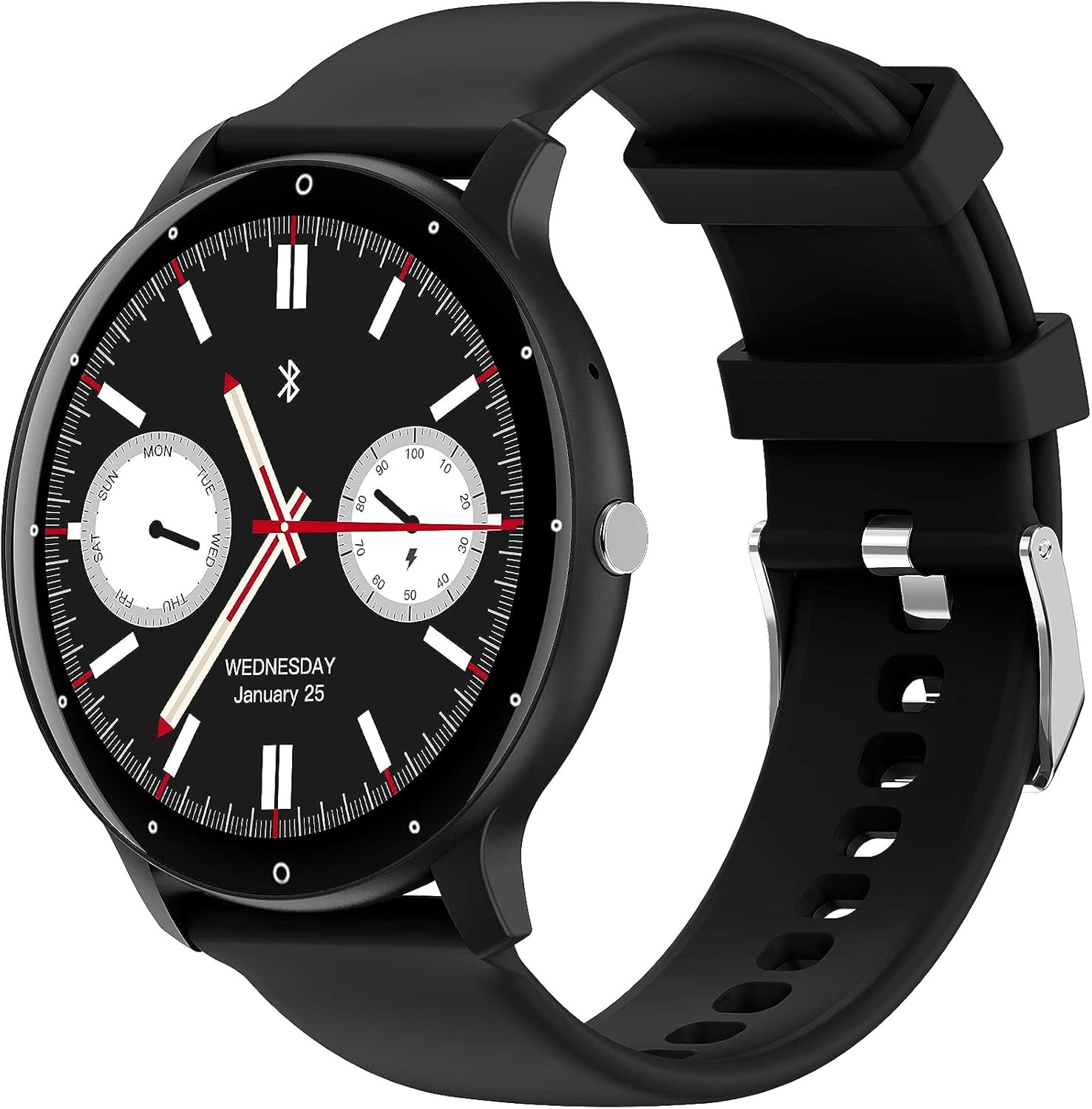
Figure 5.1: The DEVIA Smart Watch WT1 worn on a wrist, displaying exercise data such as duration during an activity.
5.6. Call Function
Make and receive calls directly from your watch when connected to your smartphone via Bluetooth.
- Ensure the call function is enabled in the DaFit app.
- Use the watch's dialer or contact list to initiate calls.
- Answer incoming calls by tapping the green icon on the watch screen.
5.7. GPS
The integrated GPS provides accurate tracking for outdoor activities.
- When starting an outdoor exercise, the watch will attempt to acquire a GPS signal.
- View your route and distance data in the DaFit app after your activity.
6. Maintenance
6.1. Water Resistance
The DEVIA Smart Watch WT1 is rated IP67 waterproof, meaning it can withstand splashes, rain, and brief immersion in water up to 1 meter for 30 minutes. It is suitable for daily use, including hand washing and showering, but not recommended for diving or high-pressure water activities.
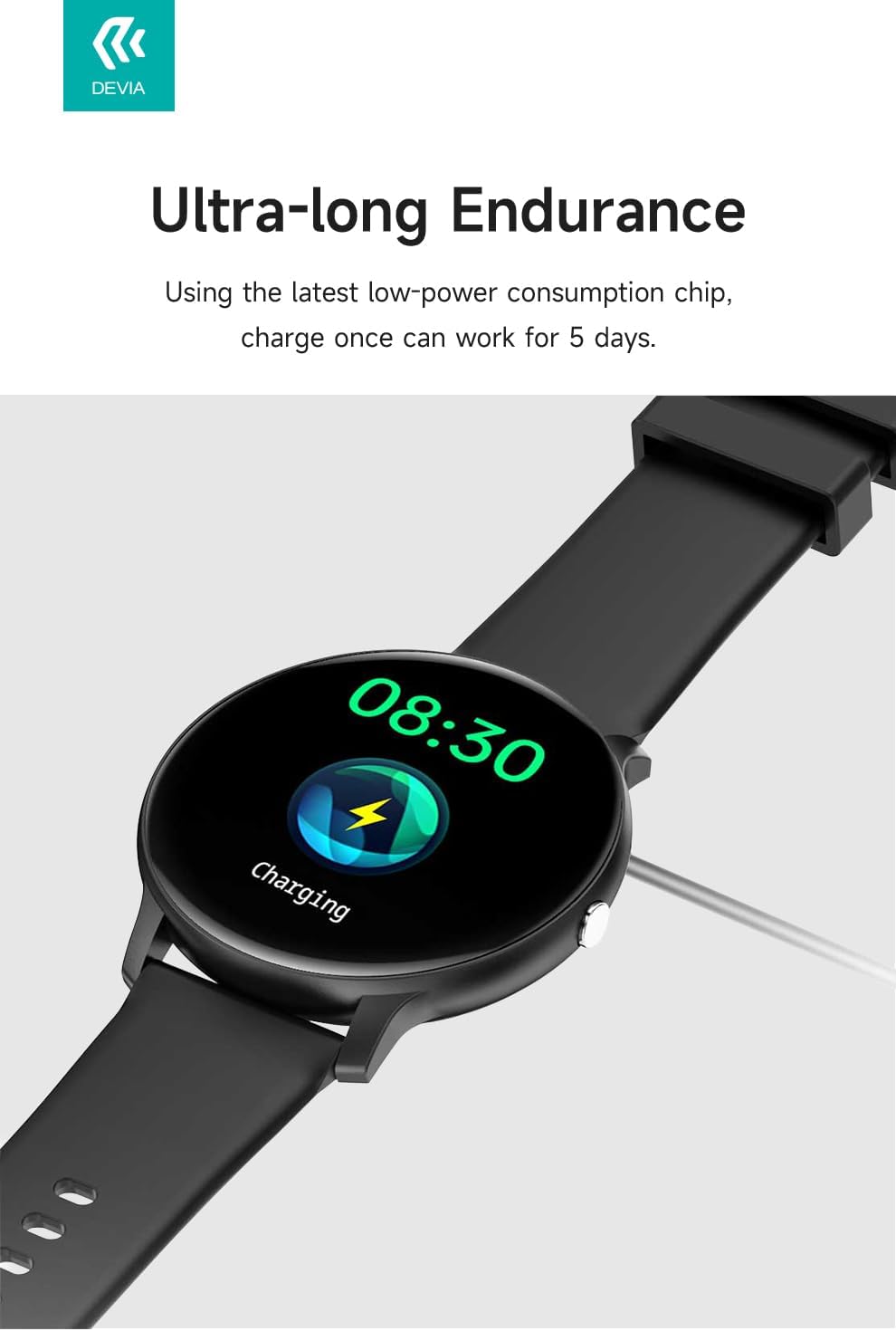
Figure 6.1: The watch screen showing health data, with water droplets on the surface, demonstrating its water-resistant capabilities.
6.2. Cleaning
- Wipe the watch and strap regularly with a soft, damp cloth.
- Avoid using harsh chemicals or abrasive materials.
- Ensure the charging contacts are clean and dry before charging.
7. Troubleshooting
- Watch not turning on: Ensure the watch is fully charged. Connect it to the charger for at least 30 minutes.
- Cannot pair with phone: Make sure Bluetooth is enabled on your phone and the watch. Restart both devices and try pairing again. Ensure the DaFit app has necessary permissions.
- Inaccurate health data: Ensure the watch is worn snugly on your wrist, not too tight or too loose. Clean the sensor area regularly.
- Notifications not received: Check notification settings in the DaFit app and your phone's system settings to ensure the app has permission to display notifications.
- Short battery life: Reduce screen brightness, disable unnecessary features, and ensure background app usage is optimized.
8. Specifications
| Feature | Specification |
|---|---|
| Brand | Devia |
| Model Name | WT1 |
| Model Number | 384943 |
| Display Size | 1.39 inches |
| Display Type | Digital |
| Connectivity | Bluetooth, Wi-Fi |
| Compatible Devices | Smartphone |
| Special Features | ECG, GPS, Time Display |
| Water Resistance | IP67 (up to 50 meters, as per product description) |
| Battery Life (Average) | Up to 168 hours (7 days) |
| Item Weight | 130 grams |
| Input Interface | Touchscreen |
9. Warranty and Support
9.1. Warranty Information
The DEVIA Smart Watch WT1 comes with a 1-year service warranty from the date of purchase, covering manufacturing defects. Please retain your proof of purchase for warranty claims. This warranty does not cover damage caused by misuse, accidents, unauthorized modifications, or normal wear and tear.
9.2. Customer Support
For technical assistance, troubleshooting, or warranty inquiries, please visit the official DEVIA website or contact customer support.
- Official Website: www.mydevia.com
- General Support: www.guide4goods.com


