
Introduction
This manual provides detailed instructions for the installation, operation, maintenance, and troubleshooting of your Carpuride W502B Motorcycle Carplay Screen. Please read this manual thoroughly before using the device to ensure proper function and safety.
1. Setup and Installation
1.1 Package Contents
Before installation, verify that all components are present in the package:

Image: Carpuride W502B packing list and dimensions. This image displays the device dimensions, a detailed packing list including the screen, sunshade, power cord, various brackets, USB boost cable, and user manual.
- Carpuride W502B Motorcycle Carplay Screen
- Custom bracket kit for BMW motorcycles
- U-shaped support rod
- USB boost voltage cable
- Power line
- User Manual
- 64GB TF Card (pre-installed or separate)
- Special tools for installation
1.2 Mounting the Device
The Carpuride W502B offers two primary installation methods:

Image: Two installation methods for Carpuride W502B. This image illustrates step-by-step guides for mounting the device on BMW motorcycles with an original navigation base and on other motorcycles using a universal phone holder.
- Method 1 (For BMW R1200GS, R1250GS, S1000XR with Original Navigation Base):
- Ensure your BMW motorcycle has the original navigation base.
- Install the provided BMW bracket onto the motorcycle's navigation base.
- Attach the Carpuride W502B screen to the installed bracket.
- Secure all components firmly.
- Method 2 (For General Motorcycle Phone Holders):
- Install the BMW bracket onto a compatible mobile phone holder.
- Attach the Carpuride W502B screen to the installed bracket.
- Secure all components firmly.
The custom bracket kit and secure screw system ensure a stable setup.
1.3 Power Connection
The Carpuride W502B offers three power connection options:

Image: Carpuride W502B installation diagram with power connection options. This diagram illustrates wiring for the BMW special bracket and using a USB boost voltage cable with a motorcycle USB port.
- Original BMW Motorcycle Bracket: Power is supplied directly through the original BMW motorcycle bracket.
- Motorcycle Power Line:
- Connect the provided motorcycle power line to your motorcycle's battery (ACC+12V and ground).
- Important: Ensure the output voltage is 12V and current is 1A.
- USB Boost Voltage Cable:
- Connect the USB boost voltage cable to a motorcycle USB port.
- Important: The USB port must provide an output of 5V and 2.5A or higher. Insufficient voltage or current may cause the screen to shut down automatically.
The W502B features built-in reverse protection, preventing damage even if the power cable is connected incorrectly.
1.4 Initial Power On
- To Power On: Short press the power button.
- To Shut Down: Long press the power button.
- To Turn Off Screen: Briefly press the power button to turn off the display while the device remains active.
2. Operating Instructions
2.1 Wireless CarPlay and Android Auto

Image: Carpuride W502B Motorcycle Carplay Screen displaying CarPlay interface. This image shows the device mounted on a motorcycle handlebar, with the screen displaying various application icons for navigation, phone, music, and messages.
Connect your smartphone wirelessly to the Carpuride W502B to access CarPlay or Android Auto functionalities. This allows you to:
- Use map navigation.
- Make and receive phone calls.
- Play music.
- Send and receive text messages.
- Utilize voice assistants like Siri or Google Assistant.
This hands-free operation helps you focus on the road for safer riding.
2.2 Dual Bluetooth Connectivity

Image: Carpuride W502B Bluetooth helmet setup diagram. This diagram illustrates how to connect the Carpuride screen to a smartphone and then to a Bluetooth headset or helmet for audio output.
The W502B features built-in dual Bluetooth for seamless audio integration:
- Pair the Carplay touchscreen with your smartphone.
- Pair the Carplay touchscreen with your Bluetooth-compatible headphones or helmet.
This setup enables hands-free calls and music playback directly through your helmet or headphones, enhancing your riding experience.
BT Trans Mode:
- Navigate to "Audio Output" on the device and select "BT Trans".
- Turn on your cycling helmet or earphones and search for "Carpuride Moto BT".
- Pair the devices.
- A successful connection is indicated by "Connected" after clicking the "Disconnect" button.
- If your phone is not connected to Bluetooth earphones when using BT Trans output, delete the pairing record from the phone's Bluetooth list.
2.3 Display and Touchscreen
The device is equipped with a 5-inch high-definition IPS touchscreen (1024 x 600 resolution). It offers:
- Vivid 65K colors.
- Up to 1000nit peak brightness for clear visibility in direct sunlight.
- Responsive capacitive touch interface.
2.4 Audio Equalizer (EQ)
Customize your audio experience with the built-in EQ:
- Choose from preset EQ modes (e.g., rock, classical, jazz).
- Utilize the user-customizable 16-band HD EQ with 12 adjustable frequency sections.
- Toggle the "Loud" option to enable or disable the bass effect when playing music via SD card or Bluetooth.
2.5 Media Playback (TF Card)

Image: Carpuride W502B screen playing video from TF card. This image shows the device displaying a video, highlighting its media playback capabilities and the removable sunshade feature.
The device includes a 64GB TF card for local storage and playback of music and videos.
Note: The included 64GB TF card is for media playback only and does not support software updates. For software updates, use a smaller capacity card (4GB, 8GB, 16GB, or 32GB).
3. Maintenance
3.1 Weather Resistance and Durability
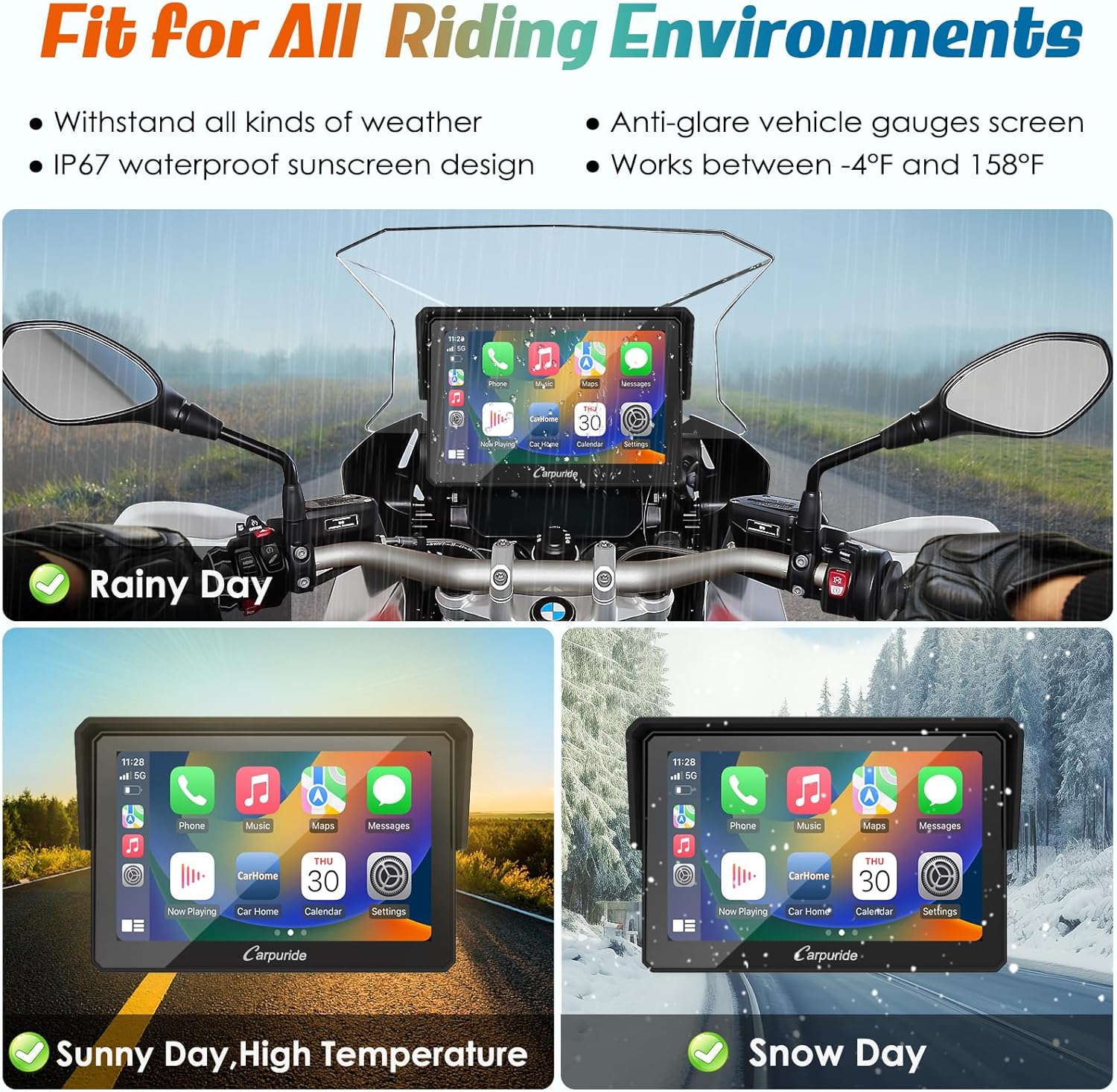
Image: Carpuride W502B operating in various weather conditions. This image demonstrates the device's IP67 waterproof rating and anti-glare screen, showing it functions effectively in rain, sun, and snow.
- The Carpuride W502B is IP67 waterproof, allowing normal operation in rain.
- It features an anti-glare screen for improved visibility in bright sunlight.
- The device is designed to operate flawlessly in temperatures ranging from -20°C to 70°C (-4°F to 158°F).
3.2 Cleaning
To clean the screen and device body, use a soft, slightly damp cloth. Avoid using abrasive cleaners, solvents, or harsh chemicals, as these can damage the screen or casing.
3.3 Anti-Theft Design
The detachable bracket design allows for easy removal of the screen when not in use, providing an anti-theft measure and added convenience.
4. Troubleshooting
4.1 Power Issues
- Device does not power on:
- Check all power connections.
- If using the motorcycle power line, ensure the output voltage is 12V and current is 1A.
- If using the USB boost cable, verify the motorcycle's USB port provides 5V and 2.5A or higher. Insufficient power can prevent the device from turning on or cause automatic shutdowns.
4.2 Connectivity Issues
- CarPlay/Android Auto not connecting wirelessly:
- Ensure your smartphone supports wireless CarPlay or wireless Android Auto.
- Note that the device may not be perfectly compatible with some Samsung Note and S-series phones.
- Restart both the Carpuride device and your smartphone.
- Bluetooth audio issues (no sound or intermittent connection):
- Verify that the Carpuride screen is correctly paired with both your smartphone and your Bluetooth helmet/headphones.
- If using "BT Trans" mode, ensure the pairing process was completed as described in Section 2.2.
- Try unpairing and re-pairing all Bluetooth devices.
4.3 Software Updates
- Unable to update software:
- The included 64GB TF card is for media playback only.
- For software updates, use a microSD card with a smaller capacity (4GB, 8GB, 16GB, or 32GB).
5. Specifications
The following table outlines the technical specifications for the Carpuride W502B Motorcycle Carplay Screen:
| Feature | Specification |
|---|---|
| Brand | Carpuride |
| Model Name | W502B (VC-502B) |
| Screen Size | 5 Inch |
| Display Type | HD IPS LCD |
| Screen Resolution | 1024 x 600 |
| Peak Brightness | Up to 1000nit |
| Touchscreen Type | Capacitive |
| Waterproof Rating | IP67 |
| Operating Temperature | -20°C to 70°C (-4°F to 158°F) |
| Connectivity Technology | Dual Bluetooth, Wireless CarPlay, Wireless Android Auto |
| Supported Operating Systems | Android, iOS |
| Memory Storage Capacity | 64 GB (TF card included) |
| Compatible Flash Memory Type | microSD |
| Supported Navigation System | GPS |
| Product Dimensions | 12.7 x 12.7 x 5 cm |
| Product Weight | 810 g |
| Supported Languages | German, English, French, Italian, Spanish |
| Mounting Type | Handlebar Mount (with specific BMW bracket or universal phone holder) |
| Audio Output Mode | Stereo |
6. Warranty and Support
6.1 Product Warranty
The Carpuride W502B Motorcycle Carplay Screen comes with a 1-year warranty from the date of purchase. This warranty covers manufacturing defects and malfunctions under normal use. Please retain your proof of purchase for warranty claims.
6.2 Customer Support
For technical assistance, troubleshooting, or warranty inquiries, please contact Carpuride customer service. Refer to the contact information provided with your product packaging or visit the official Carpuride website for support resources.
When contacting support, please have your product model (W502B) and purchase details ready.