
1. Introduction
The Satechi Findall Passport Cover is designed to secure your travel documents and provide advanced tracking capabilities. This vegan leather passport holder integrates Apple Find My technology, wireless charging, and RFID protection, along with a convenient 4-card holder. This manual provides instructions for setup, operation, maintenance, and troubleshooting to ensure optimal use of your device.
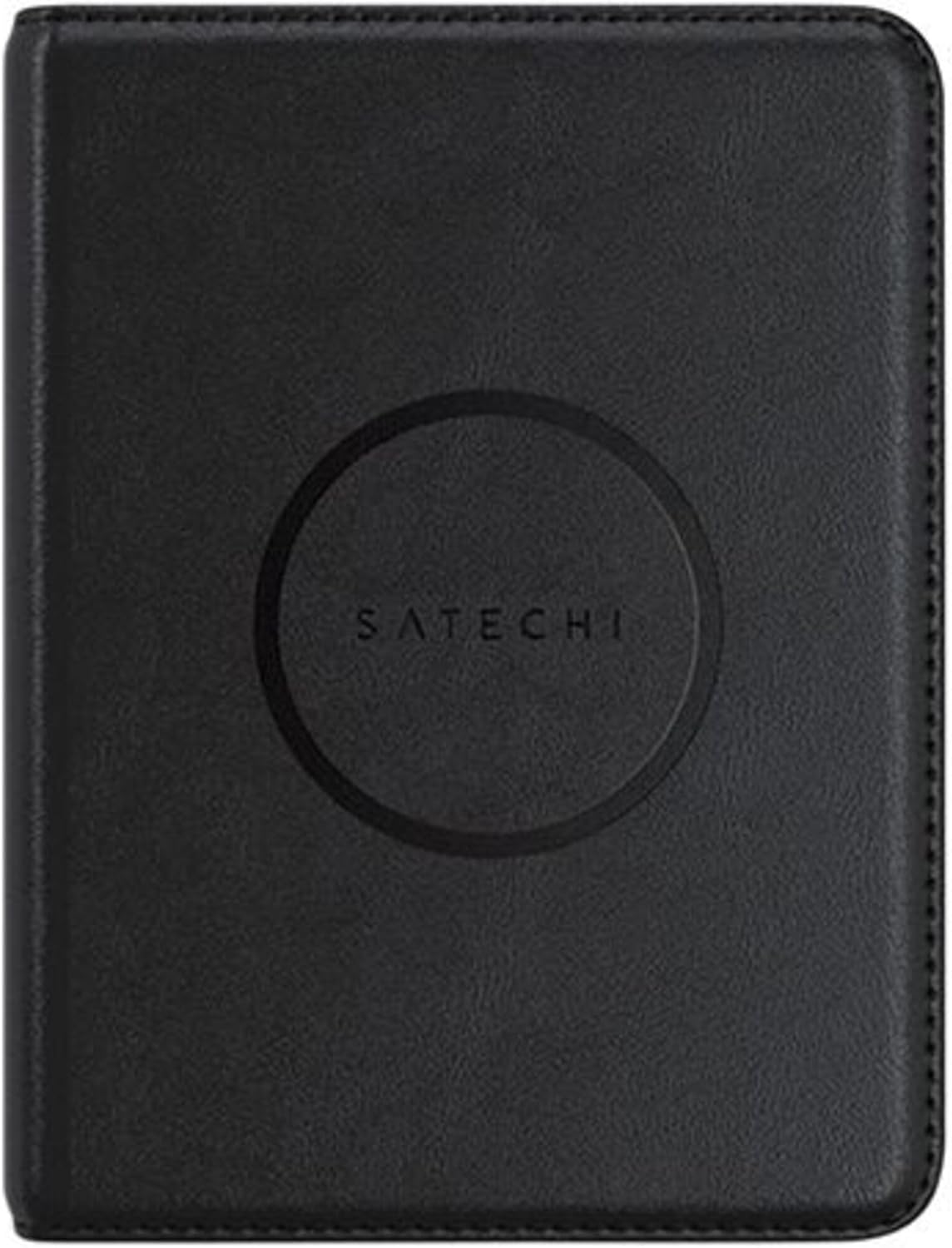
Image 1: The Satechi Findall Passport Cover, closed, featuring the Satechi logo.

Image 2: Demonstrates the passport cover's portability, fitting into pockets, luggage, and bags.
2. Setup
2.1 Initial Charging
Before first use, ensure your Satechi Findall Passport Cover is fully charged. The device supports Qi, Qi2, and MagSafe wireless charging.
- Place the passport cover onto a compatible wireless charger.
- The LED charging indicator light will turn orange while charging.
- Once fully charged, the LED indicator will turn green.
A full charge provides up to five months of use. It is recommended to fully charge the passport cover at least once every three months to maintain battery health.

Image 3: The passport cover being charged wirelessly on a desk setup.
2.2 Pairing with Apple Find My
The Satechi Findall Passport Cover utilizes Apple Find My technology to help you locate your device. Pairing is done via an iPhone or iPad. Macs can be used to locate items but not to set them up.
- Ensure your iPhone or iPad is updated to the latest iOS/iPadOS version.
- Open the Settings app on your device.
- Navigate to your Apple ID (your name at the top of Settings).
- Select Find My and ensure Find My iPhone (or iPad) is enabled, and Share My Location is turned on.
- Go back to Settings, then Privacy & Security, and ensure Location Services is enabled.
- Open the Find My app.
- Tap the Items tab at the bottom of the screen.
- Tap + Add Item, then select Other Supported Item.
- Follow the on-screen instructions to complete the pairing process. This typically involves opening the passport cover to activate its pairing mode.

Image 4: Step-by-step visual guide for pairing the passport cover with Apple Find My.
3. Operating Instructions
3.1 Locating Your Passport Cover
Once paired, you can use the Apple Find My app to locate your passport cover:
- Real-time Tracking: Open the Find My app on your iPhone or iPad to see the current location of your passport cover on a map.
- Audible Alerts: If the passport cover is nearby but out of sight, you can play a sound through the Find My app to help locate it.
- Left-Behind Notifications: Configure the Find My app to send you notifications if you leave your passport cover behind at a known location.

Image 5: Tracking the passport cover's location using the Find My app.

Image 6: Using the 'Play Sound' feature to locate the passport cover when it's nearby.
3.2 Storing Documents and RFID Protection
The passport cover features dedicated slots for your passport and up to four cards or important documents. The integrated RFID protection helps safeguard your sensitive information from unauthorized scanning.
- Insert your passport into the main sleeve.
- Place credit cards, ID cards, or other essential documents into the designated card slots.
- Ensure the cover is closed to maximize RFID protection for all contents.

Image 7: The passport cover open, displaying its 4-card slots and passport compartment.

Image 8: Illustrates the RFID protection feature, securing sensitive data during travel.
4. Maintenance
4.1 Battery Maintenance
To ensure the longevity of the internal rechargeable battery, it is recommended to fully charge your Satechi Findall Passport Cover at least once every three months, even if not in active use.
4.2 Cleaning
The vegan leather exterior can be cleaned with a soft, damp cloth. Avoid using harsh chemicals or abrasive materials, as these may damage the finish.
5. Troubleshooting
- Issue: Passport Cover cannot be paired with Find My.
Possible Cause 1: The device may already be linked to another Apple account. This can occur if the product was previously owned or returned. Apple's Find My system typically requires a 90-day waiting period before an item can be linked to a new account if it's still associated with a previous one.
Solution: If a factory reset (if applicable and described in future product updates) does not resolve this, contact Satechi Customer Support for assistance. Provide your proof of purchase.
Possible Cause 2: Incorrect pairing steps or disabled settings.
Solution: Review Section 2.2 "Pairing with Apple Find My" and ensure all steps are followed correctly, including enabling Find My and Location Services on your iOS/iPadOS device.
- Issue: Battery life is shorter than expected.
Possible Cause: Infrequent charging or heavy use of the audible alert feature.
Solution: Ensure the passport cover is fully charged every three months. Reduce the frequency of playing sounds if not necessary, as this consumes more battery power.
For further assistance, please refer to the Warranty and Support section.
6. Specifications
| Feature | Detail |
|---|---|
| Model Number | ST-VPC_PAR |
| Product Dimensions | 14.3 cm (5.6 in) L x 10.6 cm (4.27 in) W x 1.7 cm (0.66 in) H |
| Item Weight | 104 Grams (3.67 ounces) |
| Material | Vegan Leather |
| Battery | 1 Lithium Ion battery (included) |
| Charging | Qi, Qi2, or MagSafe Wireless Charging |
| Battery Life | Up to 5 months on a single charge |
| Card Slots | 4 |
| Protection | RFID |
7. Warranty and Support
7.1 Limited Warranty
Satechi products are covered by a 2-year limited warranty against defects in materials and workmanship under normal use. This warranty applies from the date of purchase.
7.2 Customer Support
For technical support, warranty claims, or any questions regarding your Satechi Findall Passport Cover, please contact Satechi Customer Service. You can find contact information on the official Satechi website or through your retailer's support channels. Please have your proof of purchase and product model number (ST-VPC_PAR) ready when contacting support.
