
1. Introduction
This manual provides detailed instructions for the installation, operation, and maintenance of your Hilook 4K PoE Outdoor Surveillance Camera Kit. This system is designed to offer comprehensive security monitoring with high-resolution video, advanced detection features, and reliable performance for both residential and commercial outdoor environments.
Please read this manual thoroughly before installation and operation to ensure proper use and to maximize the system's capabilities.
2. Product Overview
2.1 Package Contents
The Hilook 4K PoE Outdoor Surveillance Camera Kit includes the following components:
- 4 x Hilook 8MP 4K Bullet Cameras
- 1 x Hilook 8-Channel Network Video Recorder (NVR)
- 1 x 2TB Hard Drive (pre-installed in NVR)
- 5 x RJ45 Network Cables (20m each)
- 1 x User Manual and Quick Start Guide
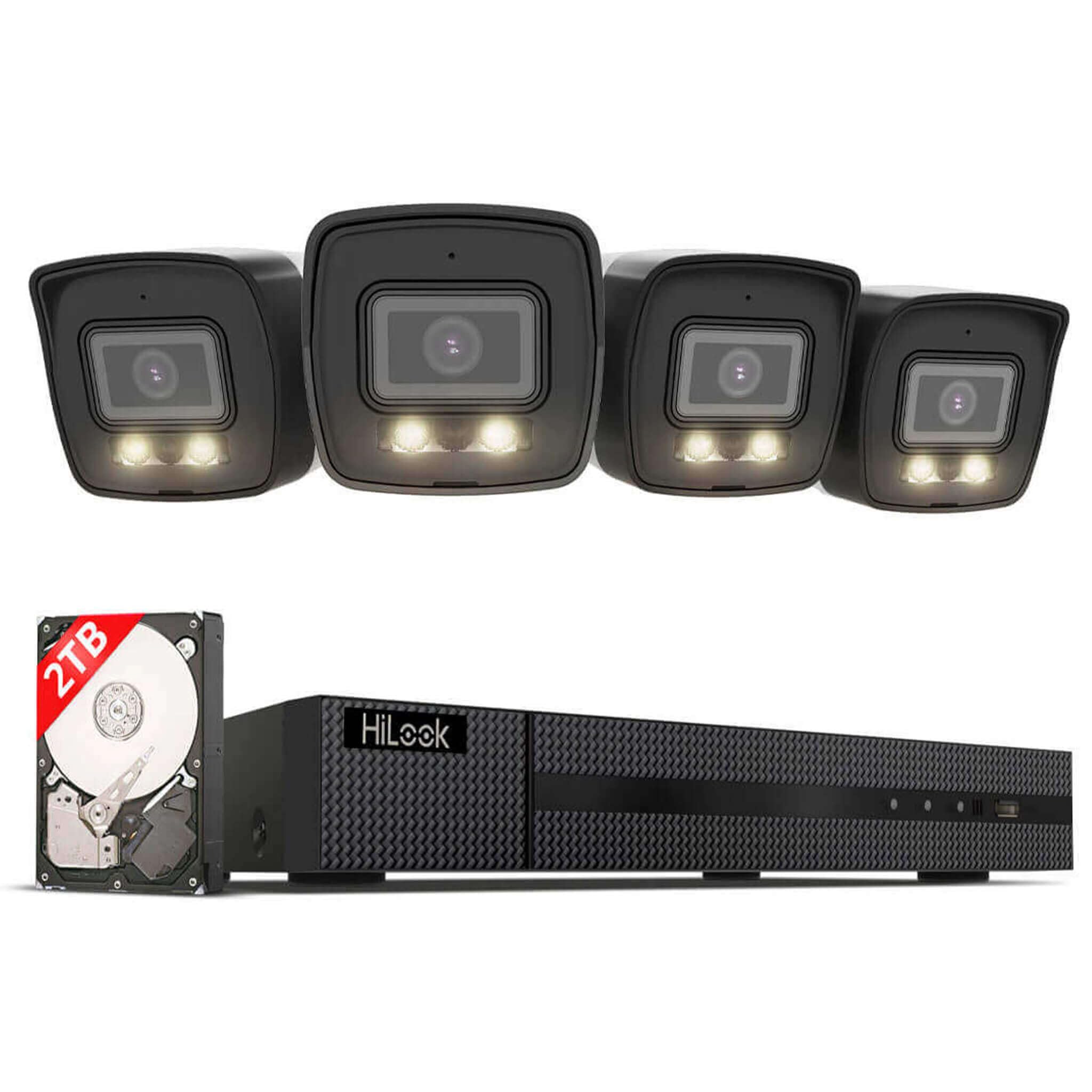
Image: Overview of the Hilook 4K PoE Surveillance Camera Kit, showing four bullet cameras, the NVR unit, and a 2TB hard drive.
2.2 Key Features
- 4K 8MP Video Resolution: Provides clear and detailed video for precise security monitoring.
- Smart Hybrid Light Technology: Offers natural color images during the day and clear black-and-white images at night with IR mode, ensuring reliable night vision.
- AI-Powered Human and Vehicle Detection: Reduces false alarms by accurately identifying relevant events.
- Integrated SD Card Slot: Allows for local storage of emergency recordings on the camera (up to 512GB), providing a backup solution.
- 8-Channel NVR with 2TB HDD: Supports 24/7 continuous recording with ample storage capacity.
- IP67 Weatherproof Rating: Cameras are resistant to rain, dust, and vandalism, suitable for outdoor use.
- PoE (Power over Ethernet) Connectivity: Simplifies installation by transmitting power and data through a single network cable.
- H.265+ Video Compression: Efficiently uses storage space and bandwidth while maintaining high image quality.
- Remote Access via App: Easy-to-use application for live viewing and control from anywhere.
3. Setup and Installation
3.1 Before You Begin
- Ensure all package contents are present and undamaged.
- Plan the camera placement to cover desired surveillance areas, considering power access (PoE) and network cable routing.
- Have necessary tools ready: drill, screwdriver, network cable tester (optional).
3.2 NVR Setup
- Connect NVR to Power: Plug the NVR into a power outlet using the provided power adapter.
- Connect NVR to Monitor: Use an HDMI or VGA cable to connect the NVR to a monitor for initial setup.
- Connect NVR to Network: Connect the NVR to your router or network switch using one of the provided RJ45 network cables.
- Initial Configuration: Follow the on-screen prompts to set up the NVR, including creating an administrator password and configuring network settings.
3.3 Camera Installation
The Hilook bullet cameras are designed for outdoor use and feature an IP67 weatherproof rating. The system supports easy Plug & Play installation with PoE technology.
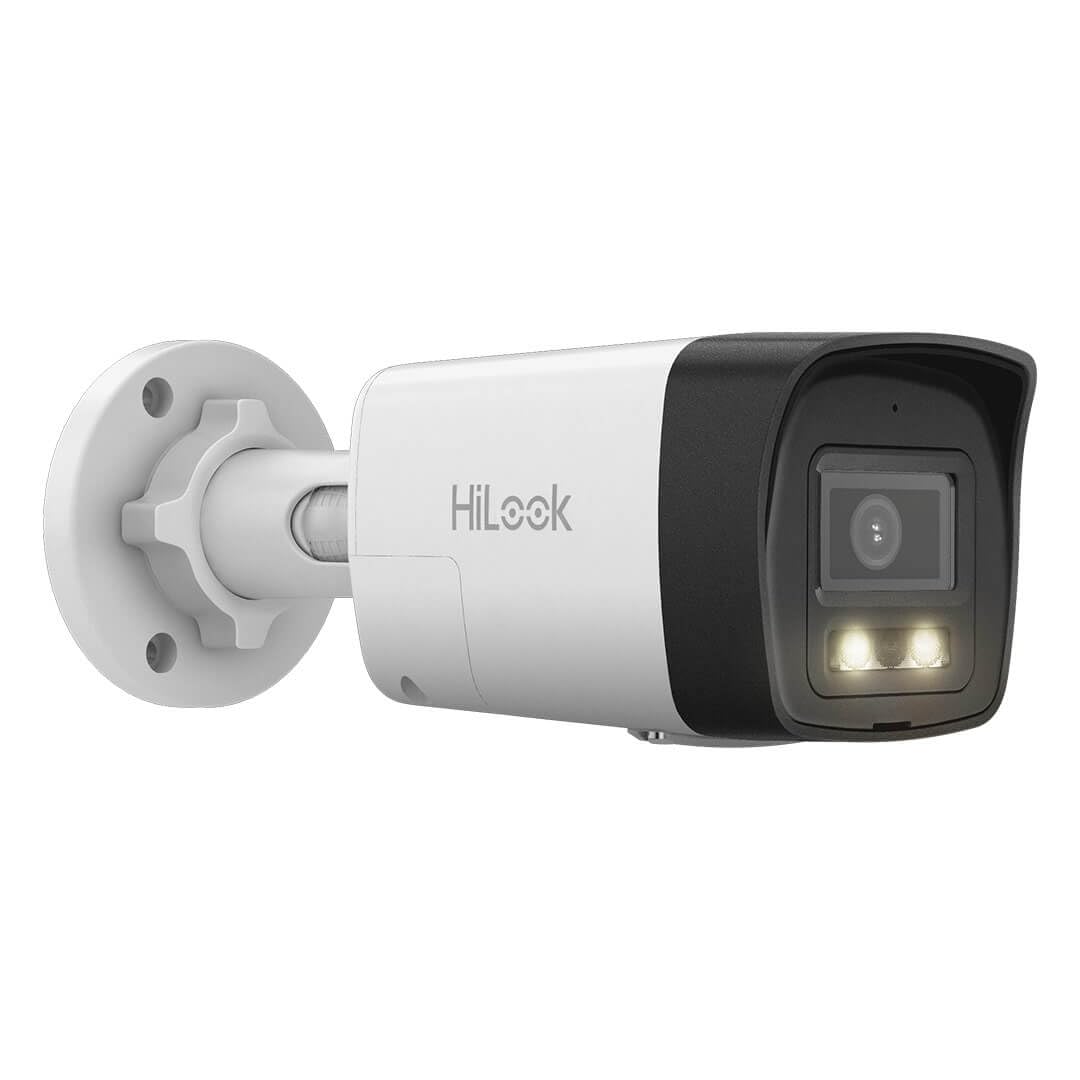
Image: A single Hilook bullet camera, showing its robust design suitable for outdoor installation.
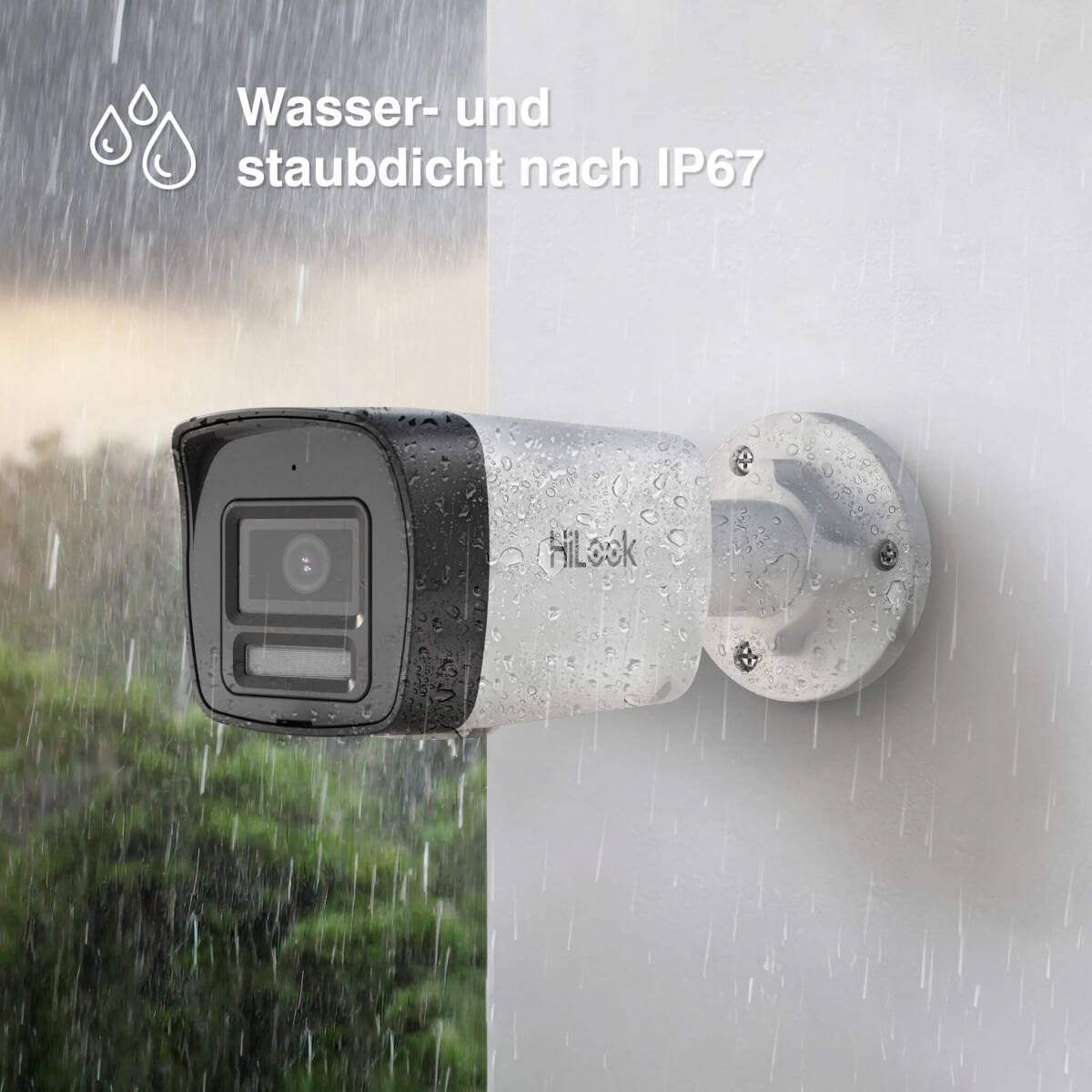
Image: A Hilook bullet camera mounted outdoors, demonstrating its IP67 water and dust resistance during rainfall.
- Mounting: Securely mount each camera in your desired location using appropriate screws and anchors. Ensure the mounting surface is stable.
- PoE Connection: Connect each camera to one of the NVR's PoE ports using the provided RJ45 network cables. The NVR will automatically power the cameras and establish a network connection.
- Adjusting Camera Angle: Loosen the adjustment screws on the camera bracket to position the camera for optimal viewing angle. Tighten the screws once adjusted.
- SD Card Installation (Optional): If local backup storage is desired, insert a compatible microSD card (up to 512GB) into the camera's SD card slot.
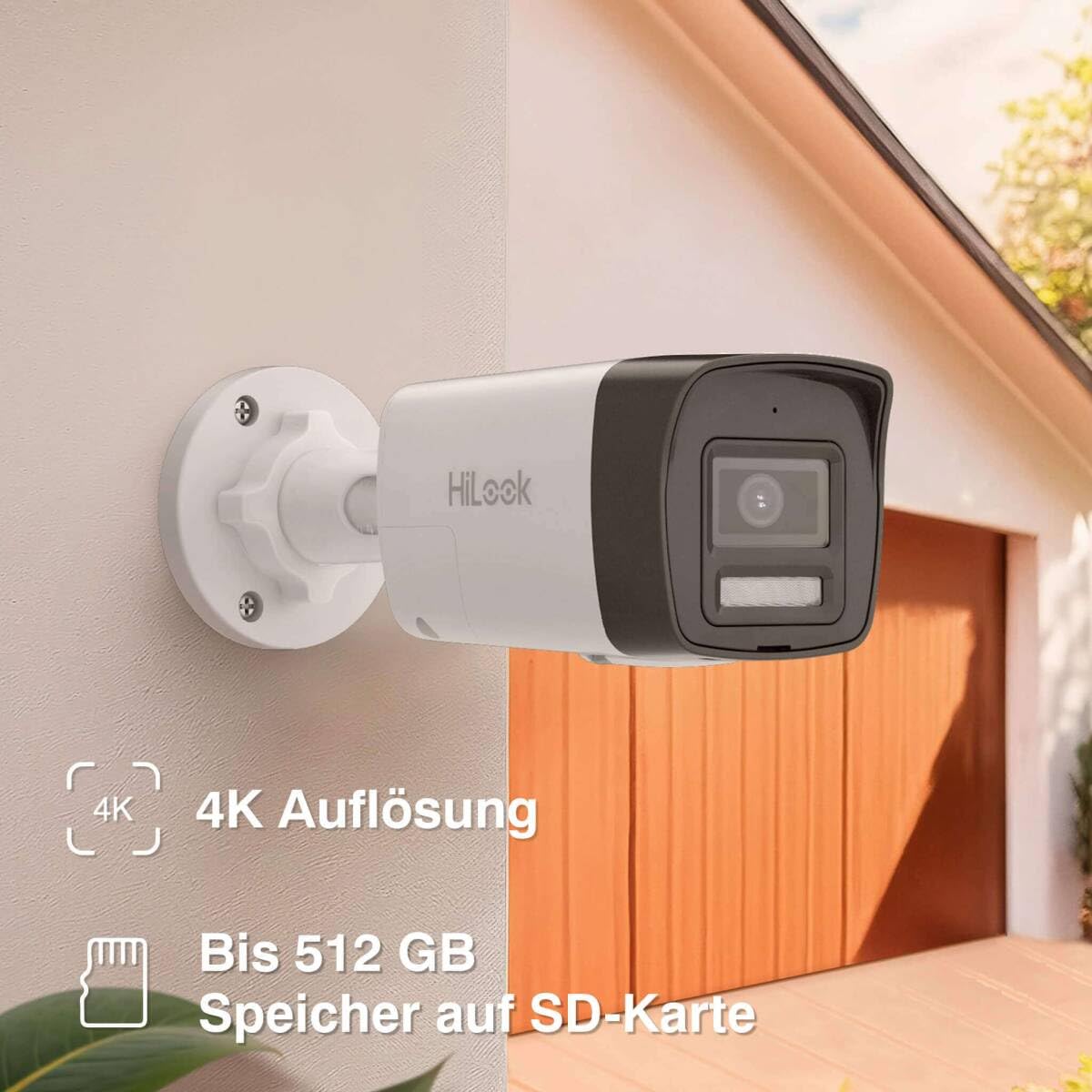
Image: A close-up of a Hilook bullet camera mounted on a wall, highlighting the location of the SD card slot for local storage.
4. Operation
4.1 Live View and Recording
- Access the NVR via the connected monitor or through the HilookVision mobile application.
- The system will automatically begin recording to the pre-installed 2TB hard drive.
- View live feeds from all connected cameras simultaneously or individually.
4.2 Smart Hybrid Light
The Smart Hybrid Light technology provides enhanced night vision capabilities:
- IR Mode: Default black-and-white night vision using infrared illumination.
- White Light Mode: Provides full-color night vision using integrated white light illuminators.
- Smart Mode: Automatically switches from IR mode to white light mode (color vision) when motion is detected, then reverts to IR mode when the target leaves the monitoring area.
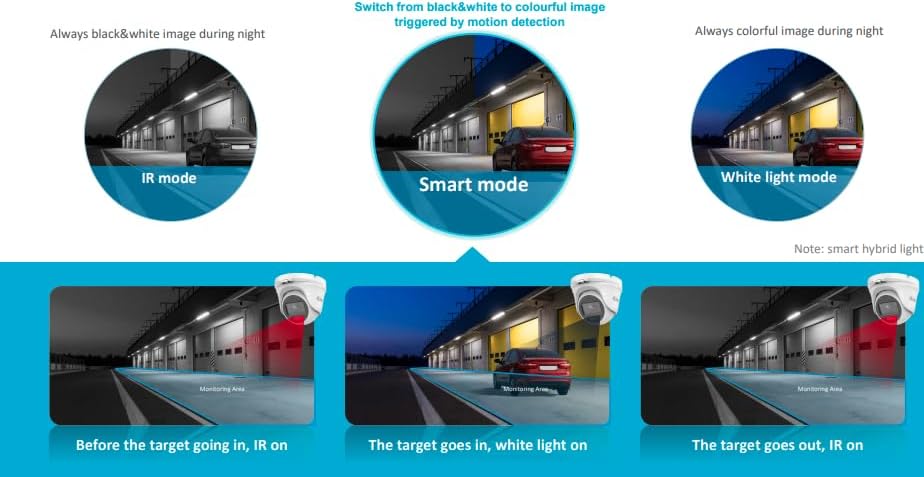
Image: Diagram illustrating the three Smart Hybrid Light modes: IR mode (black & white), Smart mode (switches to color on motion), and White Light mode (always color).
4.3 AI Detection (Human and Vehicle)
The system utilizes AI to differentiate between human and vehicle movements and other non-threatening motions, significantly reducing false alarms.
- Configure detection zones and sensitivity settings via the NVR interface or mobile app.
- Receive push notifications on your mobile device only for detected human or vehicle activity.
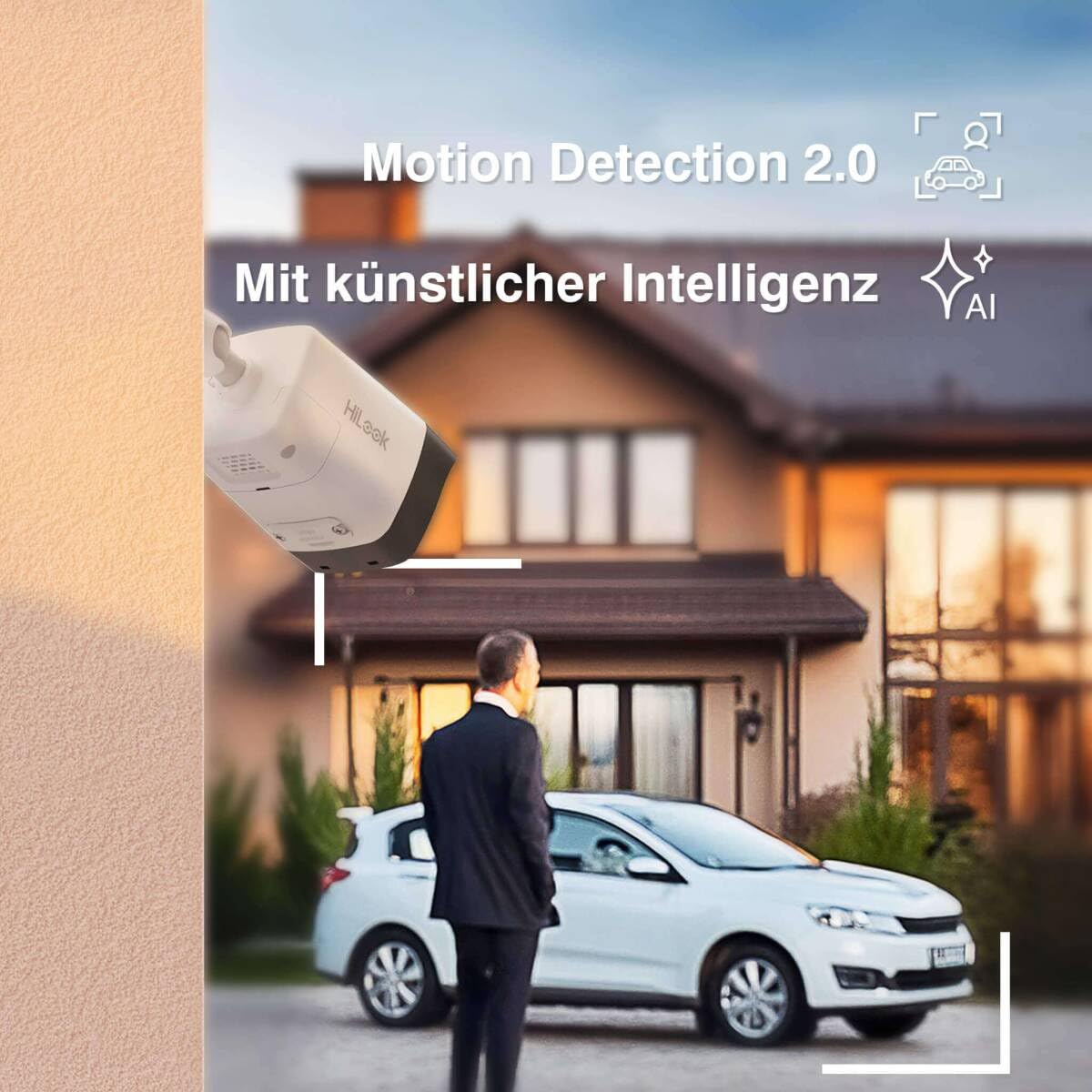
Image: A surveillance camera monitoring an outdoor scene with a person and a car, illustrating the AI detection feature for human and vehicle recognition.
4.4 Remote Access (HilookVision App)
The HilookVision application allows you to monitor your property remotely.
- Download the HilookVision app from your device's app store.
- Register an account and add your NVR device by scanning the QR code or entering its serial number.
- Access live views, playback recordings, and receive alarm notifications directly on your smartphone or tablet.

Image: A hand holding a smartphone displaying the HilookVision app interface, showing real-time surveillance feeds and alarm notifications.
5. Maintenance
5.1 Regular Cleaning
- Periodically clean camera lenses with a soft, damp cloth to ensure clear image quality. Avoid abrasive cleaners.
- Wipe down the NVR unit to prevent dust buildup, ensuring proper ventilation.
5.2 Firmware Updates
- Check the Hilook website or the HilookVision app regularly for firmware updates for your NVR and cameras.
- Follow the provided instructions carefully when performing updates to ensure system stability and access to new features.
5.3 Hard Drive Management
- The 2TB hard drive will automatically overwrite older recordings when full.
- Regularly back up important footage to external storage if needed.
- Monitor the hard drive health through the NVR interface.
6. Troubleshooting
| Problem | Possible Cause | Solution |
|---|---|---|
| No image from camera | No power (PoE), faulty cable, camera not connected, NVR port issue. | Check PoE connection and cable. Ensure NVR port is active. Restart NVR and camera. |
| Poor image quality | Dirty lens, low light, incorrect camera settings, network bandwidth issues. | Clean lens. Adjust camera settings (brightness, contrast). Ensure sufficient lighting. Check network connection. |
| NVR not recording | Hard drive full, hard drive error, recording schedule not set, motion detection not configured. | Check hard drive status and capacity. Verify recording schedule. Configure motion detection if needed. |
| Cannot access remotely via app | No internet connection, incorrect network settings, app not configured correctly. | Verify NVR internet connection. Check router settings (port forwarding if necessary). Re-add device to app. |
| False alarms from motion detection | Sensitivity too high, detection zone too wide, environmental factors (e.g., moving branches). | Adjust detection zone to exclude irrelevant areas. Lower sensitivity. Utilize AI detection for human/vehicle filtering. |
7. Specifications
| Feature | Detail |
|---|---|
| Model Number | IK28P-480B |
| Manufacturer | HiLook by HikVision |
| Camera Type | Bullet, Outdoor |
| Video Resolution | 4K UHD (8MP) |
| Connectivity Technology | Wired (PoE) |
| Power Source | PoE (48 Volts) |
| Weatherproof Rating | IP67 |
| Special Features | App Control, SD Card Slot, AI Person/Vehicle Detection, Smart Hybrid Light Night Vision |
| NVR Channels | 8 Channels |
| Storage Capacity | 2TB HDD (pre-installed) |
| Video Compression | H.265+ |
| Operating System | Linux-based System |
| Camera Dimensions (L x W x H) | 17.9 x 6.9 x 6.7 cm |

Image: Technical drawing showing the dimensions of the Hilook bullet camera (179mm length, 69.1mm width, 67.4mm height).
8. Warranty and Support
For warranty information and technical support, please refer to the official Hilook website or contact your authorized dealer. Keep your purchase receipt as proof of purchase for warranty claims.
Online resources and FAQs may be available on the manufacturer's support pages. For direct assistance, please contact Hilook customer service.


