
xTool F1 Ultra
xTool F1 Ultra 20W Fiber & Diode Dual Laser Engraver
Instruction Manual
1. Introduction
Welcome to the xTool F1 Ultra 20W Fiber & Diode Dual Laser Engraver. This advanced machine combines the power of a 20W fiber laser and a 20W diode laser, offering versatility for engraving and cutting a wide range of materials. Designed for efficiency and precision, the F1 Ultra features an Auto Conveyor system and a 16MP Smart Camera for streamlined production. This manual provides essential information for safe and effective operation of your device.

Figure 1.1: The xTool F1 Ultra 20W Fiber & Diode Dual Laser Engraver with its Auto Conveyor system.
2. Safety Information
The xTool F1 Ultra is a Class 4 laser engraver. Adherence to safety guidelines is crucial to prevent injury and damage to the device. Always operate the machine in a well-ventilated area.
2.1 General Safety Precautions
- Always wear appropriate laser safety goggles when operating the machine, even with the enclosed design.
- Ensure the machine is placed on a stable, level surface.
- Keep the work area clear of flammable materials.
- Do not leave the machine unattended during operation.
- Keep children and pets away from the operating area.
2.2 Enclosed Design and Smoke Extraction
The F1 Ultra features a fully enclosed design and an effective smoke extraction system to enhance safety and maintain a clean working environment. The enclosed cover blocks harmful laser light from both the 455nm diode laser and the fiber laser.

Figure 2.1: The xTool F1 Ultra's safety features, including its fully enclosed design and integrated smoke extraction.

Figure 2.2: Key safety components of the xTool F1 Ultra.


Figure 2.3: The machine's efficient smoke extraction and laser-proof enclosure for user safety.
3. Package Contents
Upon unpacking, please verify that all items listed below are present and in good condition:
- xTool F1 Ultra Laser Engraver Unit
- Auto Conveyor Module
- Power Adapter and Cable
- USB Cable
- Safety Goggles
- Material Samples (for testing)
- User Manual (this document)
- Accessory Kit (includes tools for maintenance and setup)
4. Setup
4.1 Unpacking and Placement
Carefully remove all components from the packaging. Place the xTool F1 Ultra on a sturdy, flat surface with adequate space around it for ventilation and operation. Ensure the area is free from dust and direct sunlight.
4.2 Connecting the Auto Conveyor
Attach the Auto Conveyor module to the main engraver unit according to the diagrams provided in the quick start guide. Ensure all connections are secure.
4.3 Power and Data Connection
- Connect the power adapter to the engraver and then to a suitable power outlet.
- Connect the engraver to your computer using the provided USB cable.
- Alternatively, the F1 Ultra features a 7GB offline-use control panel, allowing for operation without a direct computer connection once project files are loaded.

Figure 4.1: The F1 Ultra's touchable control panel for offline operation.
4.4 Software Installation
Download and install the latest version of the xTool software from the official xTool website. Follow the on-screen instructions for installation. The software is compatible with various operating systems and devices.
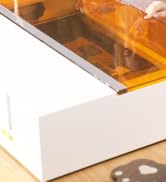
Figure 4.2: The xTool software interface, accessible on various devices.
5. Operating Instructions
5.1 Material Compatibility
The xTool F1 Ultra supports a wide array of materials thanks to its dual laser system:
- Fiber Laser (20W): Ideal for all metals (gold, silver, copper, stainless steel, brass, titanium, etc.).
- Diode Laser (20W): Suitable for wood, acrylic, leather, glass, rubber, fabric, and more.

Figure 5.1: Overview of materials compatible with the F1 Ultra's dual laser system.

Figure 5.2: The internal dual laser system of the xTool F1 Ultra.

Figure 5.3: Examples of metal engraving capabilities, including deep engraving, embossing, and color engraving.
5.2 Auto Streamline Production with Smart Camera
The Auto Streamline Production feature, powered by the 16MP Smart Camera and Auto Conveyor, simplifies batch engraving. The system automatically recognizes shapes, intelligently fills patterns, and processes items non-stop.
- Place materials on the Auto Conveyor.
- The Smart Camera will detect and map the items.
- The software will automatically arrange designs for efficient batch processing.
- The engraver will process items continuously.

Figure 5.4: The Smart Camera system in action, simplifying material placement and design alignment.

Figure 5.5: The three-step workflow for Auto Streamline Production.
5.3 Engraving and Cutting Process
The F1 Ultra operates at speeds up to 10,000mm/s, significantly reducing production time.
- Design Creation: Use the xTool software or Artimind AI to create or import your designs. Artimind AI can generate word designs, images, and 3D embossing.
- Material Settings: Select the appropriate material from the Material EasySet Library within the software. This library contains optimized settings for over 400 materials.
- Preview and Adjust: Utilize the Smart Camera for a live preview of your design on the material. Adjust placement and size as needed.
- Start Engraving/Cutting: Initiate the process from the software or the control panel.

Figure 5.6: Artimind AI features for design generation.

Figure 5.7: Engraving on curved surfaces and with rotary attachments (RA2 Pro).

Figure 5.8: Demonstrations of the F1 Ultra's high-speed engraving capabilities.
6. Maintenance
Regular maintenance ensures optimal performance and extends the lifespan of your xTool F1 Ultra.
6.1 Cleaning
- Lens Cleaning: Periodically clean the laser lens with a lint-free cloth and lens cleaning solution.
- Work Area: Keep the engraving platform and surrounding areas clean from debris and dust.
- Smoke Extraction System: Regularly check and clean the smoke extraction fan and filters to maintain efficiency.
6.2 Laser Care
Avoid touching the laser module directly. If any issues arise with laser performance, refer to the troubleshooting section or contact xTool support.
7. Troubleshooting
This section addresses common issues you might encounter. For more complex problems, please contact xTool customer support.
| Problem | Possible Cause | Solution |
|---|---|---|
| Laser not firing | Power cable loose, emergency stop engaged, software error. | Check power connections, disengage emergency stop button, restart software and machine. |
| Poor engraving quality | Incorrect material settings, dirty lens, material not flat. | Verify material settings in software, clean laser lens, ensure material is flat on the platform. |
| Auto Conveyor not moving | Connection issue, obstruction. | Check conveyor cable connection, remove any obstructions on the conveyor belt. |
| Software not detecting device | USB cable issue, driver problem, machine not powered on. | Try a different USB port/cable, reinstall software drivers, ensure machine is powered on. |
8. Specifications
Key technical specifications of the xTool F1 Ultra:
- Laser Type: 20W Fiber Laser & 20W Diode Laser (Dual Laser)
- Engraving Speed: Up to 10,000mm/s
- Working Area: 220mm x 220mm (expandable to 220mm x 500mm with Auto Conveyor)
- Camera: 16MP Smart Camera (Auto Focus and Batch Fill)
- Connectivity: USB, Offline Control Panel (7GB storage)
- Safety Features: Fully Enclosed Design, Eye-Protection Cover, Effective Smoke Extraction, Fire Safety Alarm & Stop
- Supported Materials: All metals (Fiber Laser), Wood, Acrylic, Leather, Glass, Rubber, Fabric (Diode Laser)
- Engraving Capabilities: 3D Embossing, Deep Engraving, HD Photo Engraving, Curved Surface Engraving

Figure 8.1: Illustration of the expandable working area.

Figure 8.2: The F1 Ultra offers the largest desktop fiber laser working area.
9. Warranty and Support
9.1 Warranty Information
The xTool F1 Ultra comes with a standard manufacturer's warranty. Please refer to the warranty card included in your package or visit the official xTool website for detailed terms and conditions regarding warranty coverage and duration.
9.2 Customer Support
For technical assistance, troubleshooting, or any inquiries regarding your xTool F1 Ultra, please contact xTool customer support through the following channels:
- Email Support: Refer to the xTool website for the official support email address.
- Live Chat: Available on the xTool official website during business hours.
- Phone Support: Contact numbers can be found on the xTool website.
- Online Community/Facebook Group: Join the xTool community for peer support and shared knowledge.

Figure 9.1: xTool provides dedicated technical support.
Related documentsF1 Ultra


Ask a question about this manual
Ask about setup, troubleshooting, compatibility, parts, safety, or missing instructions. Manuals+ will review the question and use this page’s manual context to help answer it.