
1. Introduction
Thank you for choosing the VIFLYKOO EM3390TF Wireless Weather Station. This device provides comprehensive weather information, including indoor and outdoor temperature and humidity, a 5-day weather forecast, moon phases, and atmospheric pressure. With Wi-Fi connectivity and a dedicated app, you can monitor conditions remotely and access additional features. Please read this manual carefully to ensure proper setup and operation.
2. Product Overview
The VIFLYKOO EM3390TF Weather Station consists of a main display unit and a wireless outdoor sensor. The main unit features a color display and various control buttons, while the outdoor sensor transmits environmental data wirelessly.
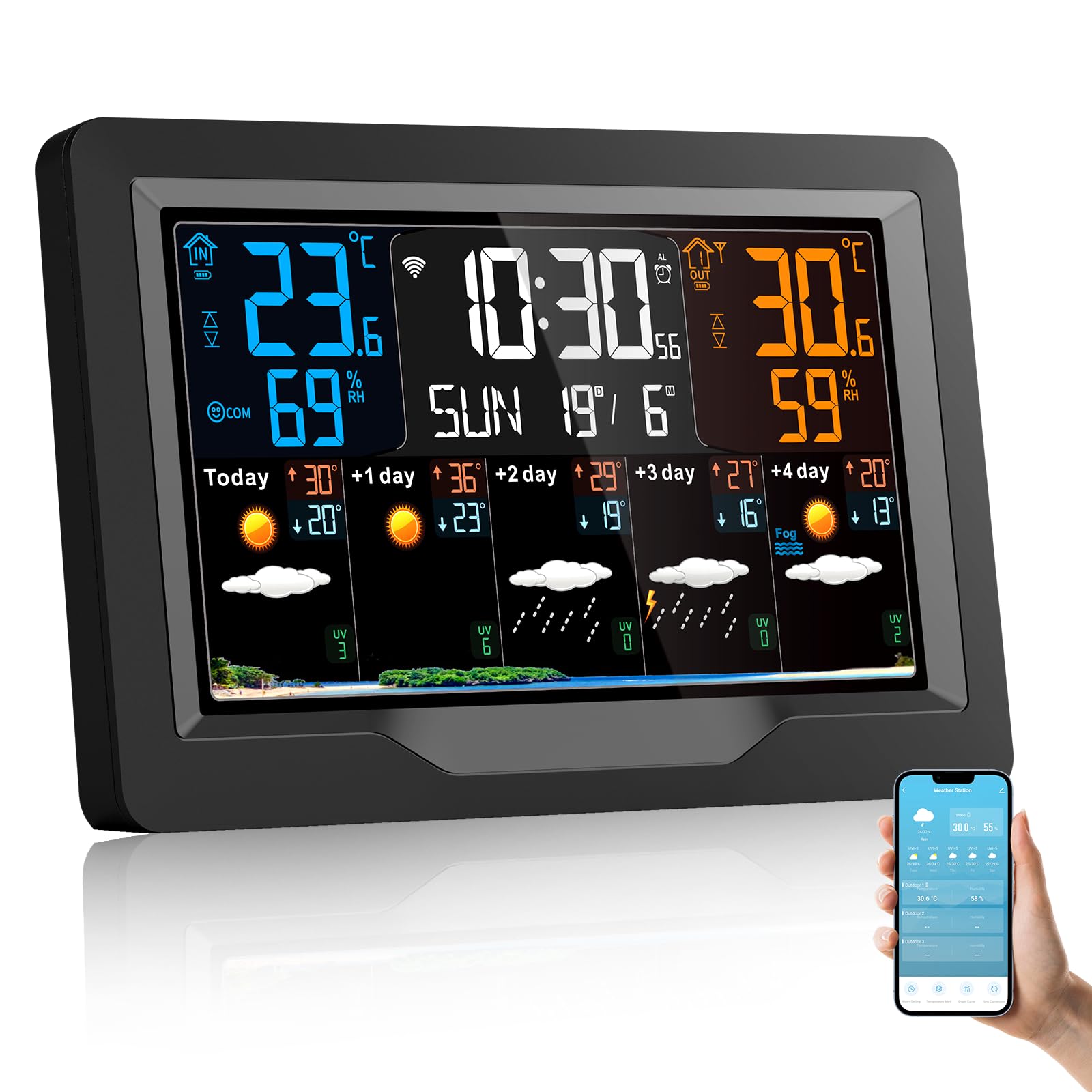
Image: VIFLYKOO EM3390TF Wireless Weather Station main unit and outdoor sensor.

Image: Detailed diagram of the VIFLYKOO EM3390TF Weather Station display and physical components. Labels include: A1: Time, A2: Indoor temperature, A3: Week for today, A4: Indoor humidity, A5: Remote wireless channel, A6: Outdoor temperature, A7: Calendar, A8: Outdoor humidity, A9: Predicted maximum temperature today and in the next 1-4 days, A10: Predicted minimum temperature today and in the next 1-4 days, A11: Weather forecast for today and the next 1-4 days, A12: UV index. B7: Hanging hole, B8: Support frame, B9: Battery compartment, B10: USB charging socket, B11: DC-POWER input jack.
3. Features
- Multiple Data Displays: Shows indoor/outdoor temperature and humidity, time, date, sunrise/sunset times, moon phase, atmospheric pressure, comfort level, and mold risk.
- 5-Day Weather Forecast: Provides a predictive weather forecast for the upcoming days.
- Wi-Fi Connectivity & App Control: Connects to your 2.4 GHz Wi-Fi network for app control and automatic time synchronization.
- Multi-Channel Support: Capable of receiving data from up to three outdoor sensors (one sensor included).
- Adjustable Screen Brightness: Four levels of screen brightness for optimal viewing in various lighting conditions.
- Alarm Clock with Snooze: Features three sets of alarms with a five-minute snooze function.
- Temperature Alerts: Customizable alerts for temperature changes.
- USB Charging Port: The main unit includes a USB socket for charging external devices.
- Power Options: Can be powered by DC adapter or 2 AA batteries (for backup).
4. Setup
4.1 Unpacking
Carefully remove all components from the packaging. Ensure you have the main weather station unit, one wireless outdoor sensor, a power adapter, and this instruction manual.
4.2 Powering the Main Unit
- Connect the provided power adapter to the DC-POWER input jack (B11) on the back of the main unit.
- Plug the adapter into a standard electrical outlet. The display will light up.
- For backup power, open the battery compartment (B9) and insert 2 AA batteries (not included), observing polarity.
4.3 Installing Outdoor Sensor Batteries
- Open the battery compartment on the back of the outdoor sensor.
- Insert 2 AA batteries (not included), ensuring correct polarity.
- Close the battery compartment securely.
4.4 Sensor Pairing
The outdoor sensor should automatically pair with the main unit upon powering both devices. If the outdoor temperature/humidity is not displayed, press the 'CH' button on the main unit to cycle through channels or the 'RESET' button on the outdoor sensor to re-initiate pairing.
4.5 Wi-Fi Connection and App Setup

Image: Weather station display and smartphone app interface.
- Download the companion app (e.g., Smart Life or Tuya Smart) from your smartphone's app store.
- Register or log in to your account.
- Follow the in-app instructions to add a new device. This typically involves putting the weather station into pairing mode (refer to the device's specific button combination, often holding a Wi-Fi button for several seconds).
- Ensure your smartphone is connected to a 2.4 GHz Wi-Fi network during the pairing process.
- Once connected, the weather station will synchronize time and date automatically, and you can view data and control settings via the app.
5. Operating Instructions
5.1 Display Overview
Refer to the detailed diagram in Section 2 for a complete breakdown of the display elements (A1-A12).
5.2 Adjusting Screen Brightness

Image: Weather station display showing different brightness levels.
Press the light/snooze button on the top of the unit to cycle through the four brightness levels: High, Medium, Low, and Off.
5.3 Setting Time and Date
If connected to Wi-Fi, the time and date will synchronize automatically. If manual adjustment is needed, refer to the specific buttons on your device (usually 'MODE' or 'SET' buttons) and follow the on-screen prompts.
5.4 Alarm and Snooze Function

Image: Weather station with alarm and snooze function.
To set an alarm, press the 'ALARM' button and use the adjustment buttons to set the desired time. To activate the snooze function when an alarm sounds, touch the top of the weather station. The snooze time is five minutes. Press any other button to turn off the alarm.
5.5 Unit Conversion (°C/°F)
Press the '°C/°F' button (if available) or a designated button as per your device's specific controls to switch between Celsius and Fahrenheit temperature units.
5.6 Viewing Multiple Channels

Image: Weather station supporting up to 3 channels for outdoor sensors.
If you have multiple outdoor sensors, press the 'CH' button on the main unit to cycle through the data from each connected sensor (CH1, CH2, CH3).
6. Maintenance
6.1 Cleaning
Wipe the main unit and outdoor sensor with a soft, damp cloth. Do not use abrasive cleaners or solvents. Ensure no moisture enters the device openings.
6.2 Battery Replacement
Replace batteries in the outdoor sensor when the low battery indicator appears on the main unit's display. For the main unit, replace backup batteries periodically or if the unit loses settings during a power outage.
6.3 Sensor Placement
Place the outdoor sensor in a shaded, dry location, protected from direct sunlight and rain, to ensure accurate readings. Avoid placing it near heat sources or reflective surfaces. The maximum transmission distance is approximately 60m/196ft in open air.
7. Troubleshooting
- No outdoor temperature/humidity reading:
Ensure batteries are correctly installed in the outdoor sensor. Press the 'RESET' button on the outdoor sensor. Press the 'CH' button on the main unit to re-scan for sensors. Ensure the sensor is within range (max 60m/196ft) and not obstructed by thick walls or metal objects. - Wi-Fi connection issues:
Verify your Wi-Fi network is 2.4 GHz. Ensure the weather station is in pairing mode. Restart your router and the weather station. Check app instructions for specific troubleshooting steps. - Inaccurate readings:
Ensure the outdoor sensor is placed in a suitable location, away from direct sunlight, rain, and heat sources. Compare readings with other reliable thermometers if possible. - Display is dim or off:
Check power adapter connection. Adjust screen brightness using the light/snooze button. Replace backup batteries if using them.
8. Specifications
| Brand | VIFLYKOO |
| Model Number | EM3390TF |
| Product Dimensions | 3 x 20.5 x 13 cm; 540 g |
| Connectivity Technology | Wi-Fi (2.4 GHz) |
| Power Source | Corded Electric, Battery Powered (2 AA for main unit backup, 2 AA for sensor) |
| Temperature Accuracy | 1 °C |
| Special Features | Alarm, Wireless, Large Display, Adjustable Brightness, Pre-calibrated |
| Included Components | Instruction manual, Transmitter (outdoor sensor), Power cord |
| Recommended Uses | Library, Office, Home, Laboratory, Garden, Restaurant |
9. Warranty and Support
For warranty information or technical support, please refer to the contact details provided with your purchase or visit the official VIFLYKOO website. Keep your purchase receipt as proof of purchase.

