1. Introduction
This manual provides detailed instructions for the installation, operation, and maintenance of your DIGIQUEST Ti9 DVB-S2 tivùsat Decoder. Please read this manual carefully before using the device to ensure proper functionality and to avoid any damage.
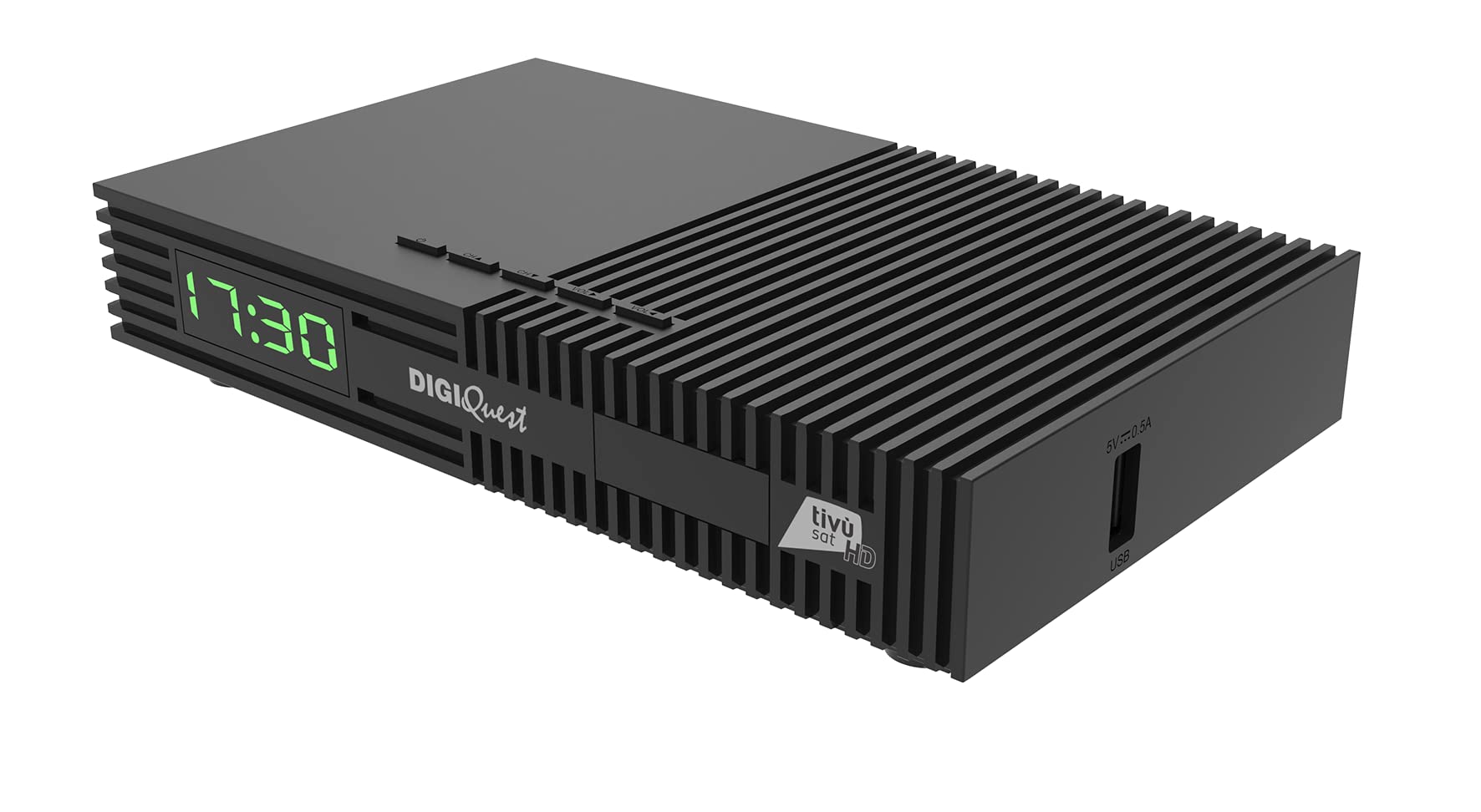
Figure 1: Front view of the DIGIQUEST Ti9 DVB-S2 tivùsat Decoder with smartcard inserted.
2. Product Overview and Key Features
The DIGIQUEST Ti9 is a DVB-S2 tivùsat decoder designed for receiving satellite television broadcasts. It offers a range of features to enhance your viewing experience:
- DVB-S2 HEVC Main 10 (10 bits) Support: Ensures compatibility with modern broadcast standards for high-quality video.
- Tivùsat Smartcard Included: Provides access to tivùsat channels.
- Recordable Function (PVR): Allows recording of favorite programs and live pause (Timeshift) functionality.
- Satellite Installation Auto-detection: Simplifies the initial setup process.
- Backup Function: Saves your settings and customizations for easy restoration.
- SOS Button: Initiates a new channel search with a single press.
- 2-in-1 Remote Control: Controls both the decoder and primary TV functions.
- USB Media Player: Supports playback of video (MKV, AVI, MP4, DiVX), audio (MP3), and image (JPG, BMP) files.
- Electronic Program Guide (EPG): Provides a detailed schedule of TV programs.
- 12V Power Supply: Suitable for use in various environments, including campers and boats.
- Full HD Video Resolution: Delivers clear and sharp images.

Figure 2: Key features of the DIGIQUEST Ti9 decoder.
3. Setup
3.1 Unpacking
Carefully remove all components from the packaging. Ensure the following items are present:
- DIGIQUEST Ti9 DVB-S2 Decoder
- 2-in-1 Remote Control
- Power Adapter (12V)
- Tivùsat Smartcard
- User Manual (this document)
3.2 Connecting the Decoder
Refer to the hardware connection diagram for proper setup.
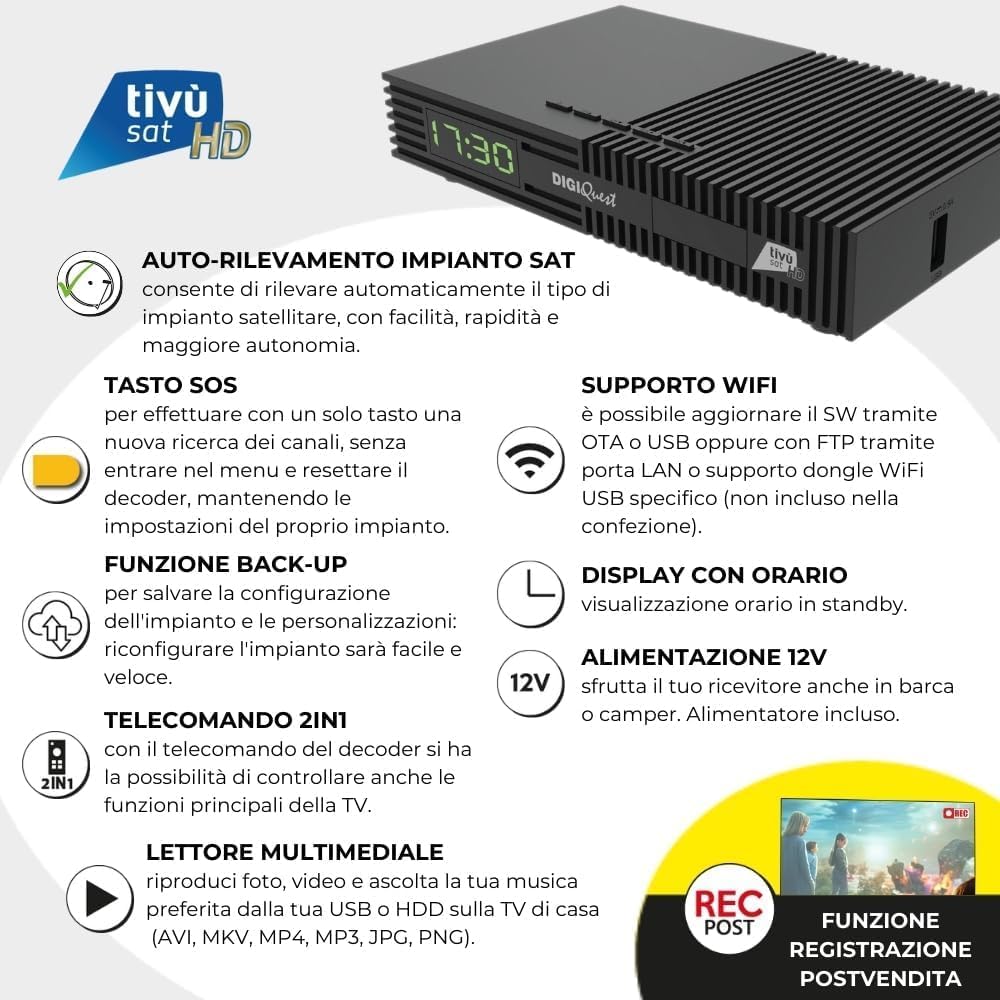
Figure 3: Rear panel connections of the DIGIQUEST Ti9 decoder.
- Satellite Connection: Connect your satellite dish cable to the 'SAT IN' port on the decoder.
- TV Connection:
- For optimal quality, connect an HDMI cable (not included) from the decoder's HDMI OUT port to an HDMI input on your television.
- Alternatively, for older TVs, connect a SCART cable (not included) from the decoder's SCART port to your TV's SCART input. The decoder will automatically detect the input.
- Power Connection: Connect the 12V power adapter to the decoder's power input and then to an electrical outlet.
- USB Devices: If desired, connect a USB storage device for media playback or PVR functionality to the USB port.
- LAN Connection: For network updates or internet features, connect an Ethernet cable to the LAN port.
- Smartcard Insertion: Insert the tivùsat smartcard into the designated slot on the front or side of the decoder, ensuring the chip faces upwards.
3.3 Initial Configuration
Upon first power-on, the decoder will guide you through the initial setup. The satellite installation auto-detection feature will help simplify this process.
- Follow the on-screen prompts to select your language, country, and satellite configuration.
- The decoder will automatically search for available channels.
- Once channels are found, you can proceed to activate your tivùsat smartcard if not already done.
4. Operating Instructions
4.1 Remote Control Functions
The 2-in-1 remote control allows you to operate both the decoder and basic functions of your television.

Figure 4: DIGIQUEST Ti9 2-in-1 Remote Control.
- Power Button: Turns the decoder on/off or into standby mode.
- TV Control Buttons: (Top section) Control your TV's power, input, and volume.
- Channel Up/Down: Changes the TV channel.
- Volume Up/Down: Adjusts the volume.
- OK Button: Confirms selections or displays channel information.
- Menu Button: Accesses the main menu.
- Exit Button: Exits menus or returns to the previous screen.
- EPG Button: Opens the Electronic Program Guide.
- SOS Button: (Yellow button) Initiates a new channel search without entering the menu.
- PVR Button: Accesses recording functions.
4.2 Channel Navigation
Use the Channel Up/Down buttons to browse channels. You can also enter channel numbers directly using the numeric keypad.
4.3 Electronic Program Guide (EPG)
Press the EPG button on the remote control to view the program schedule. You can navigate through programs and set reminders or recordings directly from the EPG.
5. Media Playback
The DIGIQUEST Ti9 decoder includes a USB Media Player function. Connect a USB storage device (e.g., USB stick, external hard drive) to the USB port on the decoder.
- Navigate to the Media Player section in the main menu.
- Select the type of media you wish to play (Video, Audio, or Images).
- Browse your USB device to select and play your desired files.
Supported formats include: Video (MKV, AVI, MP4, DiVX), Audio (MP3), Images (JPG, BMP).
6. Recording Function (PVR)
The decoder supports recording of programs to an external USB storage device. This feature may require activation.

Figure 5: PVR activation option for the decoder.
6.1 Activating PVR
To enable recording, you may need to activate the PVR function. Follow the on-screen instructions or consult the decoder's menu for activation details.
6.2 Recording Programs
- Connect a compatible USB storage device.
- Press the PVR button on the remote control to access recording options.
- You can record the current program or schedule future recordings via the EPG.
6.3 Timeshift (Live Pause)
While watching a live program, you can pause it and resume later. This requires a connected USB storage device.
7. HDR Technology
The DIGIQUEST Ti9 supports High Dynamic Range (HDR) technology, specifically HDR10 and HLG. HDR provides a wider range of colors, improved contrast, higher brightness, and more vivid colors, making both bright and dark images appear more detailed and impactful.
- HDR10: A technical feature with a 10-bit color depth, capable of expressing over 1.07 billion shades of color.
- HLG (Hybrid Log-Gamma): A standard used for television broadcasts.

Figure 6: Visual comparison of Standard Dynamic Range (SDR) and High Dynamic Range (HDR) images.
8. Maintenance
8.1 Cleaning
To clean the decoder, use a soft, dry cloth. Do not use liquid or aerosol cleaners, as they may damage the device.
8.2 Software Updates
The decoder supports software updates via OTA (Over-The-Air), USB, or FTP through the LAN port. Regularly check for updates to ensure optimal performance and access to new features.


Figure 7: Icons representing LAN update and WiFi support.
9. Troubleshooting
If you encounter issues with your DIGIQUEST Ti9 decoder, try the following steps:
- No Signal: Check all cable connections, especially the satellite input. Ensure your satellite dish is correctly aligned.
- No Picture/Sound: Verify that your TV is set to the correct input source (HDMI or SCART). Check all video and audio cables.
- Remote Control Not Working: Ensure batteries are correctly inserted and not depleted. Point the remote directly at the decoder.
- Channels Missing: Use the SOS button on the remote control to perform a new channel search. This can resolve issues with missing or outdated channels.
- Decoder Unresponsive: Disconnect the power adapter, wait for 10 seconds, then reconnect it. This performs a soft reset.
- Smartcard Error: Ensure the tivùsat smartcard is correctly inserted with the chip facing upwards.
If problems persist, refer to the backup function to restore previous settings or contact customer support.


Figure 8: Icons for SOS button and Backup function, useful for troubleshooting.
10. Specifications
| Feature | Specification |
|---|---|
| Model Number | DQ-Ti9 |
| Brand | DIGIQUEST |
| Color | Black |
| Connectivity Technology | HDMI, USB, LAN (Ethernet) |
| Total USB Ports | 1 |
| Total HDMI Ports | 1 |
| Compatible Devices | Television |
| Audio Output Mode | Stereo |
| Supported Audio Formats | MP3, AAC, WAV |
| Voltage | 12 Volts (DC) |
| Video Resolution | Full HD |
| HDR Support | HDR10, HLG |
11. Warranty and Support
Information regarding product warranty and specific customer support contacts is not provided within this manual. Please refer to the product packaging or the official DIGIQUEST website for warranty details and support options.


