
1. Introduction
This manual provides essential information for setting up, operating, maintaining, and troubleshooting your new VGKE 15.6" Laptop, Model B15_Pro. Please read this guide thoroughly to ensure optimal performance and longevity of your device. Keep this manual for future reference.
2. Product Overview
The VGKE 15.6" Laptop is designed for productivity and everyday computing, featuring a Full HD display, an Intel Celeron Quad-Core J4125 processor, ample memory, and fast SSD storage. Its sleek design and essential features make it suitable for various tasks.
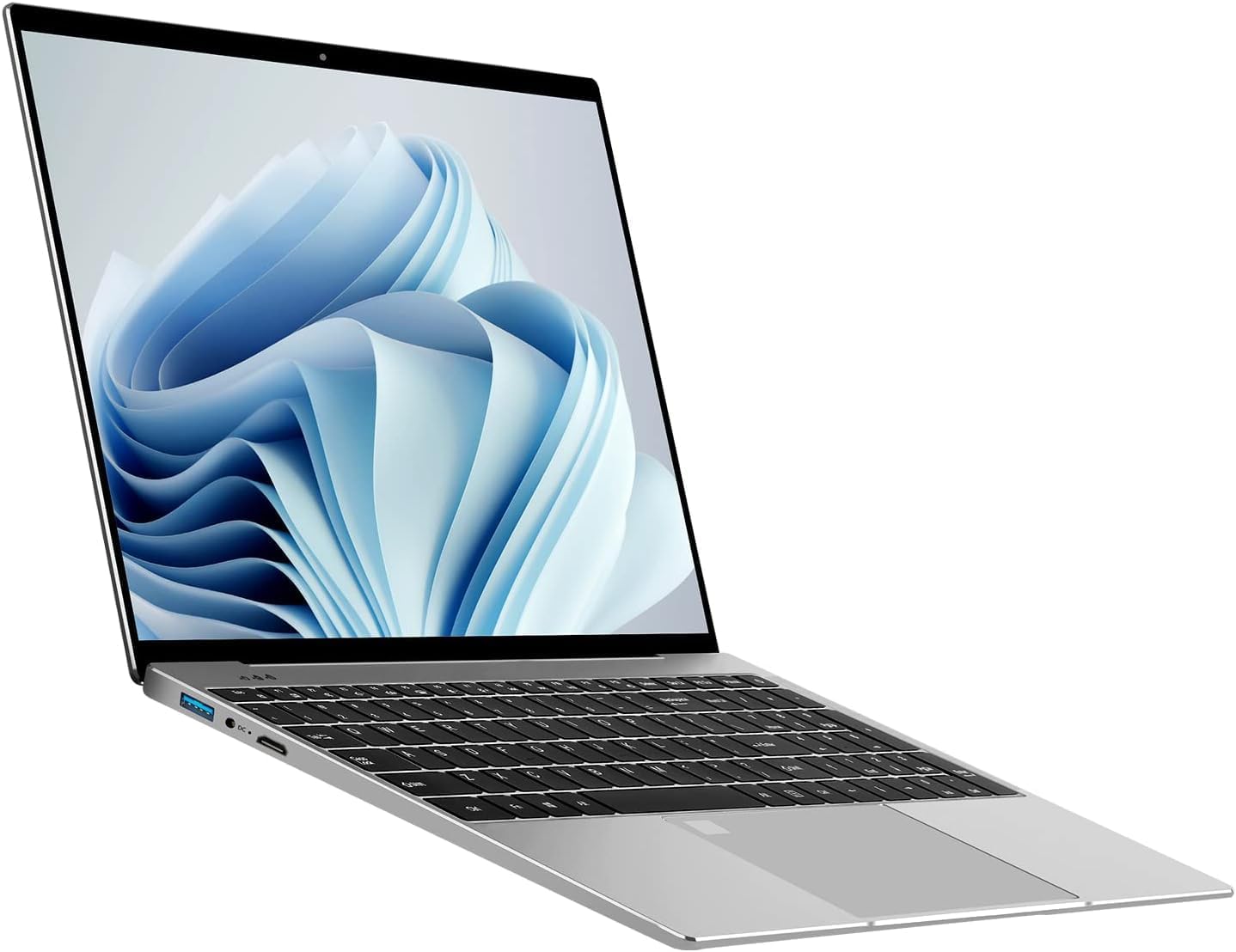
Image 2.1: General view of the VGKE 15.6" Laptop.
3. Key Features
- 15.6-inch Full HD Display: Enjoy clear and vibrant visuals with a 1920x1080p resolution, 350 nits brightness, and an anti-glare IPS screen.
- Intel Celeron Quad-Core J4125 Processor: Provides reliable performance for daily computing tasks.
- 12GB DDR4 RAM & 256GB SSD: Offers efficient multitasking and fast data access.
- Backlit Keyboard: Enhances typing comfort in low-light conditions.
- Integrated Webcam & Fingerprint Reader: Features a 720p HD webcam for video calls and a fingerprint reader for secure, quick logins.
- Rich Connectivity: Includes USB 3.0, Micro HDMI, Type-C, TF Card Slot, and a Headset Jack. Wireless connectivity includes 802.11n Wi-Fi and Bluetooth 5.0.

Image 3.1: The laptop's 15.6-inch Full HD display.

Image 3.2: Visual representation of the Intel Celeron J4125 processor.

Image 3.3: Illustration of the laptop's storage and memory capabilities.

Image 3.4: The backlit keyboard feature of the laptop.

Image 3.5: Overview of the laptop's security features including webcam and fingerprint reader.

Image 3.6: Diagram illustrating the various ports and connectivity options.
Product Video
Video 3.1: A short demonstration highlighting the laptop's clear picture quality and smooth operation.
4. Setup Guide
- Unboxing: Carefully remove the laptop and all accessories from the packaging. Ensure all components are present: laptop, power adapter, and this manual.
- Initial Charge: Before first use, connect the power adapter to the laptop's DC-in port and a power outlet. Allow the battery to charge fully. The charging indicator light will change when fully charged.
- Power On: Open the laptop lid and press the power button, usually located on the top right of the keyboard or on the side.
- Windows Setup: Follow the on-screen instructions to complete the Windows 11 Home setup. This includes selecting your language, region, connecting to Wi-Fi, and creating a user account.
- Fingerprint Reader Setup: During or after Windows setup, configure the fingerprint reader for secure and convenient login. Access this option in Windows Settings under 'Accounts' > 'Sign-in options'.
5. Operating Instructions
- Power Management:
- To shut down, click the Start button, then Power > Shut down.
- To restart, click the Start button, then Power > Restart.
- To put the laptop to sleep, close the lid or click the Start button, then Power > Sleep.
- Using the Backlit Keyboard: Press the Fn key combined with the appropriate function key (often F5 or F6, look for a keyboard backlight icon) to adjust the backlight brightness or turn it on/off.
- Connecting External Devices: Use the available USB 3.0, Type-C, and Micro HDMI ports to connect peripherals such as external monitors, mice, keyboards, and storage devices.
- Wi-Fi and Bluetooth: Access network settings via the taskbar icon or Windows Settings to connect to Wi-Fi networks or pair Bluetooth devices.
- Webcam Usage: The integrated 720p HD webcam can be used with video conferencing applications. Ensure privacy settings are configured to allow applications access to the camera.
6. Maintenance
- Cleaning: Use a soft, lint-free cloth to clean the screen and exterior. For stubborn smudges, slightly dampen the cloth with water or a screen-safe cleaner. Avoid harsh chemicals.
- Software Updates: Regularly check for and install Windows updates to ensure system stability and security. Go to Windows Settings > Windows Update.
- Battery Care: To prolong battery life, avoid extreme temperatures. It is recommended to occasionally discharge the battery below 20% and then fully recharge it.
- Storage Management: Periodically delete unnecessary files and applications to free up storage space and maintain performance.
- Backup Data: Regularly back up important files to an external drive or cloud storage to prevent data loss.
7. Troubleshooting
- Laptop Not Powering On: Ensure the power adapter is securely connected and the outlet is functional. If the battery is completely drained, allow it to charge for at least 30 minutes before attempting to power on.
- Display Issues: If the screen is blank or flickering, try connecting an external monitor to determine if the issue is with the laptop's display or graphics card. Adjust display settings in Windows.
- Slow Performance: Close unnecessary applications, check for background processes, and ensure sufficient free storage space. Running a disk cleanup or antivirus scan may also help.
- Wi-Fi Connectivity Problems: Restart your router and modem. On the laptop, disable and re-enable Wi-Fi, or try forgetting and re-connecting to the network. Ensure drivers are up to date.
- Fingerprint Reader Not Working: Ensure your fingers are clean and dry. Re-register your fingerprints in Windows Settings if the issue persists.
8. Specifications
| Feature | Detail |
|---|---|
| Brand | VGKE |
| Model Name | B15_Pro |
| Screen Size | 15.6 Inches |
| Native Resolution | 1920 x 1080 pixels (Full HD) |
| Display Technology | IPS, Anti-glare |
| Maximum Display Brightness | 350 Nit |
| CPU Model | Intel Celeron J4125 Quad-Core |
| Processor Speed | 2.7 GHz (Max) |
| RAM Memory Installed Size | 12 GB DDR4 |
| Hard Disk Size | 256 GB SSD |
| Operating System | Windows 11 Home |
| Graphics Coprocessor | Intel UHD Graphics 600 |
| Connectivity Technology | HDMI, USB (USB 3.0, Type-C) |
| Wireless Compatibility | 802.11n |
| Bluetooth Version | 5.0 |
| Human-Interface Input | Keyboard (Backlit, Full-size with Numeric Keypad), Microphone, Touchpad |
| Webcam Capability | Yes (720p HD) |
| Biometric Security Feature | Fingerprint Recognition |
| Battery Type | Lithium Ion (44 Watt Hours) |
| Item Dimensions (L x W x Thickness) | 14.1"L x 9.05"W x 0.78"Th |
| Color | Silver |
9. Warranty and Support
For warranty information, technical support, or service inquiries, please refer to the documentation included with your purchase or visit the official VGKE support website. Keep your proof of purchase for warranty claims.
