
1. Introduction and Overview
The ORDRO 5K Video Camcorder M5 is a high-performance handheld camcorder designed for capturing stunning video and images. It combines advanced imaging technology with user-friendly features, making it suitable for various recording needs, from daily life to professional vlogging.
Key features include:
- 5K 30FPS and 48 Megapixel Camera: Superior video and image processing with a 1/2.5-inch CMOS high sensitivity sensor for detailed, high-quality captures, even in low light. Supports 4K 60FPS Ultra-HD recording with slow motion.
- Ultra-Stable Shooting - 3-Axis Mechanical Gimbal: Ensures smooth and clear videos, even during movement like hiking or running.
- 3.5-inch IPS Touch Screen: Easy and fast control with real-time parameter adjustment and clear visibility. The new flip touch screen and 180° rotating lens allow for accurate composition for self-shooting or others.
- Infrared Night Vision Function: Built-in 3 infrared night vision lamps enable clear capture in dark or low-light environments.
- Ultra-Long Range Battery: Records up to 150 minutes of 4K/60FPS or 160 minutes of 5K/30FPS video on a full charge, with support for charging while in use.
- Flexible Usage: Supports horizontal and vertical shooting, WiFi connectivity, webcam live streaming, time-lapse, WDR wide dynamic, continuous shooting, AE-L exposure lock, long exposure, white balance, slow motion, and EV exposure compensation.
- Mini Body, Pocket-Friendly: Compact design (approx. 6.2x2.2x1.8 inches) for effortless shooting and portability.

Figure 1.1: ORDRO M5 Camcorder and included accessories.
2. Setup Guide
2.1 Unboxing and Initial Inspection
Upon receiving your ORDRO M5 camcorder, carefully open the packaging and inspect all contents. Ensure the following items are present:
- ORDRO M5 Camcorder
- USB-C Cable
- 64GB SD Card
- Camera Bag
If any items are missing or damaged, please contact customer support immediately.
2.2 Battery Installation and Charging
The ORDRO M5 camcorder requires 1 Lithium Ion battery (included). Before first use, ensure the battery is fully charged.
- Locate the battery compartment on the camcorder.
- Insert the included Lithium Ion battery, ensuring correct polarity.
- Connect the camcorder to a power source using the provided USB-C cable. The charging indicator will illuminate.
- Allow the battery to charge completely. A full charge provides up to 150-160 minutes of recording time. The camcorder supports charging while in use.

Figure 2.1: Charging the ORDRO M5 Camcorder.
2.3 SD Card Insertion
The camcorder comes with a 64GB SD card for storage. Ensure it is properly inserted before recording.
- Locate the SD card slot on the camcorder.
- Insert the 64GB SD card into the slot until it clicks into place. Ensure the card is oriented correctly.
3. Operating Instructions
3.1 Powering On/Off
To power on the camcorder, press and hold the power button until the screen illuminates. To power off, press and hold the power button again until the device shuts down.
3.2 Using the 3.5-inch IPS Touch Screen
The 3.5-inch IPS touch screen provides intuitive control over the camcorder's functions. You can adjust parameters, review footage, and navigate menus directly on the screen. The screen also features a flip design and 180° rotating lens, allowing for easy self-composition and versatile shooting angles.
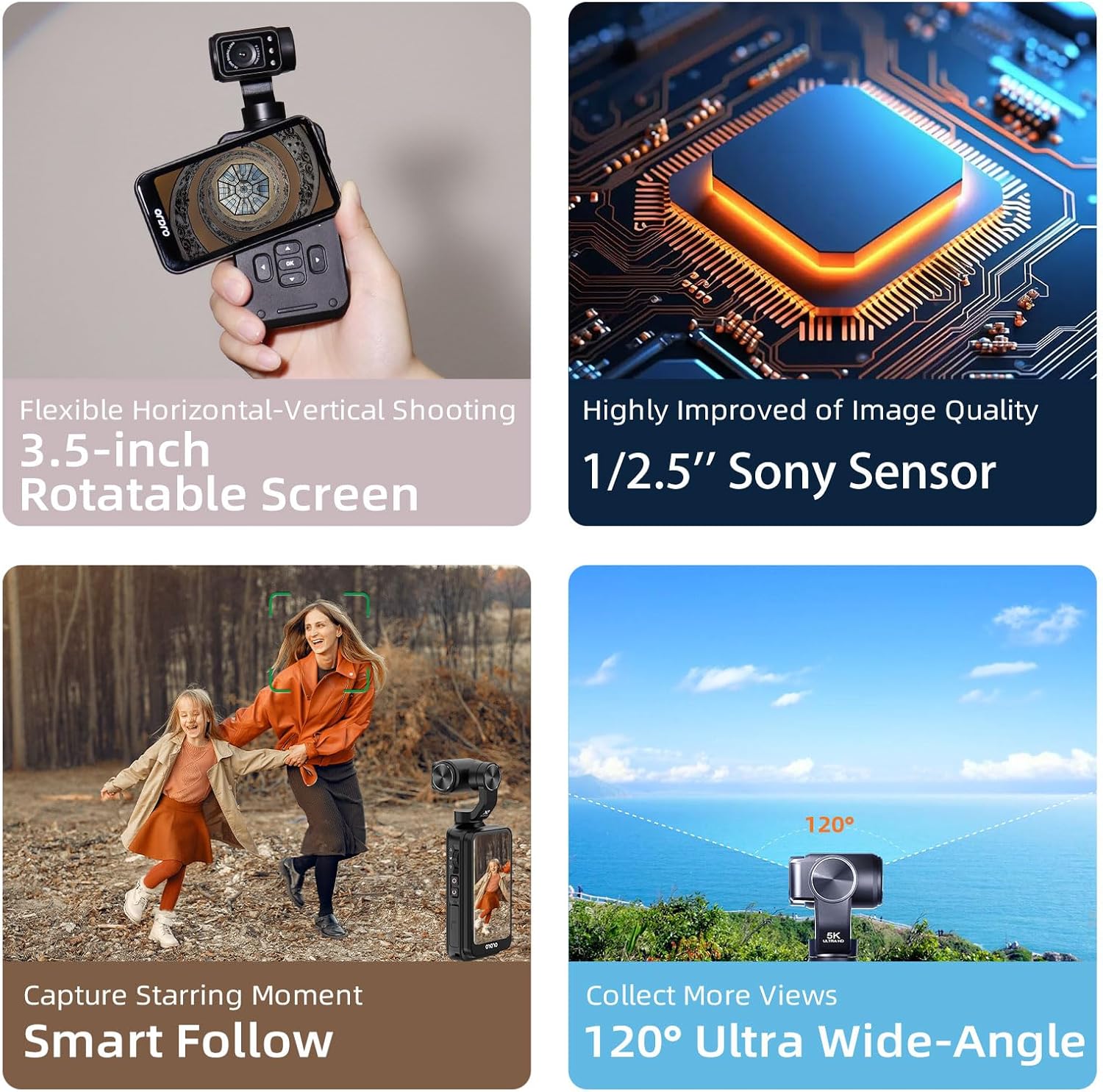
Figure 3.1: Flexible shooting with the rotatable screen and wide-angle lens.
3.3 Recording Video and Capturing Photos
The camcorder supports 5K 30FPS video recording and 48-megapixel photo capture. Use the dedicated record/shutter button to start and stop recording or take photos.

Figure 3.2: Examples of 5K 30FPS, Self-Timer, Time-Lapse, and Slow Motion capabilities.
3.4 Gimbal Modes and Stabilization
The integrated 3-axis mechanical gimbal provides excellent stabilization. The camcorder offers various gimbal modes to suit different shooting scenarios:
- PF Mode (Pan Following): The camera pans horizontally while maintaining a stable vertical axis.
- TF Mode (Tilt Following): The camera tilts vertically while maintaining a stable horizontal axis.
- L Mode (Lock Mode): The camera maintains its current orientation, locking both pan and tilt axes.
- POV Mode (Full Following): The camera follows all movements of the handle, providing a first-person perspective.
- PTZ (Pan-Tilt-Zoom) Speed: Adjust the speed of gimbal movements (Smooth, Regular, Sport).

Figure 3.3: Understanding 3-Axis Gimbal Modes.

Figure 3.4: Image stabilization in action.
3.5 Infrared Night Vision
The camcorder features built-in infrared night vision lamps, allowing you to capture clear footage in low-light or completely dark environments.
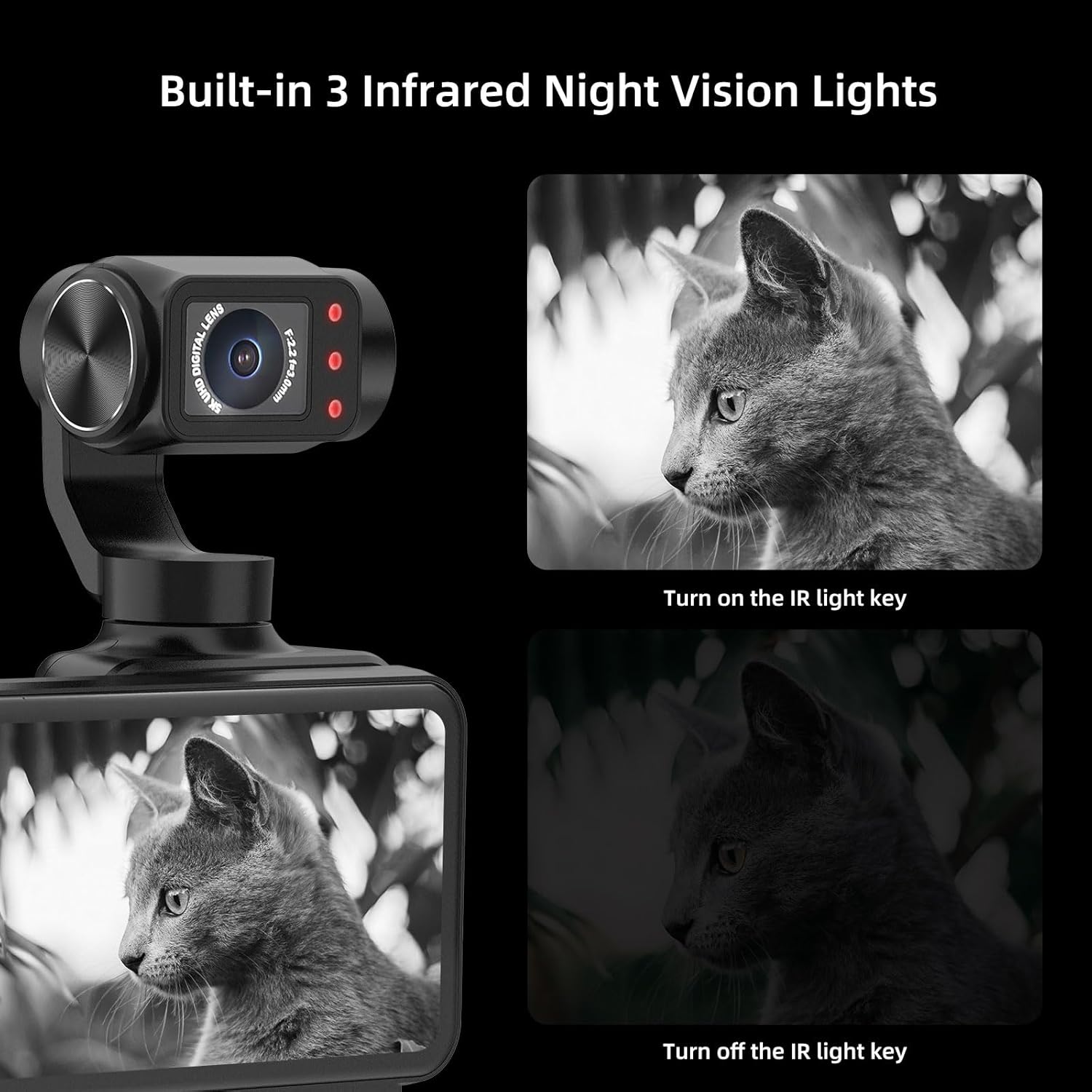
Figure 3.5: Infrared Night Vision capability.
3.6 Advanced Shooting Functions
The ORDRO M5 offers a range of advanced functions for enhanced creative control:
- WDR (Wide Dynamic Range): Captures more light details in high light, dark light, shadow, and backlight conditions.
- AE-L (Exposure Lock): Locks the exposure to ensure clear images, especially in backlit situations.
- Time-Lapse Shooting: Create captivating time-lapse videos.
- Continuous Shooting: Capture a rapid sequence of photos.
- Long Exposure: Ideal for capturing light trails or smooth water effects.
- White Balance: Adjust color temperature for accurate color reproduction.
- EV Exposure Compensation: Manually adjust exposure levels.
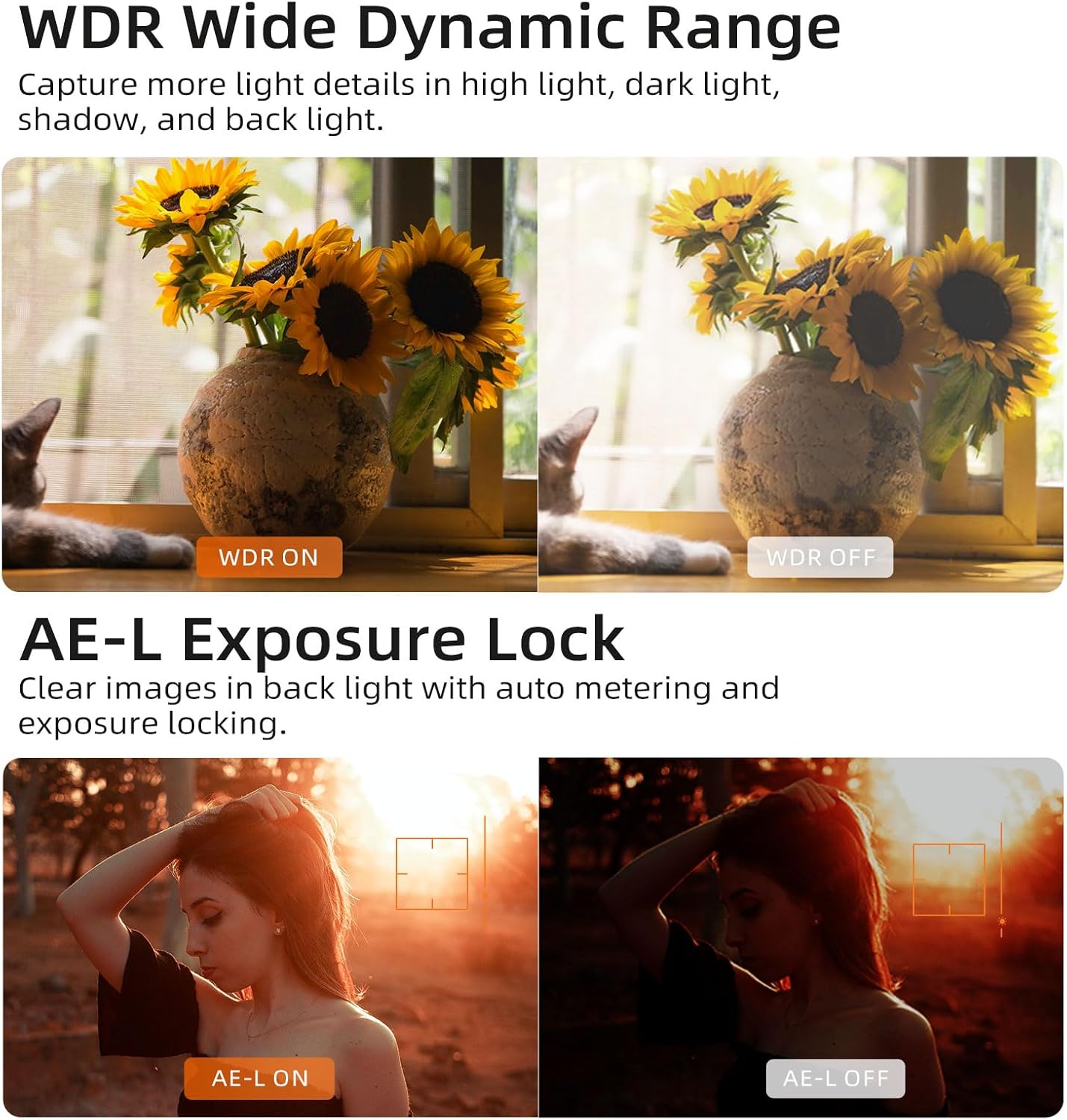
Figure 3.6: WDR and AE-L Exposure Lock in practice.
3.7 APP Preview & Remote Control
Utilize the dedicated OD Cam APP to easily view live footage and control the camcorder remotely with precise control. This feature is useful for setting up shots and monitoring recording from a distance.

Figure 3.7: APP Preview & Remote Control via OD Cam APP.
3.8 Webcam Live Streaming
The ORDRO M5 can function as a webcam, allowing for live streaming. Connect the camcorder to your computer via the USB-C cable and select webcam mode.

Figure 3.8: Using the ORDRO M5 as a webcam.
4. Maintenance
Proper maintenance ensures the longevity and optimal performance of your ORDRO M5 camcorder.
- Cleaning: Use a soft, dry cloth to clean the camcorder body. For the lens and screen, use a specialized lens cleaning cloth and solution. Avoid abrasive materials or harsh chemicals.
- Storage: When not in use, store the camcorder in its camera bag in a cool, dry place, away from direct sunlight, dust, and extreme temperatures.
- Battery Care: If storing for extended periods, charge the battery to about 50% and remove it from the device. Recharge periodically to prevent deep discharge.
- Firmware Updates: Check the official ORDRO website periodically for any available firmware updates to ensure your camcorder has the latest features and bug fixes.
5. Troubleshooting
This section addresses common issues you might encounter with your ORDRO M5 camcorder. If the problem persists, please contact customer support.
5.1 Camcorder Not Powering On
- Check Battery: Ensure the battery is correctly inserted and fully charged.
- Charging: Connect the camcorder to a power source to confirm it charges. If not, try a different USB-C cable or power adapter.
- Reset: If the screen is frozen or the gadget doesn't turn off, use a pin to press the reset button (usually a small hole) to force a restart.
5.2 Poor Image/Video Quality
- Low Light Conditions: In very low light, image quality may be reduced. Utilize the Infrared Night Vision function for dark environments. For general low light, ensure adequate lighting or adjust exposure settings (EV compensation, Long Exposure).
- Lens Cleanliness: Ensure the lens is clean and free from smudges or dust.
- Settings: Verify that video resolution is set to 5K or 4K for optimal quality. Check WDR and AE-L settings for challenging lighting.
5.3 Gimbal Instability
- Calibration: If the gimbal seems off-balance or unstable, refer to the on-screen menu for gimbal calibration options.
- Obstructions: Ensure there are no physical obstructions preventing the gimbal from moving freely.
5.4 Connectivity Issues (WiFi/Webcam)
- WiFi Connection: Ensure the camcorder's WiFi is enabled and you are connecting to the correct network or device.
- App Compatibility: Ensure you are using the official OD Cam APP and it is updated to the latest version.
- USB Connection: For webcam mode, ensure the USB-C cable is securely connected to both the camcorder and the computer, and the correct mode is selected on the camcorder.
6. Specifications
| Feature | Specification |
|---|---|
| Brand Name | ORDRO |
| Model Number | ORDRO M5 |
| Item Weight | 1.04 pounds |
| Package Dimensions | 7.76 x 3.98 x 2.64 inches |
| Country of Origin | China |
| Batteries | 1 Lithium Ion batteries required (included) |
| Color | Black |
| Special Features | Infrared, Night Vision, Low Light |
| Photo Sensor Technology | CMOS |
| Video Capture Resolution | 5K |
| Maximum Focal Length | 3.3 Millimeters |
| Flash Memory Type | Micro SD |
| Video Capture Format | MP4 |
| Supported Audio Format | AAC |
| Screen Size | 3.5 Inches |
| Connectivity Technology | Wi-Fi, USB |
| Visible Screen Diagonal | 4" / 9 cm |
7. Warranty and Support
The ORDRO M5 camcorder comes with a manufacturer's warranty. For specific warranty terms and conditions, please refer to the documentation included with your product or visit the official ORDRO website. Protection plans are also available for extended coverage.
For technical support, troubleshooting assistance, or warranty claims, please contact ORDRO customer service through their official channels. You can often find contact information on the product packaging or the brand's official website.
Online Resources:
- Visit the ORDRO Store on Amazon for product information and updates.
Note: No official seller videos were provided in the product data for embedding in this manual.


