1. Introduction
This manual provides detailed instructions for the setup, operation, and maintenance of your Irfora Wireless 2D 1D Barcode Scanner (Model W2-B). This versatile scanner supports multiple connection methods including Bluetooth, 2.4G wireless, and USB wired, making it suitable for various environments such as retail, logistics, libraries, and warehouses. Please read this manual thoroughly before using the device to ensure proper functionality and longevity.

Figure 1: Front view of the Irfora Wireless Barcode Scanner.
2. Product Features
- High-Speed Barcode Scanning: Equipped with 300,000 All Stations CMOS sensors, capable of scanning various angles and irregular barcodes, including screen codes.
- Multiple Connection Options: Supports Bluetooth, 2.4G wireless, and USB wired connections for broad compatibility with Windows, Android, Linux, and Mac operating systems.
- Flexible Scanning Modes: Offers manual trigger, auto-sensing, and continuous scanning modes for diverse operational needs.
- Large Storage Capacity: Capable of storing up to 10,000 barcodes in offline mode.
- Strong Decoding Ability: Decodes a wide range of 1D (EAN13, UPC-A, Code128, Code39, etc.) and 2D (QR Code, Data Matrix, PDF417, Aztec, etc.) barcodes.
- Durable Design: Constructed with ABS+PC material for shock resistance, designed to withstand daily use.
- Long Battery Life: Features a built-in 2000mAh rechargeable battery providing up to 24 hours of working time and 10 days of standby time.
- OLED Display: Provides real-time information on connection status and battery level.

Figure 2: The scanner features a shock-resistant design, capable of withstanding drops from up to 1.5m.
3. Package Contents
Please verify that all items are present in the package:
- 1 x Barcode Scanner
- 1 x 2.4G Receiver
- 1 x USB Cable
4. Setup Guide
4.1 Charging the Scanner
Before initial use, fully charge the scanner. Connect the provided USB cable to the scanner's charging port and the other end to a USB power adapter (not included) or a computer's USB port. The OLED display will indicate charging status. A full charge takes approximately 4 hours.
4.2 Connection Methods
The scanner supports three primary connection methods: 2.4G Wireless, Bluetooth, and USB Wired.
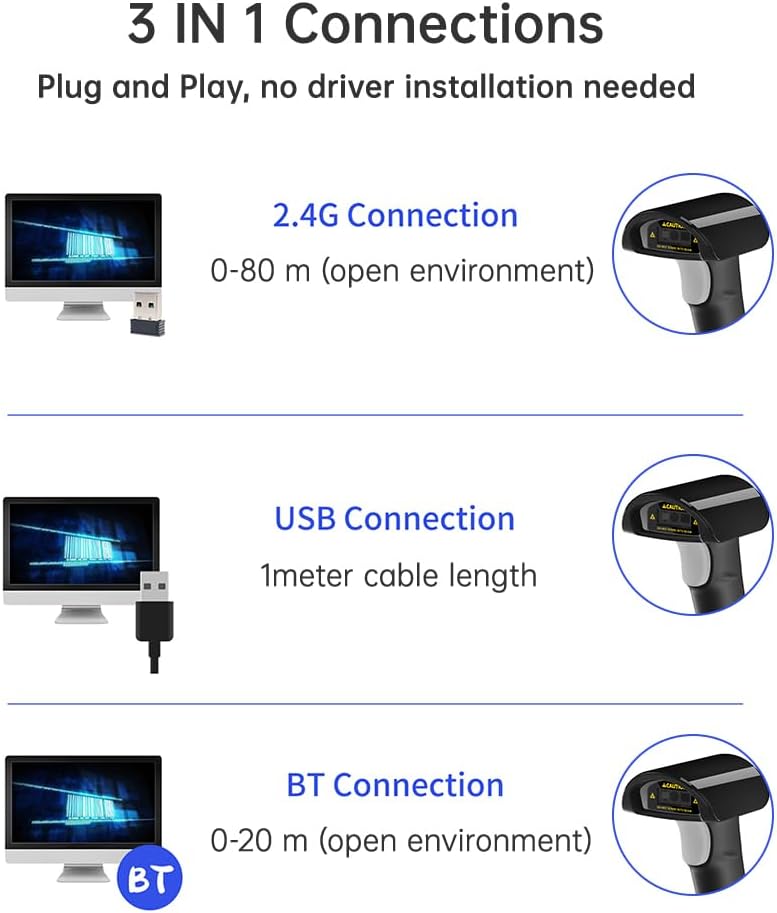
Figure 3: Overview of the 3-in-1 connection options.
4.2.1 2.4G Wireless Connection
- Insert the 2.4G USB receiver into an available USB port on your computer or host device.
- Turn on the barcode scanner.
- The scanner will automatically attempt to pair with the receiver. The OLED display will show the connection status.
- Once connected, the scanner is ready for use. The wireless range is up to 80 meters in an open environment.
4.2.2 Bluetooth (BT) Connection
- Ensure your host device (computer, tablet, smartphone) has Bluetooth enabled.
- Turn on the barcode scanner.
- Press the "Pairing" button on the scanner (refer to OLED display image for location). The scanner will enter pairing mode.
- On your host device, search for Bluetooth devices and select "Irfora Scanner" or a similar name.
- Confirm the pairing. The OLED display on the scanner will indicate a successful Bluetooth connection. The Bluetooth range is typically up to 20 meters in an open environment.
4.2.3 USB Wired Connection
- Connect one end of the provided USB cable to the scanner's USB port.
- Connect the other end of the USB cable to an available USB port on your computer or host device.
- The scanner will automatically switch to USB wired mode and function as a plug-and-play device. No driver installation is typically required.
5. Operating Instructions
5.1 Scanning Modes
The scanner offers three operational modes:
- Key Trigger Mode: Press the trigger button to activate the scan beam and read a barcode.
- Auto-Sensing Mode: The scanner automatically detects a barcode within its field of view and activates the scan beam without needing to press the trigger.
- Continuous Scanning Mode: The scan beam remains active continuously, allowing for rapid scanning of multiple barcodes without repeated trigger presses.
To switch between modes, refer to the specific setting barcodes provided in the full product manual (if applicable) or use the scanner's configuration settings via the OLED display.
5.2 Decoding Barcodes
Position the scanner's window over the barcode you wish to scan. Ensure the red scan line crosses the entire barcode. A successful scan will be indicated by a beep, an LED flash, and/or vibration (depending on settings).

Figure 4: The scanner's excellent decoding ability allows for quick and accurate reads of various barcode types.
The scanner supports a wide range of 1D and 2D barcode symbologies, including but not limited to:
- 1D Codes: EAN-13, EAN-8, UPC-A, UPC-E, ISSN, ISBN, CodaBar, Code 128, Code93, Interleaved 2 of 5, Industrial 2 of 5, Matrix 2 of 5, GS1 Databar (RSS), Code 39, Code 11, MSI-Plessey.
- 2D Codes: QR Code, Data Matrix, PDF417, QR, Aztec. Supports reading codes from mobile screens.
5.3 OLED Display Functionality
The integrated OLED display provides real-time feedback on the scanner's status, including connection type (2.4G, BT, USB), battery level, and potentially the number of stored barcodes. It also features "Upload" and "Pairing" buttons for easy management.
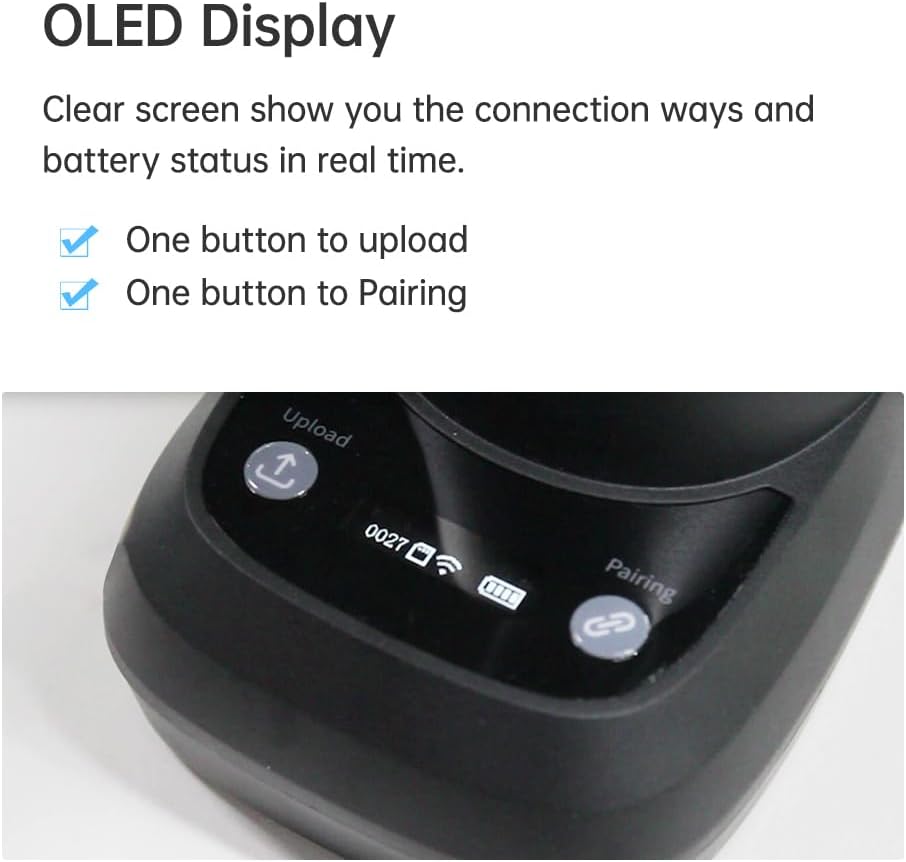
Figure 5: The OLED display provides clear status indicators and control buttons.
6. Maintenance
Proper maintenance ensures the longevity and optimal performance of your barcode scanner.
- Cleaning: Use a soft, dry, lint-free cloth to clean the scanner's exterior and scan window. For stubborn dirt, slightly dampen the cloth with water or a mild, non-abrasive cleaner. Do not use harsh chemicals, solvents, or abrasive materials.
- Storage: Store the scanner in a cool, dry place away from direct sunlight, extreme temperatures, and high humidity. When not in use for extended periods, ensure the battery is partially charged (around 50%) to preserve battery health.
- Handling: While the scanner is designed to be shock-resistant, avoid unnecessary drops or impacts. Do not expose the device to water or other liquids.
7. Troubleshooting
If you encounter issues with your barcode scanner, please refer to the following common solutions:
- Scanner not connecting:
- Ensure the scanner is powered on and fully charged.
- For 2.4G connection, verify the USB receiver is properly inserted and recognized by the host device.
- For Bluetooth, ensure Bluetooth is enabled on your host device and the scanner is in pairing mode. Try re-pairing the device.
- For USB wired, ensure the cable is securely connected to both the scanner and the host device. Try a different USB port or cable.
- Scanner not reading barcodes:
- Ensure the barcode is clean, undamaged, and clearly printed.
- Verify the scanner's scan window is clean and free of obstructions.
- Adjust the distance and angle between the scanner and the barcode.
- Check if the barcode symbology is supported by the scanner (refer to Section 5.2).
- Ensure the scanner is in the correct scanning mode (e.g., Key Trigger, Auto-Sensing).
- Battery not holding charge:
- Ensure you are using the provided USB cable for charging.
- Try charging from a different USB power source (e.g., a different computer port or wall adapter).
- If the issue persists, the battery may need replacement or service.
If these steps do not resolve the issue, please contact customer support for further assistance.
8. Specifications
| Feature | Specification |
|---|---|
| Model | W2-B |
| Scan Mode | Key trigger, Auto-sensing, Continuous scanning |
| Communication Interface | USB-HID keyboard, USB-COM virtual serial port |
| Wireless Communication Distance (2.4G) | 0-80m (open environment) |
| Bluetooth Communication Distance | 0-20m (open environment, typical) |
| Prompt Mode | Buzzer, LED light, Vibration motor |
| Housing Material | ABS+PC |
| Cable Standard | USB 1m |
| Exterior Dimensions (Product) | 157mm × 70mm × 112mm |
| Exterior Dimensions (Pedestal) | 128mm × 81mm × 89mm |
| Weight (Net) | 179.2g |
| Sensor | 300,000 All Stations CMOS |
| Resolution | 640x480 |
| Light Source | White LED |
| Scan Angle | ±60°, ±60°, 360° (elevation, declination, rotation) |
| Scan Rate | 120 fps |
| Field of View | 48° (H) x 30° (V) |
| Printing Contrast | Minimum 15% |
| Minimum Resolution (1D) | 3MIL |
| Minimum Resolution (QR) | 5MIL |
| Input Voltage | DC 5V±10% |
| Current (Working) | 350 mAh |
| Current (Standby) | 130 mAh |
| Battery | 2000mAh lithium-ion battery |
| Charging Time | 4 hours |
| Battery Life (Working) | 24 hours (scan every 5 seconds) |
| Battery Life (Standby) | 10 days |
9. Warranty and Support
The Irfora Wireless 2D 1D Barcode Scanner comes with a standard manufacturer's warranty. Please refer to the product packaging or the seller's information for specific warranty terms and duration.
For technical support, troubleshooting beyond this manual, or warranty claims, please contact the retailer or manufacturer's customer service. Keep your purchase receipt as proof of purchase.


