
BOSGAME P4
BOSGAME P4 Plus Mini PC User Manual
Model: P4
1. Introduction
This user manual provides comprehensive instructions for the setup, operation, maintenance, and troubleshooting of your BOSGAME P4 Plus Mini PC. Please read this manual carefully before using the device to ensure optimal performance and longevity.

Image: The BOSGAME P4 Plus Mini PC, showcasing its compact design and various ports.
2. Package Contents
Please verify that all items are present in the package:
- BOSGAME P4 Plus Mini PC
- Power Adapter
- HDMI Cable
- User Manual (this document)
- (Optional) VESA Mount Kit
3. Specifications
| Component | Detail |
|---|---|
| Processor | AMD Ryzen 7 5825U (8C/16T, up to 4.5GHz) |
| Graphics | AMD Radeon Graphics (8 GPU cores, 2000MHz) |
| RAM | 16GB DDR4 (Dual Channel, 2x8GB) |
| Storage | 512GB M.2 NVME PCIe 3.0x4 SSD (Expandable with 2.5" SSD up to 2TB) |
| Video Output | HDMI, DisplayPort (DP), USB-C (Supports 4K Triple Display) |
| Network | Dual 2.5G Ethernet Ports, Wi-Fi 6E, Bluetooth 5.2 |
| USB Ports | USB 3.2, USB 2.0, Full-featured USB-C |
| Operating System | Supports Windows, Ubuntu, Linux |
| Dimensions | Approximately 16.69 x 16.51 x 10.49 cm |
| Weight | Approximately 1.1 kg |

Image: The compact size of the BOSGAME P4 Plus Mini PC, shown next to a smartphone and keyboard for scale.
4. Setup Guide
4.1 Connecting Peripherals
- Power Connection: Connect the power adapter to the DC-in port on the Mini PC and then to a power outlet.
- Display Connection: Connect your monitor(s) to the Mini PC using the HDMI, DisplayPort, or USB-C ports. The Mini PC supports up to three displays simultaneously for 4K resolution.
- Keyboard and Mouse: Connect your USB keyboard and mouse to the available USB ports (USB 3.2 or USB 2.0).
- Network Connection: For a wired connection, connect an Ethernet cable to one of the 2.5G LAN ports. For wireless, ensure Wi-Fi 6E is enabled in the operating system settings.
- Audio: Connect speakers or headphones to the audio jack if needed.

Image: Diagram illustrating the various input/output ports on the BOSGAME P4 Plus Mini PC, including USB, LAN, HDMI, DP, and DC-in.
4.2 Initial Power On
Press the power button located on the front of the Mini PC. The power indicator light will illuminate. The system will boot up, and you can proceed with the operating system setup if it's a fresh installation, or log in if an OS is pre-installed.
5. Operating Instructions
5.1 Power Management
- Turning On: Press the power button.
- Shutting Down: Use the operating system's shutdown function. Avoid direct power disconnection during operation to prevent data loss.
- Restarting: Use the operating system's restart function.
- Sleep Mode: The system can enter sleep mode to conserve power. Wake it by pressing any key on the keyboard or moving the mouse.
5.2 Storage Expansion
The BOSGAME P4 Plus Mini PC supports storage expansion by adding a 2.5-inch SSD (not included) up to 2TB. To install, carefully open the chassis according to the diagram below and connect the SSD to the designated SATA port and power connector.

Image: An exploded diagram showing the internal components of the Mini PC, including the motherboard, RAM, SSD slot, and cooling system, useful for understanding upgrade paths.
5.3 Multi-Display Setup
The Mini PC supports triple display output via HDMI, DisplayPort, and USB-C. Connect your monitors to these ports. Configure display settings within your operating system (e.g., Windows Display Settings) to extend or duplicate your desktop.

Image: The BOSGAME P4 Plus Mini PC connected to three external monitors, demonstrating its triple display capability for enhanced productivity.
5.4 Network Connectivity
Utilize the dual 2.5G Ethernet ports for high-speed wired network connections. For wireless connectivity, the integrated Wi-Fi 6E module provides robust and stable performance. Bluetooth 5.2 allows for connection to wireless peripherals.
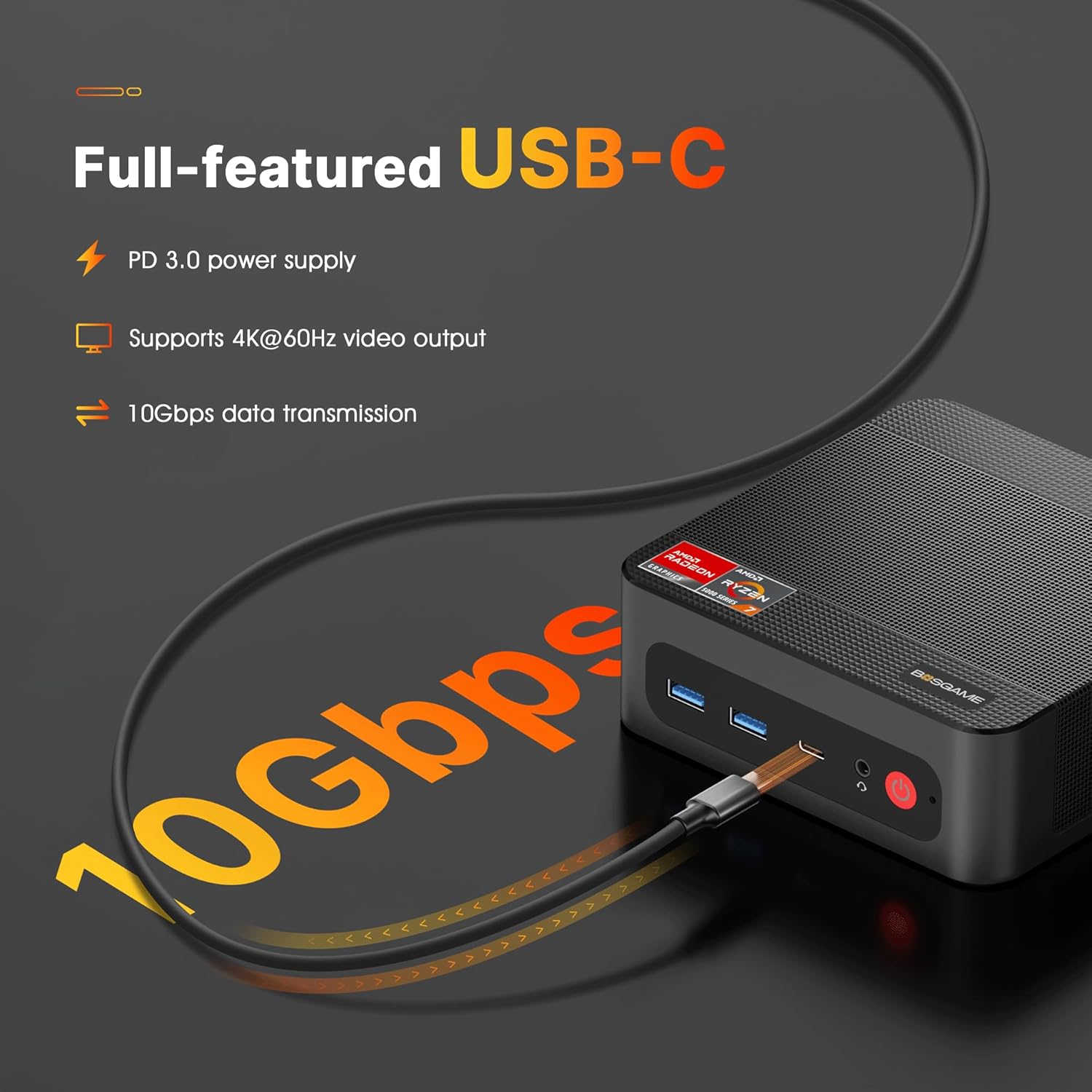
Image: The BOSGAME P4 Plus Mini PC with two Ethernet cables plugged into its dual 2.5G LAN ports, highlighting its advanced networking capabilities.
6. Maintenance
6.1 Cleaning
- Regularly clean the exterior of the Mini PC with a soft, dry cloth.
- Use compressed air to gently clear dust from ventilation openings to maintain optimal airflow and cooling.
- Do not use liquid cleaners or abrasive materials.
6.2 Software Updates
Keep your operating system and drivers updated to ensure system stability, security, and performance. Check the BOSGAME official website or your operating system's update utility for the latest software.
6.3 Heat Dissipation
The Mini PC features an efficient heat dissipation system. Ensure the ventilation holes are not obstructed to prevent overheating. Operate the device in a well-ventilated area.

Image: An internal view of the Mini PC highlighting its cooling fan and heat conduits, which are crucial for efficient heat dissipation and stable operation.
7. Troubleshooting
| Problem | Possible Cause | Solution |
|---|---|---|
| No power | Power adapter not connected; Power outlet issue | Ensure power adapter is securely connected to both the PC and a working power outlet. Try a different outlet. |
| No display | Monitor not connected; Incorrect input source on monitor; Faulty cable | Check display cable connections (HDMI, DP, USB-C). Ensure monitor is on and set to the correct input source. Try a different cable or monitor. |
| No internet connection | Ethernet cable loose; Wi-Fi disabled; Router issue | Verify Ethernet cable is secure. Check Wi-Fi settings in OS. Restart router/modem. |
| System slow/unresponsive | Too many applications running; Overheating; Malware | Close unnecessary applications. Ensure proper ventilation. Run antivirus scan. Consider OS reinstallation if persistent. |
8. Warranty and Support
8.1 Warranty Information
BOSGAME offers a 1-year limited warranty for each desktop PC. This warranty covers manufacturing defects and hardware failures under normal use conditions. Please retain your proof of purchase for warranty claims.
8.2 Technical Support
For technical assistance or warranty inquiries, please contact BOSGAME customer support:
- Online Support: Log in to your Amazon account, navigate to "Your Account" -> "Your Orders", and select "Ask Product Question" for your BOSGAME P4 Plus Mini PC.
- Email Support: support@bosgamepc.com
- Lifetime Technical Support: BOSGAME provides lifetime technical support for its products.

Image: Visual representation of BOSGAME's customer support channels, including online, email, and lifetime technical support.
Ask a question about this manual
Ask about setup, troubleshooting, compatibility, parts, safety, or missing instructions. Manuals+ will review the question and use this page’s manual context to help answer it.