
1. Introduction
The Logitech H570e USB Headset is a reliable wired headset designed for clear audio communication on PC and Mac, certified for Microsoft Teams. It features dual noise-canceling microphones and a 30 mm audio driver, providing enhanced sound quality for professional use. This manual provides detailed instructions for setting up, operating, maintaining, and troubleshooting your H570e headset.

Image: Logitech H570e USB Headset with its retail packaging, showcasing the mono headset with USB-C connector and inline controls.
2. Setup
The Logitech H570e headset offers simple plug-and-play connectivity, requiring no additional software for basic functionality.
2.1 Connecting the Headset
- Locate an available USB-C port on your PC or Mac.
- Plug the USB-C connector of the H570e headset into the USB-C port on your computer.
- The operating system will automatically detect and install the necessary drivers. This process may take a few moments.
- Once installed, the headset will be ready for use. You may need to select the H570e as your default audio input and output device in your computer's sound settings or communication application (e.g., Microsoft Teams).

Image: Close-up of the Logitech H570e's USB-C connector, highlighting its plug-and-play design.
2.2 Initial Configuration (Optional)
For advanced customization and management, consider installing Logitech's software:
- Logi Tune: For individual users, Logi Tune allows you to customize audio settings, adjust sidetone and microphone levels, and enable features like anti-startle protection.
- Logitech Sync: For IT administrators, Logitech Sync provides a secure and scalable approach to remotely manage and update multiple H570e headsets within an organization.
3. Operating the Headset
The H570e headset is designed for ease of use with intuitive inline controls and a flexible microphone.
3.1 Inline Controls
The inline controller provides convenient access to essential call functions:
- Volume Up/Down: Use the '+' and '-' buttons to adjust the listening volume.
- Mute/Unmute: Press the microphone icon button to mute or unmute your microphone. An LED indicator on the controller provides visual confirmation of the mute status.
- Call Answer/End: Press the phone icon button to answer or end calls in supported applications.
- Microsoft Teams Button: A dedicated button provides quick access to Microsoft Teams activities, including joining meetings or bringing the Teams application to the foreground.
Image: Close-up of the Logitech H570e's inline controls, showing the volume, mute, call, and Teams buttons with LED indicators.
3.2 Microphone Usage
The H570e features a flexible boom microphone with noise-canceling capabilities to ensure clear voice pickup while minimizing background noise.
- Positioning: Adjust the microphone boom so that the microphone is approximately two fingers' width from your mouth.
- Noise Cancellation: The dual noise-canceling microphones are designed to filter out ambient sounds, focusing on your voice.
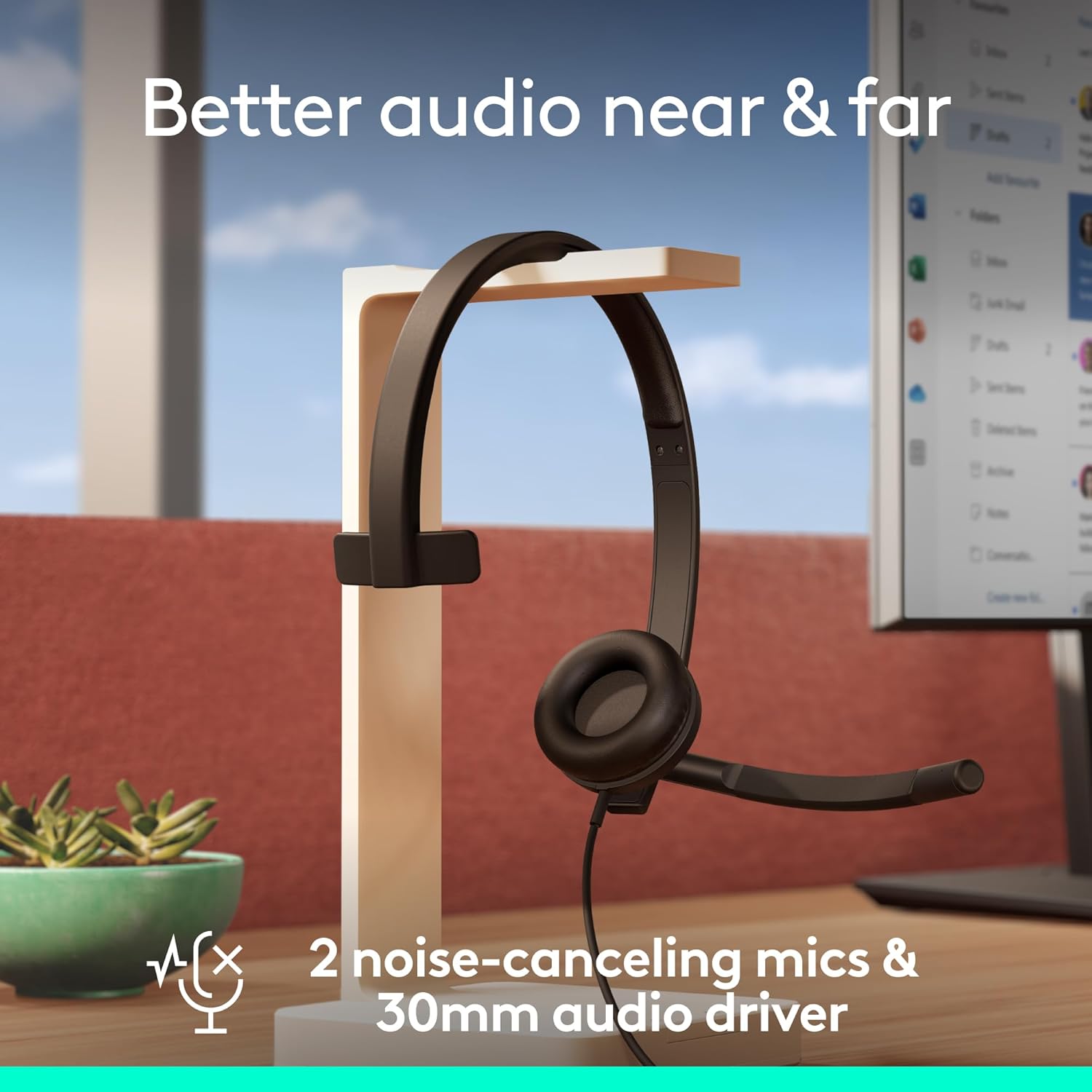
Image: The Logitech H570e headset on a stand, illustrating its mono design with a flexible microphone boom, emphasizing clear audio.
3.3 Comfort and Fit
The headset is designed for extended wear with a lightweight build and comfortable padding.
- Adjustable Headband: Extend or retract the headband to achieve a comfortable and secure fit on your head.
- Padded Headband and Earpad: The padded headband and leatherette earpad provide cushioning for comfort during long calls.
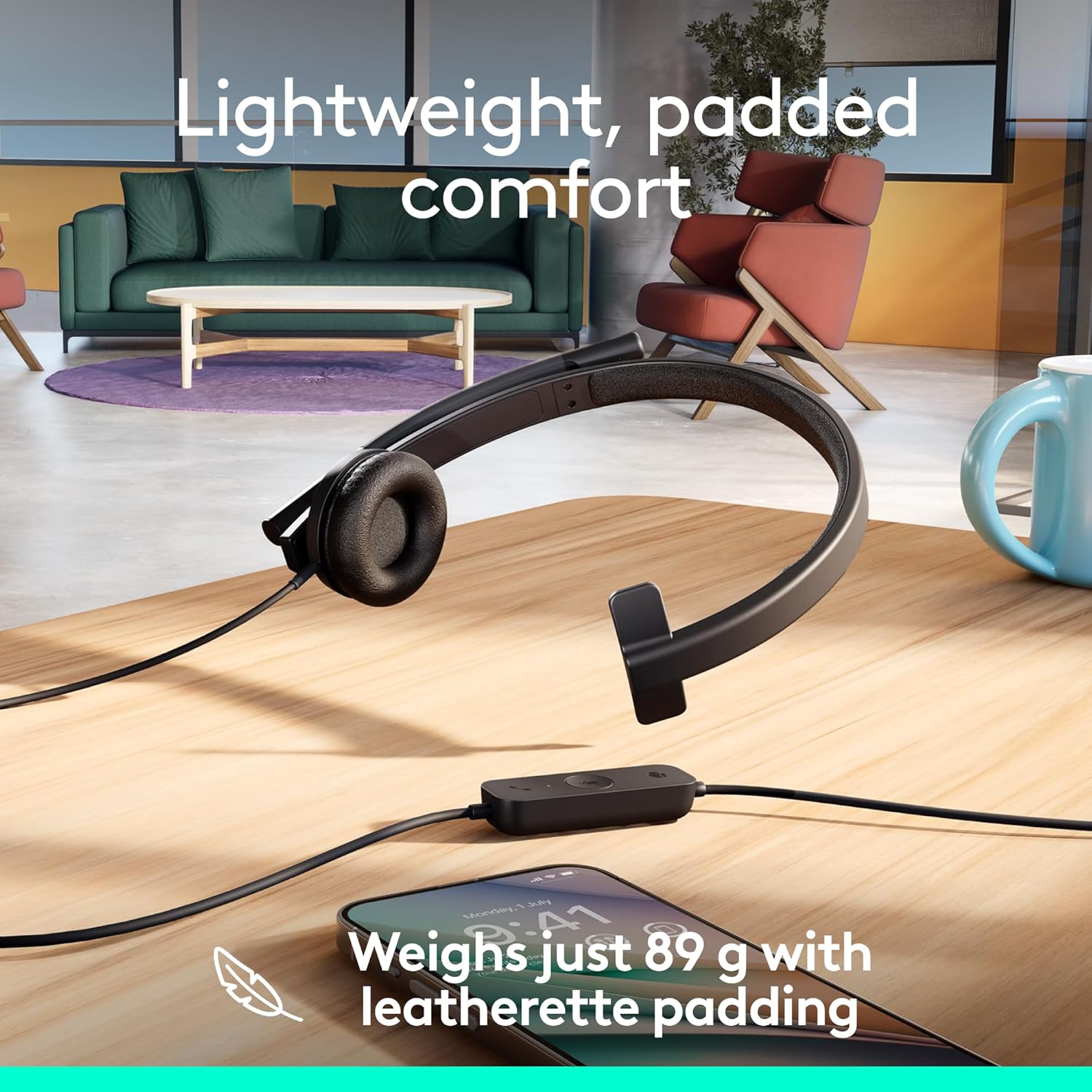
Image: The Logitech H570e headset resting on a wooden desk next to a smartphone, illustrating its lightweight design and comfortable padding.
4. Maintenance
Proper care and maintenance will extend the lifespan of your Logitech H570e headset.
4.1 Cleaning
- Gently wipe the headset surfaces with a soft, damp cloth.
- Avoid using harsh chemicals or abrasive cleaners, as these can damage the materials.
- Ensure no moisture enters the speaker grilles or microphone opening.
4.2 Earpad Replacement
The H570e features replaceable earpads, contributing to the product's sustainability and longevity.
- If earpads become worn or damaged, contact Logitech support or an authorized reseller for replacement parts.
- Follow the instructions provided with the replacement earpads for proper installation.
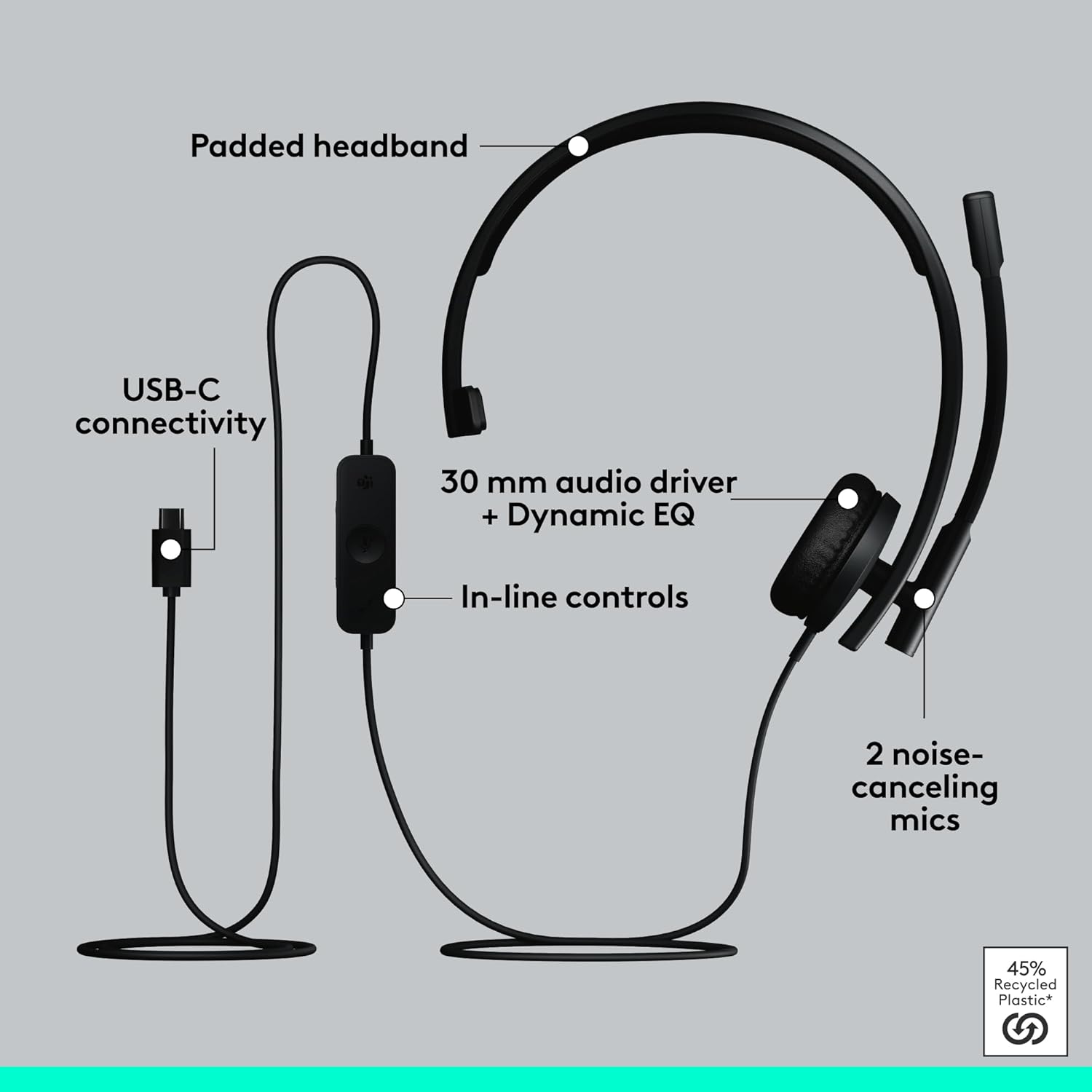
Image: Infographic highlighting the sustainable design of the Logitech H570e, including USB-C connectivity, 30mm audio driver, in-line controls, 2 noise-canceling mics, and replaceable earpads, made with 45% recycled plastic.
5. Troubleshooting
If you encounter issues with your Logitech H570e headset, try the following troubleshooting steps:
5.1 No Sound or Poor Audio Quality
- Check Connection: Ensure the USB-C connector is fully inserted into the computer's port.
- Volume Levels: Verify that the volume on the inline controller is turned up and that your computer's system volume is not muted or set too low.
- Default Device: Confirm that the Logitech H570e is selected as the default playback device in your operating system's sound settings and within your communication application (e.g., Microsoft Teams, Zoom).
- Test Another Port: Try plugging the headset into a different USB-C port on your computer.
- Restart Application/Computer: Close and reopen your communication application, or restart your computer.
5.2 Microphone Not Working
- Check Mute Button: Ensure the microphone is not muted using the inline controller's mute button. The LED indicator should confirm its status.
- Microphone Position: Adjust the microphone boom to ensure it is properly positioned near your mouth.
- Default Device: Confirm that the Logitech H570e is selected as the default recording device in your operating system's sound settings and within your communication application.
- Privacy Settings: On some operating systems (e.g., Windows 10/11, macOS), you may need to grant applications permission to access your microphone in privacy settings.
5.3 Inline Controls Not Responding
- Re-plug Headset: Disconnect and reconnect the headset to your computer.
- Application Compatibility: Ensure the application you are using fully supports HID (Human Interface Device) controls for headsets.
- Software Update: If using Logi Tune or Logitech Sync, ensure the software and headset firmware are up to date.
6. Specifications
| Feature | Description |
|---|---|
| Model Name | 981-001425 |
| Connectivity Technology | Wired (USB Type C) |
| Included Components | Headset with inline controller and USB-C connector, User Manual |
| Compatible Devices | Desktops, Laptops (PC and Mac) |
| Control Type | Volume Control, Mute, Call Answer/End, Microsoft Teams |
| Item Weight | 89 Grams (3.14 ounces) |
| Frequency Range | 20 Hz - 20,000 Hz |
| Audio Driver Size | 30 mm |
| Microphone | Dual Noise-Canceling Mics |
| Earpiece Shape | On-Ear (Mono) |
| Material | Plastic (minimum 45% post-consumer recycled plastic in plastic parts) |
| Special Features | Adjustable Headband, Lightweight, Microphone Included, Noise Cancellation, Volume Control, Replaceable Earpads |
| Product Dimensions | 1.97 x 6.18 x 6.73 inches |
7. Warranty and Support
Logitech products are designed for durability and reliability. For specific warranty information regarding your H570e USB Headset, please refer to the warranty card included in your product packaging or visit the official Logitech support website.
7.1 Customer Support
For technical assistance, troubleshooting, or to inquire about replacement parts (such as earpads), please visit the Logitech Support website:
7.2 Remote Management for IT Admins
IT administrators can leverage Logitech Sync for centralized management and updates of Logitech devices, including the H570e headset. This platform allows for remote monitoring, firmware updates, and configuration management across multiple devices.


