
1. Introduction
1.1 Product Overview
The ESP32 CH340 Type C Development Board is a versatile microcontroller board designed for Internet of Things (IoT) applications. It features the powerful ESP32S (ESP-WROOM-32) dual-core processor, offering integrated Wi-Fi and Bluetooth connectivity. This board is equipped with a CH340 USB-to-serial converter chip and a modern USB Type-C interface for easy programming and debugging. It provides a robust platform for developing smart home devices, wearables, industrial automation systems, and various other embedded projects.
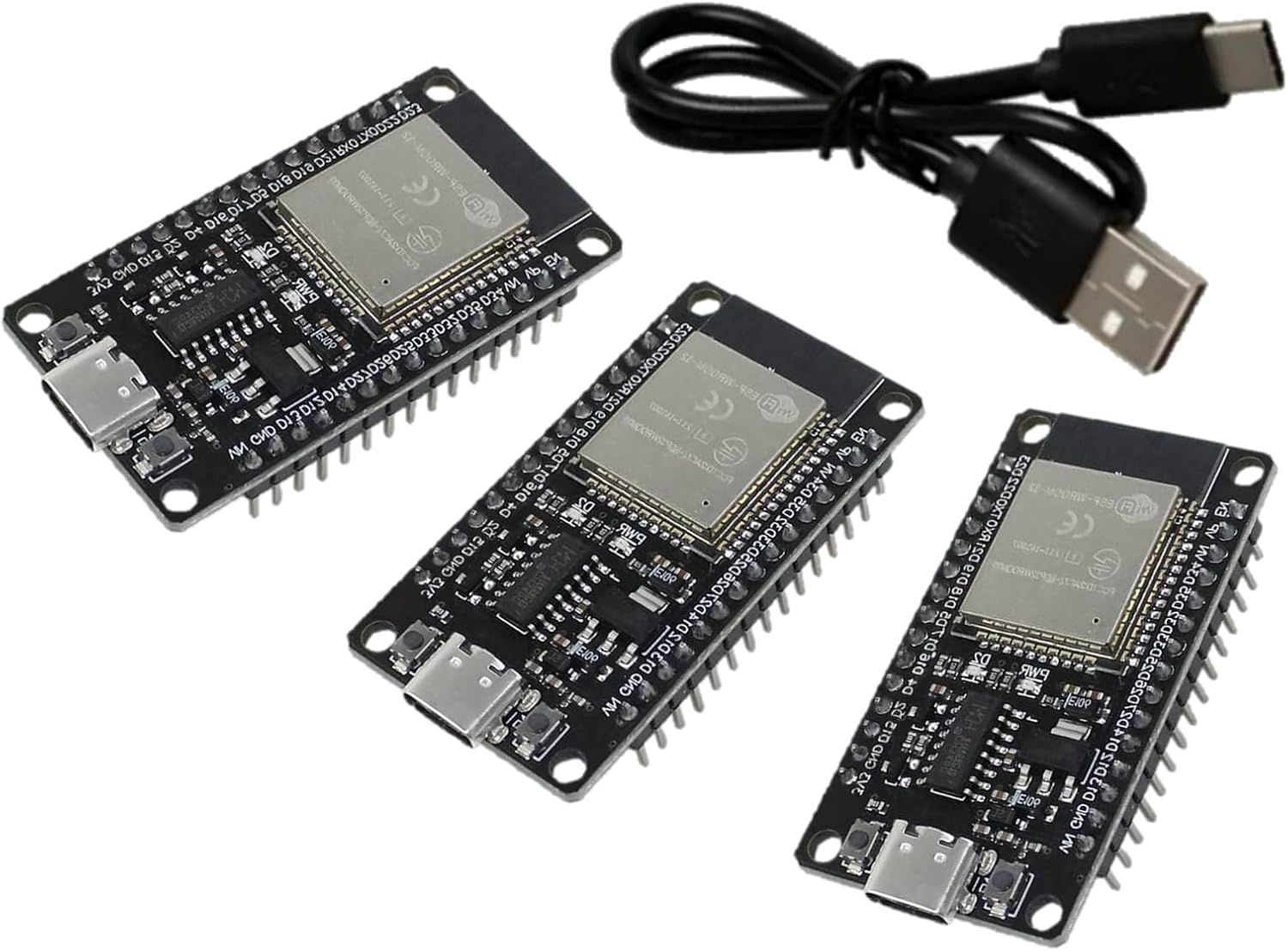
Image 1.1: Three ESP32 CH340 Type C Development Boards with an included USB-C cable.
1.2 What's in the Box
Your package includes the following items:
- 3 x ESP-WROOM-32 Development Boards
- 1 x USB Type-C Data Cable
2. Setup
2.1 Driver Installation
The ESP32 CH340 board uses the CH340G USB-to-serial converter chip. Before connecting the board to your computer, you may need to install the appropriate drivers. Most modern operating systems (Windows, macOS, Linux) often have these drivers pre-installed or can automatically download them. If the board is not recognized, follow these steps:
- Identify the CH340 chip: Locate the CH340G chip on your development board.
- Download drivers: Search online for "CH340G driver" and download the latest version compatible with your operating system from a reputable source (e.g., manufacturer's website or official driver repositories).
- Install drivers: Follow the installation instructions provided with the driver package. You may need to restart your computer after installation.
- Verify installation: Connect the ESP32 board to your computer. Open your device manager (Windows) or check `ls /dev/tty*` (Linux/macOS) to confirm that a new COM port or serial device is recognized.
2.2 Connecting the Board
Use the provided USB Type-C cable to connect the ESP32 development board to a USB port on your computer. Ensure the connection is secure. The board should power on, indicated by a power LED (if present).
2.3 Integrated Development Environment (IDE) Setup
The ESP32 CH340 board is compatible with various development environments. The Arduino IDE is a popular choice for its ease of use and extensive community support.
- Install Arduino IDE: Download and install the Arduino IDE from the official Arduino website.
- Add ESP32 Board Support: Open the Arduino IDE. Go to File > Preferences. In the "Additional Boards Manager URLs" field, add the following URL: https://raw.githubusercontent.com/espressif/arduino-esp32/gh-pages/package_esp32_index.json. Click OK.
- Install ESP32 Boards: Go to Tools > Board > Boards Manager.... Search for "ESP32" and install the "esp32 by Espressif Systems" package.
- Select Board: After installation, go to Tools > Board > ESP32 Arduino and select "ESP32 Dev Module" or a similar generic ESP32 board option.
- Select COM Port: Go to Tools > Port and select the COM port corresponding to your connected ESP32 board.
3. Operating
3.1 Basic Programming
Once your IDE is set up, you can begin programming your ESP32 board. Here are the general steps for uploading a basic sketch:
- Open an Example Sketch: In the Arduino IDE, go to File > Examples > 01.Basics > Blink to open a simple LED blinking sketch.
- Verify Code: Click the "Verify" button (checkmark icon) to compile the code and check for errors.
- Upload Code: Click the "Upload" button (right arrow icon) to compile and upload the sketch to your ESP32 board. During the upload process, you might need to press and hold the "BOOT" button on the ESP32 board, then press the "EN" (Enable/Reset) button, and release both once the upload starts. Some boards may enter programming mode automatically.
- Observe Output: If the sketch involves an LED, observe the LED blinking. For serial output, open the Serial Monitor (Tools > Serial Monitor) and ensure the baud rate matches the one set in your sketch (e.g., 115200).
3.2 Pinout Diagram
Understanding the pinout of your ESP32 board is crucial for connecting external components and utilizing its various functionalities. The board features 30 pins, including GPIO, Analog, PWM, I2C, SPI, and UART interfaces.
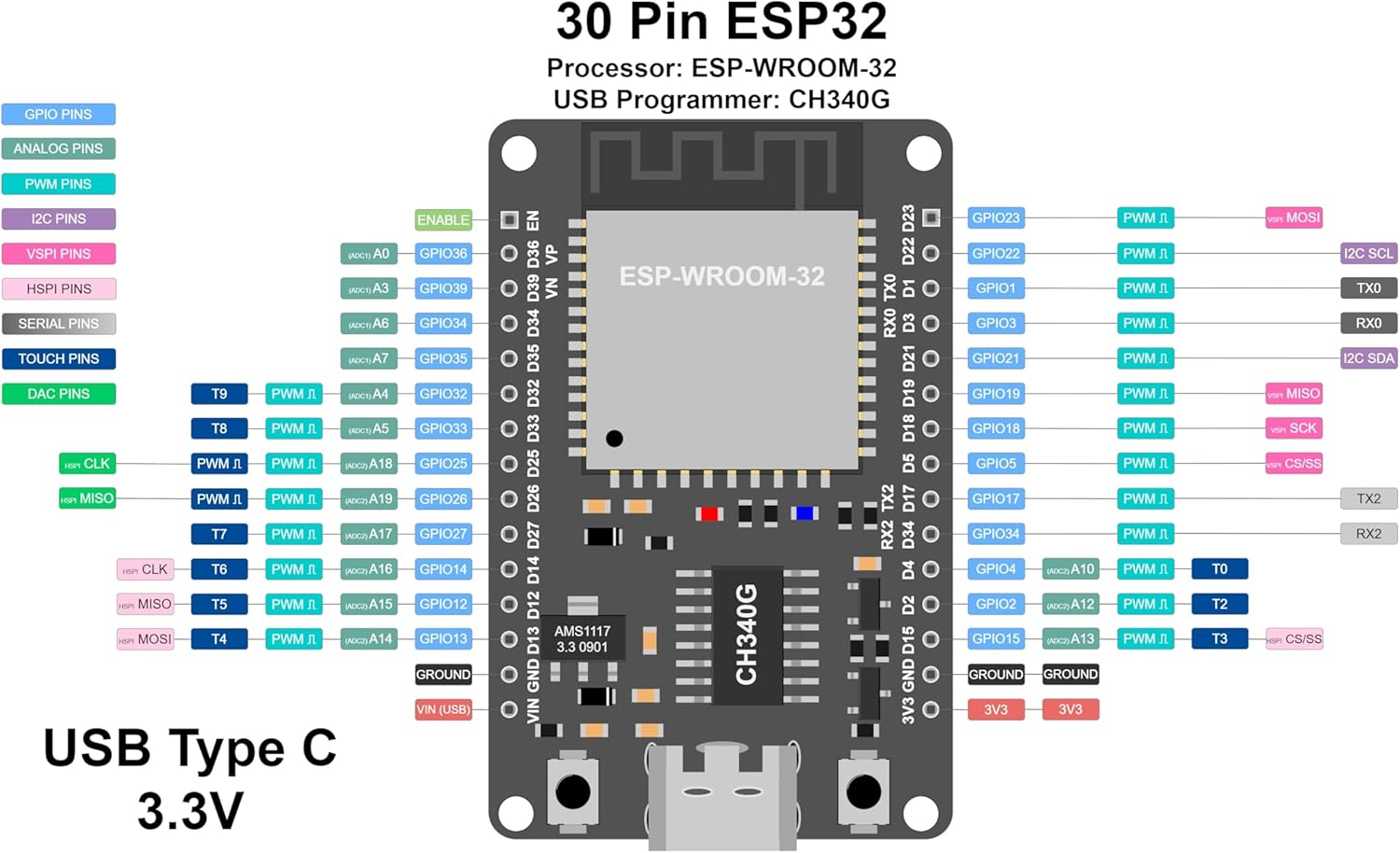
Image 3.1: Detailed pinout diagram for the ESP32 CH340 Type C Development Board.
Refer to the diagram above for specific pin assignments and their functions. Key pin types include:
- GPIO Pins: General Purpose Input/Output pins for digital read/write.
- Analog Pins: For Analog-to-Digital Converter (ADC) and Digital-to-Analog Converter (DAC) functions.
- PWM Pins: Pulse Width Modulation for controlling motor speed, LED brightness, etc.
- I2C Pins: For inter-integrated circuit communication (SDA, SCL).
- SPI Pins: For Serial Peripheral Interface communication (MOSI, MISO, SCK, CS).
- UART Pins: For Universal Asynchronous Receiver-Transmitter serial communication (TX, RX).
- Power Pins: 3.3V, 5V (VIN), and GND (Ground) pins.

Image 3.2: Angled view of the ESP32 CH340 Type C Development Board, highlighting the ESP-WROOM-32 module and USB-C port.
4. Maintenance
4.1 General Care
To ensure the longevity and reliable operation of your ESP32 development board, follow these general care guidelines:
- Handle with Care: Avoid dropping the board or subjecting it to physical shock.
- Static Electricity: Always handle the board in a static-safe environment to prevent damage from electrostatic discharge (ESD).
- Power Supply: Use a stable 5V power supply via the USB-C port or the VIN pin (5-12V). Ensure correct polarity when connecting external power.
- Storage: Store the board in a dry, dust-free environment, preferably in an anti-static bag when not in use.
- Cleaning: If necessary, gently clean the board with a soft, dry brush or compressed air. Avoid using liquids.
- Avoid Short Circuits: Be careful when connecting wires and components to prevent accidental short circuits, which can damage the board.
5. Troubleshooting
5.1 Common Issues and Solutions
Here are some common issues you might encounter and their potential solutions:
| Issue | Possible Cause | Solution |
|---|---|---|
| Board not recognized by computer | Missing or incorrect CH340 driver. Faulty USB cable. | Install/reinstall CH340 drivers (refer to Section 2.1). Try a different USB Type-C cable. Test with another USB port on your computer. |
| Upload failed / 'Failed to connect to ESP32' error | Board not in programming mode. Incorrect COM port selected. | Ensure correct COM port is selected in IDE. Press and hold the 'BOOT' button, then press 'EN' (Reset), release 'EN', then release 'BOOT' when upload starts. Some boards may require holding 'BOOT' during the entire upload. |
| Sketch compiles but doesn't run | Incorrect board selection in IDE. Code logic error. | Verify 'ESP32 Dev Module' or appropriate board is selected. Review your code for logical errors. Check power supply. |
| Wi-Fi or Bluetooth not working | Incorrect library usage. Antenna issues (unlikely for integrated module). | Ensure you are using the correct ESP32 Wi-Fi/Bluetooth libraries and examples. Check power supply stability. |
6. Specifications
6.1 Technical Specifications
The following table outlines the key technical specifications of the ESP32 CH340 Type C Development Board:
| Feature | Description |
|---|---|
| Microcontroller | ESP-WROOM-32 (ESP32S) |
| Processor | Dual-core, 240MHz |
| Flash Memory | 4 MB |
| Connectivity | Wi-Fi (2.4GHz), Bluetooth |
| USB-to-Serial Chip | CH340G |
| USB Interface | USB Type-C |
| Input Voltage (VIN) | 5-12V |
| Operating System Compatibility | Arduino IDE compatible |
| Dimensions (LxWxH) | 2.10" x 1.12" x 0.51" (with headers) |
| Interfaces Supported | UART, I2C, SPI, PWM, DAC, ADC |
| Headers | Pre-soldered 30-pin headers |
7. Support
7.1 Technical Support
For technical assistance, please refer to the extensive online resources available for ESP32 development boards. The ESP32 community is very active, and you can find solutions to most issues through:
- Official Espressif documentation and forums.
- Arduino ESP32 GitHub repository and issue tracker.
- Online tutorials, blogs, and community forums dedicated to ESP32 development.
When seeking support, provide clear descriptions of your issue, including error messages, code snippets, and details about your setup.
8. Warranty
8.1 Warranty Information
Please refer to the retailer's return and refund policy for information regarding product warranty and returns. Typically, electronic components are covered by a standard return period for manufacturing defects. Damage resulting from improper use, incorrect wiring, or modification is generally not covered.


