
1. Product Overview
The YEREADW USB Meter Tester is a versatile device designed to monitor various electrical parameters of USB Type-C and USB-A devices. It provides real-time data on voltage, current, capacity, power, time, temperature, load impedance, and D+/D- voltage, helping users understand the charging status and process of their devices.

Image 1.1: The YEREADW USB Meter Tester, featuring multiple input/output ports (USB-A, Type-C, Micro USB) and an IPS color display for real-time data.
Key Features:
- Multi-functional Measurement: Easily check voltage, current, capacity, power, time, temperature, load impedance, and D+/D- voltage for Type-C and USB-A devices.
- Charging Safety Protection: Includes over-voltage, under-voltage, and over-current protection functions. Features a configurable power-on time from 1 to 24 hours to monitor charging and protect devices.
- Multi-interface Display: Data is presented across multiple pages on an IPS color screen for clear visibility. A sleep mode is available for night use. The screen surface is covered with a removable transparent protective film.
- Fast Charge Protocol Detection: Supports detection of various fast charging protocols including QC2.0/3.0, Huawei FCP/SCP, APPLE2.4A/2.1A/1A/0.5A, Android DCP0, and Samsung AFC. Monitors electrical signals during PD3.0/2.0 fast charging.
- OTG Adapter Included: An OTG adapter is provided to convert the USB input connection port to a Micro port, enabling OTG digital functions.
2. Setup and Connection
The USB Meter Tester is designed for inline connection between a power source and a device. Ensure all connections are secure before operation.
Connection Types:
- USB-A Input: Connect to a USB-A power source (e.g., wall charger, power bank, computer USB port).
- Type-C Input: Connect to a Type-C power source.
- Micro USB Input: Use the included OTG adapter to connect to a Micro USB power source.
- USB Output: Connect your device (e.g., smartphone, tablet, laptop) to the USB-A output port.
- Type-C Output: Connect your device to the Type-C output port.

Image 2.1: The tester can be connected to various devices such as USB chargers, power banks, laptops, smartphones, and tablets, using its multiple input and output ports.
Correct and Incorrect Connection Examples:

Image 2.2: This image illustrates proper connection methods, such as Type-C input to a Type-C device, and Type-C input with an OTG adapter for USB-A devices. It also shows incorrect scenarios where no output or protocol is detected, resulting in no display.
3. Operating Instructions
The tester features a single button for display navigation and settings adjustment.
Button Functions:
- Short Press: Switch between different display interfaces.
- Double Press: Clear capacity (mAh) data.
- Triple Press: Clear energy (Wh) data.
- Quadruple Press: Clear timing data (00:00:00).
- Quintuple Press: Change the group number.
- Long Press: Enter system settings or reset the current group's capacity, energy, and timing data.
- In System Settings: Short press to select options, long press to confirm.
- In Alarm Interface: Double press to decrease the alarm value, triple press to increase it.

Image 3.1: This diagram illustrates the different display screens, including main interface, large display interfaces, USB four-wire detection, ripple value, voltage/current graph view, and system settings. It also details the button press combinations for various functions.
4. Specific Functions
4.1. Power Bank Capacity Testing
To accurately test the capacity of a power bank:
- Ensure the power bank is fully discharged before testing.
- Insert the USB tester into the power bank.
- Long press the button to reset capacity and energy data.
- Connect a mobile phone or other load to the tester.
- Continue discharging until the power bank runs out of power.
- Read the value after reconnecting power.
Calculation Formula for Power Bank Battery Capacity (mAh):
mAh = Wh / (3.75V x 1000 x 90%)
(Note: 3.75V is the default battery voltage)

Image 4.1: The tester connected to a power bank and a fan load, demonstrating the setup for discharging and measuring power bank capacity.
4.2. Charger Performance (Ripple) Testing
The tester can evaluate charger quality by measuring voltage ripple. Lower ripple values indicate better charger performance.
- Ripple < 30 mV: Excellent
- 30 - 120 mV: Normal
- 120 - 200 mV: Slightly Poor
- Ripple > 200 mV: Poor
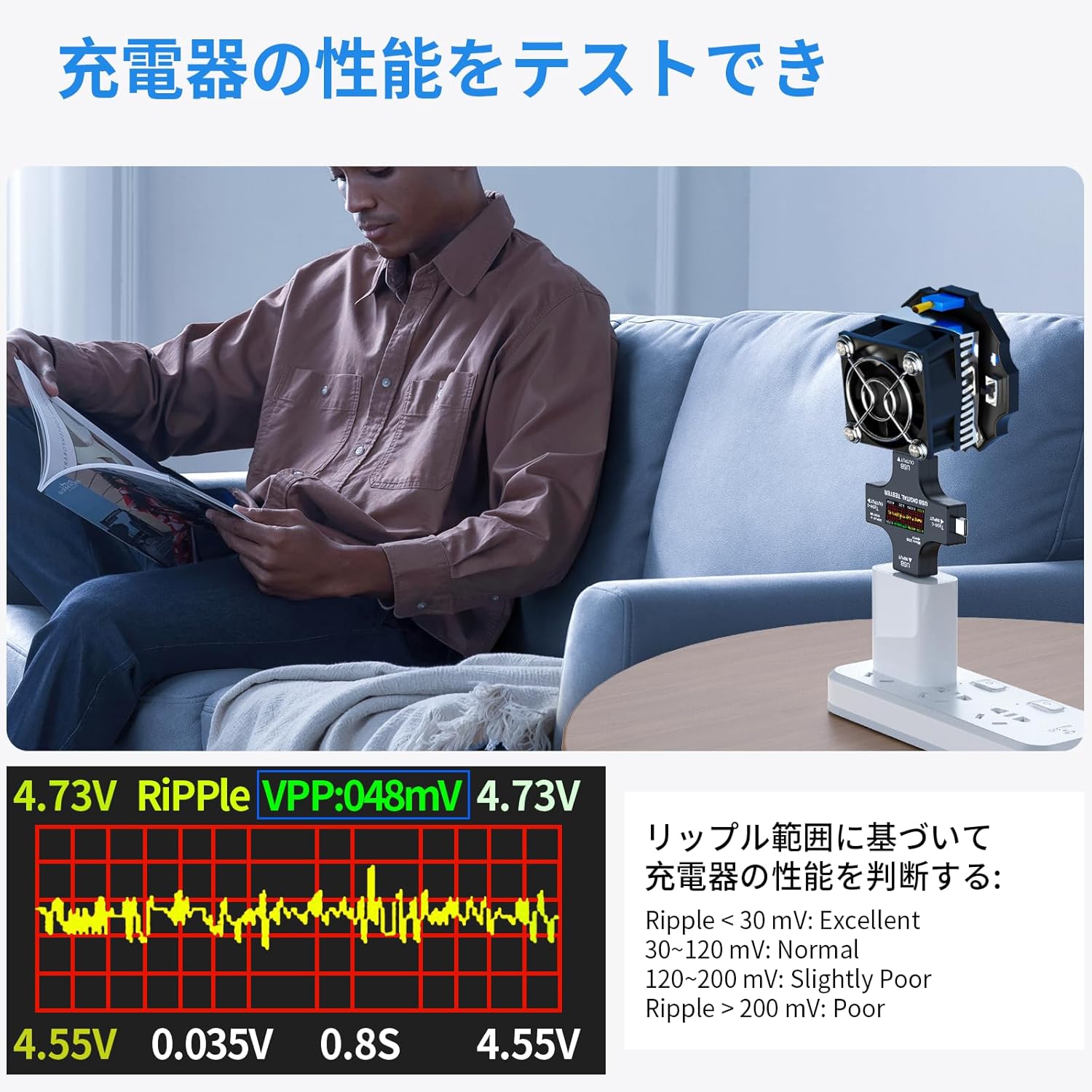
Image 4.2: The tester connected to a wall charger and a fan load, displaying the ripple voltage (VPP) to assess charger quality.
4.3. USB Cable Quality Testing
Under a constant power supply and continuous load, the voltage drop detected by this USB tester indicates the quality of the USB cable. A smaller voltage drop signifies a superior quality USB cable.

Image 4.3: The tester is shown in three setups, measuring voltage drop across different cable types (Micro-USB, USB-A to USB-C, USB-C to USB-C) to determine their quality.
4.4. OTG Adapter Functionality
The included OTG adapter allows the USB input port to function as a Micro USB port, enabling data reading from devices like keyboards, mice, and game controllers.

Image 4.4: The premium OTG adapter is shown in use, allowing the tester to support data reading from peripherals such as keyboards and mice when connected to a tablet.
5. Maintenance
To ensure the longevity and accuracy of your YEREADW USB Meter Tester, follow these maintenance guidelines:
- Cleaning: Use a soft, dry cloth to clean the device. Avoid using abrasive cleaners or solvents.
- Storage: Store the tester in a cool, dry place away from direct sunlight and extreme temperatures.
- Protective Film: The display comes with a transparent protective film that can be optionally removed. Keeping it on can help prevent scratches.

Image 5.1: The transparent protective film covering the display screen, which can be removed if desired.
6. Troubleshooting
If you encounter issues with your USB Meter Tester, consider the following:
- No Display: Ensure the tester is correctly connected between a power source and a load. The display will not light up if there is no output or if the protocol is not detected. Refer to Image 2.2 for correct connection examples.
- Inaccurate Readings: Verify that the cables and power source are functioning correctly. Ensure the device is not subjected to extreme temperatures.
- Device Not Charging: Check all connections. Ensure the power source is active and providing sufficient power. The tester's protection functions (over-voltage, under-voltage, over-current) might be active if parameters exceed safe limits.
- Display Freezes: Try disconnecting and reconnecting the tester. If the issue persists, contact customer support.
7. Specifications
| Feature | Specification |
|---|---|
| Brand | YEREADW |
| Model | 8A |
| Color | Black |
| Minimum Operating Voltage | 3.6 Volts |
| Product Weight | 50 g |
| Package Dimensions | 8.4 x 7.5 x 1.9 cm |
| Battery Usage | No |
8. Support and Warranty
For any product inquiries or issues during use, please feel free to contact us. We are committed to continuously updating this product and providing the latest electronic manual upon request.
Please refer to the seller's policy on the purchase platform for specific warranty details.