Introduction
This manual provides detailed instructions for the ATK VXE Dragonfly R1 SE+ White Wireless Gaming Mouse. The R1 SE+ is a lightweight (55g) wireless gaming mouse featuring the Pixart PAW3395 SE sensor, offering performance up to 18,000 DPI, 400 IPS, and 40G acceleration. It supports both 2.4GHz wireless and Bluetooth connections, and boasts a battery life of up to 70 hours. Please read this manual thoroughly to ensure proper use and optimal performance of your device.
Package Contents
- ATK VXE Dragonfly R1 SE+ Wireless Gaming Mouse
- USB Receiver (Dongle)
- USB-C Charging Cable
- User Manual (this document)
Product Overview
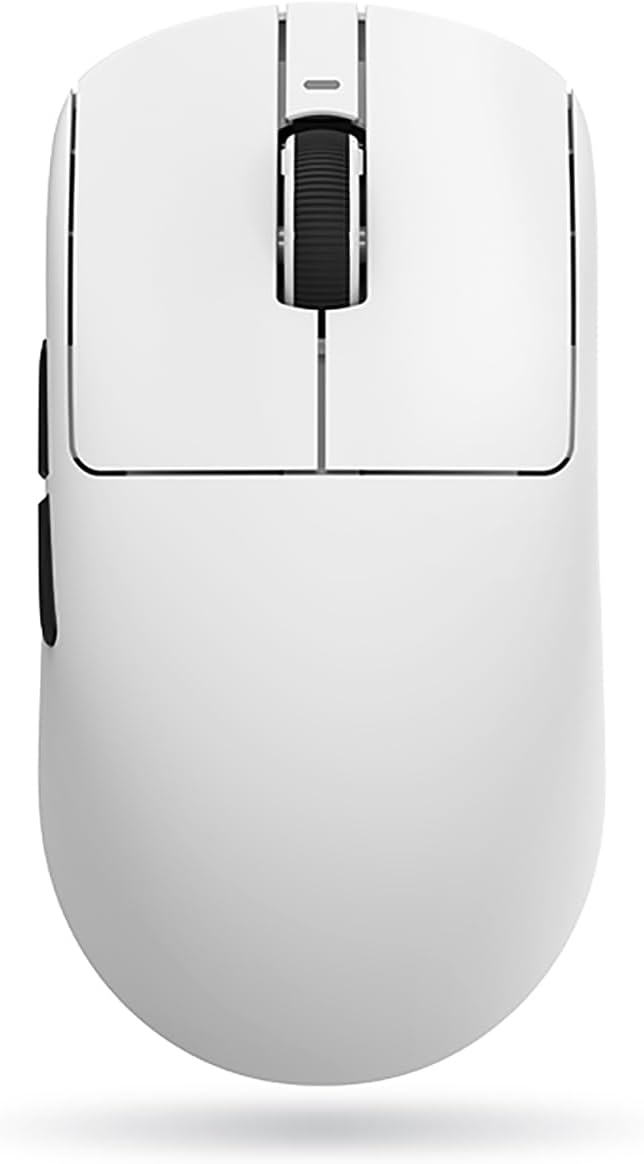


Setup
1. Charging the Mouse
Before first use, it is recommended to fully charge the mouse. Connect the provided USB-C cable to the mouse's front port and the other end to a USB power source (e.g., computer USB port, USB wall adapter). The mouse's indicator light will show charging status. A full charge can provide up to 70 hours of battery life.
2. Connecting the Mouse
The ATK VXE Dragonfly R1 SE+ supports three connection modes: 2.4GHz Wireless, Bluetooth, and Wired.
2.1. 2.4GHz Wireless Connection
- Locate the USB receiver (dongle) usually stored in a compartment on the underside of the mouse.
- Plug the USB receiver into an available USB port on your computer.
- Turn on the mouse using the power switch located on the underside. Ensure the switch is set to the 2.4GHz mode (indicated by an icon or label).
- The mouse should automatically connect to your computer. If not, press the pairing button (if available) on the mouse or refer to the software section for re-pairing instructions.
2.2. Bluetooth Connection
- Turn on the mouse and set the power switch to Bluetooth mode.
- On your computer, navigate to Bluetooth settings.
- Put the mouse into pairing mode (usually by pressing and holding a button on the mouse, refer to specific button layout if available).
- Select "ATK VXE Dragonfly R1 SE+" from the list of available Bluetooth devices on your computer and complete the pairing process.
2.3. Wired Connection
- Connect the provided USB-C cable to the mouse's front port.
- Connect the other end of the USB-C cable to a USB port on your computer.
- The mouse will automatically switch to wired mode and begin charging.
3. Software Installation (ATK V HUB)
For advanced customization, including DPI settings, polling rate, macro programming, button mapping, and illumination control, download and install the ATK V HUB software.
- Visit the official ATK website (refer to product packaging or manufacturer's website for URL).
- Download the latest version of the ATK V HUB software compatible with your operating system (Windows XP, Linux, etc.).
- Follow the on-screen instructions to complete the installation.
Operating the Mouse
1. DPI Adjustment
The Pixart PAW3395 SE sensor supports DPI settings up to 18,000. You can cycle through preset DPI levels using the dedicated DPI button on the mouse (if available) or customize them precisely using the ATK V HUB software.
2. Polling Rate
The polling rate determines how often the mouse reports its position to the computer. A higher polling rate results in smoother and more responsive tracking. Adjust the polling rate (e.g., 125Hz, 500Hz, 1000Hz) via the ATK V HUB software.
3. Button Mapping and Macros
Utilize the ATK V HUB software to remap mouse buttons to different functions or assign complex macros for gaming and productivity tasks. The mouse features 5 programmable buttons.
4. Illumination (if applicable)
If your model includes illumination features, you can customize lighting effects, colors, and brightness through the ATK V HUB software.
5. Battery Management
The mouse has a high-capacity battery providing up to 70 hours of use. Monitor battery level through the ATK V HUB software or the mouse's indicator light. Recharge when the battery is low to ensure uninterrupted performance.
Maintenance
1. Cleaning
- Regularly clean the mouse surface with a soft, dry, lint-free cloth.
- For stubborn dirt, slightly dampen the cloth with water or a mild, non-abrasive cleaner. Avoid excessive moisture.
- Clean the optical sensor area on the underside of the mouse with a cotton swab to ensure accurate tracking.
- Do not use harsh chemicals, solvents, or abrasive materials.
2. Battery Care
- Avoid fully discharging the battery frequently.
- Store the mouse in a cool, dry place when not in use for extended periods.
- If storing for a long time, charge the battery to about 50% to prolong its lifespan.
Troubleshooting
| Problem | Possible Cause | Solution |
|---|---|---|
| Mouse not responding (Wireless) | Low battery; USB receiver disconnected; Incorrect connection mode; Interference. | Charge the mouse; Reconnect USB receiver; Ensure mouse is in 2.4GHz or Bluetooth mode; Move closer to receiver; Avoid other wireless devices. |
| Mouse not responding (Wired) | Cable not properly connected; Faulty USB port. | Ensure cable is securely connected; Try a different USB port on your computer. |
| Inaccurate tracking or cursor lag | Dirty sensor; Unsuitable surface; Low battery; Incorrect DPI setting. | Clean the optical sensor; Use a mouse pad or suitable surface; Charge the mouse; Adjust DPI settings via mouse button or ATK V HUB software. |
| Software (ATK V HUB) not detecting mouse | Mouse not connected; Software not updated; Driver issues. | Ensure mouse is connected (wired connection often best for software detection); Reinstall software; Update mouse drivers via Device Manager. |
| Short battery life | High polling rate; Excessive illumination; Aging battery. | Reduce polling rate; Turn off or dim illumination; Battery replacement may be needed after prolonged use. |
Specifications
| Feature | Detail |
|---|---|
| Brand | ATK |
| Model Name | Dragonfly R1 SE+ |
| Item Model Number | R1SEP-W |
| Connectivity Technology | 2.4GHz Wireless, Bluetooth, Wired (USB-C) |
| Sensor | Pixart PAW3395 SE Optical Sensor |
| DPI | Up to 18,000 DPI |
| IPS | 400 IPS |
| Acceleration | 40G |
| Number of Buttons | 5 (Programmable) |
| Weight | 55 Grams |
| Dimensions | 8 x 3.5 x 0.1 cm (approximate) |
| Battery Life | Up to 70 hours |
| Battery Type | Lithium Ion (1 cell, 2 Watt Hours) |
| Compatible OS | Windows XP, Linux |
| Colour | White |
Warranty and Support
Warranty Information
This product comes with a 6 Months Gate Warranty. Please retain your proof of purchase for warranty claims. The warranty covers manufacturing defects and malfunctions under normal use. It does not cover damage caused by misuse, accidents, unauthorized modifications, or normal wear and tear.
Customer Support
For technical assistance, troubleshooting, or warranty inquiries, please contact ATK customer support. You can also refer to the ATK V HUB software for common FAQs and support resources.
- Online Support: Visit the official ATK website for support resources, driver downloads, and contact information.
- Software Support: The ATK V HUB software may include built-in help or links to support.


