
Vakedy HW10
Vakedy HW10 Wireless Gaming Headset User Manual
Model: HW10
1. Introduction
This manual provides detailed instructions for the proper use, setup, and maintenance of your Vakedy HW10 Wireless Gaming Headset. Please read this manual thoroughly before using the product to ensure optimal performance and longevity.
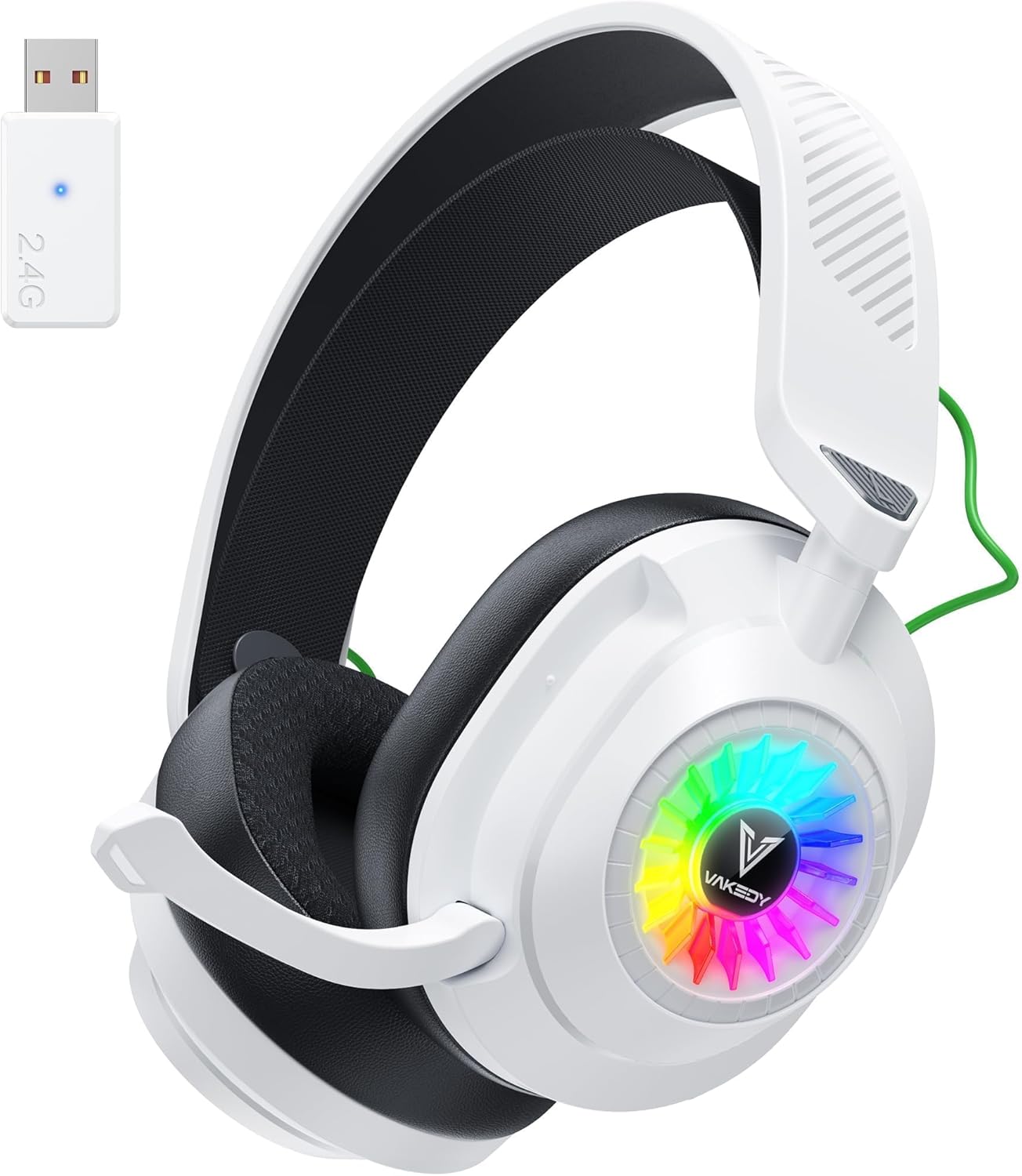
Figure 1: Vakedy HW10 Wireless Gaming Headset with its 2.4G USB dongle.
2. Package Contents
Please verify that all items listed below are included in your package:
- Vakedy HW10 Wireless Gaming Headset
- USB Dongle (2.4GHz Wireless Receiver)
- USB-C Charging Cable
- User Manual
3. Product Overview
The Vakedy HW10 headset features 50mm dynamic drivers for immersive sound, integrated RGB lighting, and a noise-cancelling microphone for clear communication. It supports both 2.4GHz wireless and Bluetooth connectivity.
Key Features:
- 50mm Dynamic Drivers: Deliver rich, immersive audio for gaming and music.
- RGB Lighting: Dynamic lighting effects on the earcups enhance the gaming experience.
- Noise-Cancelling Microphone: Ensures clear voice transmission by reducing background noise.
- Dual Connectivity: Seamlessly switch between 2.4GHz wireless (via USB dongle) and Bluetooth 5.4.
- Long Battery Life: Up to 50 hours of playtime without RGB lighting, or 30-35 hours with RGB lighting, thanks to a 1200mAh battery.
- Comfortable Design: Lightweight frame with soft, breathable mesh ear pads and an auto-adjusting headband for extended wear.
- Game and Music Modes: Optimized audio profiles for different content.

Figure 2: Visual representation of key features including wireless connectivity, battery life, and RGB lighting.

Figure 3: Illustration of the 50mm dynamic drivers for superior audio output.

Figure 4: Depiction of the noise-cancelling technology for clear voice communication.

Figure 5: The headset features 90-degree rotating ear pads for enhanced comfort and portability.
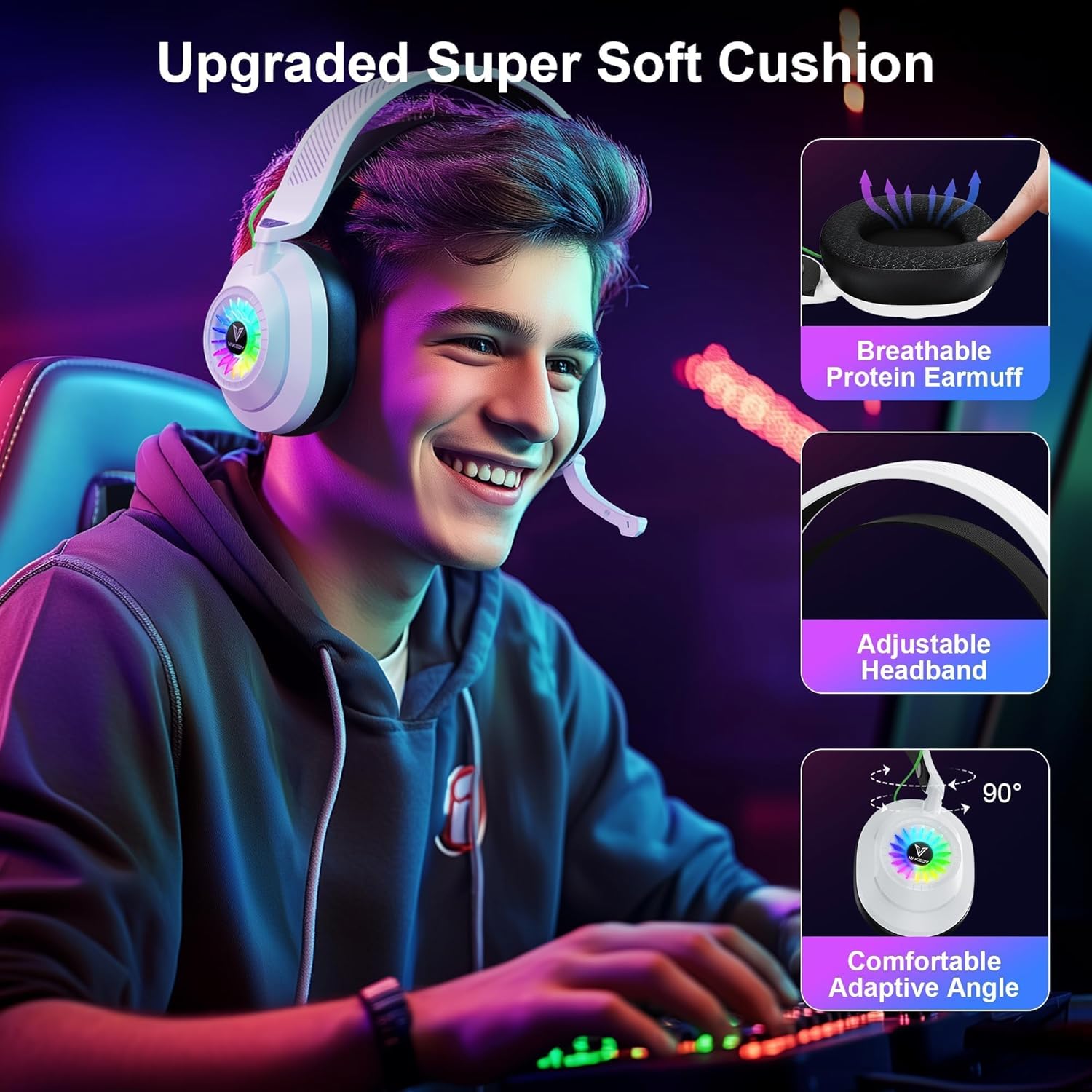
Figure 6: Details of the headset's comfortable design, including breathable earmuffs, adjustable headband, and adaptive angle.
4. Setup
4.1 Charging the Headset
Before first use, fully charge the headset. Connect the supplied USB-C charging cable to the headset's charging port and the other end to a USB power source (e.g., computer USB port, USB wall adapter). The LED indicator will show charging status and turn off when fully charged. A full charge takes approximately 2.5 to 3 hours.

Figure 7: The headset's 1200mAh battery provides extended playtime and charges quickly via USB-C.
4.2 Connecting via 2.4GHz Wireless (USB Dongle)
This mode is ideal for PC, PS5, PS4, and Nintendo Switch (audio only, microphone may not be supported on Switch).
- Insert the 2.4GHz USB dongle into an available USB port on your device (PC, PS5, PS4, Switch).
- Power on the headset. It will automatically attempt to connect to the dongle.
- Once connected, the LED indicator on the dongle and headset will stabilize, indicating a successful connection.
- On your device, ensure the headset is selected as the default audio input and output device in sound settings.
4.3 Connecting via Bluetooth
This mode is suitable for mobile devices, laptops, and other Bluetooth-enabled devices. Note: Bluetooth mode is not compatible with PS5/PS4.
- Ensure the headset is powered on and not connected via 2.4GHz wireless.
- Activate Bluetooth pairing mode on the headset (refer to the 'Operating Instructions' section for specific button functions). The LED indicator will typically flash to indicate pairing mode.
- On your device, enable Bluetooth and search for available devices.
- Select "Vakedy HW10" from the list of found devices to pair.
- Once paired, the headset's LED indicator will stabilize.
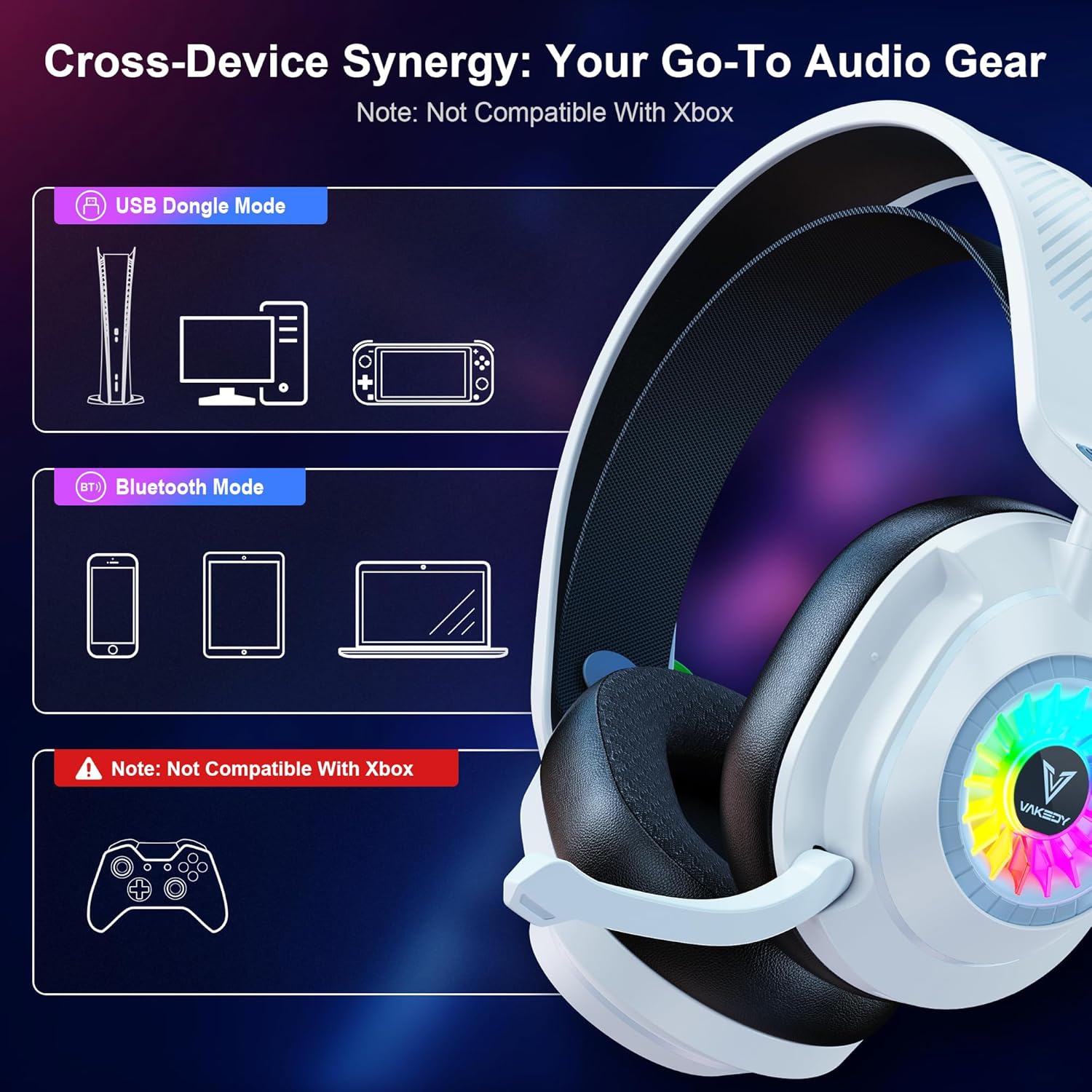
Figure 8: Compatibility overview for USB Dongle and Bluetooth modes. Note: Not compatible with Xbox.
5. Operating Instructions
5.1 Power On/Off
- Power On: Press and hold the Power button for 3 seconds.
- Power Off: Press and hold the Power button for 3 seconds.
5.2 Volume Control
- Volume Up: Rotate the volume wheel upwards.
- Volume Down: Rotate the volume wheel downwards.
5.3 Microphone Functions
- Mute/Unmute: Press the Microphone Mute button.
- The microphone is adjustable; position it close to your mouth for optimal clarity.

Figure 9: The noise-cancelling microphone ensures clear voice transmission during gaming sessions.
5.4 RGB Lighting Control
- Toggle RGB: Short press the RGB button to cycle through lighting modes or turn off the RGB lights.
5.5 Audio Modes (Game/Music)
The headset features switchable audio modes optimized for different listening experiences.
- Switch Mode: Press the Mode button to toggle between Game Mode and Music Mode.
- Game Mode: Enhances in-game audio cues like footsteps and explosions.
- Music Mode: Provides a balanced audio profile for general listening.

Figure 10: The headset supports dual audio modes for optimized game and music experiences.
5.6 Video Overview
For a visual guide on the headset's features and operation, please watch the official product video:
Video 1: Official overview of the Vakedy HW10 Wireless Gaming Headset, demonstrating its features and design.
6. Maintenance
Proper maintenance ensures the longevity and performance of your headset.
- Cleaning: Use a soft, dry cloth to clean the headset. Do not use abrasive cleaners or solvents.
- Storage: Store the headset in a cool, dry place away from direct sunlight and extreme temperatures.
- Battery Care: To preserve battery life, avoid fully discharging the headset frequently. Charge it regularly, even if not in use for extended periods.
- Avoid Moisture: The headset is not water-resistant. Keep it away from liquids and high humidity.
7. Troubleshooting
If you encounter issues with your Vakedy HW10 headset, please refer to the following common solutions:
| Problem | Possible Solution |
|---|---|
| No sound from headset | Ensure the headset is powered on and charged. Check volume levels on both the headset and the connected device. Verify correct connection mode (2.4GHz dongle or Bluetooth) and that the headset is selected as the default audio output device. |
| Microphone not working | Ensure the microphone is not muted on the headset. Check device sound settings to ensure the headset microphone is selected as the input device. Note: Microphone functionality may be limited or unavailable on Nintendo Switch. |
| Cannot connect via 2.4GHz dongle | Ensure the dongle is fully inserted into a working USB port. Power cycle both the headset and the device. Try a different USB port. |
| Cannot connect via Bluetooth | Ensure the headset is in Bluetooth pairing mode. Turn off and on Bluetooth on your device. Forget the device from your Bluetooth list and try pairing again. Remember, Bluetooth mode is not compatible with PS5/PS4. |
| Short battery life | Ensure the headset is fully charged. Disable RGB lighting to extend battery life. Reduce volume levels. |
| Headset not compatible with Xbox | The Vakedy HW10 headset is not compatible with Xbox Series consoles. An additional adapter may be required for some Xbox connections, but full compatibility is not guaranteed. |
8. Specifications
| Feature | Detail |
|---|---|
| Model Name | HW10 |
| Connectivity Technology | 2.4GHz Wireless, Bluetooth 5.4 |
| Audio Driver Size | 50 mm |
| Frequency Response | 20 Hz - 20,000 Hz |
| Impedance | 32 Ohm |
| Noise Control | Passive Noise Cancellation |
| Battery Capacity | 1200 mAh |
| Battery Life | Up to 50 hours (without RGB), 30-35 hours (with RGB) |
| Charging Time | 2.5 - 3 hours (USB-C) |
| Audio Latency | 20 Milliseconds |
| Bluetooth Range | Up to 39 feet (12 meters) |
| Weight | 12.3 ounces (approx. 348 grams) |
| Material | Acrylonitrile Butadiene Styrene (ABS) |
| Compatible Devices | PS5, PS4, PC, Mac, Computer, Mobile, Switch (Invalid Microphone). Not compatible with All Xbox series. |
9. Warranty and Support
Vakedy provides a 365-day free replacement policy for this product, ensuring no repairs are needed within this period. For any inquiries, technical assistance, or warranty claims, please contact Vakedy customer support. We aim to provide 12-hour fast support.
Please refer to the contact information provided on the product packaging or the official Vakedy website for the most up-to-date support channels.
Ask a question about this manual
Ask about setup, troubleshooting, compatibility, parts, safety, or missing instructions. Manuals+ will review the question and use this page’s manual context to help answer it.