
1. Product Overview
The Vakedy HW10 Wireless Gaming Headset is designed to provide an immersive audio experience for gaming across multiple platforms. It features dual connectivity modes (2.4GHz wireless and Bluetooth), a noise-cancelling microphone, and dynamic RGB lighting. The headset prioritizes comfort for extended use and offers versatile audio modes.
- Immersive Sound & Dynamic Lighting: Equipped with 50mm drivers for rich audio and integrated RGB lighting for an enhanced gaming atmosphere.
- Seamless Communication: Features a noise-cancelling, adjustable microphone with an easy-mute function for clear voice chat.
- Versatile Wireless Gaming: Compatible with PS5, PS4, PC, and Switch via USB dongle, and mobile, Mac, and laptops via Bluetooth.
- Extended Battery Life: A 1200mAh battery provides up to 50 hours of playtime without RGB lighting, or 30-35 hours with RGB. Fast 2.5-3 hour USB-C charging.
- Comfortable Design: Lightweight frame with soft, breathable mesh ear pads and an adjustable headband for long gaming sessions.
- Audio Modes: Switchable Game and Music modes to optimize sound for different content.
2. What's in the Box
- Vakedy HW10 Wireless Gaming Headset
- 2.4GHz USB Dongle
- USB-C Charging Cable
- User Manual
3. Setup Instructions
3.1. 2.4GHz Wireless Connection (USB Dongle)
- Insert the 2.4GHz USB dongle into an available USB port on your PS5, PS4, PC, or Nintendo Switch.
- Power on the Vakedy HW10 headset by pressing and holding the power button (located on the left earcup) until the indicator light illuminates.
- The headset should automatically connect to the dongle. A steady indicator light on the headset confirms a successful connection.
- Adjust the audio output settings on your device if the sound does not automatically route to the headset.
Note: When connected to Nintendo Switch via the USB dongle, the microphone functionality is not supported.

Image: Cross-Device Compatibility for Vakedy HW10 Headset
3.2. Bluetooth Connection
- Ensure the headset is powered off. Press and hold the power button until the indicator light flashes rapidly, indicating pairing mode.
- On your mobile device, Mac, or laptop, navigate to the Bluetooth settings.
- Select "HW10" from the list of available devices to pair.
- A steady indicator light on the headset confirms a successful connection.
Note: Bluetooth mode is not compatible with PS5 or PS4 consoles.
4. Operating Instructions
4.1. Power On/Off
- Power On: Press and hold the power button (located on the left earcup) for approximately 3 seconds until the indicator light turns on.
- Power Off: Press and hold the power button for approximately 5 seconds until the indicator light turns off.
4.2. Volume Control
- Use the volume up (+) and volume down (-) buttons on the left earcup to adjust the audio level.
4.3. Microphone Usage
- Activate Microphone: Gently pull the microphone arm down from its concealed position on the left earcup.
- Mute/Unmute: Press the dedicated microphone mute button (usually located near the volume controls) to toggle microphone activity.
- Store Microphone: Push the microphone arm back into its concealed position when not in use.
4.4. RGB Lighting Control
- Press the RGB lighting button (refer to the user manual for exact location, typically on an earcup) to cycle through different lighting effects or turn the RGB lights off.
4.5. Audio Mode Switching
- The headset features switchable Game and Music modes. Use the designated mode button (refer to the user manual for exact location) to optimize audio profiles for either gaming or music listening.

Image: Headset with Game Mode and Music Mode options
4.6. Charging the Headset
- Connect the supplied USB-C charging cable to the charging port on the headset and the other end to a USB power source.
- The indicator light will show charging status (e.g., red for charging, off or green for fully charged).
- A full charge typically takes 2.5 to 3 hours.

Image: Headset battery and charging information
5. Maintenance
- Cleaning: Use a soft, dry cloth to clean the headset. For ear pads, a slightly damp cloth can be used, but ensure they are completely dry before use. Avoid harsh chemicals.
- Storage: Store the headset in a cool, dry place away from direct sunlight and extreme temperatures. The earcups can rotate 90 degrees for flat storage, reducing wear and tear.
- Battery Care: To prolong battery life, avoid fully discharging the headset frequently. Charge it regularly, even if not in constant use.
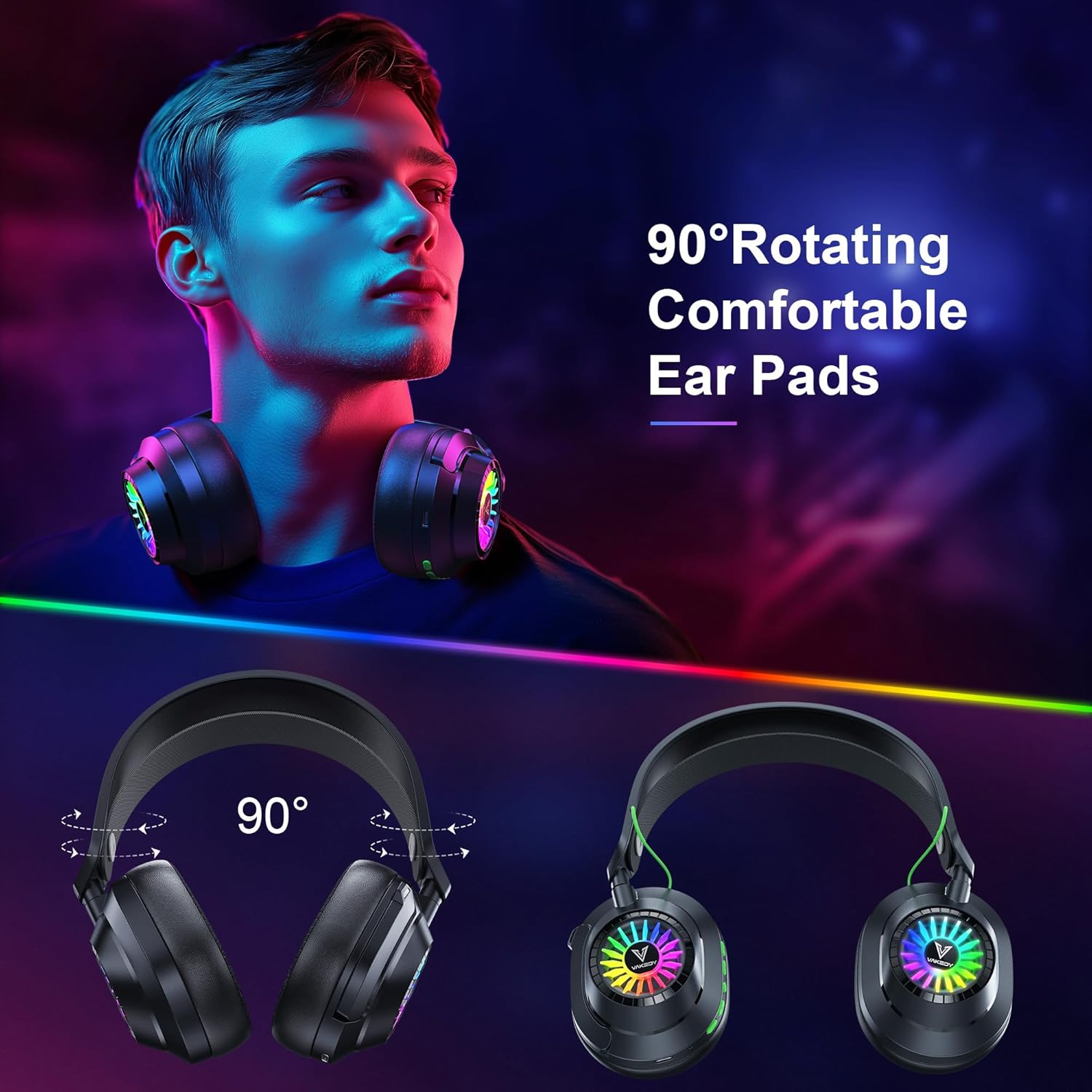
Image: Headset with 90-degree rotating ear pads
6. Troubleshooting
- No Sound:
- Ensure the headset is powered on and connected (either via dongle or Bluetooth).
- Check the volume levels on both the headset and your connected device.
- Verify that the correct audio output device is selected in your device's sound settings.
- Microphone Not Working:
- Ensure the microphone arm is fully extended and not muted.
- Check the microphone input settings on your connected device.
- Remember, the microphone is not supported on Nintendo Switch via 2.4GHz dongle.
- Connection Issues:
- For 2.4GHz, ensure the USB dongle is securely plugged in and try re-pairing by turning the headset off and on.
- For Bluetooth, ensure the headset is in pairing mode and your device's Bluetooth is enabled. Try forgetting the device and re-pairing.
- Ensure your device is within the effective range (up to 39 feet for Bluetooth).
- Charging Problems:
- Verify the USB-C cable is properly connected to both the headset and the power source.
- Try using a different USB-C cable or power adapter.
7. Specifications
| Model Name | HW10 |
| Connectivity Technology | Wireless (2.4GHz USB Dongle, Bluetooth) |
| Wireless Communication Technology | Bluetooth 5.4 |
| Audio Driver Size | 50 Millimeters |
| Frequency Response | 20 KHz |
| Audio Latency | 20 Milliseconds |
| Battery Life | Up to 50 Hours (without RGB) |
| Charging Time | 2.5 - 3 Hours (USB-C) |
| Compatible Devices | PS5, PS4, PC, Mac, Computer, Mobile, Switch (Microphone invalid on Switch via dongle). Not compatible with Xbox Series. |
| Item Weight | 0.32 Kilograms (11.3 ounces) |
| Material | Plastic |
8. Warranty and Support
Vakedy products are covered by a standard manufacturer's warranty. For specific warranty details, please refer to the documentation included with your purchase or visit the official Vakedy website.
For technical support, troubleshooting assistance, or warranty claims, please contact Vakedy customer service through the following channels:
- Email: support@vakedy.com (example)
- Website: Vakedy Official Store
Please have your product model (HW10) and purchase information ready when contacting support.
9. Official Product Video
Video: Overview of the Vakedy HW10 Wireless Gaming Headset features and design.
