
MOCREO H5 Hub Kit
MOCREO H5 Hub Kit WiFi Refrigerator and Freezer Thermometer
Model: H5 Hub Kit
Brand: MOCREO
1. Introduction
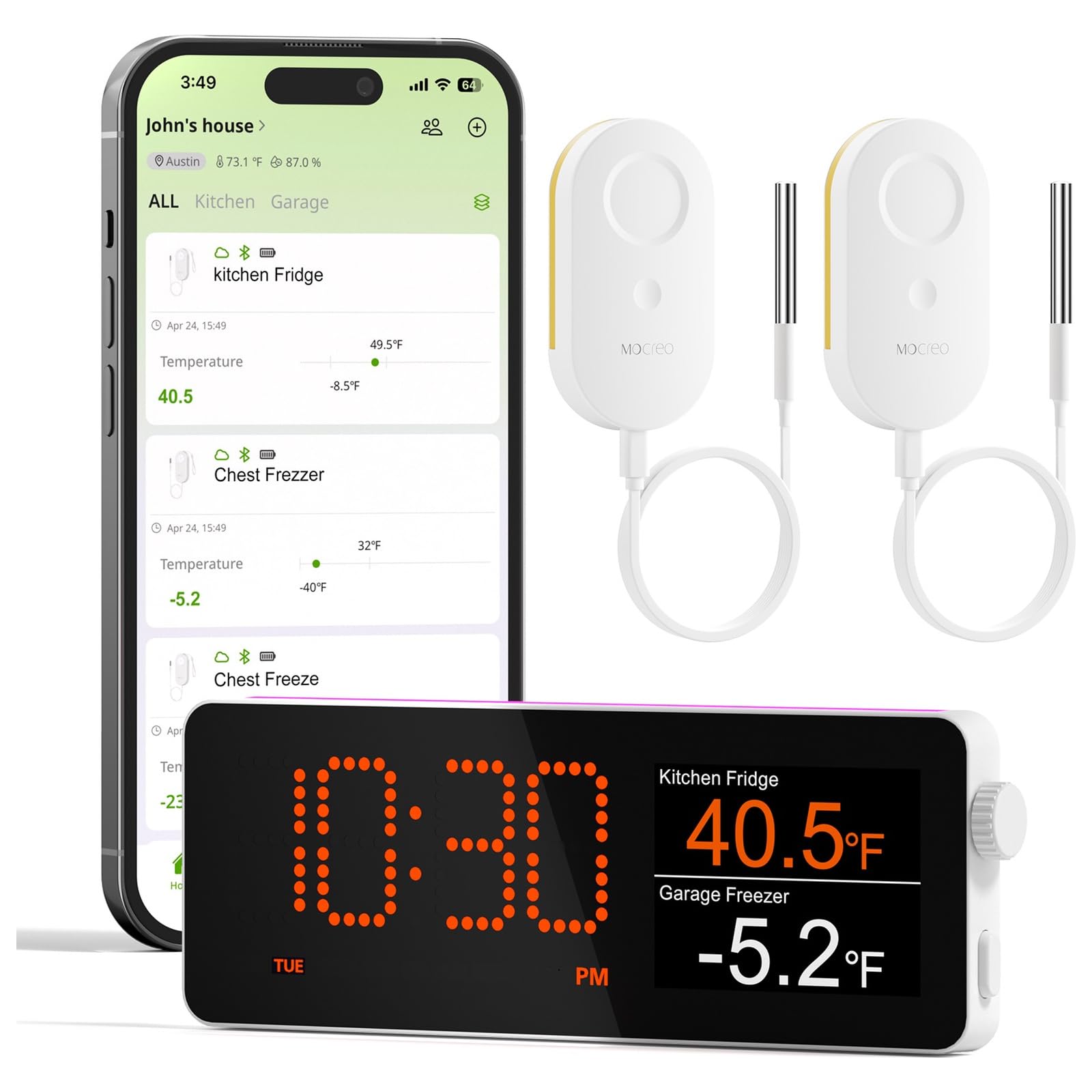
The MOCREO H5 Hub Kit provides a comprehensive solution for monitoring temperatures in your refrigerator and freezer. This system offers real-time temperature tracking, remote alerts, and data logging, ensuring the safety of your stored items. The H5-Lite hub features an integrated display for local status checks, while the MS1 sensors provide accurate temperature readings.
2. Package Contents
Please verify that all items listed below are included in your package:
- 1 x H5-Lite WiFi Hub
- 2 x MS1 Wireless Thermometers
- 2 x 1.5m Probe Cables
- 1 x Wall Mount
- 1 x Desk Stand
- 1 x Power Adapter
- 1 x Power Cable
- 6 x AAA Batteries (3 per MS1 thermometer)
- 2 x Magic Stickers
- 2 x Suction Cups
- 1 x Pin (for reset)
3. Key Features
- H5-Lite Hub with Integrated Display: Offers local status checks, multi-sensor grid views, RGB light bar alerts, and local weather information.
- 24/7 Remote Monitoring: Check real-time temperatures anytime, anywhere via the MOCREO smart application.
- Multi-Channel Alerts: Receive notifications via app push, email, and an 80 dB local alarm from the hub.
- Power Outage Alert System: Notifies you if a power outage lasts over 30 minutes, with an instant alert upon power restoration.
- Smart Alert System: Features a delay setting for temperature alerts to filter out false alarms from door openings or defrost cycles.
- Ultra-Thin 0.9mm Probe: Designed to easily slide through refrigerator/freezer door seals without compromising insulation.
- High Accuracy & Wide Range: Industrial-grade accuracy (±0.12,8 °C) across a temperature range of -40 °C to 105 °C.
- Scalable System: One hub can manage up to 30 sensors.
- Long Battery Life & Data Storage: Sensors operate for up to 2 years on 3 AAA batteries, with 2 years of free, exportable data history.
- Alexa Compatibility: Check current temperatures using voice commands.
H5Lite Smart Monitoring Center: View multiple fridge & freezer temperatures at a glance. Image shows the H5Lite hub displaying various information like multi-sensor grid, temperature curve, local weather, time, and calendar views, highlighting core built-in features such as local dashboard, 1/2/4 grid sensor view, time/weather/historical graph/calendar views, power outage alert, and SMART alert system.

Upgrade to a Local Dashboard Hub: H5Lite lets you check fridge and freezer status right on the hub screen. Image compares a 'Standard Hub' (app check only, shown as a wall plug device) with an 'H5Lite Hub with Display' (shown on top of a freezer, offering one-glance local view, time/weather/historical/calendar views, and clearer setup).
4. Setup Guide
4.1. Sensor Battery Installation
- Open the battery compartment on the back of each MS1 thermometer.
- Insert 3 AAA batteries into each sensor, ensuring correct polarity.
- Close the battery compartment securely.
4.2. Hub Placement and Power Connection
- Choose a central location for the H5-Lite hub, ideally within Wi-Fi range and accessible for viewing.
- Use the provided desk stand or wall mount to position the hub as desired.
- Connect the power cable to the hub and plug the power adapter into a standard electrical outlet. The hub display should power on.
4.3. App Download and Wi-Fi Configuration
- Download the MOCREO app from your smartphone's app store (iOS or Android).
- Register for a new account or log in if you already have one.
- Follow the in-app instructions to add your H5-Lite hub. This typically involves putting the hub into pairing mode and connecting it to your 2.4GHz Wi-Fi network.
4.4. Connecting Sensors to the Hub/App
- Once the hub is connected to Wi-Fi, follow the app's instructions to add your MS1 sensors.
- This usually involves pressing a button on the sensor to activate pairing mode.
- Place the MS1 sensors inside your refrigerator and freezer. The ultra-thin probe cable can be routed through the door seal. Use the magic stickers or suction cups to secure the sensor unit if needed.

Add up to 30 MOCREO Sensors to 1 Hub. Image displays a floor plan of a house with a central H5Lite hub and multiple MS1 sensors distributed in different rooms, indicating a communication distance of 131ft (no obstacles) and a smartphone app view showing connected assets.
5. Operating Instructions
5.1. Monitoring Temperatures
- Via H5-Lite Hub Display: The integrated screen cycles through various views including multi-sensor grid, temperature curves, local weather, time, and calendar. You can manually switch views using the hub's buttons.
- Via MOCREO App: Open the MOCREO app on your smartphone to view real-time temperature readings for all connected sensors. The app also provides historical data and allows for detailed configuration.
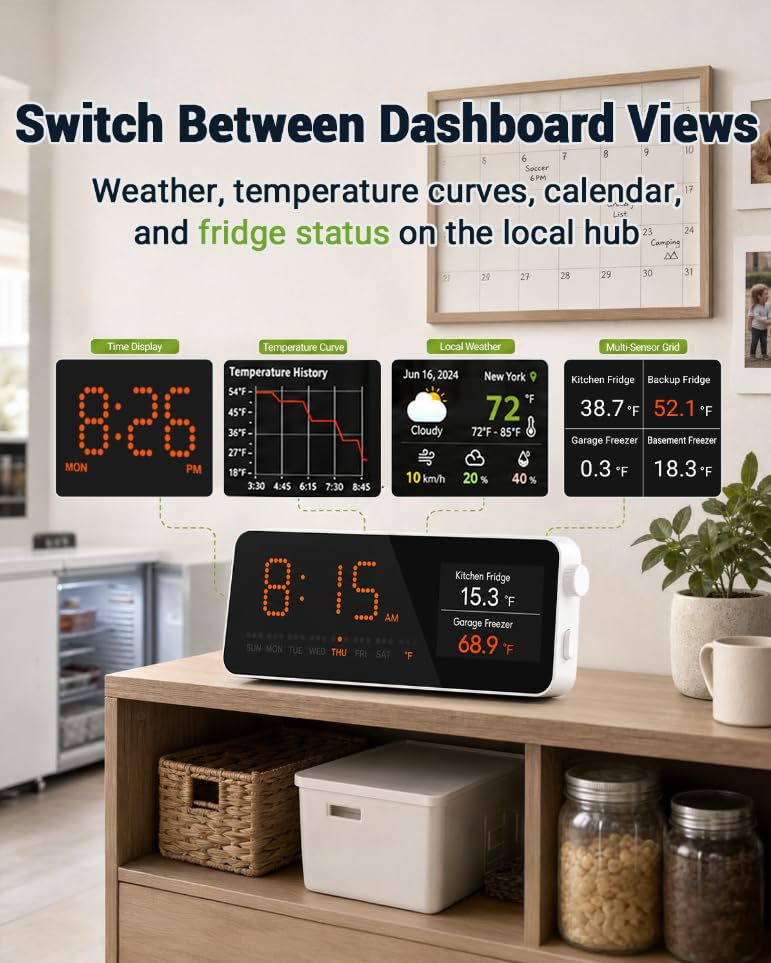
Switch Between Dashboard Views: Weather, temperature curves, calendar, and fridge status on the local hub. Image shows the H5Lite hub on a wooden shelf, displaying different dashboard views including time, temperature history curve, local weather, and a multi-sensor grid for kitchen fridge and garage freezer.

24/7 Real-time Monitoring: Keep your refrigerator temperature monitored without frequent charging. Image shows an MS1 sensor placed inside a refrigerator, with a graphical representation of temperature history and temperature alarm settings (minimum and maximum thresholds).
5.2. Setting Up Alerts
Configure alert thresholds and types through the MOCREO app:
- Temperature Alerts: Set minimum and maximum temperature thresholds for each sensor. If the temperature goes outside this range, an alert will be triggered.
- Delayed Alarms: To prevent false alarms from brief door openings or defrost cycles, set a delay time (e.g., 10 minutes) before an alert is triggered.
- Power Outage Alerts: The system automatically monitors for power interruptions. You will receive an alert if power is lost for more than 30 minutes.
- Low Battery Alerts: The app will notify you when sensor batteries are running low, allowing you to replace them proactively.
- Alert Channels: Choose to receive alerts via app push notifications, email, and/or the hub's local 80 dB alarm. iOS critical alerts ensure notifications even in silent mode.

24/7 Remote Email & App Alerts. Image depicts a smartphone displaying an urgent temperature alert notification from the MOCREO app, alongside icons for Hub Beeping, App Notification, and Email Alerts, with a modern house in the background.

More Types of Alerts: Delayed Alarm, Blackouts, Low Battery Alert. Image illustrates the delayed alarm setting (10 min), a power outage scenario with a hub offline notification on a smartphone, and a low battery alert notification on a smartphone.

Power Outage Alert (After 25 mins): Get notified when house power is interrupted. Image shows a kitchen scene with a refrigerator and a power outage symbol, leading to a smartphone notification from MOCREO app indicating a 'Hub Outline' alert after 25 minutes.
5.3. Alexa Integration
To use Alexa voice commands, enable the MOCREO skill in your Alexa app and link your MOCREO account. You can then ask Alexa for current temperature readings from your sensors.
6. Maintenance
6.1. Cleaning
Wipe the hub and sensors with a soft, damp cloth. Do not use abrasive cleaners or immerse the devices in water.
6.2. Battery Replacement
When a low battery alert is received, replace the 3 AAA batteries in the affected MS1 sensor promptly to ensure continuous monitoring. Ensure correct polarity during installation.
6.3. Probe Care
Handle the ultra-thin probe cable with care to avoid damage. Ensure it is not pinched or cut by the refrigerator/freezer door.
7. Troubleshooting
- No Temperature Readings:
- Check if sensor batteries are correctly installed and charged.
- Ensure the sensor is within range of the H5-Lite hub.
- Verify the sensor is properly paired with the hub via the app.
- Hub Not Connecting to Wi-Fi:
- Ensure your Wi-Fi network is 2.4GHz. The hub does not support 5GHz networks.
- Check your Wi-Fi password for accuracy.
- Move the hub closer to your Wi-Fi router.
- Restart your router and the H5-Lite hub.
- Alerts Not Received:
- Check alert settings in the MOCREO app to ensure thresholds are correctly set and alert channels are enabled.
- Verify your phone's notification settings for the MOCREO app.
- Ensure the hub has a stable internet connection for app and email alerts.
- For local hub alarms, check the volume settings and ensure the hub is powered.
- Inaccurate Temperature Readings:
- Ensure the probe tip is correctly positioned to measure the desired temperature.
- Calibrate the sensor if necessary through the MOCREO app (refer to app instructions for calibration details).
8. Specifications
| Model Name | H5 Hub Kit (H5-MS1D) |
| Dimensions (Hub) | 10.69 x 5.64 x 2.01 cm |
| Weight | 422 grams |
| Power Source (Hub) | Power Adapter |
| Power Source (Sensors) | 3 x AAA Batteries per sensor (6 AAA included in kit) |
| Battery Life (Sensors) | Up to 2 years |
| Connectivity Technology | Wi-Fi (2.4GHz only) |
| Display Type | Digital |
| Temperature Range | -40 °C to 105 °C (-40 °F to 221 °F) |
| Accuracy | ±0.12,8 °C (±0.9 °F) |
| Response Time | 5 seconds |
| Probe Cable Length | 1.5 meters |
| Probe Thickness | 0.9 mm |
| Max Sensors per Hub | 30 |
| Data Storage | 2 years (free) |
| Usage Environment | Indoor |
9. Warranty and Support
9.1. Limited Warranty
The MOCREO H5 Hub Kit comes with a 2-year availability for spare parts. Please retain your proof of purchase for warranty claims.
9.2. Customer Support
For technical assistance, troubleshooting, or warranty inquiries, please visit the official MOCREO website or contact their customer support team through the contact information provided on their website or within the MOCREO app.
Related documentsH5 Hub Kit


Ask a question about this manual
Ask about setup, troubleshooting, compatibility, parts, safety, or missing instructions. Manuals+ will review the question and use this page’s manual context to help answer it.