1. Product Overview
The Chilkey ND75 is a 75% percent mechanical keyboard featuring a full aluminum alloy case with an anodized surface treatment, providing a delicate touch and texture. It is designed for gaming, office, and general PC use, offering a blend of sleek minimalist style and advanced functionality. The keyboard incorporates a counterweighted backplate with an artistic gradient pattern and boasts a highly customizable per-key RGB lighting system.
Key features include:
- 75% Layout
- Tri-mode Connectivity (BT5.0, 2.4GHz Wireless, USB-C Wired)
- Per-key RGB Backlighting
- Hot-Swappable Switches
- Doubleshot PBT Keycaps
- Pre-Lubed Linear Switches
- Four Layers of Padding for Acoustic Performance
- 3600mAh Battery
- Independent Driver/Software for Customization
- Functional LCD Screen
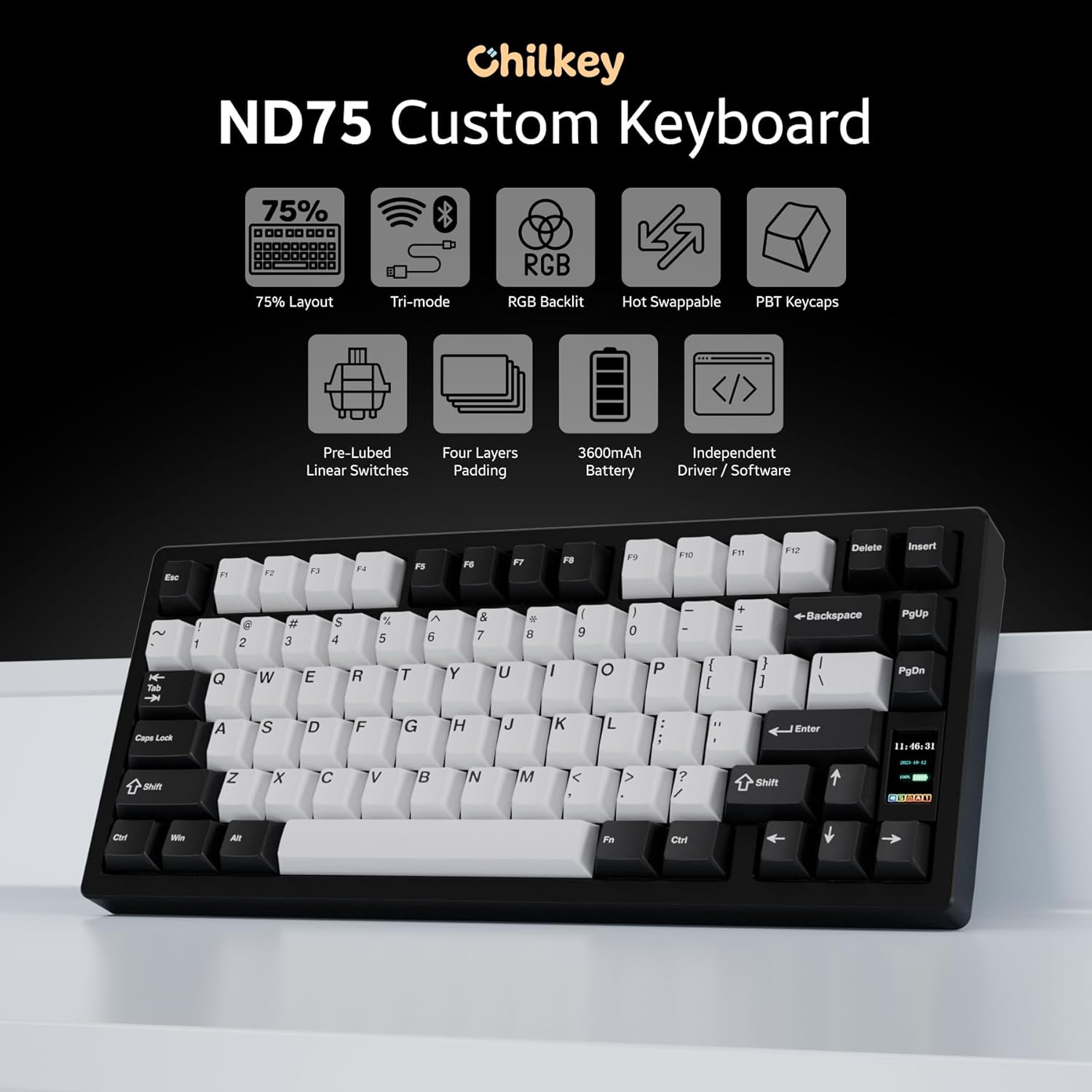
Image: Overview of Chilkey ND75 keyboard features, including 75% layout, tri-mode, RGB, hot-swappable, PBT keycaps, pre-lubed linear switches, four layers padding, 3600mAh battery, independent driver/software, and LCD screen.

Image: The Chilkey ND75 keyboard showcasing its CNC full aluminum alloy case and anodization surface finish.

Image: Top-down view of the Chilkey ND75 mechanical keyboard, highlighting its 75% layout with black and white keycaps.
2. Setup and Connection
The ND75 mechanical keyboard offers three versatile connection modes: Bluetooth 5.0, 2.4GHz wireless, and USB-C wired. This allows for seamless integration with various devices and usage scenarios.
2.1 Package Contents
- Chilkey ND75 Mechanical Keyboard
- USB Cable
- User Manual (this document)
2.2 Connecting Your Keyboard
Before connecting, ensure the keyboard is charged or connected via USB-C for initial setup.
- Wired Mode (USB-C): Connect the provided USB-C cable from the keyboard to your computer's USB port. The keyboard will automatically detect the connection and function in wired mode.
- 2.4GHz Wireless Mode:
- Locate the 2.4GHz wireless dongle, typically stored within the keyboard's chassis (refer to the diagram below for dongle location).
- Remove the Right Shift Keycap to access the wireless switch and turn it ON.
- Plug the 2.4GHz dongle into an available USB port on your computer.
- The keyboard should automatically pair. If not, refer to the LCD screen for pairing instructions.
- Bluetooth 5.0 Mode:
- Remove the Right Shift Keycap to access the wireless switch and turn it ON.
- On the keyboard's LCD screen, navigate to the Bluetooth pairing option.
- On your device (Laptop, PC, Tablet), go to Bluetooth settings and search for new devices.
- Select "Chilkey ND75" from the list of available devices to pair.
- The keyboard can switch between BT5.0, 2.4GHz, and USB-C modes easily by FN key combinations (refer to Section 3.1 for details).

Image: Visual representation of the tri-mode connection options (2.4GHz, Bluetooth, USB-C) and multi-system compatibility (Windows, Apple, Linux, Android).
3. Operating Instructions
3.1 Key Functions and Combinations
The ND75 keyboard features a 75% layout with dedicated function keys (F1-F12) and a compact design. Many advanced functions are accessible via the Fn key combined with other keys.
| Combination | Function |
|---|---|
| Fn + F1-F12 | Multimedia controls (e.g., Play/Pause, Volume Up/Down, Mute) |
| Fn + Q/W/E | Switch between Bluetooth devices (if multiple paired) |
| Fn + R | Switch to 2.4GHz wireless mode |
| Fn + T | Switch to USB-C wired mode |
| Fn + Backspace | Toggle RGB lighting effects |
| Fn + Enter | Access LCD screen menu/settings |
For a complete list of key combinations and customizable functions, please refer to the dedicated software.
3.2 Functional LCD Screen
The ND75 features a functional LCD screen that provides real-time information and allows for direct control over various keyboard settings without requiring external software. You can customize the display with custom GIF images.
The screen displays information such as:
- Connection mode (Wired, 2.4G, BT)
- Battery level
- System information
- Backlight brightness and speed
- RGB mode and color selection
- Volume control
- Language settings
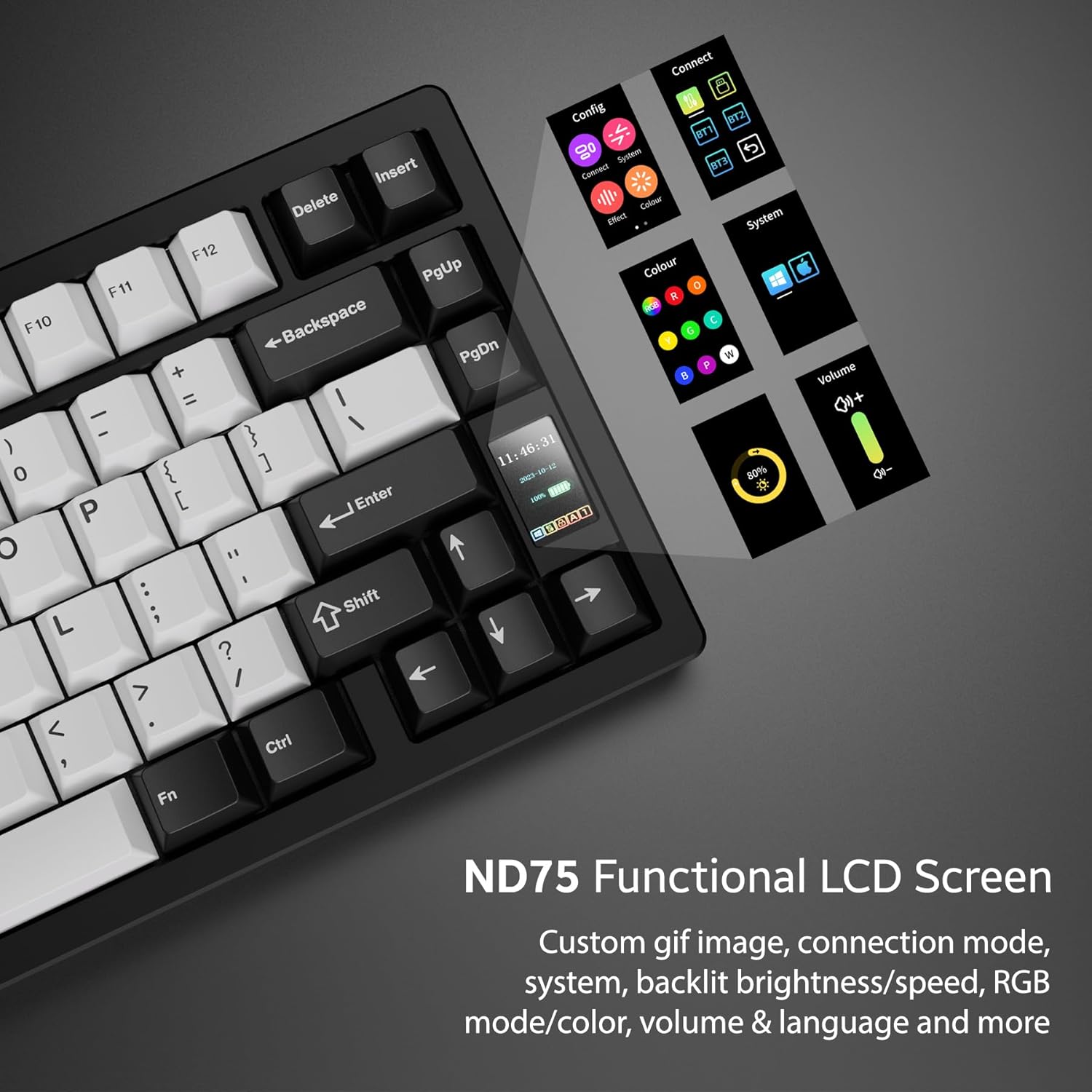
Image: Close-up of the ND75 keyboard's functional LCD screen, showing various menu options for configuration, connection, effects, color, system, volume, and language.
3.3 Per-Key RGB Backlighting
The ND75 keyboard offers 19 preset lighting effects. You can customize individual key colors and create your own lighting profiles using the keyboard's onboard controls via the LCD screen or through the dedicated software.

Image: The ND75 keyboard with vibrant per-key RGB backlighting illuminated, showcasing various colors across the keys.
4. Maintenance and Customization
4.1 Hot-Swappable Switches
The ND75 features a hot-swappable PCB, allowing you to easily replace switches without soldering. This supports both 3-pin and 5-pin switches, providing flexibility for customization and maintenance. The keyboard comes with pre-lubed linear switches for a smooth typing experience.

Image: A switch puller tool removing a key switch from the hot-swappable PCB of the ND75 keyboard, demonstrating the ease of switch replacement.
4.2 Quick Assembly Structure and Mounting Systems
The ND75 keyboard is designed with a screwless quick assembly structure, utilizing a ball catch system for easy disassembly and reassembly. This design is particularly beneficial for beginner keyboard enthusiasts who wish to explore different typing feels.
The keyboard supports three different mounting systems:
- Split O-Ring Mounting: Provides a softer, more flexible typing feel.
- Silica Gel Particle Mounting: Offers a balanced feel with good vibration dampening.
- Top Mounting: Delivers a firmer, more consistent typing experience.
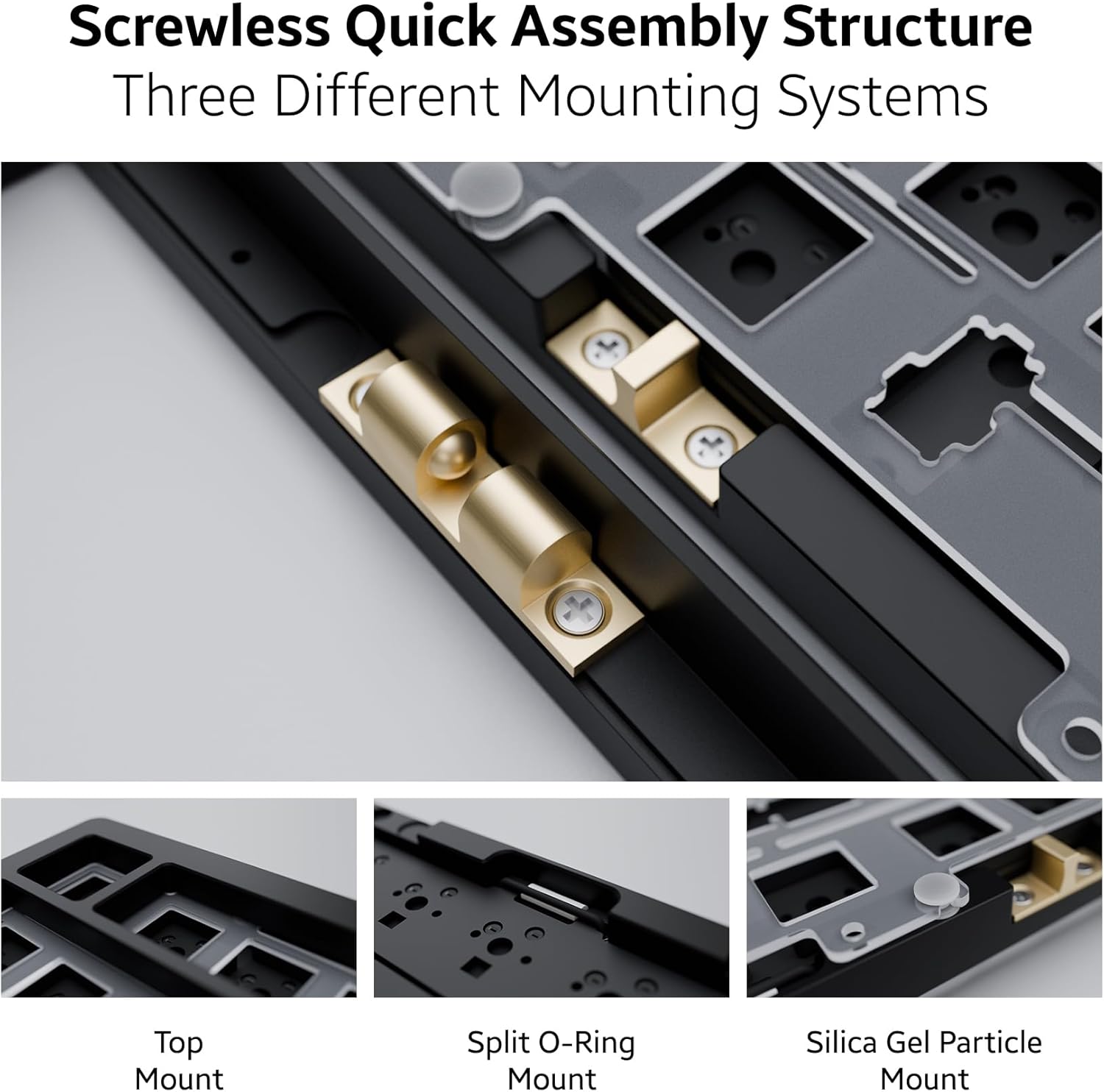
Image: Detailed view of the ND75 keyboard's internal structure, illustrating the screwless quick assembly and the three distinct mounting systems: Top Mount, Split O-Ring Mount, and Silica Gel Particle Mount.
4.3 Cleaning and Care
To maintain your keyboard's performance and appearance:
- Use a soft, dry cloth to wipe down the aluminum case.
- For keycaps, remove them and clean with mild soap and water if necessary, ensuring they are completely dry before reattaching.
- Use compressed air to remove dust and debris from between the keycaps and switches.
- Avoid exposing the keyboard to excessive moisture or extreme temperatures.
Video: Demonstrates the quick disassembly and assembly process of the Chilkey ND75 Aluminum Keyboard, showing how easily the top case can be removed and reattached.
5. Troubleshooting
If you encounter issues with your Chilkey ND75 keyboard, please refer to the following common solutions:
- Keyboard Not Responding:
- Ensure the keyboard is fully charged or connected via USB-C.
- Check the connection mode (wired, 2.4GHz, Bluetooth) and ensure it matches your device's connection. Use Fn key combinations to switch modes.
- For 2.4GHz, ensure the dongle is securely plugged into a working USB port.
- For Bluetooth, ensure Bluetooth is enabled on your device and the keyboard is paired. Try re-pairing if necessary.
- Verify the wireless switch under the Right Shift Keycap is in the correct position (ON for wireless modes).
- RGB Lighting Issues:
- Check the keyboard's LCD screen settings for brightness and effect controls.
- Ensure the keyboard's battery has sufficient charge, as low power can affect lighting.
- If using custom software, ensure it is up-to-date and correctly configured.
- Keys Not Registering / Mushy Feel:
- Due to the hot-swappable design, switches can sometimes come loose when removing keycaps. Gently press down on the affected switch to ensure it is fully seated in the PCB.
- If a switch feels mushy or is not registering, consider replacing the individual switch. The hot-swappable feature makes this easy.
- Software/Driver Issues:
- The keyboard has independent driver/software for advanced customization. If you experience issues, ensure you have the latest version installed from the official Chilkey support website.
- Some users have noted the software can be clunky; ensure your operating system is compatible and try reinstalling the software if problems persist.
If these steps do not resolve your issue, please contact Chilkey customer support.
6. Specifications
| Feature | Detail |
|---|---|
| Model | ND75 |
| Layout | 75% (80 keys) |
| Case Material | Full Aluminum Alloy (CNC with anodization) |
| Connectivity | 2.4GHz Wireless, Bluetooth 5.0, USB-C Wired |
| Keycaps | Doubleshot PBT, Cherry Profile |
| Switches | Hot-Swappable (3-pin/5-pin support), Pre-lubed Linear |
| Backlighting | Per-key RGB (19 preset effects, customizable) |
| Internal Structure | Screwless Quick Assembly, 3 Mounting Systems (Split O-Ring, Silica Gel Particle, Top Mount) |
| Acoustic Design | Four layers of sound insulation and shock absorption (Poron plate foam, IXPE switch foam, PET acoustic pad, Poron PCB foam) |
| Battery | 2 Lithium Polymer batteries (included), 3600mAh total |
| Product Dimensions | 12.68 x 5.5 x 1.38 inches |
| Item Weight | 4.49 pounds |
| Manufacturer | OOCTPK |
| First Available | September 23, 2024 |

Image: Exploded diagram showing the internal components of the ND75 keyboard, including doubleshot PBT keycaps, blue lotus switch, aluminum top case, plate, Poron plate foam, IXPE switch foam, PET acoustic pad, PCB, Poron PCB foam, aluminum bottom case, and lithium batteries.
7. Warranty and Support
7.1 Warranty Information
For detailed warranty information regarding your Chilkey ND75 Mechanical Keyboard, please refer to the warranty card included with your product or visit the official Chilkey website. Warranty terms and conditions may vary by region and retailer.
7.2 Customer Support
If you require further assistance, technical support, or have questions not covered in this manual, please contact Chilkey customer support. Many users find the official Chilkey Discord community to be a valuable resource for quick help and community-driven solutions.
For the most up-to-date contact information and support resources, please visit the official Chilkey website or their Amazon brand store:
- Chilkey Amazon Brand Store
- Refer to product packaging for direct website link or support email.


