1. Introduction
This manual provides detailed instructions for the setup, operation, and maintenance of your Chilkey ND75 Aluminum 75% Wireless Mechanical Gaming Keyboard. Please read this manual thoroughly to ensure proper usage and to maximize your keyboard's features.
2. Product Features
- Full Aluminum Alloy Case: CNC machined aluminum case with anodized surface treatment for durability and tactile feel.
- 75% Layout: Compact design retaining essential keys.
- Tri-Mode Connectivity: Supports Bluetooth 5.0, 2.4GHz wireless, and USB-C wired connections.
- Functional LCD Screen: Customizable display for time, date, battery level, connection mode, backlight settings, volume, and custom GIF images.
- Quick Assembly Structure: Screwless design with a ball catch system for easy disassembly and assembly.
- Three Mounting Systems: Offers Split O-Ring Mounting, Silica Gel Particle Mounting, and Top Mounting for varied typing experiences.
- Hot-Swappable PCB: Compatible with 3-pin/5-pin mechanical switches, allowing for easy switch replacement.
- Per-Key RGB Backlighting: 19 preset lighting effects with support for custom light colors.
- Acoustic Padding: Four layers of sound insulation and shock absorption (Poron plate foam, IXPE switch foam, PET acoustic pad, Poron PCB foam) for a refined typing sound.
- Doubleshot PBT Keycaps: Durable PBT keycaps with Cherry profile, designed for ergonomic comfort.
- 3600mAh Battery: Integrated lithium polymer batteries for wireless operation.
3. Setup Guide
3.1. Connectivity Modes
The ND75 keyboard supports three connection modes: Bluetooth (BT5.0), 2.4GHz wireless, and USB-C wired. To switch between modes, remove the Right Shift keycap and locate the wireless switch. Use FN and the corresponding key combination to select your desired mode.

Figure 3.1: Tri-mode connectivity and multi-system compatibility.
3.2. Mounting System Installation
The ND75 keyboard features a screwless quick assembly structure and supports three different mounting systems: Split O-Ring, Silica Gel Particle, and Top Mounting. These systems can be interchanged to customize your typing experience.

Figure 3.2: Overview of the three mounting systems.
3.2.1. Installing Silica Gel Particle Mounting System
To install the Silica Gel Particle Mounting system, first carefully remove the keyboard's top case. Be cautious of the screen's cable connecting the top case to the main PCB. Disconnect this cable using tweezers. Then, insert the provided silica gel particles into their designated positions on the PCB. Reconnect the screen cable, ensuring the blue side aligns with the pins, and reattach the top case.
Video 3.1: Detailed instructions on how to install the three different mounting systems for the ND75 keyboard, including the Silica Gel Particle Mounting system.
3.2.2. Installing Split O-Ring Mounting System
For the Split O-Ring Mounting system, remove the top case and disconnect the screen cable as described above. Place the O-rings around the designated posts on the PCB. Reconnect the screen cable and reassemble the top case.
Video 3.2: Detailed instructions on how to install the three different mounting systems for the ND75 keyboard, including the Split O-Ring Mounting system.
3.2.3. Installing Top Mounting System
To use the Top Mounting system, ensure any pre-installed O-rings or silicone gel particles are removed. Reconnect the screen cable and align the magnetic daughterboard before installing the top case. Before tightening the screws, ensure the holes on the PCB align with the top case, then screw them into their corresponding positions.
Video 3.3: Detailed instructions on how to install the three different mounting systems for the ND75 keyboard, including the Top Mounting system.
3.3. Hot-Swappable Switches
The ND75 keyboard features a hot-swappable PCB, allowing you to easily change mechanical switches without soldering. It supports both 3-pin and 5-pin switches. Use the provided switch puller to carefully remove and insert switches.

Figure 3.3: Hot-swappable switch functionality.
4. Operating Instructions
4.1. LCD Screen Functions
The integrated LCD screen provides quick access to various settings and information. Use the function keys (FN + key combinations) to navigate and adjust settings directly on the screen. Functions include:
- Connection mode display
- Battery level indicator
- Backlight brightness and speed adjustment
- RGB mode and color selection
- Volume control
- Language selection
- Custom GIF image display

Figure 4.1: Functional LCD screen interface.
Video 4.1: Demonstration of the ND75 Mechanical Keyboard's functional LCD screen and its various settings.
4.2. RGB Backlighting
The keyboard offers per-key RGB backlighting with 19 preset lighting effects. You can customize light colors and effects through the LCD screen or the dedicated software.
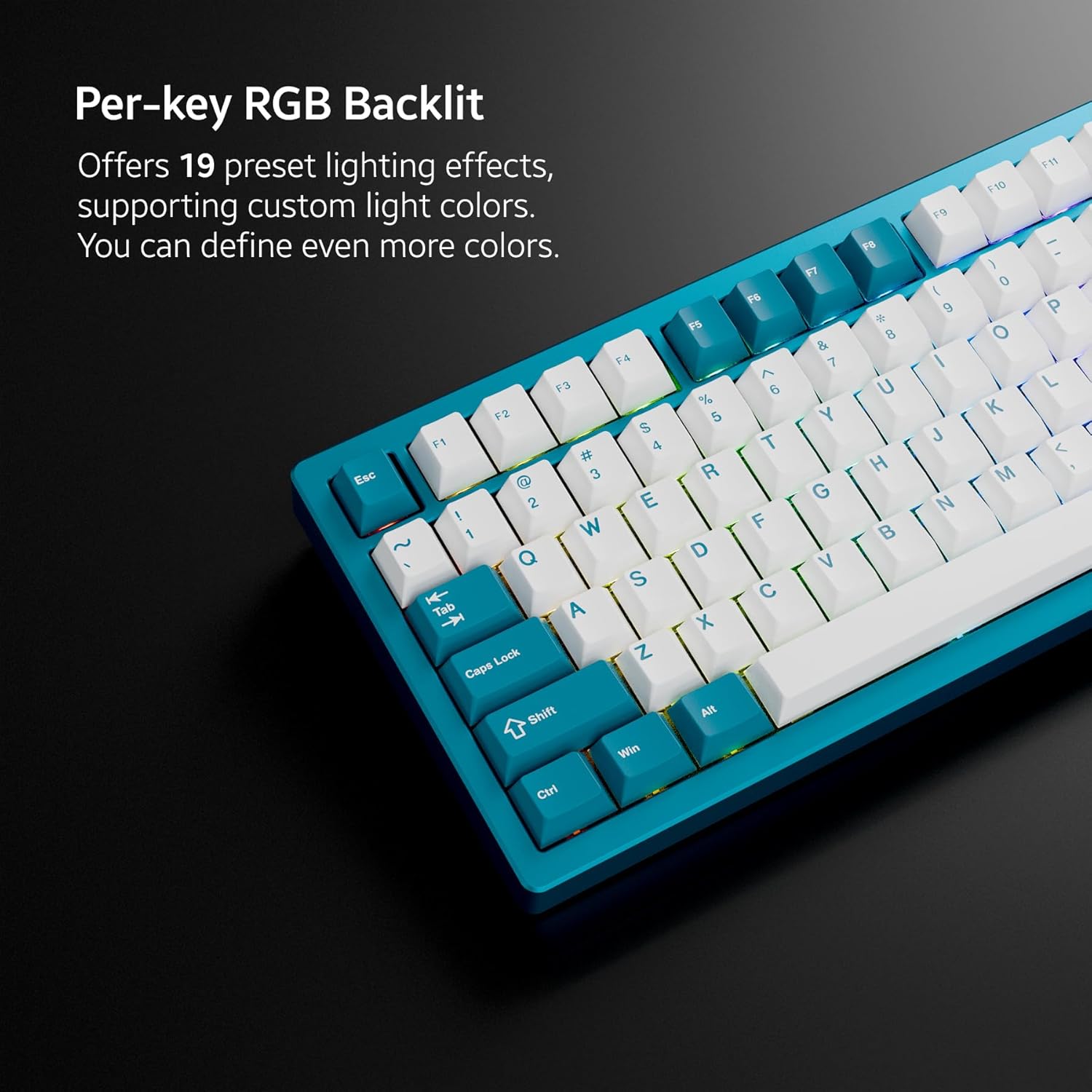
Figure 4.2: Per-key RGB backlighting in action.
4.3. Software Customization
The ND75 keyboard is supported by independent driver/software for advanced customization. This software allows you to configure key macros, adjust lighting effects, and manage other system settings. Refer to the official Chilkey website for software download and detailed instructions.

Figure 4.3: Software interface for advanced customization.
5. Maintenance
5.1. Disassembly and Assembly
The ND75 keyboard is designed for quick disassembly and assembly using a screwless ball catch system. This facilitates easy access for maintenance, cleaning, or changing mounting systems.
Video 5.1: Demonstration of the quick disassembly and assembly process for the ND75 Aluminum Keyboard.
5.2. Cleaning
Regular cleaning helps maintain the keyboard's performance and appearance. Use a soft brush or compressed air to remove dust and debris from between keycaps. For keycaps, they can be removed and cleaned with mild soap and water, then thoroughly dried before reinstallation. The aluminum case can be wiped with a soft, damp cloth.
5.3. Switch Replacement
Thanks to the hot-swappable design, individual switches can be replaced if they become faulty or if you wish to change the typing feel. Use a switch puller to gently remove the old switch and press the new switch firmly into place until it clicks. Ensure the pins are aligned correctly to avoid damage.
6. Troubleshooting
6.1. Connectivity Issues
- Wireless Connection Not Working: Ensure the wireless switch under the Right Shift keycap is turned on. Verify the correct mode (BT or 2.4GHz) is selected using FN key combinations. For 2.4GHz, ensure the dongle is properly inserted into your device. For Bluetooth, ensure the keyboard is paired correctly in your device's settings.
- Keyboard Not Typing: If the keyboard is not responding, check the connection mode. Some users may need to switch to Bluetooth or USB mode for it to work with their preferred method.
6.2. LCD Screen Malfunction
- Screen Not Displaying: Check the screen cable connection during assembly. Ensure it is securely connected with the blue side aligned to the pins.
- Incorrect Display/Settings: Use the FN key combinations to navigate the screen's configuration menu and adjust settings like brightness, speed, volume, and language.
6.3. Battery Life Concerns
The ND75 is equipped with two Lithium Polymer batteries. If you experience unusually short battery life, ensure the keyboard is fully charged. Factors such as high RGB brightness and continuous wireless usage can affect battery duration. Consider reducing RGB brightness or using wired mode for extended periods if battery life is a critical concern.
6.4. Software Issues
If the customization software is clunky or not functioning as expected, ensure you have the latest version installed from the official Chilkey website. Restarting the software or your computer may resolve minor glitches. For persistent issues, refer to the support section.
7. Specifications
| Feature | Detail |
|---|---|
| Product Dimensions | 12.68 x 5.5 x 1.38 inches (32.2cm L x 14cm W x 3.5cm H) |
| Item Weight | 4.54 pounds |
| Manufacturer | OOCTPK |
| ASIN | B0DBTZBHLD |
| Item Model Number | 35da772b-3f31-4a29-95ff-0d91d1f3da03 |
| Batteries | 2 Lithium Polymer batteries (included) |
| Connectivity Technology | 2.4GHz, Bluetooth, USB-C |
| Keyboard Description | Mechanical |
| Special Features | Backlit, Hot-Swappable, Rechargeable |
| Keyboard Backlighting | RGB |
| What's in the Box | USB Cable |
8. Support
For further assistance, software downloads, or community support, please visit the official Chilkey website or join their Discord community. The Discord community is noted for providing fast and helpful customer support.
Chilkey Store: Visit the Chilkey Store on Amazon


