
Introduction
This manual provides essential information for the safe and efficient use of your ONN 22-inch Full HD LED Monitor (Model 100140681). Please read these instructions carefully before operating the device and retain them for future reference.
The ONN 22-inch FHD LED Monitor features a frameless design, Full HD (1920 x 1080p) resolution, and a 60Hz refresh rate. It includes Adaptive Sync technology for smoother visuals and offers versatile connectivity options. Its VESA-compatible design allows for flexible mounting solutions.
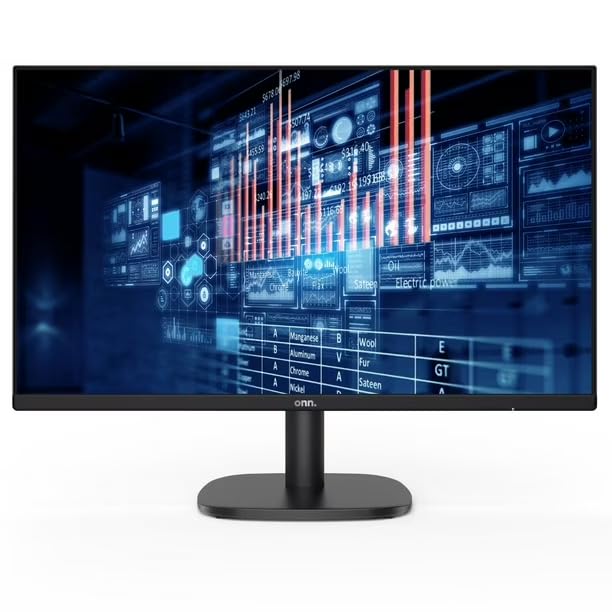
Image: Front view of the ONN 22-inch FHD LED Monitor displaying data graphics.
Package Contents
Verify that all items are present in the package:
- ONN 22-inch FHD LED Monitor Display
- Monitor Stand (Base and Neck)
- Power Cable
- HDMI Cable
- User Manual (this document)
Setup
1. Assembling the Stand
- Carefully place the monitor face down on a soft, clean surface to prevent scratches.
- Attach the stand neck to the back of the monitor, aligning the mounting points. Secure with screws if provided.
- Attach the stand base to the stand neck, ensuring it clicks into place or is secured with the provided screw.
2. Connecting to a Computer
The monitor supports HDMI and VGA connections.
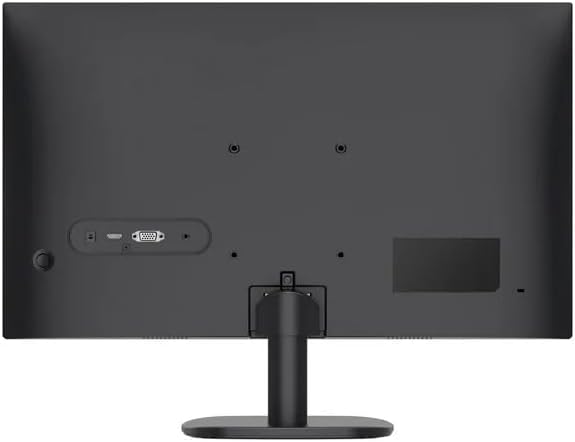
Image: Rear view of the ONN monitor, highlighting the input ports including HDMI and VGA.
- HDMI Connection: Connect one end of the HDMI cable to the HDMI port on your computer and the other end to the HDMI port on the monitor.
- VGA Connection: Connect one end of the VGA cable to the VGA port on your computer and the other end to the VGA port on the monitor. Secure the screws on the VGA connector.
3. Power Connection
- Connect the power cable to the monitor's power input port.
- Plug the other end of the power cable into a grounded electrical outlet.
4. Powering On
- Press the power button located on the monitor (typically on the bottom right or back).
- The power indicator light will illuminate, and the monitor will display the input source.
Operating
1. On-Screen Display (OSD) Menu
The OSD menu allows you to adjust various monitor settings. Typically, buttons are located on the bottom right or back of the monitor.
- Menu Button: Press to open the OSD menu.
- Navigation Buttons: Use to move through menu options.
- Select/Enter Button: Press to confirm a selection or enter a sub-menu.
- Exit Button: Press to exit the OSD menu.
2. Basic Adjustments
- Brightness: Adjusts the overall luminance of the screen.
- Contrast: Adjusts the difference between light and dark areas of the image.
- Color Settings: Modify color temperature, hue, and saturation.
- Input Select: Manually switch between HDMI and VGA input sources.
- Adaptive Sync: Enable or disable Adaptive Sync for compatible graphics cards to reduce screen tearing and stuttering.
Maintenance
Cleaning the Monitor
- Always power off the monitor and unplug the power cable before cleaning.
- Use a soft, lint-free cloth lightly dampened with water or a non-abrasive screen cleaner.
- Do not spray cleaner directly onto the screen.
- Avoid using harsh chemicals, solvents, or abrasive materials.
General Care
- Avoid placing heavy objects on the monitor or its cables.
- Keep the monitor away from direct sunlight, heat sources, and excessive moisture.
- Ensure proper ventilation around the monitor.
Troubleshooting
If you encounter issues with your monitor, refer to the following common solutions:
| Problem | Possible Cause | Solution |
|---|---|---|
| No power | Power cable not connected; Power outlet not working | Ensure power cable is securely connected to monitor and outlet; Test outlet with another device. |
| No signal | Video cable not connected; Incorrect input source selected | Check HDMI/VGA cable connections; Use OSD menu to select correct input source. |
| Image is blurry or distorted | Incorrect resolution; Loose video cable | Set computer's display resolution to 1920 x 1080; Ensure video cable is securely connected. |
| Screen flickering | Refresh rate mismatch; Cable issue | Ensure refresh rate is set to 60Hz; Try a different video cable. |
Specifications
| Feature | Detail |
|---|---|
| Model Number | 100140681 |
| Display Size | 22 inches (55.9 cm) |
| Panel Type | LED |
| Resolution | 1920 x 1080 (Full HD) |
| Refresh Rate | 60Hz |
| Aspect Ratio | 16:9 |
| Connectivity | 1x HDMI, 1x VGA |
| VESA Mount Compatibility | 75 x 75 mm |
| Dimensions (with stand) | 53.3 x 20.3 x 38.1 cm (20.98 x 7.99 x 15 inches) |
| Weight (with stand) | 4.8 kg (10.58 lbs) |
Warranty and Support
For technical assistance, warranty claims, or further product information, please refer to the documentation included with your purchase or visit the official ONN website. Keep your proof of purchase for warranty purposes.