1. Introduction and Overview
The Fortinet FortiGate FG-81F is a high-performance network security and firewall appliance designed for distributed enterprise sites. It integrates Next-Generation Firewall (NGFW) capabilities with Software-Defined Wide Area Network (SD-WAN) functionality, providing a comprehensive solution for modern network architectures.
This appliance leverages AI/ML-based FortiGuard security services and the integrated Security Fabric platform to deliver coordinated, automated, and end-to-end threat protection. It features the industry's first integrated SD-WAN and Zero-Trust Network Access (ZTNA) enforcement within an NGFW solution, all powered by a single operating system. The FortiGate FG-81F automatically controls, verifies, and facilitates user access to applications, ensuring consistency and an optimized user experience.
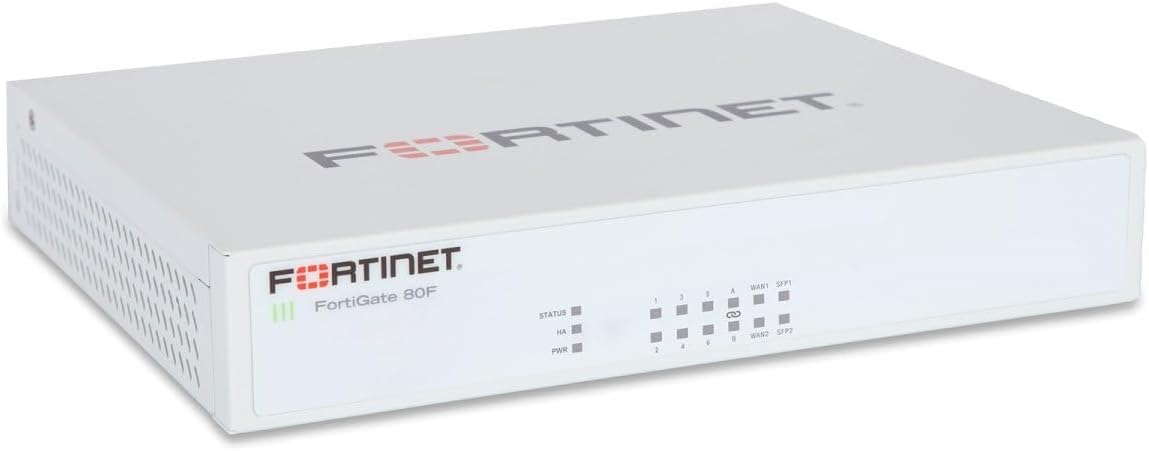
Figure 1: Fortinet FortiGate 80F Network Security Appliance. The front panel displays the Fortinet logo, FortiGate 80F model name, status indicators (STATUS, HA, PWR), and a series of numbered network ports (1-8) along with two WAN ports (WAN1, WAN2) and two SFP ports (SFP1, SFP2).
2. Package Contents
Verify that all items are present in the package:
- Fortinet FortiGate FG-81F Appliance (Base Unit)
- Power Adapter (if applicable, not explicitly listed but implied for operation)
- Ethernet Cable (if applicable, not explicitly listed but common for initial setup)
- Quick Start Guide (if applicable)
Note: Contents may vary slightly depending on the specific bundle or region.
3. Setup
3.1 Physical Installation
- Placement: Place the FortiGate FG-81F on a stable, flat surface in a well-ventilated area. Ensure adequate airflow around the device to prevent overheating. Avoid placing it near heat sources or in direct sunlight.
- Power Connection: Connect the power adapter to the appliance's power input port and then plug it into a suitable electrical outlet. The Power (PWR) LED on the front panel should illuminate.
- Network Connections:
- WAN Connection: Connect your Internet Service Provider's (ISP) modem or router to one of the WAN ports (WAN1 or WAN2) on the FortiGate using an Ethernet cable.
- LAN Connection: Connect your internal network devices (e.g., switches, computers) to the numbered LAN ports (1-8) on the FortiGate.
- SFP Ports: If using fiber optic connections, insert compatible SFP transceivers into the SFP1 or SFP2 ports and connect the fiber cables.
- Initial Management Connection: For initial configuration, connect a computer directly to one of the LAN ports or use the console port with a serial cable and terminal emulation software.
3.2 Initial Configuration
After physical installation, proceed with the initial configuration:
- Accessing the Device:
- Web-based Manager: Open a web browser on a connected computer and navigate to the default IP address (e.g., 192.168.1.99). Log in with the default credentials (typically username 'admin' and no password).
- Command Line Interface (CLI): Connect via the console port using a terminal emulator (e.g., PuTTY) with settings: 9600 baud, 8 data bits, no parity, 1 stop bit, no flow control.
- Basic Network Settings: Configure the WAN interface with your ISP's network settings (DHCP, Static IP, PPPoE). Set up internal network interfaces (LAN) with appropriate IP addresses and DHCP server settings if needed.
- Change Default Password: For security, immediately change the default administrator password.
- Firmware Update: It is highly recommended to update the FortiGate firmware to the latest stable version available from the Fortinet support website to ensure optimal performance and security.
4. Operating Instructions
4.1 Status Indicators
Monitor the front panel LEDs for operational status:
- STATUS LED: Indicates the overall system status. Refer to the FortiGate documentation for specific blink patterns and colors.
- HA LED: Indicates the High Availability status when configured in a cluster.
- PWR LED: Indicates power status. Solid green typically means the device is powered on and operating normally.
- Port LEDs: Each network port has LEDs indicating link status and activity.
4.2 Basic Operation
Once configured, the FortiGate FG-81F will begin enforcing security policies and routing network traffic. Key operational aspects include:
- Firewall Policies: Define rules to control traffic flow between different network segments and to/from the internet.
- Network Address Translation (NAT): Translate private IP addresses to public ones for internet access.
- Routing: Manage how network traffic is directed between different subnets and networks.
4.3 Advanced Features
The FortiGate FG-81F offers a robust set of advanced features for comprehensive network security:
- Next-Generation Firewall (NGFW): Includes application control, intrusion prevention system (IPS), web filtering, and antivirus capabilities.
- SD-WAN: Optimize WAN performance and cost by intelligently routing traffic across multiple connections.
- VPN (Virtual Private Network): Establish secure tunnels for remote access or site-to-site connectivity.
- Zero-Trust Network Access (ZTNA): Implement granular access control based on user identity and device posture.
- Threat Intelligence: Utilize FortiGuard services for real-time threat updates and protection.
5. Maintenance
Regular maintenance ensures the optimal performance and security of your FortiGate FG-81F appliance:
- Firmware Updates: Periodically check for and apply the latest firmware updates from the Fortinet support portal. This provides new features, bug fixes, and critical security patches.
- Configuration Backups: Regularly back up your FortiGate configuration. This is crucial for disaster recovery and allows for quick restoration in case of issues.
- Physical Cleaning: Keep the appliance free from dust and debris, especially around ventilation openings, to ensure proper cooling. Use a soft, dry cloth for cleaning.
- Log Monitoring: Regularly review system logs and security alerts within the FortiGate interface to identify potential issues or security incidents.
- Security Policy Review: Periodically review and optimize your firewall and security policies to adapt to changing network requirements and threat landscapes.
6. Troubleshooting
This section provides basic troubleshooting steps for common issues. For more detailed diagnostics, refer to the Fortinet documentation or contact support.
- No Power:
- Check if the power adapter is securely connected to the appliance and the electrical outlet.
- Verify the electrical outlet is functional.
- Ensure the PWR LED on the front panel is illuminated.
- No Network Connectivity:
- Verify that Ethernet cables are securely connected to the correct ports on both the FortiGate and connected devices.
- Check the link/activity LEDs on the ports. They should be lit for a valid connection and blink with activity.
- Confirm IP address settings on connected devices and the FortiGate interfaces.
- Check firewall policies to ensure traffic is not being blocked.
- Slow Performance:
- Monitor CPU and memory usage through the web-based manager or CLI.
- Review logs for any errors or high-volume traffic alerts.
- Ensure firmware is up to date.
- Consider if the network traffic volume exceeds the appliance's capacity.
- Cannot Access Web-based Manager:
- Ensure your computer's IP address is in the same subnet as the FortiGate's management interface.
- Try accessing via the console port (CLI).
- Clear your browser's cache or try a different browser.
7. Specifications
| Feature | Detail |
|---|---|
| Brand | FORTINET |
| Model Name | FG-81F-BDL-809-36 |
| Firewall Throughput | 1.25 GB/s |
| Ports | 10 Ports (1000Base-T, 1000Base-X, Gigabit Ethernet) |
| Security Protocols | SHA-256, AES (256-bit), TLS 1.3, SSL |
| VPN Tunnels | 200 VP (VPN Peers/Tunnels) |
| Dimensions (L x W x H) | 9 x 7 x 2 inches |
| UPC | 195875222371 |
| Included Components | Base Unit |
8. Warranty and Support
Fortinet products typically come with a standard manufacturer's warranty. For specific warranty terms and conditions, please refer to the documentation included with your purchase or visit the official Fortinet website.
For technical support, product documentation, firmware downloads, and knowledge base articles, please visit the official Fortinet support portal:
You can also find additional information and resources on the Fortinet brand store on Amazon: Fortinet Amazon Store


