
1. Introduction
This manual provides essential information for the installation, operation, maintenance, and troubleshooting of your PNY RTX 4000 Ada Generation 20GB DDR6 Quadro Graphics Card. This professional graphics card is designed for demanding applications such as 3D rendering, CAD/CAM, scientific simulations, and AI workflows, leveraging the NVIDIA Ada Lovelace architecture.
Key features include 6,144 CUDA cores, 48 RT Cores, 192 Tensor Cores, and 20GB of GDDR6 ECC memory, all within a single-slot, 130W design. It supports up to four 4K monitors or two 8K monitors via DisplayPort 1.4a.

Figure 1: PNY RTX 4000 Ada Generation Graphics Card overview, showing the single-slot design and an illustrative power connector icon.
2. Safety Information
Please read and follow all safety instructions carefully to prevent damage to the product or personal injury.
- Always disconnect power from your computer before installing or removing any components.
- Wear an anti-static wrist strap or frequently touch a grounded metal object to discharge static electricity before handling the graphics card.
- Ensure proper ventilation within your computer case to prevent overheating.
- Do not expose the graphics card to moisture or extreme temperatures.
- Handle the card by its edges; avoid touching the gold-plated connectors or components on the PCB.
3. Package Contents
Verify that all items are present in your product package:
- PNY RTX 4000 Ada Generation Graphics Card (VCNRTX4000ADA-PB)
- Documentation (this manual, quick start guide, etc.)
Note: Additional accessories such as display adapters or power cables may be sold separately or included depending on your region/retailer.
4. Setup
4.1. Physical Installation
- Prepare Your System: Power off your computer and disconnect the power cable from the wall outlet. Open your computer case.
- Locate a PCIe Slot: Identify an available PCI Express x16 slot on your motherboard. The RTX 4000 Ada Generation is a single-slot card.
- Remove Slot Covers: Remove the metal slot cover(s) from the back of your computer case corresponding to the chosen PCIe slot.
- Insert the Graphics Card: Carefully align the graphics card with the PCIe slot and press down firmly until it is securely seated. Ensure the retention clip on the PCIe slot locks into place.
- Connect Power: The RTX 4000 Ada Generation requires an 8-pin PCIe power connector from your power supply. Connect this cable to the power connector on the top edge of the graphics card. Ensure a secure connection.
- Secure the Card: Use a screw to fasten the graphics card's mounting bracket to the computer case.
- Close Case and Connect Displays: Close your computer case. Connect your display monitor(s) to the DisplayPort outputs on the graphics card.
4.2. Driver Installation
- Power On: Reconnect the power cable to your computer and power it on. Your system may boot with a basic display driver.
- Download Drivers: Navigate to the official PNY or NVIDIA website to download the latest drivers for the RTX 4000 Ada Generation. It is recommended to download drivers directly from the manufacturer's website for optimal performance and stability.
- PNY Support: www.pny.com/support
- NVIDIA Drivers: www.nvidia.com/drivers
- Install Drivers: Run the downloaded driver installer and follow the on-screen instructions. A system restart may be required after installation.
- Verify Installation: After restarting, open the NVIDIA Control Panel or NVIDIA Settings to confirm that the graphics card is recognized and operating correctly.

Figure 2: Display output section of the PNY RTX 4000 Ada Generation, showing four DisplayPort 1.4a connectors.
5. Operating the Graphics Card
5.1. Basic Operation
Once installed and drivers are updated, your PNY RTX 4000 Ada Generation graphics card will automatically handle graphics processing for your system. Applications that benefit from GPU acceleration will utilize the card's capabilities.
- NVIDIA Control Panel: Use the NVIDIA Control Panel (Windows) or NVIDIA Settings (Linux) to adjust display settings, manage 3D application profiles, and monitor GPU status.
- Software Compatibility: Ensure your professional applications (e.g., CAD, rendering software) are updated to versions that support NVIDIA Ada Lovelace architecture for optimal performance.
5.2. Multi-Monitor Setup
The RTX 4000 Ada Generation supports up to four DisplayPort 1.4a outputs, allowing for flexible multi-monitor configurations.
- Connect your monitors to the available DisplayPort outputs on the graphics card.
- Access your operating system's display settings (e.g., Windows Display Settings) or the NVIDIA Control Panel to configure display arrangement, resolution, and refresh rates.
- The card supports resolutions up to 4K on four monitors simultaneously, or two 8K monitors.
6. Maintenance
6.1. Cleaning
Regular cleaning helps maintain optimal performance and extends the lifespan of your graphics card.
- Power Off: Always power off your computer and disconnect it from the power source before cleaning.
- Dust Removal: Use compressed air to gently blow dust from the heatsink fins and fan blades. Hold the fan blades in place while blowing to prevent over-spinning and potential damage to the fan bearings.
- Exterior Cleaning: Wipe the exterior of the card with a soft, dry, lint-free cloth. Do not use liquid cleaners directly on the card.
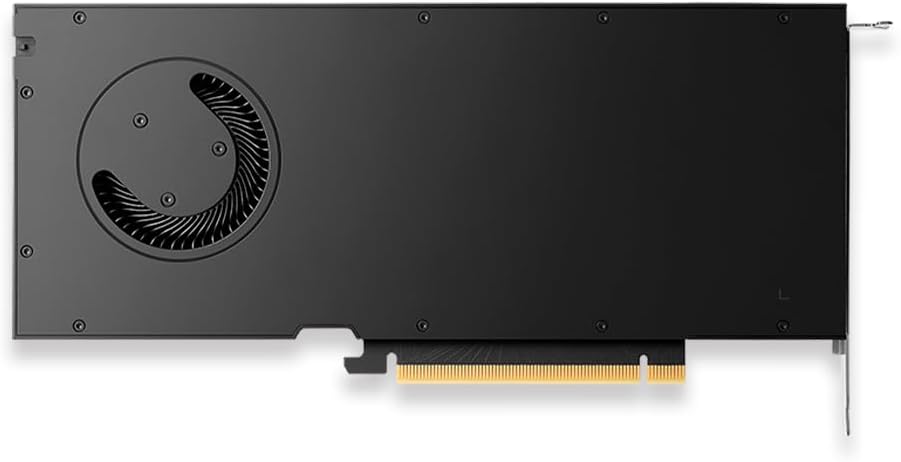
Figure 3: Rear view of the PNY RTX 4000 Ada Generation, highlighting the cooling fan for maintenance reference.
6.2. Storage
If storing the graphics card, place it in an anti-static bag and store it in a cool, dry environment away from direct sunlight and extreme temperatures.
7. Troubleshooting
This section addresses common issues you might encounter.
- No Display Output:
- Ensure the monitor is powered on and connected to the graphics card, not the motherboard's integrated graphics.
- Verify the graphics card is fully seated in the PCIe slot and the power cable is securely connected.
- Try a different display cable or monitor.
- Check your BIOS/UEFI settings to ensure the primary display output is set to PCIe graphics.
- Driver Installation Issues:
- Uninstall any previous graphics drivers using a utility like Display Driver Uninstaller (DDU) in Safe Mode, then attempt a fresh installation of the latest drivers.
- Ensure you downloaded the correct drivers for your operating system and graphics card model.
- System Instability or Crashes:
- Ensure your power supply unit (PSU) meets the minimum wattage requirements for your system, including the graphics card.
- Monitor GPU temperatures using software utilities. Excessive heat can cause instability. Ensure proper case airflow.
- Verify that your operating system and motherboard BIOS are up to date.
8. Specifications
| Feature | Detail |
|---|---|
| Brand | PNY |
| Model Number | VCNRTX4000ADA-PB |
| Graphics Coprocessor | NVIDIA Quadro RTX 4000 Ada Generation |
| Architecture | NVIDIA Ada Lovelace |
| CUDA Cores | 6,144 |
| RT Cores | 48 (3rd Generation) |
| Tensor Cores | 192 (4th Generation) |
| Graphics RAM Size | 20 GB GDDR6 ECC |
| Memory Interface | 160-bit |
| Memory Bandwidth | 360 GB/s |
| GPU Clock Speed | 2220 MHz (Boost) |
| Memory Speed | 2250 MHz |
| FP32 Performance | Up to 26.7 TFLOPS |
| Ray Tracing Performance | 61.8 TFLOPS |
| AI Performance (FP8) | 327.6 TFLOPS |
| Video Output Interface | 4x DisplayPort 1.4a |
| Max Screen Resolution | 3840x2160 (4K) per display, up to 4 displays; 8K on 2 displays |
| Power Consumption | 130W |
| Form Factor | Single-slot |
| Product Dimensions (LxWxH) | 14.65 x 8.55 x 0.1 inches |
| Item Weight | 1.85 pounds |
9. Warranty Information
PNY products are covered by a manufacturer's warranty. The specific terms and duration of the warranty may vary by region and product type. Please refer to the official PNY website or your product's packaging for detailed warranty information.
For warranty claims or to register your product, visit: www.pny.com/support/warranty
10. Technical Support
If you encounter issues that cannot be resolved using the troubleshooting steps in this manual, or require further assistance, please contact PNY Technical Support.
- PNY Support Website: www.pny.com/support
- The support website provides FAQs, driver downloads, and contact information for technical assistance.


