1. Introduction
The AutoSky WUA-8 Wireless CarPlay and Android Auto Adapter converts your vehicle's existing wired CarPlay or Android Auto system into a wireless connection. This allows for seamless integration of your smartphone's features, including navigation, music, and communication, directly to your car's infotainment display without the need for a physical cable connection after initial setup.
This manual provides detailed instructions for setting up, operating, and maintaining your AutoSky WUA-8 adapter, along with troubleshooting tips for common issues.
2. Safety Information
- Do not attempt to disassemble or modify the device. This may void the warranty and cause damage.
- Keep the device away from water, moisture, and extreme temperatures.
- Ensure the device is securely plugged into the vehicle's USB port to prevent accidental disconnection.
- Operate your vehicle responsibly. Do not interact with your phone or the adapter in a way that distracts you from driving.
3. Package Contents
Please check the package for the following items:
- AutoSky WUA-8 Wireless CarPlay and Android Auto Adapter
- User Manual (this document)
4. Product Overview
The AutoSky WUA-8 is a compact USB dongle designed for discreet integration into your vehicle's interior. It features a USB-A connector for direct plug-in to your car's wired CarPlay/Android Auto USB port.

Image 4.1: The AutoSky WUA-8 adapter shown alongside example CarPlay and Android Auto interfaces on a car's display.

Image 4.2: A detailed view of the AutoSky WUA-8 wireless adapter, highlighting its compact design and USB connector.
5. Setup Instructions
Before proceeding, ensure your vehicle is equipped with factory-installed wired Apple CarPlay or Android Auto and was manufactured in 2016 or newer. This adapter does not add wired CarPlay/Android Auto functionality to your vehicle; it converts an existing wired connection to wireless.

Image 5.1: An informational graphic explaining that wired CarPlay or Android Auto is a prerequisite for using the adapter.
5.1 Initial Connection
- Locate the USB Port: Identify the USB port in your vehicle that supports wired CarPlay or Android Auto. This is typically the port you would use to connect your phone for wired access.
- Plug In the Adapter: Insert the AutoSky WUA-8 adapter into the designated USB port. The adapter will power on, and an indicator light (if present) may illuminate.
- Vehicle Display: Your car's infotainment screen should display a message indicating the adapter is recognized or prompt for a connection.
5.2 Pairing with Your Smartphone
Once the adapter is connected to your car, you will need to pair it with your smartphone via Bluetooth.
- Enable Bluetooth: On your smartphone, go to your Bluetooth settings and ensure Bluetooth is enabled.
- Search for Device: Look for a new Bluetooth device named 'CarPlayBox-XXXX' or similar (the exact name may vary).
- Pair: Select the adapter's name from the list and confirm the pairing request on your phone and/or car screen if prompted. A pairing code may appear; verify it matches on both devices.
- Confirm Connection: After successful pairing, your car's display should automatically launch wireless CarPlay or Android Auto.
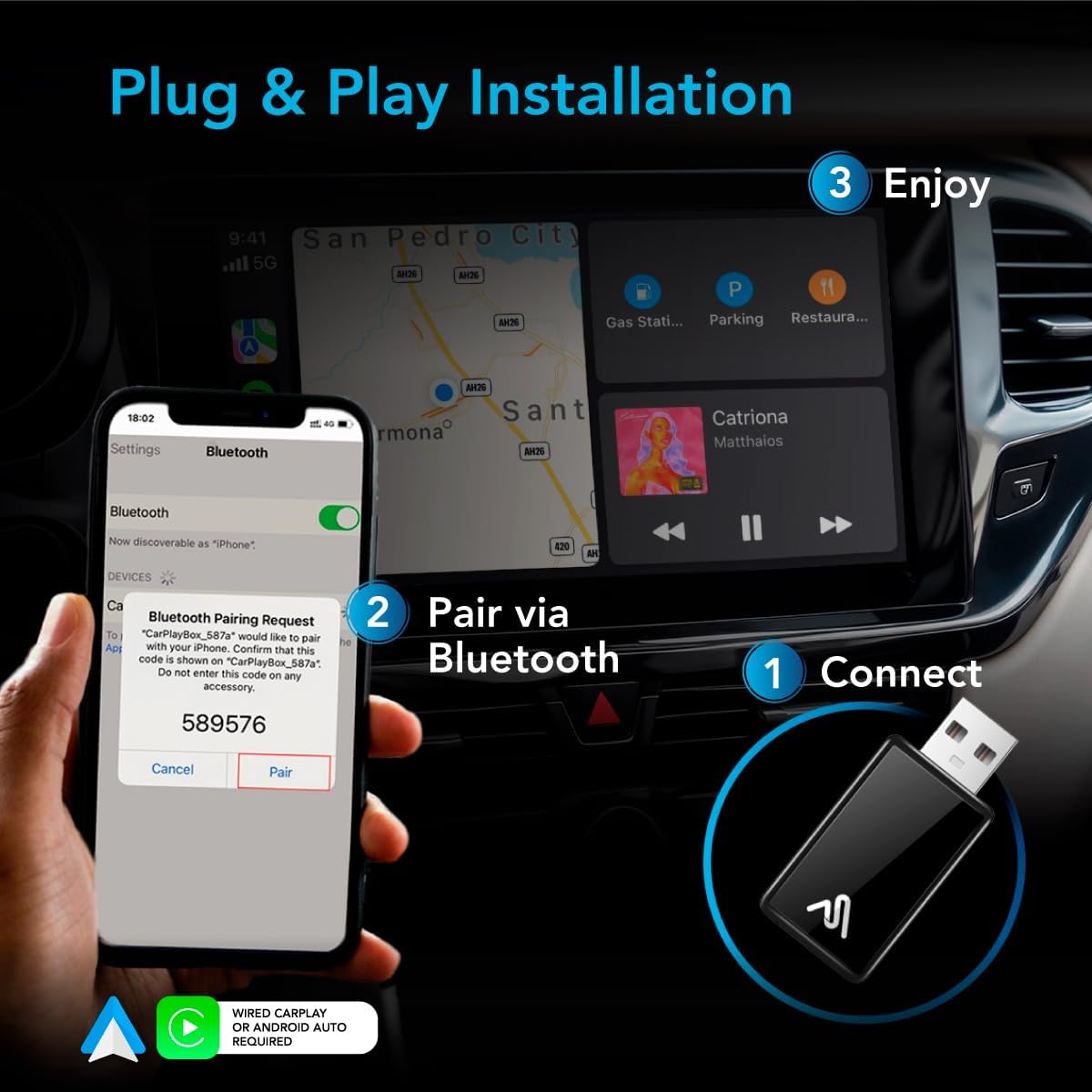
Image 5.3: Visual guide demonstrating the three steps for setup: 1) Connect the adapter to the car's USB port, 2) Pair your phone via Bluetooth, and 3) Enjoy wireless CarPlay/Android Auto.
6. Operating Instructions
6.1 Automatic Connection
After the initial setup, the adapter should automatically connect to your paired smartphone when you start your vehicle. Ensure your phone's Bluetooth and Wi-Fi are enabled for the adapter to establish a connection.

Image 6.1: A driver interacting with the car's infotainment system, showcasing the convenience of a wire-free CarPlay experience.
6.2 Using Wireless CarPlay/Android Auto
Once connected, you can use your car's infotainment system as you normally would with wired CarPlay or Android Auto. All functions, including navigation, music playback, calls, and messaging, will be accessible wirelessly.

Image 6.2: A car's dashboard display showing a navigation map and music playback interface via wireless CarPlay.

Image 6.3: The CarPlay interface displayed on a car's screen, showing various applications like Phone, Music, Spotify, and Calendar.
6.3 Voice Control
The adapter supports voice commands through Siri (for Apple CarPlay) and Google Assistant (for Android Auto). Activate voice control as you normally would in your vehicle (e.g., by pressing a button on your steering wheel or saying the wake word).

Image 6.4: A car's infotainment screen showing a Siri voice command interface for messages, demonstrating hands-free operation.
7. Compatibility
The AutoSky WUA-8 adapter is compatible with a wide range of vehicles and smartphones:
- Vehicles: Compatible with cars manufactured in 2016 or newer that have factory-installed wired Apple CarPlay or Android Auto.
- Smartphones: Works with iPhones running iOS 10 and above for CarPlay, and Android phones for Android Auto.

Image 7.1: A lineup of modern cars, illustrating the wide compatibility of the AutoSky adapter with vehicles from 2016 or newer.
8. Maintenance
To ensure optimal performance and longevity of your AutoSky WUA-8 adapter, follow these simple maintenance guidelines:
- Cleaning: Use a soft, dry cloth to gently wipe the adapter. Avoid using liquid cleaners or abrasive materials.
- Storage: When not in use for extended periods, store the adapter in a cool, dry place away from direct sunlight.
- Ventilation: The adapter features a well-ventilated design. Ensure it is not obstructed when plugged in to maintain proper airflow and prevent overheating.
9. Troubleshooting
If you encounter issues with your AutoSky WUA-8 adapter, please refer to the following common problems and solutions:
9.1 Adapter Not Connecting / Frequent Disconnections
- Check USB Connection: Ensure the adapter is firmly plugged into the car's USB port. Try a different USB port if available, especially one known to support wired CarPlay/Android Auto.
- Restart Devices: Unplug the adapter, restart your smartphone, and then plug the adapter back into the car.
- Bluetooth & Wi-Fi: Verify that Bluetooth and Wi-Fi are enabled on your smartphone. The adapter uses both for its wireless connection.
- Forget Device: On your smartphone, go to Bluetooth settings and 'forget' or 'unpair' the adapter. Then, repeat the pairing process from Section 5.2.
- Car System Restart: If possible, try restarting your car's infotainment system (refer to your vehicle's manual for instructions).
9.2 No CarPlay/Android Auto Display
- Wired CarPlay/Android Auto Requirement: Confirm your vehicle has factory-installed wired CarPlay or Android Auto. This adapter requires an existing wired system to convert to wireless.
- Phone Compatibility: Ensure your smartphone's operating system (iOS or Android) is up to date and compatible with CarPlay/Android Auto.
- USB Data Transfer: Some USB ports are for charging only. Ensure you are using a USB port that supports data transfer for CarPlay/Android Auto.
9.3 Adapter Remains Powered On After Car is Off
- Some vehicle USB ports remain powered even after the ignition is turned off. If your phone continuously tries to connect to the adapter in this scenario, you may need to manually unplug the adapter when exiting the vehicle.
10. Specifications
| Feature | Specification |
|---|---|
| Model Number | WUA-8 |
| Product Dimensions | 1 x 0.5 x 1 inches (2.54 x 1.27 x 2.54 cm) |
| Item Weight | 0.353 ounces (10 Grams) |
| Connectivity Technology | USB, Bluetooth, Wi-Fi |
| Special Feature | Converts Wired to Wireless Android Auto, Converts Wired to Wireless CarPlay |
| Compatibility | Vehicles 2016 or newer with factory wired Apple CarPlay/Android Auto |
11. Warranty and Support
For warranty information and customer support, please refer to the documentation included with your purchase or visit the official AutoSky website. If you require further assistance, please contact AutoSky customer service.


