
Boompods B0DBR6WY8Z
Boompods Boomtag Rechargeable Smart Bluetooth Tracking Tag User Manual
Model: B0DBR6WY8Z
Introduction
The Boompods Boomtag is a rechargeable smart Bluetooth tracking tag designed to help you keep track of your valuable items. Compatible with the Apple Find My network, this device provides precise, real-time location updates, ensuring your belongings are always within reach. It features a durable design, a long-lasting rechargeable battery, and a loud alarm to assist in locating misplaced items. The Boomtag is also made from ocean-bound plastic, reflecting a commitment to environmental responsibility.

Image: The Boompods Boomtag in blue, attached to a set of keys, next to an iPhone displaying the Apple Find My application interface, showing the tag's location and options to play sound or get directions. Below are multiple Boomtags in different colors.
Setup Guide
1. Unboxing and Initial Charge
Upon opening the package, verify that all components are present: the Boompods Boomtag and a USB-C to USB-C charging cable. Before first use, it is recommended to fully charge your Boomtag. Connect the provided USB-C cable to the Boomtag's charging port and plug the other end into a compatible USB-C power adapter (not included). A small red light will illuminate during charging and will extinguish once the battery is full.

Image: A blue Boompods Boomtag with a USB-C charging cable plugged into its port, illustrating the rechargeable feature. Text on the image highlights "Introducing BOOMPODS TAG RECHARGEABLE" and "Works with Apple Find My".
2. Pairing with Apple Find My
The Boompods Boomtag is designed to work exclusively with the Apple Find My network. Ensure your Apple device (iPhone, iPad, or Mac) is updated to the latest iOS/iPadOS/macOS version and has Bluetooth enabled.
- Open the Find My app on your Apple device.
- Navigate to the Items tab.
- Tap the + icon in the top right corner.
- Select Add Other Item.
- Follow the on-screen instructions. Your device will search for nearby Find My compatible items.
- Once the Boomtag is detected, tap Connect.
- Give your Boomtag a name (e.g., "Keys," "Backpack") and choose an emoji to represent it.
- Confirm the pairing. Your Boomtag is now linked to your Apple ID and visible in the Find My app.
Important Note: The Boompods Boomtag is not compatible with Android devices.
Operating Your Boomtag
1. Locating an Item
To find your misplaced item, use the Find My app:
- Open the Find My app and select the Items tab.
- Tap on the name of your Boomtag.
- You will see its current or last known location on a map.
- If the item is nearby, tap Play Sound. The Boomtag will emit a loud 100dB alarm, helping you pinpoint its exact location.
- For more precise location, if your device supports it, you may see an option for Find Nearby which uses Ultra Wideband technology for directional guidance.

Image: A hand holding a purple Boompods Boomtag attached to a set of keys. The image explains that the Boomtag emits a secure Bluetooth signal for the Find My network.
2. Lost Mode
If your item is lost and out of Bluetooth range, you can enable Lost Mode:
- In the Find My app, select your Boomtag.
- Scroll down to Lost Mode and tap Enable.
- Follow the prompts to enter a phone number or email address where you can be contacted if someone finds your item.
- You can also choose to be notified when your item's location is updated.
The Apple Find My network leverages millions of Apple devices worldwide to help locate your item. If another Apple device comes within Bluetooth range of your lost Boomtag, its location will be securely and anonymously relayed to you via iCloud.
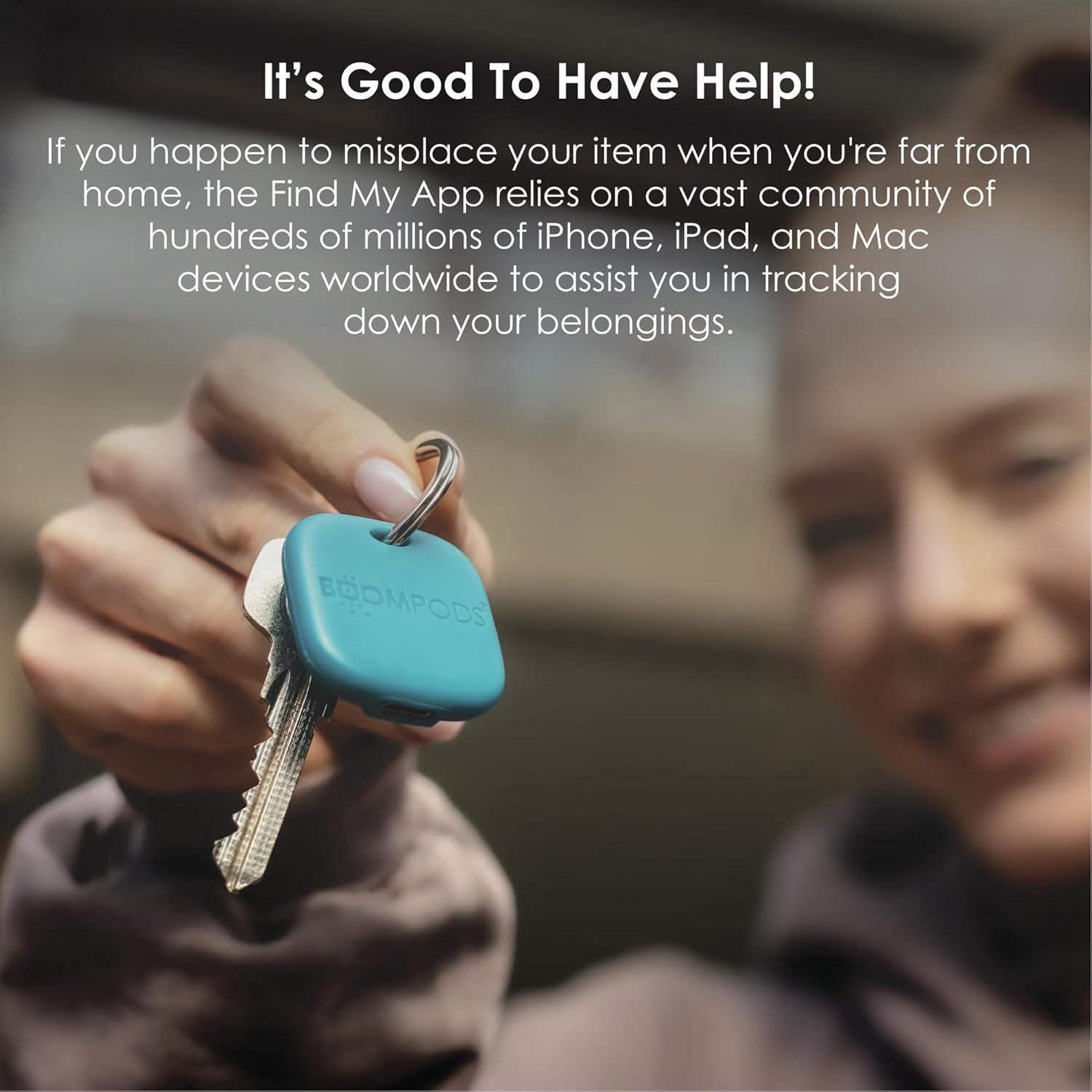
Image: A hand holding a blue Boompods Boomtag attached to a set of keys. The image emphasizes the community aspect of the Find My app in tracking down belongings.
Maintenance
1. Cleaning
To clean your Boompods Boomtag, gently wipe it with a soft, damp cloth. Avoid using harsh chemicals, abrasive cleaners, or solvents, as these can damage the device's finish or internal components.
2. Durability and Water Resistance
The Boomtag is designed to be durable and features an IPX7 water resistance rating, meaning it can withstand immersion in up to 1 meter of water for 30 minutes. While it is resistant to splashes and brief immersion, it is not recommended for prolonged underwater use. The device operates effectively in temperatures ranging from -10℃ to 50℃.

Image: A blue Boompods Boomtag attached to a camera and another blue Boomtag attached to a backpack, demonstrating its versatility for tracking various items. The background shows blurred plastic bottles, emphasizing the product's material.
3. Battery Life and Recharging
The Boomtag's rechargeable Lithium-polymer battery provides approximately 6 months of use on a full charge. When the battery is low, you will receive a notification in the Find My app. To recharge, use the provided USB-C cable. The charging time is typically short, and the indicator light will confirm charging status.
Troubleshooting
| Problem | Possible Cause / Solution |
|---|---|
| Boomtag not appearing in Find My app. |
|
| Sound not playing or too quiet. |
|
| Boomtag not charging. |
|
| Boomtag not compatible with my phone. |
|
Specifications
- Brand: Boompods
- Model: B0DBR6WY8Z
- Color: Ocean Blue (other colors may be available)
- Connectivity: Bluetooth BLE 5.2
- Compatible Devices: Apple iPhone, iPad, Mac (via Find My app)
- Battery: 3.7V 130mAh Rechargeable Lithium-polymer
- Battery Life: Up to 6 months on a full charge
- Alarm Volume: 100 dB
- Sound Frequency: 200 Hz to 5 kHz
- Operating Temperature: -10℃ to 50℃ (14°F to 122°F)
- Material: Ocean-bound plastic
- Water Resistance: IPX7 (up to 1 meter for 30 minutes)
- Charging Port: USB-C

Image: A black Boompods Boomtag showing its USB-C charging port, set against a background of blurred plastic bottles, illustrating its construction from ocean-bound plastic and partnership with #tide ocean SA.
Warranty and Support
The Boompods Boomtag comes with a 24-month warranty from the date of purchase, covering manufacturing defects. Please retain your proof of purchase for warranty claims.
For technical support, warranty inquiries, or further assistance, please visit the official Boompods website or contact their customer service department. Refer to the product packaging or the Boompods website for the most up-to-date contact information.
For more information about Boompods and their commitment to sustainability, you can visit their brand store: Boompods Brand Store.
Related documentsB0DBR6WY8Z


Ask a question about this manual
Ask about setup, troubleshooting, compatibility, parts, safety, or missing instructions. Manuals+ will review the question and use this page’s manual context to help answer it.