
1. Introduction
This manual provides detailed instructions for the installation, operation, and maintenance of your XTRONS 14.9 Inch Android 13 Car Stereo. Please read this manual thoroughly before using the product to ensure proper function and safety. This unit is designed to enhance your in-car entertainment and navigation experience while retaining original vehicle functionalities.

Image 1.1: XTRONS 14.9 Inch Car Stereo installed in an Audi dashboard, showcasing its integration.
2. Safety Information
Please observe the following safety precautions to prevent personal injury or damage to the unit and vehicle:
- Professional Installation Recommended: Installation should be performed by a qualified technician to avoid damage to the vehicle's electrical system or the unit.
- Power Supply: Ensure the unit is connected to a 12V DC power supply with negative grounding.
- Avoid Distractions: Do not operate the unit or view videos while driving, as this can lead to accidents.
- Temperature: Avoid exposing the unit to extreme temperatures or direct sunlight for prolonged periods.
- Moisture: Keep the unit away from water and moisture.
- Ventilation: Ensure adequate ventilation around the unit to prevent overheating.
3. Package Contents
Verify that all items listed below are included in your package. If any items are missing or damaged, please contact XTRONS customer support.

Image 3.1: Overview of product dimensions and included accessories.
- 1 x XTRONS 14.9 Inch Android 13 Car Stereo Unit
- 1 x ISO Wiring Harness
- 1 x 4G SIM Card Slot
- 1 x Mini Microphone
- 1 x 4G Antenna
- 1 x Audio Cable
- 1 x AMI Cable
- 1 x Mini Speaker
- 1 x GPS Antenna
- 1 x User Manual (this document)
- 1 x Installation Instruction
- 1 x Trim Strip
- 2 x Screws
4. Product Overview
The XTRONS 14.9 Inch Android 13 Car Stereo is designed to integrate seamlessly into your Audi, offering advanced features and a user-friendly interface.
4.1 Key Features
- 14.9 Inch 2K IPS Touch Screen: Fully-laminated, ultra-slim design with a 32:9 aspect ratio for expansive visuals.
- Android 13 Operating System: Stable and responsive performance with an Octa-Core processor and 4GB RAM.
- 64GB ROM Storage: Ample space for applications and media.
- Global 4G LTE: Built-in module for mobile broadband connection (Micro-SIM card required, data only).
- Wireless CarPlay & Android Auto: Seamless smartphone integration for navigation, calls, and music.
- Dual Band Wi-Fi: Supports 2.4GHz and 5GHz for stable internet access.
- Bluetooth 5.0: For hands-free calls, phone book sync, and music streaming.
- GPS Navigation: Supports GPS, BDS, and GLONASS for accurate positioning.
- Retains Original Functions: Amplifier system, original radio, CD player, backup camera display, and steering wheel controls are maintained.

Image 4.1: Display features including resolution, video playback, multi-tasking, and screen mirroring.

Image 4.2: Screen design features including 2.5D curved, anti-glare, and full lamination.
5. Compatibility
This unit is compatible with specific Audi models and MMI systems. Please verify your vehicle's compatibility before installation.
5.1 Applicable Models & Years
- Audi A6 (2012-2015)
- Audi A7 (2012-2015)
- Audi RS6 (2012-2015)
- Audi RS7 (2012-2015)
- Audi S6 (2012-2015)
- Audi S7 (2012-2015)
Note: This unit is designed for Left-Hand Drive vehicles with MMI 3G/3G+ System.
5.2 MMI Software Version Check
Before installation, check your factory stereo software version. Navigate to "Setup or Menu" > "setup MMI" > "Settings" > "version information" on your original Audi display.
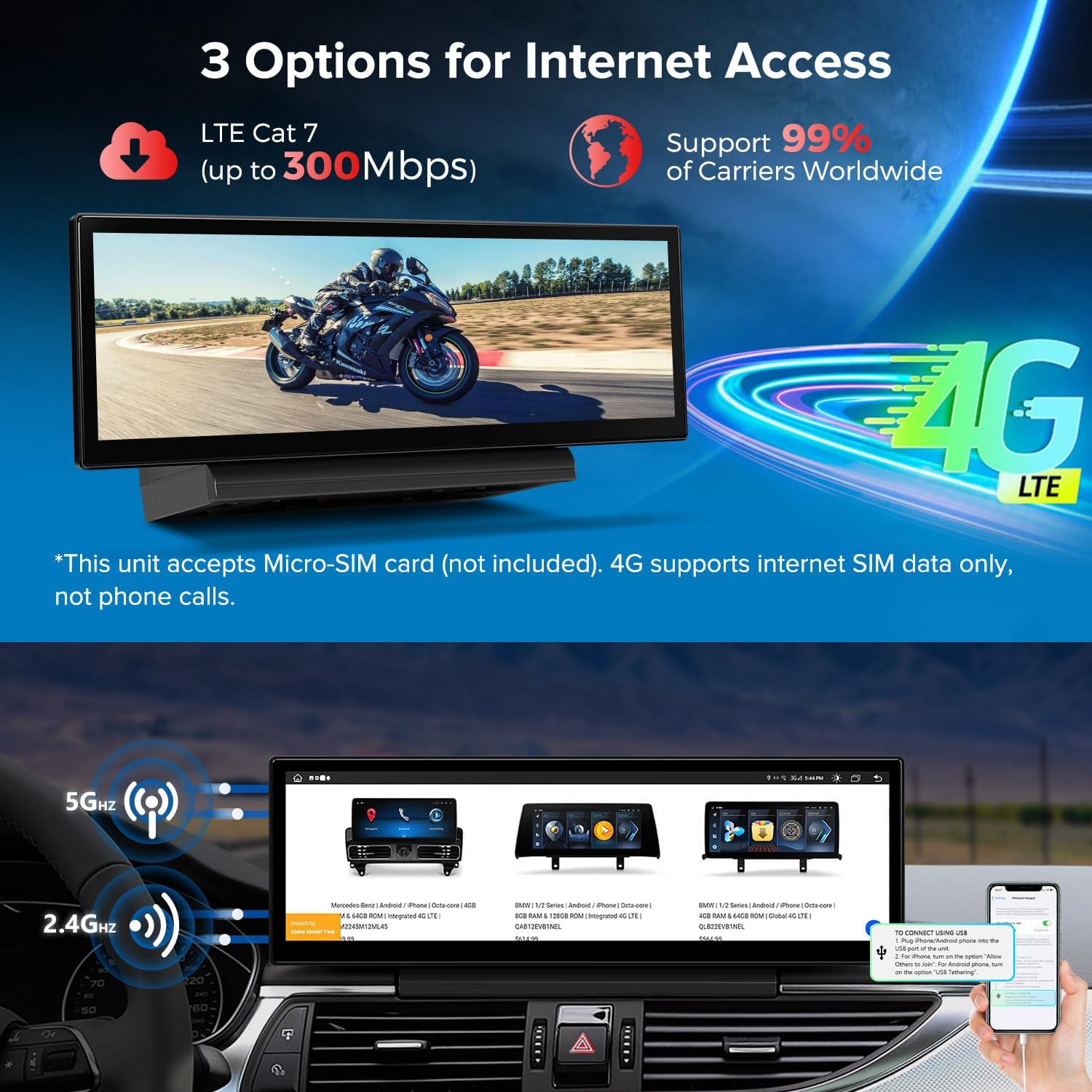
Image 5.1: MMI software version compatibility and Audi Music Interface connection.
- Compatible: If your Media version starts with HN+R.
- Not Compatible: If your Software version is MHI2.
- Cable Required: If your Software version is RMC, an additional cable (XTRONS AKQLA42RMCBL) is required. Please contact customer service.
5.3 Audi Music Interface (AMI)
If your vehicle is equipped with an Audi Music Interface, you must connect the XTRONS AMI cable (firstly connected with the audio extension cable) to the Audi Music Interface. Both cables are provided in the package.
6. Setup and Installation
Installation of this unit requires technical expertise. It is highly recommended to have it installed by a professional. The following provides a general overview.
6.1 Wiring Harness Diagram
Familiarize yourself with the wiring harness and its components before beginning installation.

Image 6.1: Detailed wiring harness diagram.
- XTRONS 360° camera system port (Reserved)
- LVDS port
- External microphone port
- 4G Card Slot
- Original CD port
- ISO wiring harness
- Connect to original vehicle protocol/air-con cable
- Connect to original vehicle protocol/air-con port
- USB port 1
- USB port 2
- Reverse control cable
- Audio output
- Rear Camera ACC
- ACC
- Rear Camera Input
- Mini Speaker
- GPS Antenna
- 4G Antenna
6.2 Installation Steps (General)
Refer to the dedicated Installation Instruction manual included in your package for detailed, vehicle-specific steps.

Image 6.2: General installation guide diagram showing key connection points.
- Disconnect Battery: Always disconnect the vehicle's battery before starting any electrical work.
- Remove Original Components: Carefully remove the original car stereo and trim pieces as per your vehicle's specific instructions.
- Connect Wiring Harness: Connect the XTRONS ISO wiring harness to the vehicle's original harness. Connect the LVDS cable, GPS antenna, and 4G antenna.
- Route Cables: Route all necessary cables (USB, microphone, etc.) to their desired locations.
- Install Unit: Mount the XTRONS unit securely in the dashboard.
- Reconnect Battery: Reconnect the vehicle's battery.
- Test Functionality: Power on the unit and test all functions, including audio, navigation, and original car features.
- Backup Camera: If using the original backup camera, go to settings and specify that you are using the original camera. Refer to the QR code troubleshooting guide in the manual for step-by-step instructions if needed.
7. Operating Instructions
7.1 Basic Operation
- Power On/Off: The unit typically powers on with the vehicle's ignition. Press and hold the power button (if available) to manually turn it off or on.
- Touch Screen: Navigate the interface by tapping, swiping, and pinching on the 2K IPS touch screen.
- Volume Control: Adjust volume using the on-screen controls or the vehicle's original steering wheel controls.
7.2 Navigation
The unit supports various GPS navigation applications. Ensure the GPS antenna is properly installed for optimal performance.

Image 7.1: GPS Navigation interface with support for multiple systems and applications.
7.3 Wireless CarPlay and Android Auto
Connect your smartphone wirelessly for an integrated experience.

Image 7.2: Wireless CarPlay and Android Auto interfaces with voice control.
- Wireless CarPlay: Connect your iPhone via Bluetooth for wireless CarPlay.
- Wireless/Wired Android Auto: Connect your Android phone via Bluetooth wirelessly or using a USB cable.
- Voice Control: Use voice commands (Siri or Google Assistant) for navigation, calls, and music.
7.4 Bluetooth Connectivity
Pair your phone for hands-free communication and audio streaming.

Image 7.3: Bluetooth 5.0 and Dual Band Wi-Fi features.
- Pairing: Go to the Bluetooth settings on the unit and your phone to pair devices.
- Functions: Access phone book, make/receive calls, and stream audio.
7.5 4G LTE Connectivity
Insert a Micro-SIM card (not included) into the designated slot to access 4G mobile broadband. This feature supports internet data only, not phone calls.

Image 7.4: Global 4G LTE and USB Tethering functionality.
7.6 Retained Original Car Functions
The XTRONS unit is designed to integrate with and retain many of your Audi's original features.

Image 7.5: Original Audi functions retained by the XTRONS unit.
- Amplifier System: The original amplifier system is retained.
- Original Radio: Access your original FM/AM radio.
- Original CD Player: The factory CD player remains functional.
- Bluetooth: Original Bluetooth functionality is maintained.
- Backup Camera Display: The original backup camera feed is displayed on the new screen.
- Steering Wheel Control: Original steering wheel controls for audio and calls remain active.
7.7 Original Car Information Display
The unit can display original vehicle information from the OEM system.

Image 7.6: Display of original car information (OEM System).
7.8 AHD Camera Support
The unit supports high-definition real-view with an AHD camera (camera not included).

Image 7.7: AHD Camera support with reversing radar display.
8. Maintenance
- Cleaning the Screen: Use a soft, lint-free cloth to gently wipe the screen. For stubborn marks, slightly dampen the cloth with water or a screen-safe cleaner. Avoid harsh chemicals.
- Software Updates: Periodically check the XTRONS website or contact support for available software updates to ensure optimal performance and access to new features.
- General Care: Avoid placing heavy objects on the unit or exposing it to extreme temperatures.
9. Troubleshooting
If you encounter issues, refer to the following common problems and solutions. For more complex issues, contact XTRONS customer support.
| Problem | Possible Cause | Solution |
|---|---|---|
| No power | Incorrect wiring; Blown fuse; Vehicle battery issue | Check all power connections; Inspect vehicle fuses; Verify battery charge. |
| No sound or distorted sound | Incorrect audio connections; Volume too low; Mute activated; Compatibility issue with original amplifier. | Verify audio cable connections (e.g., AMI cable); Adjust volume; Check mute status; Ensure correct settings for original amplifier system. |
| GPS signal loss | GPS antenna not properly installed or obstructed. | Ensure GPS antenna has a clear view of the sky and is securely connected. |
| Bluetooth connection issues | Phone not in pairing mode; Incorrect pairing steps; Interference. | Ensure phone's Bluetooth is on and discoverable; Re-attempt pairing process; Move away from other wireless devices. |
| CarPlay/Android Auto not connecting | Incorrect settings; Phone compatibility; USB cable issue (for wired AA). | Check phone and unit settings for CarPlay/Android Auto; Ensure phone OS is up-to-date; Try a different USB cable if applicable. |
| Original backup camera not displaying | Incorrect camera type selected in settings. | Go to unit settings and select 'Original Camera' for backup camera input. |
10. Specifications
| Feature | Detail |
|---|---|
| Model Number | QLA42A6NL |
| Screen Size | 14.9 inches |
| Display Type | 2K IPS Touch Screen, Full Laminated |
| Resolution | 2560x720 |
| Operating System | Android 13 |
| Processor | Octa Core |
| RAM | 4GB |
| ROM | 64GB |
| Connectivity | Global 4G LTE, Dual Band Wi-Fi (2.4GHz & 5GHz), Bluetooth 5.0, USB |
| Navigation | GPS, BDS, GLONASS |
| Compatible Devices | Smartphone, iPhone (Wireless CarPlay, Android Auto) |
| Audio Output Mode | Speaker, Stereo |
| Product Dimensions | 14.9 x 14.9 x 14.9 inches (Unit dimensions: 14.65" (372mm) x 4.8" (122mm)) |
| Item Weight | 5.94 pounds (2.7 Kilograms) |
11. Warranty and Support
11.1 Warranty Information
XTRONS products come with a standard manufacturer's warranty. Please refer to the warranty card included in your package or visit the official XTRONS website for detailed warranty terms and conditions.
11.2 Customer Support
For technical assistance, troubleshooting, or any questions regarding your XTRONS product, please contact our customer support team. You can typically find contact information on the XTRONS website or through your purchase platform.

Image 11.1: How to contact XTRONS customer support.
When contacting support, please have your product model number (QLA42A6NL) and purchase details ready.


