
1. Introduction
The BOXPUT Q96 TV Stick is a compact streaming device designed to upgrade your television into a smart TV. It operates on Android 10.0, supports 4K resolution, and provides access to various streaming applications. This manual provides instructions for setting up, operating, and maintaining your device.
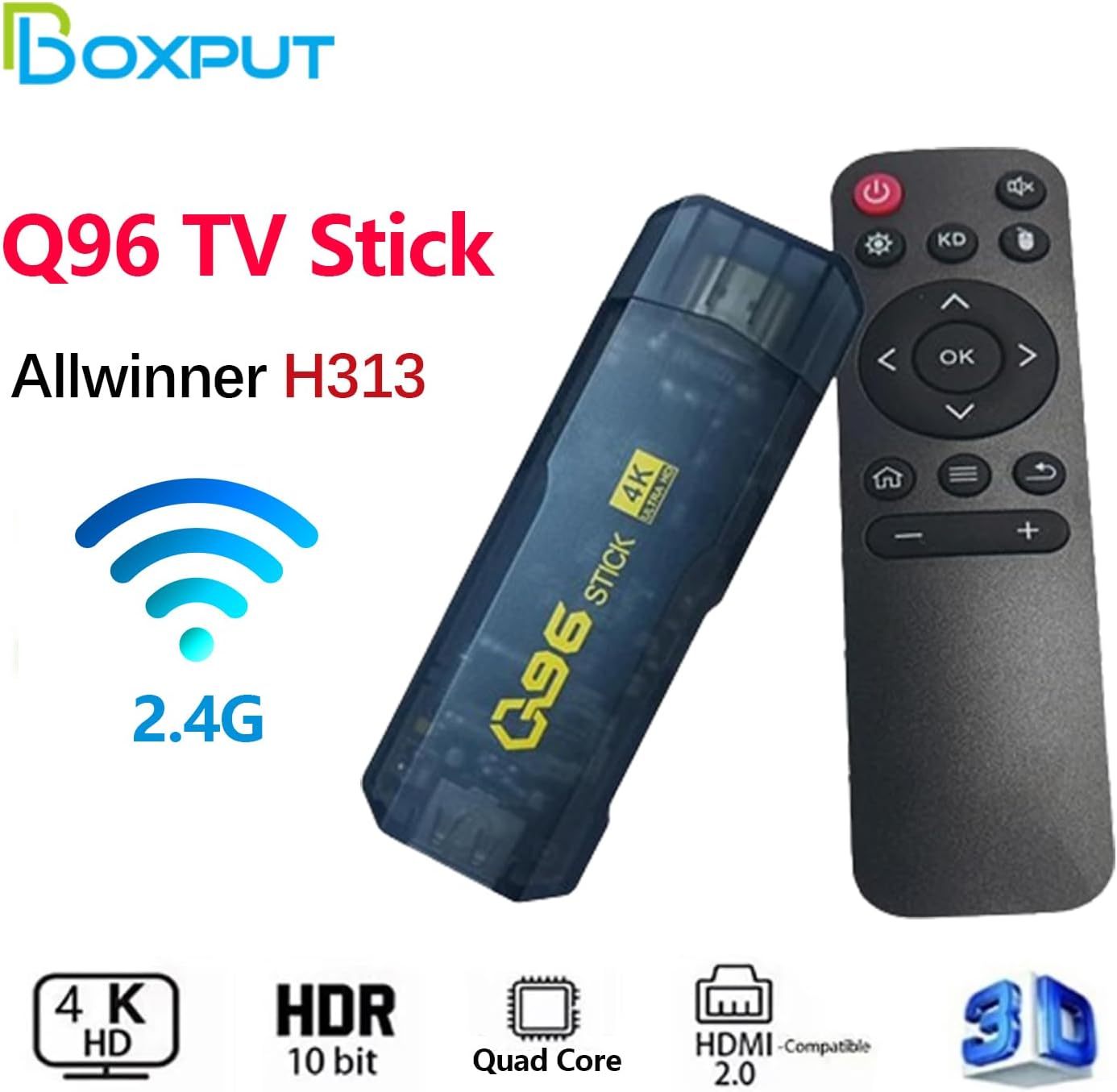
Image: The BOXPUT Q96 TV Stick shown alongside its infrared (IR) remote control.
2. What's in the Box
Carefully unpack your BOXPUT Q96 TV Stick and ensure all items are present:
- 1x Q96 TV Stick
- 1x IR Remote Control
- 1x IR Receiver
- 1x USB Charging Cable
- 1x HD Extension Cable
- 1x User Manual

Image: All components included in the BOXPUT Q96 TV Stick package.
Unboxing Video
Video: An unboxing and review of the Q96 TV Stick, demonstrating the package contents.
3. Product Diagram
Familiarize yourself with the ports and components of the Q96 TV Stick:

Image: Detailed diagram showing the USB port, HD (HDMI) port, IR cable input, Android interface, and SD card slot on the Q96 TV Stick.
- USB Port: For connecting external devices or power.
- HD (HDMI) Port: Connects to your TV's HDMI input.
- IR Cable Input: For connecting the external IR receiver.
- Android Interface: (Likely Micro USB for power/data)
- SD Card Slot: For expandable storage.
4. Setup Instructions
Follow these steps to set up your BOXPUT Q96 TV Stick:
- Connect to TV: Plug the Q96 TV Stick directly into an available HDMI port on your television. If space is limited, use the provided HD Extension Cable.

Image: The Q96 TV Stick being plugged into an HDMI port on the back of a television.
- Connect IR Receiver: Plug the IR Receiver cable into the designated IR input port on the TV Stick. Position the IR receiver in a location where it has a clear line of sight to your remote control.

Image: The IR receiver cable being connected to the Q96 TV Stick.
- Connect Power: Connect the USB Charging Cable to the TV Stick's power input and then to a USB power source (e.g., a TV USB port or a USB power adapter, not included).
- Select Input: Turn on your television and use its remote control to select the correct HDMI input source to which the Q96 TV Stick is connected.
- Initial Setup: Follow the on-screen instructions to complete the initial setup, including language selection, network connection, and Google account login.
Installation Video
Video: A demonstration on how to correctly install and use the Q96 TV Stick.
5. Operating Instructions
Once set up, you can begin using your Q96 TV Stick:
- Navigation: Use the provided IR remote control to navigate the Android TV interface. The directional pad, OK button, and back button are primary controls.
- Applications: The device supports a wide range of applications. Access the app store to download and install your preferred streaming services and utilities.

Image: A display of popular applications accessible on the Q96 TV Stick.
- Network Connection: The Q96 TV Stick supports 2.4GHz WiFi for internet connectivity. Ensure a stable connection for optimal streaming performance.

Image: Graphic indicating 2.4GHz WiFi support for the device.
- 4K UHD Output: The device supports 4K Ultra HD video output. Ensure your TV is 4K compatible and set to the appropriate resolution for the best viewing experience.
6. Maintenance
To ensure the longevity and optimal performance of your BOXPUT Q96 TV Stick, consider the following maintenance tips:
- Keep Clean: Regularly wipe the device and remote with a soft, dry cloth. Avoid using liquid cleaners or abrasive materials.
- Ventilation: Ensure the TV Stick is placed in a well-ventilated area to prevent overheating. Do not cover the device or block its convection holes.
- Temperature: Avoid exposing the device to extreme temperatures, direct sunlight, or high humidity.
- Software Updates: Periodically check for and install available software updates to ensure system stability and access to new features.
7. Troubleshooting
If you encounter issues with your Q96 TV Stick, refer to the following common problems and solutions:
- No Power/Device Not Turning On:
- Ensure the USB charging cable is securely connected to both the TV Stick and a working power source.
- Verify the power source (e.g., TV USB port, wall adapter) is functional.
- No Signal on TV Screen:
- Confirm the TV Stick is fully inserted into the HDMI port.
- Check that your TV is set to the correct HDMI input source.
- Try a different HDMI port on your TV.
- Remote Control Not Responding:
- Ensure the IR receiver is properly connected to the TV Stick and has a clear line of sight to the remote.
- Replace the batteries in the remote control.
- Slow Performance or App Crashes:
- Close unused applications running in the background.
- Clear cache for problematic applications.
- Ensure a stable and strong Wi-Fi connection.
- Consider performing a factory reset if issues persist (note: this will erase all data).
For persistent issues, refer to the support section below.
8. Specifications
Key technical specifications for the BOXPUT Q96 TV Stick:
| Feature | Detail |
|---|---|
| Brand | BOXPUT |
| Model Name | Q96 TV Stick |
| Model Number | Q96 2.4G |
| Operating System | Android 10.0 |
| Processor | Allwinner H313 Quad Core Cortex-A53 Image: Allwinner H313 chip. |
| Video Output Resolution | 4K@60fps |
| Video Codec | H.265, VP9 |
| RAM | 1GB |
| ROM | 8GB |
| Wireless Connectivity | 2.4G WiFi |
| Compatible Devices | Television |
| UPC | 758971901108 |
9. Support
For technical assistance or if you encounter issues not covered in this manual, please contact BOXPUT Official Support. When contacting support, it is helpful to provide your device's MAC address.
- For TV Stick Issues: If operational or usage issues cannot be resolved, contact BOXPUT Official Support and provide your device’s MAC address.
- For Remote Issues: If remote control operational or usage issues cannot be resolved, contact BOXPUT Official Support.
Our technical team aims to assist you within 24 hours to help resolve any problems.