
1. Product Overview
The wegear MW1 Bluetooth Ergonomic Wireless Mouse offers versatile connectivity and a comfortable design for extended use across multiple devices. Featuring dual-mode wireless connectivity (Bluetooth 5.0 and 2.4GHz USB), adjustable DPI settings, and an advanced optical tracking laser engine, this mouse is designed to enhance productivity and reduce hand strain.

Figure 1: wegear MW1 Bluetooth Ergonomic Wireless Mouse
2. Package Contents
- wegear MW1 Bluetooth Ergonomic Wireless Mouse
- 2 x AA Batteries
- Nano USB Receiver
- User Manual
3. Setup
3.1 Battery Installation
- Gently lift the top cover of the mouse. The cover is held by magnets.
- Insert the two provided AA batteries into the battery compartments, ensuring correct polarity (+/-).
- Replace the top cover, ensuring it snaps securely into place.

Figure 2: Battery Compartment and Button Details
3.2 2.4GHz USB Connection
- Locate the nano USB receiver, typically stored inside the mouse's battery compartment.
- Plug the nano USB receiver into an available USB port on your computer or device.
- Turn the mouse ON using the switch on the bottom. The mouse should automatically connect.
3.3 Bluetooth 5.0 Connection
- Turn the mouse ON using the switch on the bottom.
- Press and hold the Bluetooth pairing button (located on the bottom of the mouse) for 3-5 seconds until the indicator light flashes green quickly.
- On your device (laptop, tablet, etc.), go to Bluetooth settings.
- Search for available devices and select "Creator MS" to pair.
- Once connected, the indicator light will stop flashing.

Figure 3: Bluetooth Pairing Steps
3.4 Switching Between 2.4GHz and Bluetooth Modes
To switch between 2.4GHz and Bluetooth modes, press the Front Side Button and the DPI Key simultaneously for more than 3 seconds. This allows seamless transition between two connected devices.
4. Operating Instructions
4.1 Button Functions
- Left/Right Buttons: Standard click functions.
- Scroll Wheel: Scrolls vertically. Fluctuating left enables Undo function, fluctuating right enables Recovery function.
- DPI Switch: Adjusts mouse sensitivity (DPI).
- Front Side Button: Web page forward function.
- Rear Side Button: Web page back function.
4.2 DPI Adjustment
The mouse features 3 adjustable DPI levels (1600/2400/3200) to suit various tasks and preferences. Press the DPI switch button (located below the scroll wheel) to cycle through the sensitivity settings.

Figure 4: Adjustable DPI Levels
4.3 Advanced Optical Tracking
Equipped with a laser engine, the mouse provides precise and accurate control on virtually any surface, including challenging surfaces like glass tables.

Figure 5: Precise Optical Tracking on Various Surfaces
4.4 Ergonomic Design
The mouse is designed with naturally shaped contoured grips and an extended thumb rest, promoting a comfortable and natural hand position. This ergonomic design helps reduce muscle strain during prolonged periods of use.
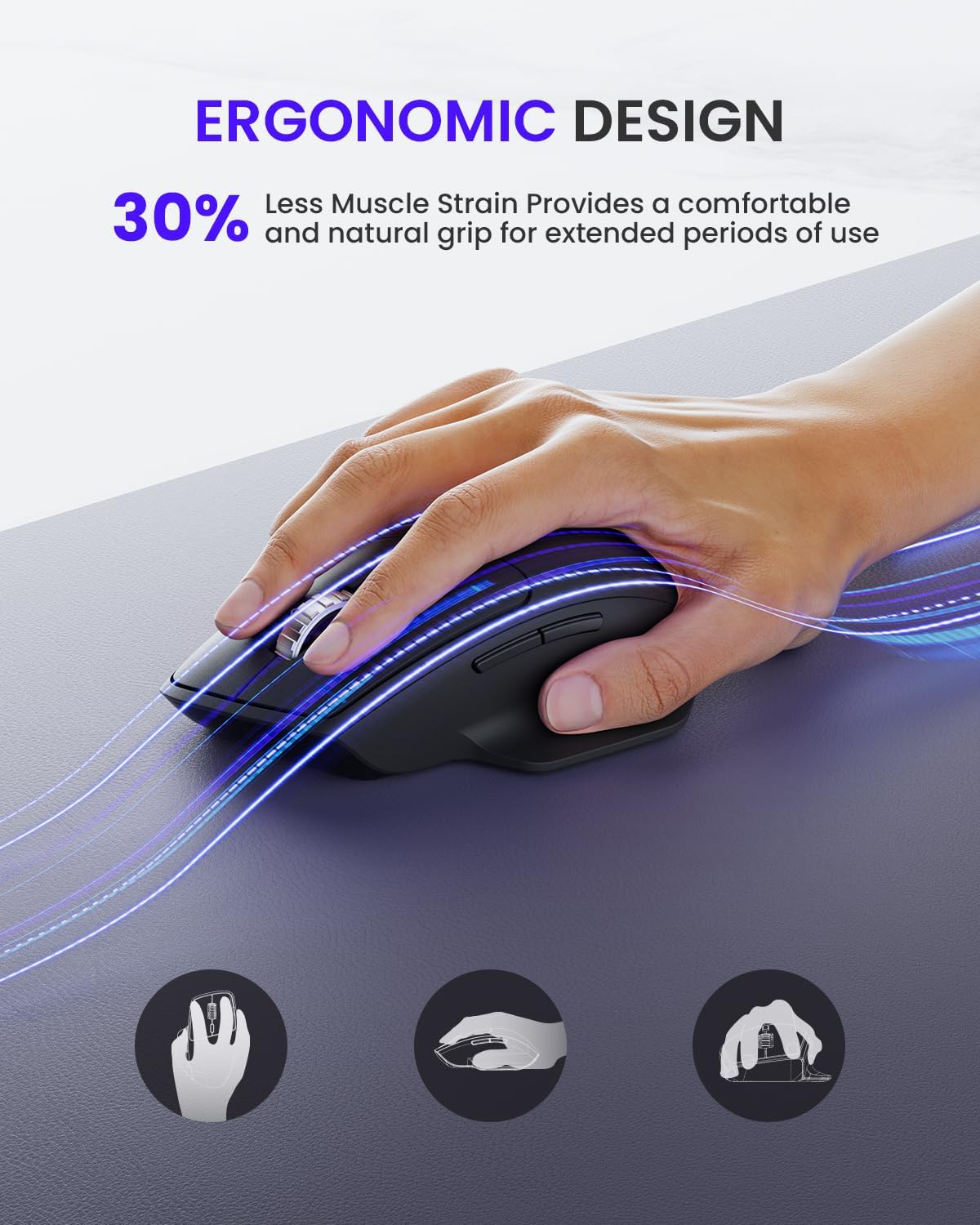
Figure 6: Ergonomic Design for Comfort
5. Maintenance
5.1 Battery Life and Replacement
The wegear MW1 mouse boasts an 18-month battery life, thanks to its power-saving auto-sleep mode. When the battery needs replacement, follow the steps in Section 3.1.

Figure 7: Extended Battery Life
5.2 Cleaning
To maintain optimal performance, regularly clean your mouse. Use a soft, dry cloth to wipe the exterior. For the optical sensor, use a cotton swab lightly dampened with isopropyl alcohol, ensuring no liquid enters the mouse's interior.
6. Troubleshooting
6.1 Connection Issues
- Mouse not detected: Ensure the mouse is turned ON. Check battery levels and replace if necessary. For 2.4GHz, ensure the USB receiver is securely plugged in. For Bluetooth, ensure the mouse is in pairing mode (flashing green light) and your device's Bluetooth is enabled.
- Intermittent connection: Ensure the mouse is within the effective range (up to 10 meters). Minimize interference from other wireless devices.
6.2 Tracking Issues
- Irregular movement: Clean the optical sensor on the bottom of the mouse. Try using the mouse on a different surface. Adjust the DPI setting to a different level.
6.3 Buttons Unresponsive
- Check battery levels. Re-pair the mouse with your device.
7. Specifications
| Feature | Detail |
|---|---|
| Product Dimensions | 4.9 x 3 x 0.04 inches |
| Item Weight | 4.8 ounces |
| Item Model Number | MOBTN5O |
| Batteries | 2 AA batteries required (included) |
| Brand | wegear |
| Color | Black |
| Connectivity Technology | Bluetooth 5.0, 2.4GHz USB |
| Special Features | 4-Way Scrolling, Multi-device Connection, Ergonomic Design, Longer Battery Life |
| Movement Detection Technology | Laser |
8. Warranty and Support
For warranty information or technical support, please refer to the contact details provided with your purchase or visit the official wegear website. Keep your purchase receipt for warranty claims.