
1. Introduction
Thank you for choosing the wegear MW2 Wireless Bluetooth Mouse. This compact and portable mouse is designed for comfort and precision, offering seamless connectivity and adjustable sensitivity for various tasks. Please read this manual carefully to ensure proper setup and optimal performance.
2. Safety Information
- Keep the device away from water and other liquids to prevent electric shock or damage.
- Avoid exposing the mouse to extreme temperatures or direct sunlight.
- Do not attempt to disassemble or repair the device yourself. Contact qualified service personnel for assistance.
- Dispose of batteries according to local regulations. Do not incinerate.
3. Package Contents
- wegear MW2 Wireless Bluetooth Mouse
- 1 x AA Battery (pre-installed or included)
- USB Receiver (stored in battery compartment)
- User Manual
4. Product Overview
Familiarize yourself with the components of your wegear MW2 Wireless Bluetooth Mouse:

Image: Bottom view of the wegear MW2 mouse, highlighting the power on/off switch, Bluetooth pairing button, DPI button, battery compartment, and the storage slot for the USB receiver.
- Left/Right Click Buttons: Standard mouse buttons for interaction.
- Scroll Wheel: For vertical scrolling.
- DPI Button: Located on the bottom, cycles through 800, 1200, and 1600 DPI settings.
- Power On/Off Switch: Located on the bottom, to conserve battery life.
- Bluetooth Pairing Button: Located on the bottom, used to initiate Bluetooth pairing.
- USB Receiver Slot: Located inside the battery compartment for convenient storage.
5. Setup
5.1. Insert Battery
- Remove the battery compartment cover from the bottom of the mouse.
- Insert one AA battery, ensuring correct polarity (+/-).
- Replace the battery compartment cover.
For a visual guide on battery insertion and initial setup, please refer to the video below:
Video: Demonstrates the process of inserting the AA battery and initial power-on for the wegear Wireless Mouse.
5.2. Power On
Slide the Power On/Off switch on the bottom of the mouse to the 'ON' position. A light indicator will illuminate.
5.3. Connect via Bluetooth
- Ensure the mouse is powered on.
- Long press the Bluetooth Pairing Button on the bottom of the mouse for 3 seconds. The LED indicator will flash green, indicating it's in pairing mode.
- On your computer (PC, Mac, etc.), open your Bluetooth settings.
- Search for new devices and select "Bluetooth MS" (or similar name) from the list to connect.
- Once connected, the LED indicator will stop flashing.
For a visual guide on Bluetooth pairing, please refer to the image below:
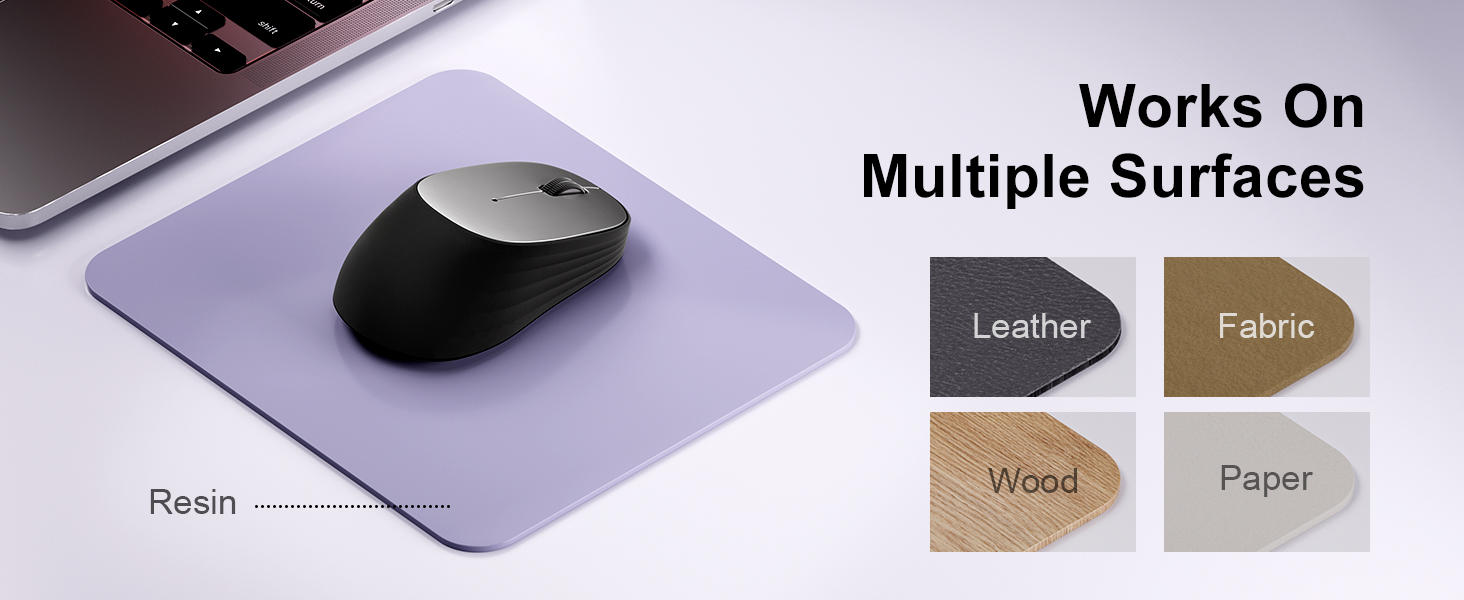
Image: A laptop screen displays a Bluetooth pairing prompt, indicating a new device (Bluetooth mouse) is found. The wegear mouse is shown nearby with a '10M' range indicator, illustrating its Bluetooth 5.0 connectivity.
5.4. Connect via USB Receiver (2.4G Wireless)
If your device does not support Bluetooth or you prefer a 2.4G wireless connection:
- Locate the USB receiver inside the battery compartment of the mouse.
- Plug the USB receiver into an available USB port on your computer.
- The mouse should automatically connect to your device. No additional pairing is required.
6. Operating the Mouse
6.1. DPI Adjustment
The wegear MW2 mouse features 3 adjustable DPI levels (800, 1200, 1600) for customized cursor sensitivity. To change the DPI:
- Press the DPI button on the bottom of the mouse.
- Each press will cycle through the DPI settings. The cursor speed will change accordingly.
For a visual representation of DPI levels, please refer to the image below:
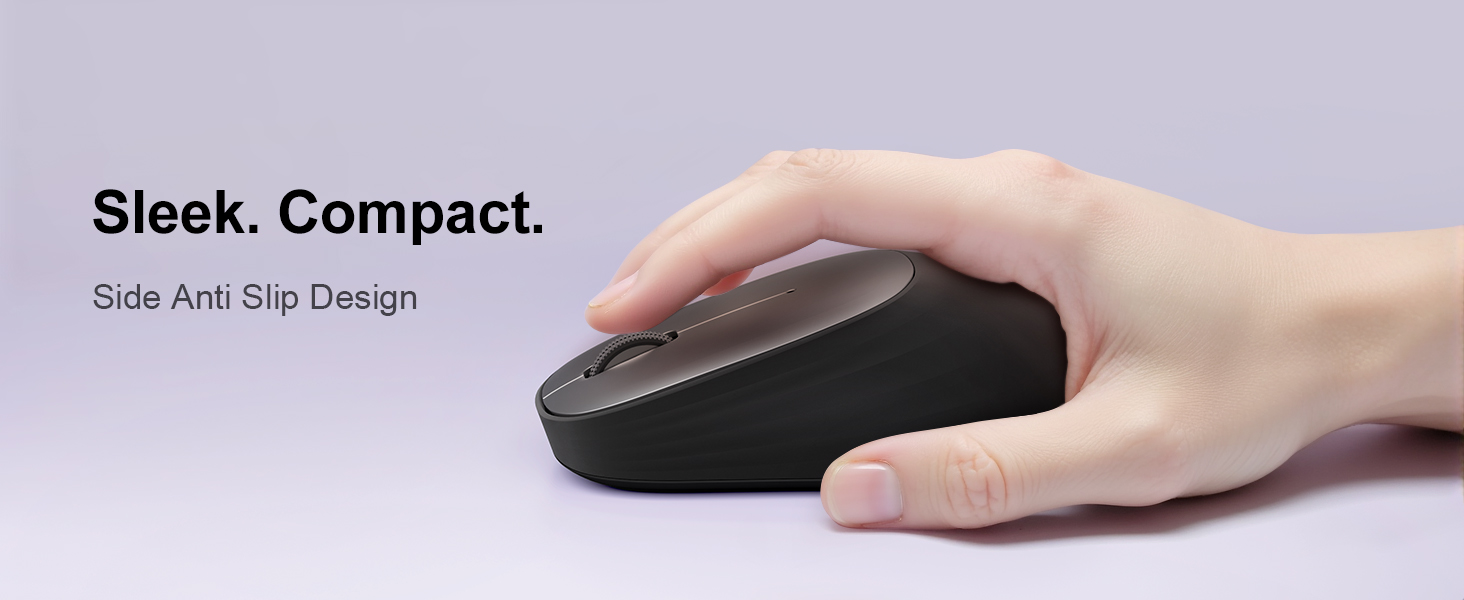
Image: The wegear MW2 mouse is depicted with three distinct visual arcs, each labeled with a DPI setting (800, 1200, 1600), illustrating the adjustable sensitivity levels for smooth navigation.
6.2. Silent Clicks
The mouse is designed with silent click buttons, providing a quiet user experience suitable for various environments without disturbing others.
6.3. Power Saving Mode
To conserve battery life, the mouse automatically enters a sleep mode after 10 seconds of inactivity. Simply move the mouse to wake it up and resume operation.
For more details on power saving, please refer to the image below:
Image: A user is shown working on a laptop with the wegear MW2 mouse. An overlay text explains that the mouse enters power-saving mode after 10 seconds of inactivity and can be woken by moving it.
7. Maintenance
7.1. Battery Life
The wegear MW2 mouse is designed for long-lasting performance, offering up to 12 months of battery life with a single AA battery, especially when utilizing the automatic sleep mode and manually turning off the mouse when not in use.
7.2. Cleaning
To clean your mouse, gently wipe its surface with a soft, dry cloth. Avoid using harsh chemicals or abrasive materials that could damage the finish.
8. Troubleshooting
- Mouse not connecting:
- Ensure the mouse is powered on.
- Check if the battery is inserted correctly and has sufficient charge.
- For Bluetooth connection, ensure your device's Bluetooth is enabled and the mouse is in pairing mode.
- For USB receiver connection, ensure the receiver is securely plugged into a USB port. - Cursor erratic or unresponsive:
- Clean the optical sensor on the bottom of the mouse.
- Ensure you are using the mouse on a suitable surface (non-reflective, non-transparent). - Short battery life:
- Make sure to turn off the mouse using the Power On/Off switch when not in use for extended periods.
9. Specifications
| Feature | Detail |
|---|---|
| Model Number | MW2 |
| Connectivity Technology | Bluetooth 5.0, 2.4G Wireless (via USB receiver) |
| Movement Detection Technology | Optical |
| Adjustable DPI | 800, 1200, 1600 |
| Battery Type | 1 x AA Battery |
| Estimated Battery Life | Up to 12 months |
| Special Feature | Portable, Compact Design, Silent Clicks, Automatic Sleep Mode |
| Item Weight | 4.2 ounces |
| Package Dimensions | 4.25 x 3.27 x 1.73 inches |
10. Warranty and Support
The wegear MW2 Wireless Bluetooth Mouse comes with a standard manufacturer's warranty. For detailed warranty information, product support, or technical assistance, please refer to the contact information provided on the product packaging or visit the official wegear website.
We are committed to providing high-quality products and excellent customer service. If you encounter any issues or have questions, please do not hesitate to reach out to our support team.


