
HORLAT 2025-Upgrade-W11
HORLAT 2025-Upgrade-W11 Projector User Manual
Your comprehensive guide to setting up, operating, and maintaining your HORLAT projector.
1. Introduction
Thank you for choosing the HORLAT 2025-Upgrade-W11 Projector. This advanced projector features a built-in Android operating system, supporting 4K content, WiFi 6, and Bluetooth 5.2. It delivers a Full HD 1080P native resolution with 28000 lumens brightness, offering a superior viewing experience for home entertainment, gaming, and presentations. This manual will guide you through the setup, operation, and maintenance of your new projector.
2. Safety Information
Please read all safety instructions carefully before using the projector. Keep this manual for future reference.
- Power Supply: Use only the specified power adapter. Ensure the voltage is compatible with your region.
- Ventilation: Do not block any ventilation openings. Ensure adequate airflow around the projector to prevent overheating.
- Liquid Exposure: Do not expose the projector to rain, moisture, or any liquids.
- Cleaning: Unplug the projector before cleaning. Use a soft, dry cloth. Do not use liquid or aerosol cleaners.
- Placement: Place the projector on a stable, flat surface. Avoid placing it in direct sunlight or near heat sources.
- Eye Safety: Do not look directly into the projector lens when the lamp is on.
- Servicing: Do not attempt to repair this product yourself. Refer all servicing to qualified service personnel.
3. Package Contents
Verify that all items are included in your package:
- HORLAT 2025-Upgrade-W11 Projector x1
- AV Cable x1
- HDMI Cable x1
- Remote Control x1
- Power Cable x1
- User Manual x1
4. Product Overview
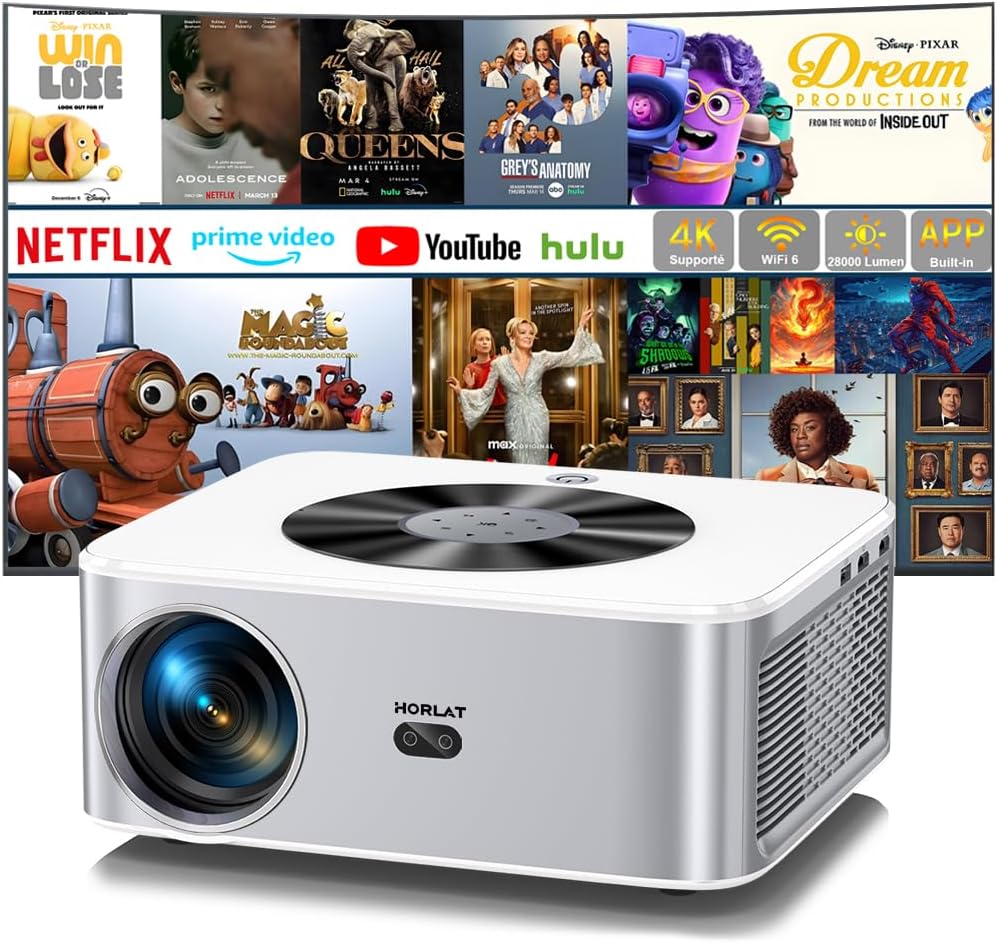
Figure 4.1: Front view of the HORLAT 2025-Upgrade-W11 Projector, highlighting its compact design and key features.
The HORLAT 2025-Upgrade-W11 projector is designed for ease of use and high performance. It features a sleek, modern design with intuitive controls.
4.1. Smart Touch Panel

Figure 4.2: The intelligent touch panel on top of the projector for easy navigation and control.
The projector is equipped with an intelligent touch panel on its top surface, allowing for direct control and navigation without the remote. This LED Blu-Ray touch screen provides quick access to essential functions.
4.2. Ports and Connectivity

Figure 4.3: Available ports and compatible devices for the HORLAT projector.
The projector offers multiple connectivity options:
- HDMI: For connecting laptops, gaming consoles, and other HDMI-enabled devices.
- USB (x2): For playing media directly from USB drives or connecting USB peripherals. Supports Excel/Word/PDF file display.
- AV: For connecting older devices with AV output.
- 3.5mm Audio Jack: For connecting external speakers or headphones.
- Bluetooth 5.2: Bidirectional Bluetooth for connecting external speakers or using the projector as a Bluetooth speaker.
- Wi-Fi 6: For high-speed wireless network connectivity and screen mirroring.
5. Setup
5.1. Placement

Figure 5.1: Recommended projection distances for various screen sizes.
Choose a suitable location for your projector. The HORLAT projector supports various mounting options including ceiling mount, table mount, and tripod mount. Ensure the projection surface is flat and clear. The optimal projection distance will vary based on your desired screen size, ranging from 40 inches to 300 inches.
5.2. Power Connection
- Connect the power cable to the projector's power input port.
- Plug the other end of the power cable into a power outlet.
- Press the power button on the projector or remote control to turn it on.
5.3. Initial Setup (Android TV)
Upon first power-on, you will be guided through the initial Android TV setup. Follow the on-screen instructions to:
- Select your language.
- Connect to a Wi-Fi network (Wi-Fi 6 supported for lower latency and smoother experience).
- Log in with your Google account to access the App Store and download applications like Netflix, Prime Video, YouTube, etc.

Figure 5.2: The Android TV interface with pre-installed and downloadable applications.
5.4. Focus and Keystone Correction

Figure 5.3: Automatic and manual keystone correction features for a perfectly rectangular image.
The HORLAT projector supports automatic keystone correction, as well as digital ±50° 4D/4P correction. This allows you to adjust the image to be perfectly rectangular even if the projector is not placed directly in front of the screen.
- Auto Keystone: The projector will automatically correct the image shape.
- 4P/4D Keystone: Use the remote control to manually adjust each corner of the projected image for precise alignment.
- Focus: Adjust the focus ring on the projector lens until the image is sharp and clear.
6. Operating
6.1. Connecting External Devices
You can connect various devices to your projector:
- HDMI: Connect your device to the HDMI port using an HDMI cable. Select the corresponding HDMI input source from the projector's menu.
- USB: Insert a USB drive into one of the USB ports. The projector will prompt you to open the media browser to access files (Excel, Word, PDF, videos, images).
- AV: Connect your AV device using the provided AV cable. Select the AV input source.
6.2. Android TV Features
The built-in Android operating system allows you to enjoy a wide range of entertainment:
- Streaming Apps: Access popular streaming services like Netflix, YouTube, and Prime Video directly from the projector. Download more apps from the App Store.
- Navigation: Use the remote control or the smart touch panel to navigate the Android TV interface.
6.3. Wireless Connectivity (Wi-Fi 6 & Bluetooth)

Figure 6.1: Seamless screen mirroring and streaming with advanced WiFi 6 technology.
The projector supports advanced wireless features:
- Wi-Fi 6: Connect to your home Wi-Fi network for internet access and online streaming. Enjoy lower latency and a smoother experience for screen mirroring from your smartphone (Eshare, Android, iOS compatible).
- Bluetooth 5.2 (Bidirectional):
- Connect to External Speakers: Pair the projector with Bluetooth speakers for enhanced audio.
- Use as Bluetooth Speaker: Connect your smartphone or other Bluetooth audio source to the projector to use its built-in 5W Hi-Fi stereo speaker as a standalone Bluetooth speaker.
6.4. Zoom Function

Figure 6.2: Adjusting image size using the digital zoom function.
The projector features a 50% zoom function, allowing you to reduce the image size from 100% to 50% using the remote control without physically moving the projector. This is useful for fine-tuning the image to fit your screen or wall.
6.5. Brightness and Image Quality

Figure 6.3: The projector's high brightness allows for clear viewing even in daylight conditions.
With 28000 lumens and a high refractive index blue-coated lens, the HORLAT projector delivers vibrant and clear images. The latest LCD technology provides an 80% NTSC color gamut and 18 million color range, ensuring natural transitions between light and dark scenes for a realistic viewing experience. While optimal viewing is in a dark environment, the projector's brightness allows for visible images even in ambient light.
7. Maintenance
Proper maintenance ensures the longevity and optimal performance of your projector.
- Lens Cleaning: Use a soft, lint-free cloth specifically designed for optical lenses to gently wipe the projector lens. Do not use abrasive cleaners or excessive force.
- Dust Filter Cleaning: Regularly check and clean the dust filter (if applicable) to maintain proper airflow and prevent overheating. Refer to the product diagram for filter location.
- Exterior Cleaning: Wipe the exterior of the projector with a soft, dry cloth. For stubborn marks, dampen the cloth slightly with water, then wipe dry.
- Storage: When not in use for extended periods, store the projector in a cool, dry place, protected from dust and extreme temperatures.
8. Troubleshooting
| Problem | Possible Cause | Solution |
|---|---|---|
| No image or blurry image | Loose cable connection, incorrect input source, out of focus, keystone not adjusted. | Check HDMI/AV cable connections. Select correct input source. Adjust focus ring. Use keystone correction (auto/4P/4D). |
| No sound or low sound | Volume too low, incorrect audio output setting, external speaker not connected/paired. | Increase projector volume. Check audio output settings (internal speaker/Bluetooth). Ensure Bluetooth speaker is paired and charged. |
| Cannot connect to Wi-Fi | Incorrect password, Wi-Fi signal too weak, router issue. | Double-check Wi-Fi password. Move projector closer to router. Restart router and projector. |
| Streaming apps (e.g., Netflix) pause or return to menu | Network instability, app specific issue, system update required. | Ensure stable internet connection. Clear app cache/data. Check for system updates. If Netflix, try using mouse mode if remote navigation is difficult. |
| Projector overheats or shuts down | Blocked ventilation, prolonged use in hot environment. | Ensure ventilation openings are clear. Operate in a well-ventilated area. Allow projector to cool down. |
| Remote control not working | Dead batteries, obstruction, not paired (if Bluetooth remote). | Replace batteries. Ensure no obstruction between remote and projector. Re-pair remote if necessary. |
9. Specifications
| Feature | Description |
|---|---|
| Brand | HORLAT |
| Model | 2025-Upgrade-W11 |
| Display Type | LCD |
| Native Resolution | 1920 x 1080 Pixels (Full HD) |
| Supported Resolution | 4K Support |
| Brightness | 28000 Lumens |
| Operating System | Android TV (Built-in Netflix/Youtube/Prime Video) |
| Connectivity Technology | Wi-Fi 6, Bluetooth 5.2 |
| Hardware Interface | HDMI, USB (x2), AV, 3.5mm Audio |
| RAM | 1G |
| Storage | 8G |
| Special Features | 4K Support, Android TV, 28000 Lumens, Auto/4P/4D Keystone Correction, 50% Zoom, Bidirectional Bluetooth, USB Presentation |
| Recommended Uses | Business, Home Cinema, Gaming, Education |
| Mounting Type | Ceiling Mount, Table Mount, Tripod Mount |
10. Warranty and Support
HORLAT provides a warranty and lifetime technical support for this product. If you encounter any issues with installation, operation, returns, or exchanges, please contact our after-sales team.
Customer Support Email: Support01@lthjm.com
Our professional and efficient support team is available 24 hours to assist you.
Related documents2025-Upgrade-W11


Ask a question about this manual
Ask about setup, troubleshooting, compatibility, parts, safety, or missing instructions. Manuals+ will review the question and use this page’s manual context to help answer it.