
1. Introduction
The aoonav Android 13 System Decoding Box is an advanced interface designed to upgrade your vehicle's multimedia capabilities. This device is an Android system interface decoder box, not a replacement car screen. It integrates seamlessly with your original car system, allowing you to switch between the factory interface and a full Android 13 environment, adding features like wireless CarPlay, Android Auto, and GPS navigation.
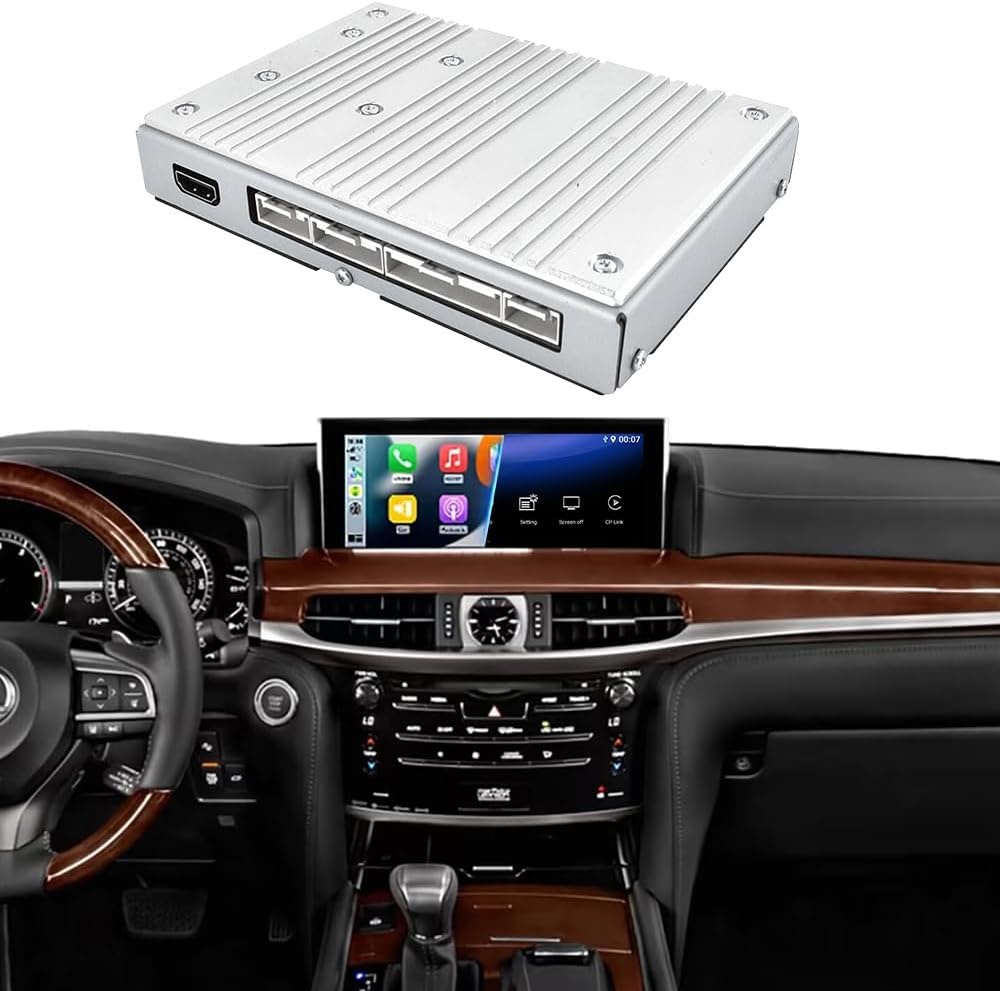
Image 1.1: The aoonav Android 13 System Decoding Box and its appearance when integrated into a Lexus vehicle's dashboard, displaying the new Android interface.
2. Compatibility
This Android multimedia player decoding box is specifically designed for select Lexus models equipped with a 12.3-inch OEM screen and a Mouse Joystick. Please verify your vehicle's specifications before purchase.
- Lexus LX570: 2016-2020 models
- Lexus GS: 2016-2019 models
- Lexus RX: 2016-2019 models
To confirm compatibility, ensure your Lexus model has the Mouse Joystick version. If you are uncertain, please consult the manufacturer or seller for verification.
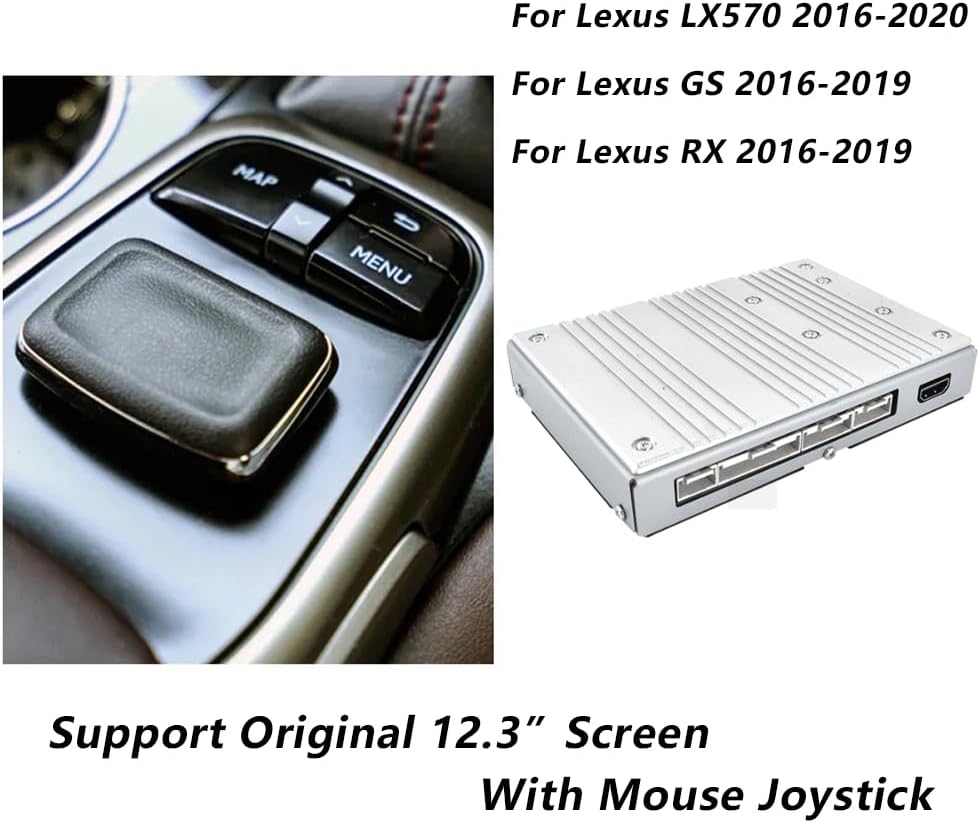
Image 2.1: A close-up view of the Lexus mouse joystick control, which is required for compatibility, alongside the decoding box.

Image 2.2: Visual guide illustrating the compatible Lexus LX570, GS, and RX models, emphasizing the 12.3-inch OEM screen and mouse joystick requirement.
3. Key Features
The aoonav Android 13 System Decoding Box offers a range of advanced features to enhance your driving experience:
- Operating System: Upgraded Android 13 OS for enhanced fluency, compatibility, and privacy.
- Performance: Equipped with an 8-Core CPU, 8GB RAM, and 128GB ROM for smooth operation and ample storage.
- Dual System Function: Seamlessly switch between the original car radio system and the Android/CarPlay system by long-pressing the car's 'menu' button.
- Control: Supports original car knob control and center rocker control for intuitive navigation of the Android interface.
- Wireless Connectivity: Features wireless CarPlay and Android Auto for easy access to mobile phone contacts, notifications, maps, music, and video.
- Mirror Link: Supports iOS/Android mirror link to synchronize your phone's screen to the car radio.
- Navigation: Built-in GPS antenna for online traffic information and offline map downloads, ensuring you never get lost.
- Network: Dual-band WiFi (2.4Ghz & 5Ghz) for high-speed and stable internet access.
- Bluetooth: Integrated Bluetooth 5.0 for hands-free calls, music playback, and phonebook download.
- Camera Support: Supports OEM camera usage, including rear view camera functionality for improved safety.

Image 3.1: Illustration of the decoding box connected to the car's wiring, highlighting the convenient connection for upgrading the original car system.

Image 3.2: A collage showcasing various features such as wireless CarPlay and Android Auto, rear view camera support, access to multiple applications, high-resolution display, built-in GPS navigation, and steering wheel control compatibility.
4. Setup and Installation
Installation of the aoonav Android 13 System Decoding Box is designed to be straightforward. The process involves connecting the decoding box to your vehicle's original CD host device using the provided wiring harness.
- Carefully remove the dashboard components to access the original CD host device.
- Connect the decoding box to the original CD host using the supplied wires. Ensure all connections are secure.
- Once connected, reassemble the dashboard components.
After installation, your car will retain its original system while gaining the ability to switch to the new Android system, providing enhanced multimedia functionalities.

Image 4.1: A visual comparison showing the car's display before and after the installation of the Android decoding box, illustrating the updated interface.
5. Operating Instructions
5.1. System Switching
To switch between your car's original system and the new Android system, long-press the 'menu' button on your car's knob control for 3-5 seconds. This allows for seamless transition between interfaces.

Image 5.1: Instructions on how to switch between the original equipment manufacturer (OEM) system and the new Android system using the car's menu button.
5.2. Navigation
The device comes with a GPS antenna. You can access real-time traffic information when connected to the internet. For areas without network coverage, you can download offline maps to ensure continuous navigation functionality.
5.3. Connectivity
Connect your mobile phone wirelessly via CarPlay or Android Auto to access your phone's features directly on the car's display. The built-in Bluetooth 5.0 allows for hands-free calls, streaming music, and downloading your phonebook.

Image 5.2: Depiction of the Bluetooth phone call interface on the car's screen, showing integration with a mobile phone for hands-free communication.
6. Maintenance
To ensure the longevity and optimal performance of your aoonav Android 13 System Decoding Box, follow these general maintenance guidelines:
- Keep the device and surrounding area clean and free from dust and debris.
- Avoid exposing the device to extreme temperatures or direct sunlight for prolonged periods.
- Do not use harsh chemicals or abrasive cleaners on the unit. A soft, damp cloth is sufficient for cleaning.
- Ensure all cables are securely connected and not pinched or damaged.
7. Troubleshooting
If you encounter any issues with your aoonav Android 13 System Decoding Box, please refer to the following common troubleshooting steps:
- No Power/Display: Check all power connections to ensure they are firmly seated. Verify your car's ignition is on.
- Cannot Switch Systems: Ensure you are long-pressing the 'menu' button for the specified duration (3-5 seconds).
- No Sound: Check the audio connections. Ensure the car's original audio system is set to the correct input source.
- GPS Signal Issues: Ensure the GPS antenna is properly installed and has a clear view of the sky. Try moving to an open area.
- CarPlay/Android Auto Not Connecting: Ensure Bluetooth and Wi-Fi are enabled on your phone and the decoding box. Try restarting both devices.
- Slow Performance: Close unnecessary applications running in the background on the Android system.
If the problem persists after attempting these steps, please contact customer support for further assistance.
8. Specifications
| Feature | Detail |
|---|---|
| Package Dimensions | 11.61 x 8.27 x 5.71 inches |
| Item Weight | 2.2 pounds |
| ASIN | B0DBPVZ6SF |
| Date First Available | July 31, 2024 |
| Manufacturer | aoonav |
| Country of Origin | China |
| Brand | aoonav |
| Media Type | DVD, VCD (Supported via Android apps) |
| Color | Sliver |
| Screen Size | 12.3 Inches (Compatible with original screen) |
| Display Type | Original (Integrates with OEM display) |
9. Package Contents
The aoonav Android 13 System Decoding Box package includes all necessary wires and accessories for installation, ensuring a plug-and-play experience without additional purchases.
- aoonav Android 13 System Decoding Box
- Wiring Harnesses
- GPS Antenna
- External Speaker (if applicable)
- Other necessary adapters and cables

Image 9.1: A visual representation of the decoding box and all the wires and adapters included in the package, ready for installation.
10. Warranty and Support
aoonav is committed to providing high-quality products and excellent customer service. Your purchase is backed by comprehensive support:
- Money-Back Guarantee: 30-day money-back policy.
- Replacement Warranty: 12-month replacement warranty.
- Technical Support: Lifetime technical support for any installation or usage questions.
For any inquiries regarding installation or use, please do not hesitate to contact us. We aim to respond within 24 hours to assist you.
aoonav After-sales service email: autostereo@163.com

Image 10.1: Summary of customer support benefits, including quick response times, return policy, warranty period, and lifetime technical assistance.

Image 10.2: A visual representation of the aoonav customer service team, ready to assist with product inquiries.


