
ULTIMEA U3700
Contents
ULTIMEA Apollo S70 U3700 Sound Bar Instruction Manual
Model: U3700 | Brand: ULTIMEA
Introduction
This manual provides detailed instructions for the setup, operation, and maintenance of your ULTIMEA Apollo S70 U3700 5.0ch Sound Bar. Please read this manual thoroughly before use to ensure optimal performance and longevity of your device.
Key Features
- 5.0 Channel Sound: Features 5 advanced full-range drivers for balanced and immersive sound, with a dedicated sub-out port for external subwoofer connection.
- Dynamic RGB Lighting: Offers 6 preset RGB modes and millions of customizable colors to enhance your entertainment experience.
- Detachable Design: A 3-in-1 design with an extra center channel allows for various assembly styles to fit your room layout.
- Smart App Control: Utilize the Ultimea Home app for comprehensive control over EQ modes, RGB lighting, and other settings.
- Advanced Equalizer Settings: Access 121 preset EQ matrices and 10-band equalizer settings for personalized audio.
- Multiple Connectivity Options: Supports HDMI-ARC, Bluetooth 5.3, Optical, AUX, and USB for versatile device compatibility.
What's in the Box
- 1x Left Unit & 1x Right Unit
- 1x Center Unit
- 1 x Power Adaptor
- 1 x Remote Control (Batteries Not Included)
- 1 x User Manual
- 1 x HDMI Cable
- 1 x Digital Optical Cable
- 1 x Stereo 3.5mm to RCA Audio Cable
- 1 x 4-pin Cable for Soundbar Connection (100mm)
- 1 x 4-pin Cable for Soundbar Connection (180mm)
- 2 x 4-pin Cable for Soundbar Connection (2m)
- 8 x Wall Mounting Kit
- 4 x Wall Bracket
- 2 x Base
Setup
Physical Assembly
The Apollo S70 sound bar features a versatile detachable design, allowing for horizontal placement as a single unit or split into two vertical tower speakers with a central unit.

Image: The ULTIMEA Apollo S70 Sound Bar shown in its combined horizontal form and its detached vertical tower speaker configuration with a central unit. An app interface is also visible, demonstrating control over the soundbar's features.
To assemble horizontally, remove the covers on both sides of the host unit, align the joints of the three parts, and twist to connect. Plug in the 4-pin cables (Cable 3 & 4) for soundbar connection. For detached vertical setup, set the soundbar units on their bases, align the joints, twist to connect, and plug in the 4-pin cables (Cable 1 & 2) for soundbar connection.

Image: Detailed diagrams illustrating the steps for both horizontal assembly of the soundbar into a single unit and its detached setup as two vertical tower speakers with a central unit.
Connecting to Your TV
The soundbar offers multiple connectivity options. Identify the available ports on your TV and the soundbar's back panel.
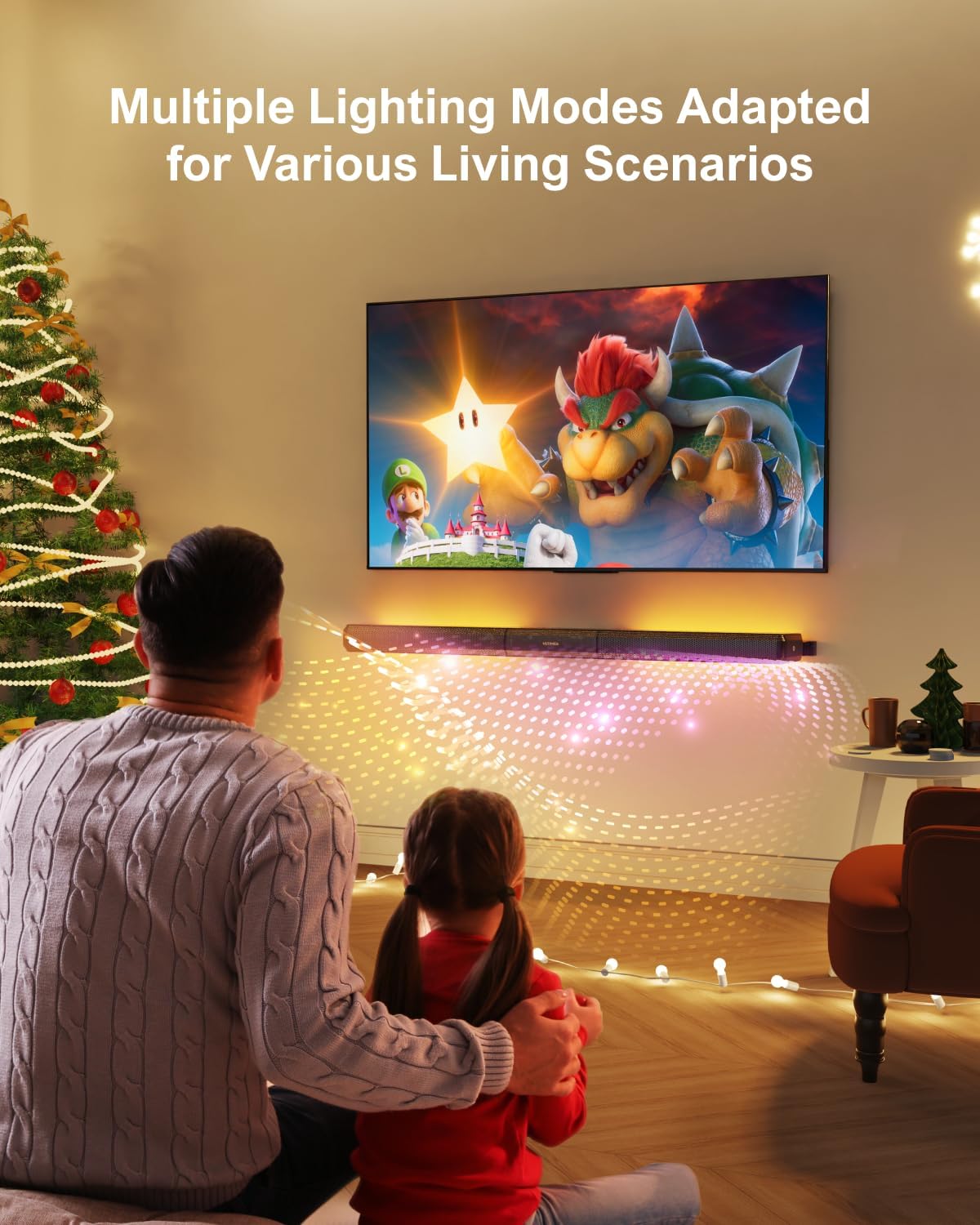
Image: A close-up view of the soundbar's rear panel, clearly labeling all input and output ports including DC IN, FR, SUB OUT, FL, AUX, OPTICAL, USB, and HDMI TO TV ARC.
HDMI ARC Connection (Recommended)
For the best audio quality and control, use the HDMI ARC port. Insert one end of the HDMI cable into your TV's "ARC/eARC" port and the other end into the soundbar's "HDMI TO TV ARC" port. Select "ARC" input on the soundbar using the remote control.

Image: A visual guide demonstrating how to connect the soundbar to a TV using an HDMI ARC cable, highlighting the correct ports on both devices and the corresponding remote control button.
Optical Connection
If your TV does not have an HDMI ARC port, use an Optical cable. Insert one end of the optical cable into your TV's "OPT" port and the other end into the soundbar's "OPTICAL" port. Select "OPT" input on the soundbar using the remote control.
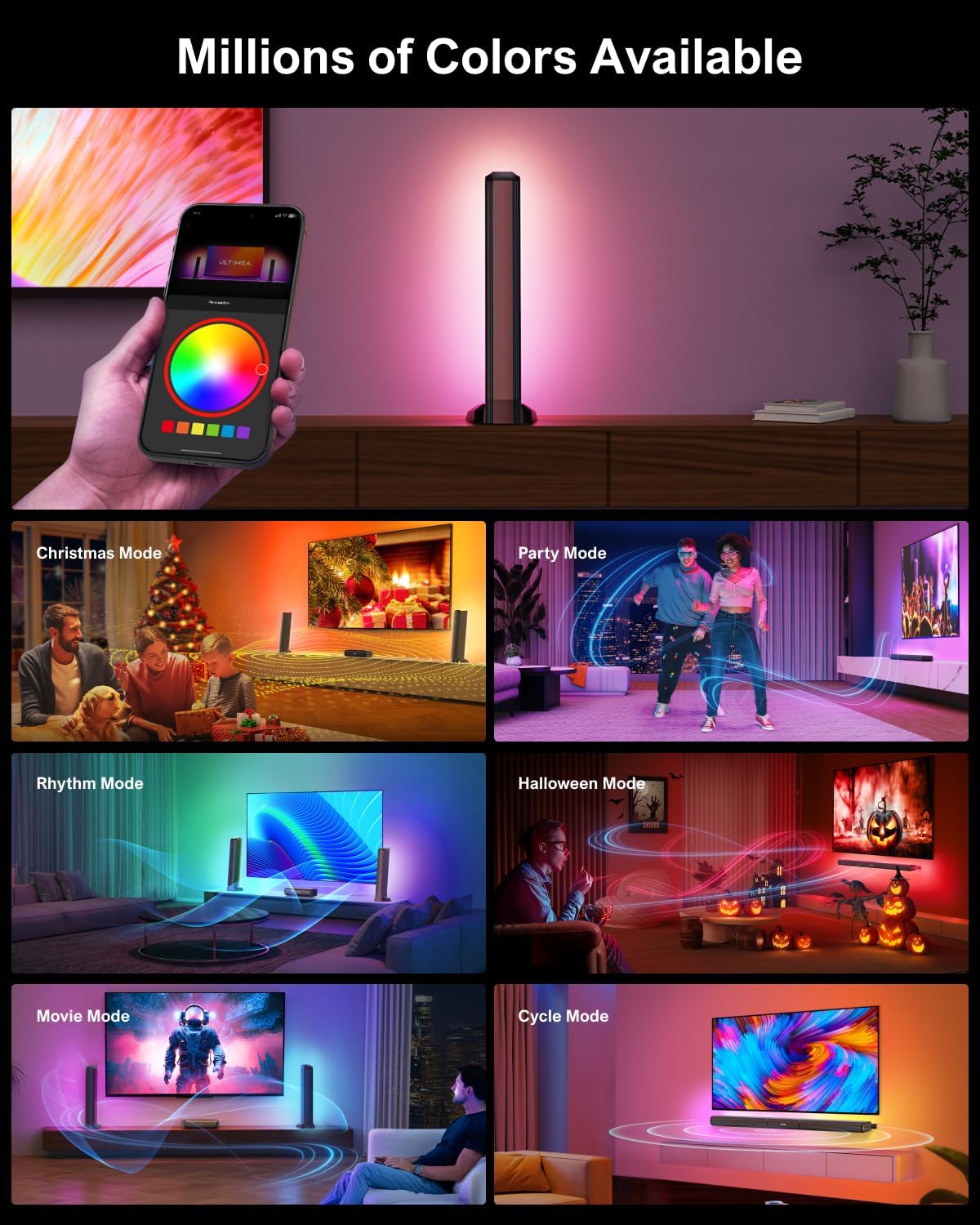
Image: A visual guide demonstrating how to connect the soundbar to a TV using an Optical cable, highlighting the correct ports on both devices and the corresponding remote control button.
AUX Connection
For analog audio, use the AUX connection. Insert the red and white ends of the 3.5 mm RCA audio cable to the corresponding red and white ports on the TV, and the other end into the soundbar's "AUX" port. Select "AUX" input on the soundbar using the remote control.
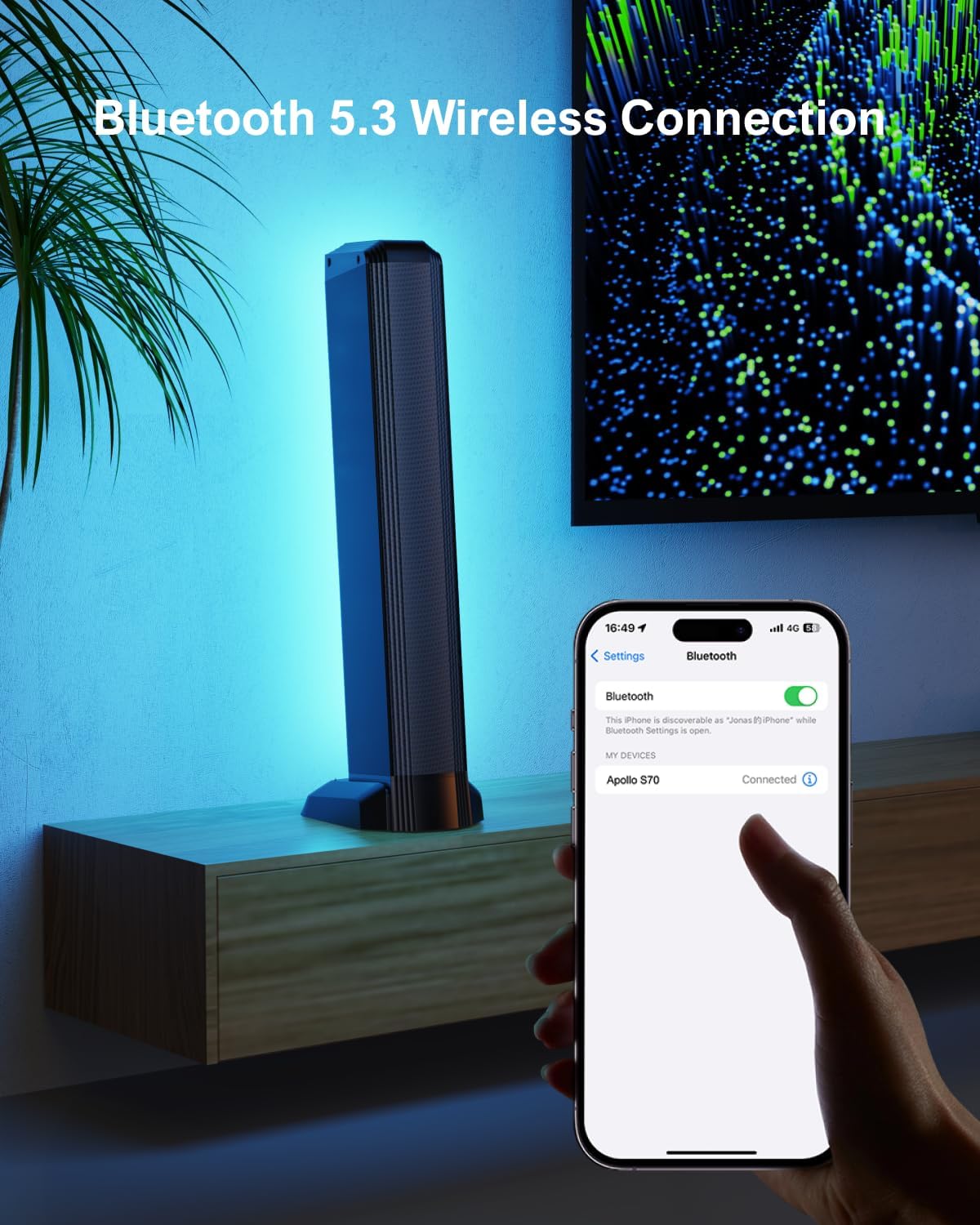
Image: A visual guide demonstrating how to connect the soundbar to a TV using an AUX cable, highlighting the correct ports on both devices and the corresponding remote control button.
Operating the Soundbar
Remote Control
The soundbar can be controlled using the included remote control. It provides access to power, input selection, volume, EQ modes, and RGB lighting settings.

Image: A close-up of the ULTIMEA Apollo S70 sound bar remote control, showing buttons for power, input selection (ARC, Source, Opt, Aux, BT, USB), volume, mute, play/pause, LED dimmer, BassMX, Midrange, Treble, Movie, Music, Voice, Sports, Game, Night EQ modes, Prompt Tone, and RGB Lighting controls.
Ultimea Smart App Control
For enhanced control and customization, download the Ultimea Home app. The app allows you to switch multiple EQ and RGB modes, adjust bands and matrices, and personalize your favorite styles and light colors. Stay updated with regular OTA upgrades for a seamless audio experience.

Image: A smartphone displaying the Ultimea Home app, showing a color wheel for RGB lighting customization and various buttons for different lighting and sound modes.
RGB Lighting Control
The soundbar features 6 preset RGB modes and millions of colors. Use the app to easily adjust color and brightness to react to your music, movies, and games. Choose from dynamic modes like Rhythm, Halloween, Christmas, Party, Cycle, and Movie mode to create a vibrant atmosphere.

Image: A collage of images showcasing the soundbar's RGB lighting in different modes, including Christmas, Party, Rhythm, Halloween, Movie, and Cycle, demonstrating its versatility in creating various ambient effects.
Equalizer Settings
The Ultimea App provides 121 preset equalizer matrices tailored for Bass, Pop, Classical, and Rock preferences. Additionally, a 10-band equalizer allows for precise tuning. Choose from 6 tailored EQ modes: Movie, Music, Voice, Sport, Game, and Night, each finely tuned for optimal performance.
Image: A smartphone screen displaying the Ultimea Home app's 10-band equalizer interface, allowing users to customize audio frequencies for various listening experiences.
Maintenance
To ensure the longevity and performance of your soundbar, regularly clean the surfaces with a soft, dry cloth. Avoid using abrasive cleaners or solvents. Keep the soundbar away from direct sunlight, heat sources, and moisture. Ensure proper ventilation around the unit to prevent overheating.
Troubleshooting
If you encounter any issues with your soundbar, please refer to the following common troubleshooting steps:
- No Sound: Check all cable connections (HDMI, Optical, AUX). Ensure the correct input source is selected on the soundbar and your TV. Verify that the volume is not muted on either device.
- No Power: Ensure the power adapter is securely connected to the soundbar and a working power outlet.
- Bluetooth Pairing Issues: Make sure the soundbar is in Bluetooth pairing mode. Disable and re-enable Bluetooth on your device, then try pairing again. Ensure no other devices are currently connected to the soundbar via Bluetooth.
- Remote Control Not Working: Check the batteries in the remote control and replace them if necessary. Ensure there are no obstructions between the remote and the soundbar.
- Sound Distortion: Try adjusting the EQ settings via the app or remote. Ensure the audio source is not distorted.
For further assistance, please contact ULTIMEA customer support.
Specifications
| Feature | Detail |
|---|---|
| Model Name | Apollo S70 |
| Speaker Type | Soundbar with RGB Light |
| Surround Sound Channel Configuration | 5.0 |
| Speaker Maximum Output Power | 120 Watts |
| Connectivity Protocol | HDMI-ARC, Bluetooth 5.3, Optical, AUX, USB |
| Bluetooth Range | 15 Meters |
| Product Dimensions | 38.46"D x 4.33"W x 2.28"H |
| Item Weight | 9.4 Pounds |
| Control Method | App, Remote |
| Mounting Type | Tabletop Mount, Wall Mount |
Warranty and Support
ULTIMEA is dedicated to enhancing your home entertainment experience. Your product comes with a limited warranty. For pre-sale consultation, 7/24 service, or any warranty-related inquiries, please refer to the contact information provided in your product packaging or visit the official ULTIMEA website.
You may also consider purchasing extended protection plans:
- 2-Year Protection Plan: Available for $8.99
- 3-Year Protection Plan: Available for $11.99
- Complete Protect: One plan covers all eligible past and future purchases for $16.99/month.
Official Product Videos
Below are official product videos from the seller to assist with understanding and operating your ULTIMEA Apollo S70 Sound Bar.
ULTIMEA Apollo S70 Lighting Soundbar Overview
Video Description: This video provides a comprehensive overview of the ULTIMEA Apollo S70 Lighting Soundbar, showcasing its features, design, and various lighting effects. It highlights the soundbar's ability to create an immersive audio-visual experience.
Ask a question about this manual
Ask about setup, troubleshooting, compatibility, parts, safety, or missing instructions. Manuals+ will review the question and use this page’s manual context to help answer it.