
1. Introduction
This manual provides essential information for setting up, operating, and maintaining your Sidiwen T95ZPLUS H618 Android TV Box 12.0. Please read it thoroughly before use to ensure proper functionality and to maximize your entertainment experience.
2. What's in the Box
- 1 x T95ZPLUS Android Box
- 1 x Power Charger
- 1 x HD Cable
- 1 x User Manual
- 1 x IR Remote
- 1 x Backlit Mini Wireless Keyboard
Note: The mini wireless keyboard is included for enhanced navigation and typing convenience.
3. Product Overview
The Sidiwen T95ZPLUS H618 Android TV Box is designed to transform your television into a smart entertainment hub, offering access to streaming services, apps, and media playback in high resolution.
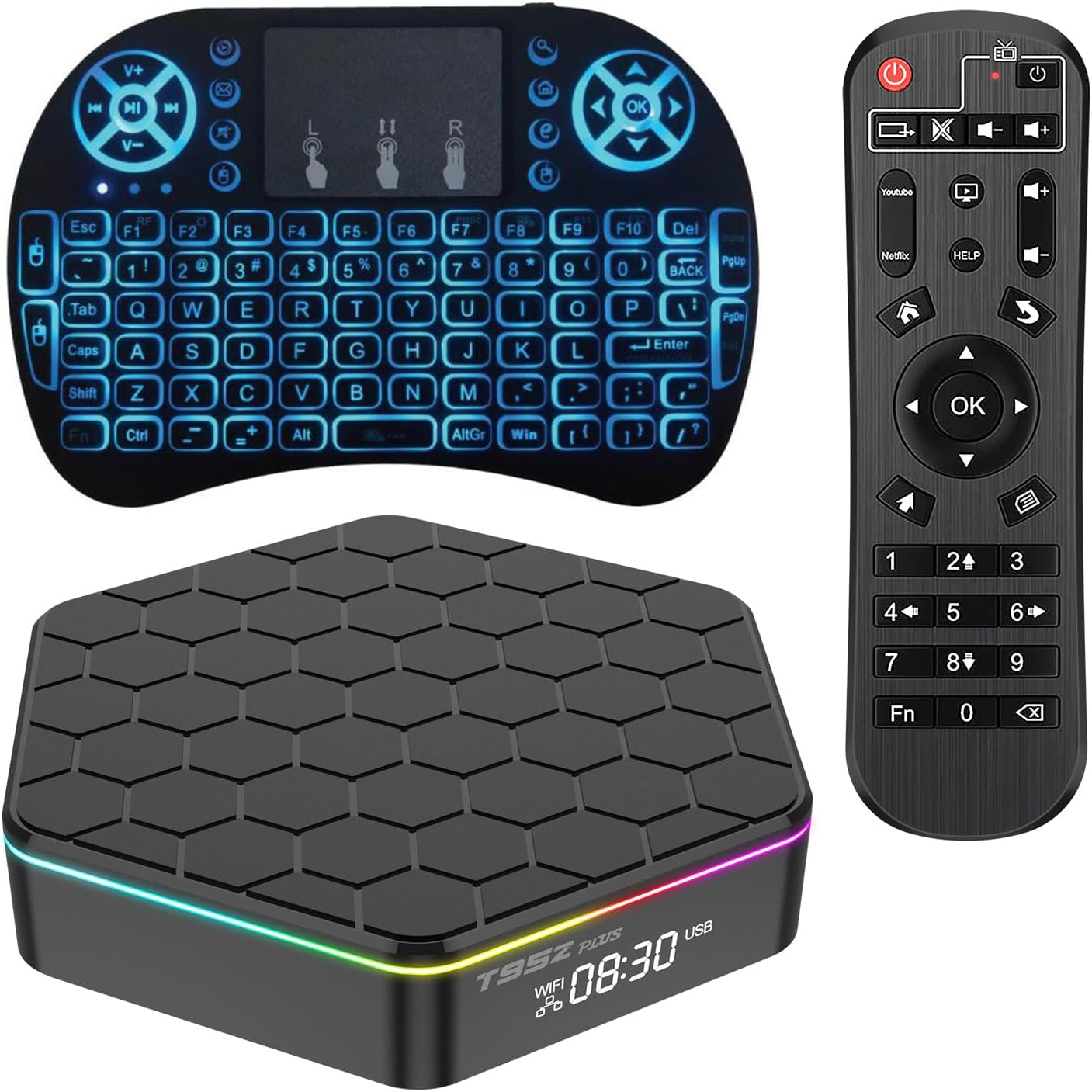
Figure 3.1: The T95ZPLUS H618 Android TV Box, standard IR remote, and backlit mini wireless keyboard.

Figure 3.2: Rear and side view of the T95ZPLUS H618 Android TV Box showing various ports including USB, LAN, Optical, DC input, HDMI, AV, and Card reader.
Key Features:
- Android 12.0 OS: Equipped with a stable Android 12.0 operating system for smooth performance.
- Allwinner H618 CPU: Features a Quad-Core Cortex-A53 CPU for efficient processing.
- 2GB RAM + 16GB ROM: Provides ample memory for multitasking and storage for applications.
- Dual Band WiFi 6 & Bluetooth 5.0: Supports 2.4G/5G WiFi 6 for fast and stable network connectivity, and Bluetooth 5.0 for peripheral devices.
- 6K Ultra HD Resolution: Delivers clear 6K video output with HDR, CEC, and HDCP 2.2 support.
- 3D Graphics Acceleration: Hardware 3D graphics acceleration for an immersive viewing experience.
4. Setup Instructions
Follow these steps to connect your Android TV Box to your television and network.
4.1 Initial Connection
- Connect to TV: Use the provided HD Cable to connect the HDMI port on the TV Box to an available HDMI input on your television.
- Connect Power: Plug the power adapter into the DC input port on the TV Box, then plug the adapter into a wall outlet.
- Insert Remote Batteries: Open the battery compartment of the IR Remote and insert two AAA batteries (not included) according to the polarity markings.
- Power On: The TV Box should power on automatically. If not, press the power button on the remote or the device.
- Select Input: On your television, select the correct HDMI input source using your TV remote.
Video 4.1: Installation Guide and Network Connection. This video demonstrates the physical connection of the TV box to a television and power source, followed by the process of connecting to a network.
4.2 Bluetooth Pairing (for Remote/Keyboard)
To enable full functionality of the remote control, including voice search, and to use the mini wireless keyboard, Bluetooth pairing is required.
- Ensure the TV Box is powered on and connected to your TV.
- For the standard IR Remote: Press and hold the 'LEFT' and 'RIGHT' buttons simultaneously for 3 seconds. The remote indicator light will flash, indicating it's in pairing mode. Release the buttons when the light flashes. Keep the remote close to the device for automatic pairing.
- For the Mini Wireless Keyboard: Refer to the separate instructions provided with the keyboard for its specific pairing process. Generally, this involves activating Bluetooth on the TV Box (Settings > Network & Internet > Bluetooth) and then putting the keyboard into pairing mode.
4.3 WiFi Connection
To access online content, connect your TV Box to a WiFi network.
- From the main screen, navigate to Settings.
- Select Network & Internet.
- Toggle Wi-Fi to 'On'.
- Select your desired WiFi network from the list of Available networks.
- Enter the WiFi password using the on-screen keyboard or the mini wireless keyboard.
- Select Connect. Once connected, the network name will show 'Connected'.
5. Operating Instructions
Learn how to navigate the interface and use the various features of your Android TV Box.
5.1 Navigating the Interface
- Use the directional pad (up, down, left, right) on your remote to move between items on the screen.
- Press the OK button to select an item.
- Press the Back button to return to the previous screen.
- Press the Home button to return to the main home screen.
Video 5.1: Demonstration of the Android box and its usage. This video provides a general overview of the device's operation, including navigation and app access.
5.2 Using Voice Search
If your remote is Bluetooth paired, you can use voice commands.
- From the home screen, press the Voice Assistant button (usually a microphone icon) on your remote.
- Speak clearly into the remote's microphone when prompted.
- The TV Box will process your command and display relevant results or perform the requested action.
5.3 Accessing and Managing Applications
- From the home screen, navigate to the Apps section or select the 'AppList' icon.
- Browse through installed applications. Select an app to launch it.
- To install new apps, go to the Google Play Store. You will need to sign in with a Google account.
- To customize your home screen, select 'Customize your Home screen' to add or remove app shortcuts and channels.
5.4 Screen Mirroring
The TV Box supports screen mirroring, allowing you to cast content from your mobile device or tablet to your TV screen.
- Ensure both your mobile device and the TV Box are connected to the same WiFi network.
- On your mobile device, activate the screen mirroring/cast feature (e.g., 'Smart View' on Samsung, 'Cast' on Android, 'Screen Mirroring' on iOS via AirScreen app).
- Select the TV Box from the list of available devices.

Figure 5.1: Illustration of screen mirroring functionality, showing content from a mobile device displayed on the television.
6. Specifications
| Feature | Description |
|---|---|
| Operating System | Android 12.0 |
| CPU | Allwinner H618 Quad-Core Cortex-A53 |
| GPU | Mali-G31 MP2 |
| RAM | 2GB DDR |
| ROM | 16GB EMMC |
| WiFi | 2.4G+5G WiFi 6 |
| Bluetooth | BT5.0 |
| Video Output | HDMI 2.0 up to 6K Output with HDR, CEC, HDCP 2.2, 6K@30fps max resolution |
| USB Host | 2 High-speed USB 2.0 (supports U DISK and USB HDD) |
| Ethernet | Standard 10/100M, Gigabit RJ-45 |
| Card Reader | SD/SDHC/MMC cards |
| Power Supply | DC 5V/2A |
| Dimensions | 8.46 x 5.47 x 2.17 inches |
| Weight | 1.12 pounds |
7. Troubleshooting
If you encounter issues with your TV Box, refer to the following common solutions:
- No Power:
- Ensure the power adapter is securely connected to the TV Box and a working power outlet.
- Check if the power outlet is functional by plugging in another device.
- No Signal on TV:
- Verify the HDMI cable is securely connected to both the TV Box and the TV.
- Ensure your TV is set to the correct HDMI input source.
- Try a different HDMI port on your TV or a different HDMI cable.
- Remote Not Responding:
- Check and replace the batteries in the remote control.
- Ensure there are no obstructions between the remote and the TV Box.
- Re-pair the Bluetooth remote as described in Section 4.2.
- WiFi Connection Issues:
- Ensure your WiFi router is powered on and functioning correctly.
- Verify the WiFi password entered is correct.
- Try restarting both the TV Box and your WiFi router.
- Move the TV Box closer to the WiFi router to improve signal strength.
- Apps Crashing or Freezing:
- Close and restart the problematic application.
- Clear the app's cache and data (Settings > Apps > [App Name] > Storage > Clear Cache/Clear Data).
- Ensure the TV Box has sufficient free storage space.
- Update the app to its latest version via the Google Play Store.
8. Maintenance
Regular maintenance helps ensure the longevity and optimal performance of your TV Box.
- Cleaning:
- Use a soft, dry cloth to clean the exterior of the TV Box.
- Avoid using liquid cleaners or abrasive materials, as they may damage the device.
- Software Updates:
- Periodically check for system updates (Settings > Device Preferences > About > System update).
- Keeping your software updated ensures you have the latest features, security patches, and performance improvements.
- Storage Management:
- Regularly uninstall unused applications to free up storage space.
- Clear cache data from apps to improve performance.
9. Warranty and Support
For warranty information or technical support, please refer to the contact details provided with your purchase or visit the official Sidiwen website. Keep your proof of purchase for warranty claims.