
JSAUX HB0609
JSAUX HB0609 6-in-1 Multifunctional Docking Station User Manual
Model: HB0609
1. Introduction
The JSAUX HB0609 6-in-1 Multifunctional Docking Station is designed to enhance the functionality and connectivity of your portable gaming handhelds. This modular docking station provides a comprehensive solution for expanding your device's capabilities, offering high-resolution video output, stable network connectivity, and multiple USB ports for peripherals, all while ensuring efficient power delivery.

Image: The JSAUX HB0609 docking station connected to a handheld gaming device, showcasing its compact design and integrated cable.
2. Product Features
- 6-in-1 Connectivity: Features HDMI 4K@120Hz output, Gigabit Ethernet, USB-C Power Delivery (PD) charging, one USB-C 3.2 Gen 1 port, and two USB-A 3.2 Gen 1 ports.
- High-Resolution Video Output: Supports crisp 4K@120Hz or 1080P@240Hz HDMI output for vivid gaming visuals on external displays.
- Modular Design: The docking station can be used with the gaming console directly on the base, or the base can be detached for standalone use as a stand.
- Customization: Allows for personalization by adding a custom card between the front cover and the dock.
- Efficient Charging: Supports up to 100W max power delivery, enabling full-speed charging for compatible handhelds when paired with an appropriate charger.

Image: A detailed view of the JSAUX HB0609 docking station highlighting its various ports: USB-C (5Gbps), USB-A (5Gbps), Gigabit Ethernet, HDMI 2.1 (4K@120Hz), and USB-C (PD 100W input).
3. Compatibility
The JSAUX HB0609 Docking Station is compatible with a wide range of portable gaming handhelds, including:
- ROG Xbox Ally X (2025)
- ROG Xbox Ally (2025)
- ROG Ally X
- ROG Ally
- Steam Deck
- Legion Go
- Legion Go S
- Razer Edge
- AYA NEO
- AYA ODIN
- Logitech G Cloud
- ONEXPLAYER

Image: A visual compatibility list displaying several handheld gaming consoles, including ROG Ally, Steam Deck, and Legion Go, positioned on the JSAUX docking station.
4. Setup Instructions
4.1. Unboxing and Components
The JSAUX HB0609 docking station consists of two main parts: the hub with integrated USB-C cable and the detachable stand base. An extra silicone pad is included for optimal fit with various devices.
4.2. Power Connection
- Connect a USB-C Power Delivery (PD) charger to the 'PD 100W' USB-C input port on the back of the docking station.
- Important Note: For optimal performance and to avoid 'Not enough power to charge efficiently' messages, a PD 100W charger is recommended. Using a 65W or lower PD charger may result in slower charging speeds, especially during active gameplay.
4.3. Handheld Device Connection
- Place your handheld gaming device onto the stand base.
- Connect the integrated USB-C cable from the docking station to the USB-C port on your handheld device.
- If using a thinner device like the Steam Deck, attach the extra silicone pad to the stand base for a more secure fit and improved stability.

Image: A handheld gaming device docked with various cables connected to the JSAUX docking station, including USB devices and an Ethernet cable, demonstrating its expanded connectivity.
4.4. External Display Connection
- Connect an HDMI cable from the HDMI output port on the docking station to your external display (TV, monitor, projector).
- Ensure your display is set to the correct HDMI input source.
4.5. Peripheral Connections
Connect your desired peripherals to the available ports:
- Gigabit Ethernet: Connect an Ethernet cable to the RJ45 port for a stable and fast wired internet connection.
- USB-A Devices: Use the two USB-A 3.2 Gen 1 ports for connecting external keyboards, mice, game controllers, or other USB accessories.
- USB-C Devices: Use the USB-C 3.2 Gen 1 port for connecting compatible USB-C peripherals.
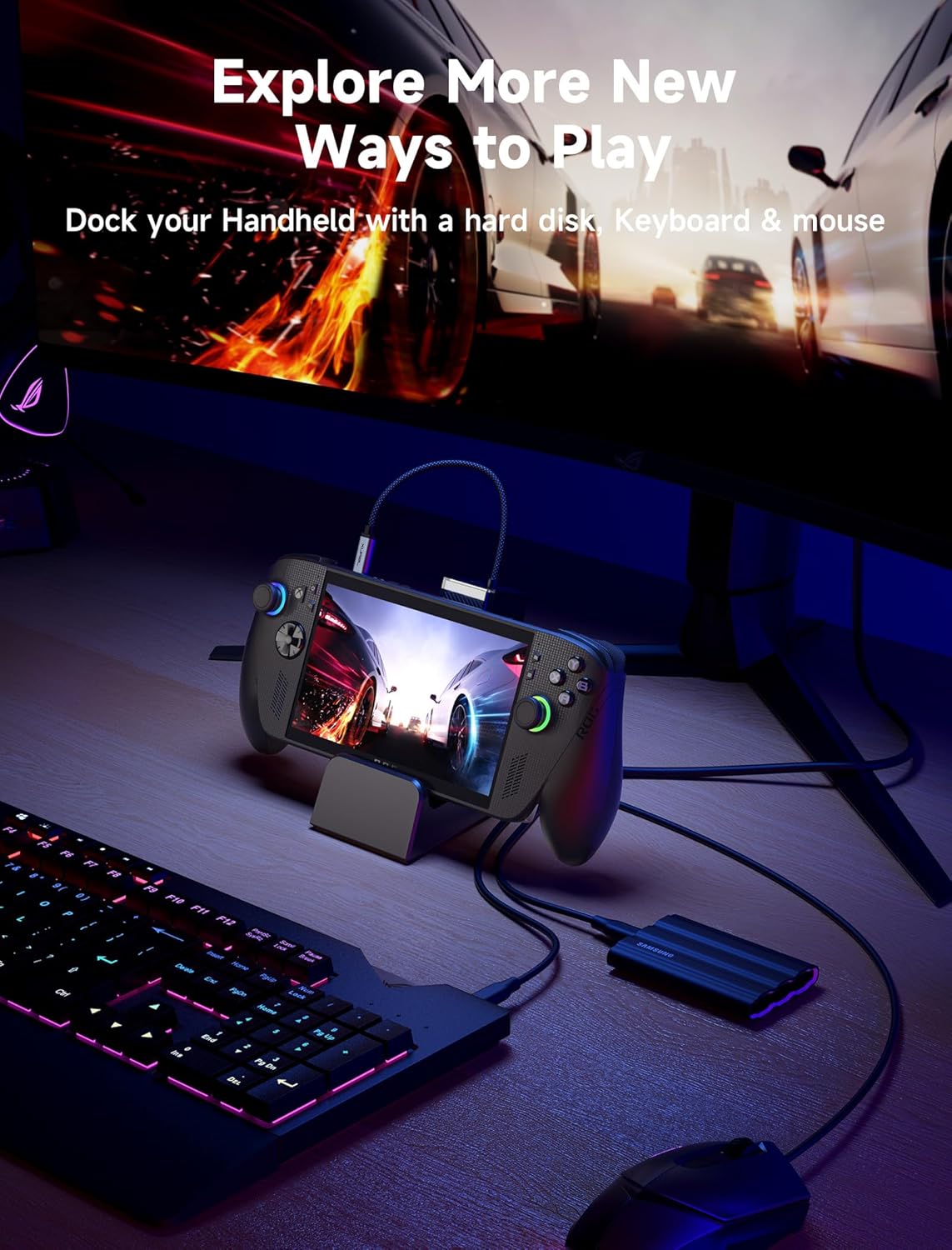
Image: A handheld gaming device docked with the JSAUX station, connected to an external monitor, keyboard, mouse, and a portable hard drive, illustrating a full desktop gaming setup.
5. Operating Instructions
5.1. Display Output
Once connected to an external display via HDMI, your handheld device should automatically detect and output video. You can configure display settings on your handheld for optimal resolution and refresh rate:
- For 4K resolution, select 3840x2160 at 120Hz.
- For 1080P resolution, select 1920x1080 at 240Hz.

Image: A handheld gaming device docked and displaying a vibrant game on a large external monitor, emphasizing the 4K@120Hz HDMI output capability of the JSAUX docking station.
5.2. Charging Functionality
The docking station provides up to 100W Power Delivery to your connected handheld device. Ensure your power adapter is capable of delivering sufficient wattage for fast charging, especially during demanding tasks or gaming sessions.

Image: A handheld gaming device docked and connected to a 100W power source via the JSAUX docking station, indicating fast charging capabilities.
5.3. Network Connection
Utilize the Gigabit Ethernet port for a more reliable and faster internet connection compared to Wi-Fi, which is beneficial for online gaming and large downloads.

Image: A close-up of the JSAUX docking station's Ethernet port, with a graphic illustrating the speed advantage of Gigabit Ethernet (1000Mbps) over typical Wi-Fi (30Mbps).
5.4. Customizing Your Dock
The docking station features a customizable front panel. To personalize:
- Gently remove the front cover of the dock.
- Insert a custom card (recommended size: 3.00" x 1.13" x 0.01" / 76.3mm x 28.7mm x 0.3mm) into the designated slot.
- Snap the cover back into place.

Image: An illustration demonstrating the DIY customization feature of the JSAUX docking station, showing how to insert a custom card behind the front panel.
6. Maintenance
To ensure the longevity and optimal performance of your JSAUX HB0609 Docking Station:
- Keep the device clean by wiping it with a soft, dry cloth.
- Avoid exposing the docking station to liquids, excessive moisture, or extreme temperatures.
- Do not attempt to disassemble or repair the device yourself, as this may void the warranty.
- Store the docking station in a cool, dry place when not in use.
7. Troubleshooting
7.1. Power and Charging Issues
- "Not enough power to charge efficiently" message: This message may appear when using a 65W or lower PD charger, as part of the input power is consumed by the dock itself. While it does not affect gameplay, charging speed may be slower. For optimal charging, use a PD 100W charger.
- Device not charging: Ensure the 100W PD charger is securely connected to the correct USB-C input port on the dock and that the dock's integrated USB-C cable is firmly connected to your handheld device.
7.2. Display Output Issues
- No display on external monitor: Verify that the HDMI cable is securely connected to both the dock and the monitor. Check the monitor's input source selection. Ensure your handheld device's display settings are correctly configured for external output.
- Incorrect resolution or refresh rate: Adjust the display settings on your handheld device to match the desired output (e.g., 4K@120Hz or 1080P@240Hz).
- VRR/ALLM Support: The HB0609 dock does not support Variable Refresh Rate (VRR) or Auto Low Latency Mode (ALLM). If these features are required, consider the JSAUX HB0705 dock (Color: Black-RGB Fan Cooling).
7.3. Peripheral Connectivity Issues
- USB devices not recognized: Ensure USB devices are properly inserted into the USB-A or USB-C 3.2 Gen 1 ports. Try connecting the device directly to your handheld to rule out device-specific issues.
- Ethernet connection unstable: Check the Ethernet cable connections at both the dock and your router/modem. Ensure the Ethernet port on the dock is clean and free of debris.
8. Specifications
| Brand | JSAUX |
| Model | HB0609 |
| Product Dimensions | 3.35 x 1.93 x 4.92 inches (8.51 x 4.90 x 12.50 cm) |
| Item Weight | 9.6 ounces (0.27 Kilograms) |
| Hardware Interface | Ethernet, HDMI, USB 3.0 Type A, USB 3.0 Type C, USB Docking Station, USB Type C |
| Total USB Ports | 4 (2x USB-A 3.2 Gen 1, 1x USB-C 3.2 Gen 1, 1x USB-C PD 100W input) |
| Total HDMI Ports | 1 (HDMI 2.1, supports 4K@120Hz, 1080P@240Hz) |
| Number of Ports | 6 |
| Wattage | 100 watts (Power Delivery) |
| Manufacturer | Shenzhen Wuyishi Technology Co.,Ltd |
9. Warranty and Support
For warranty information, technical support, or further assistance, please visit the official JSAUX website or contact their customer service directly. Details regarding product registration and support channels can typically be found on the manufacturer's website or within the product packaging.
Manufacturer: Shenzhen Wuyishi Technology Co.,Ltd
JSAUX Official Website: www.jsaux.com
Ask a question about this manual
Ask about setup, troubleshooting, compatibility, parts, safety, or missing instructions. Manuals+ will review the question and use this page’s manual context to help answer it.