
1. Introduction
This manual provides comprehensive instructions for the installation, operation, and maintenance of your Roinvou 2+64G Android 13 Car Stereo. This unit is specifically designed for Toyota Sienna models from 2004 to 2010. It integrates advanced features such as Wireless CarPlay, Android Auto, Bluetooth, GPS Navigation, WiFi connectivity, Digital Signal Processing (DSP), and support for a backup camera.
Please read this manual thoroughly before installation and operation to ensure proper functionality and to maximize your user experience.

Figure 1.1: Roinvou Android 13 Car Stereo and main accessories.
2. What's in the Box
Verify that all the following components are included in your package:
- Roinvou Car Stereo Head Unit (for Toyota Sienna)
- Power Cable
- Original USB Cable
- CANBUS Decoder
- RCA Cable
- GPS Antenna
- AHD Backup Camera
- External Microphone
- Rear Camera Input Cable
- Dual USB Cable
- Installation Tool
3. Setup & Installation
Important Note: This unit is compatible with Toyota Sienna 2004-2010 models. The stereo includes an in-dash head unit, wiring harness cables, CANBUS decoder, and a frame panel. It supports most stock features, including JBL power amplifiers and original backup cameras. Ensure the red and white connectors of the power cord are connected to the RCA harness. Before purchasing, confirm that the power cable port on the detail page matches your original car's port.
3.1. Pre-Installation Check
Before beginning installation, ensure your vehicle's ignition is off and the battery is disconnected. This prevents electrical shorts and damage to the unit or vehicle.
3.2. Wiring Harness Connection
Connect the provided wiring harness to the car stereo and your vehicle's existing wiring. Pay close attention to the color-coded wires and ensure secure connections. The CANBUS decoder should be connected as per the wiring diagram to ensure proper communication with your vehicle's systems.

Figure 3.1: Reversing Camera and CANBUS Wiring Diagram.
3.3. Backup Camera Installation
The unit supports automatic switching to the reverse image when the vehicle enters reverse. Connect the AHD backup camera using the provided rear camera input cable. Ensure the reverse input cable is plugged in, even if the reverse camera is not being used, as this can affect Bluetooth and Wi-Fi signal reception.
3.4. Steering Wheel Control (SWC) Setup
The car stereo supports steering wheel controls, allowing you to manage functions without removing your hands from the steering wheel.
- Without CANBUS Decoder: Connect the plugs or the steering wheel control wires (Key1/Key2) in the power cable to the corresponding port or wire of your original car. Then, go to the "SteeringWheelKey" manual app on the unit to activate the button functions.
- With CANBUS Decoder: Connect the CANBUS before powering on the machine. Then, navigate to Apps > Settings > Factory Settings (1234) > CAN Settings. Select the brand of the CANBUS decoder and then the matching model and year according to your actual vehicle situation.

Figure 3.2: Steering Wheel Control Setup.
3.5. Post-Installation Appearance
Once installed, the 9-inch touch screen seamlessly integrates into your Toyota Sienna's dashboard, providing a modern and enhanced in-car experience compared to the original factory radio.

Figure 3.3: Before and After Installation in Toyota Sienna.
4. Operating Instructions
4.1. User Interface (UI) Navigation
The Android 13 system provides a smooth and intuitive user experience. You can navigate through various applications and settings using the HD capacitive touch screen. The unit is equipped with 28 UI themes, allowing for personalization of the interface to your preference.

Figure 4.1: 28 Desktop Themes for Personalization.
4.2. Wireless/Wired CarPlay & Android Auto
Connect your smartphone to the car stereo wirelessly via Bluetooth or using the original USB data cable for a wired connection. This feature allows you to access phone calls, music, GPS navigation, and smart voice control (Siri/Google Assistant) directly from the car's screen, enhancing driving convenience.

Figure 4.2: Wireless/Wired CarPlay & Android Auto Interface.
4.3. Bluetooth & Mirror Link
The built-in Bluetooth supports hands-free calls, phone book synchronization, and music streaming. The Mirror Link function allows you to synchronize your Android or iOS smartphone screen onto the car stereo's larger display, enabling you to enjoy multimedia content on a bigger screen.
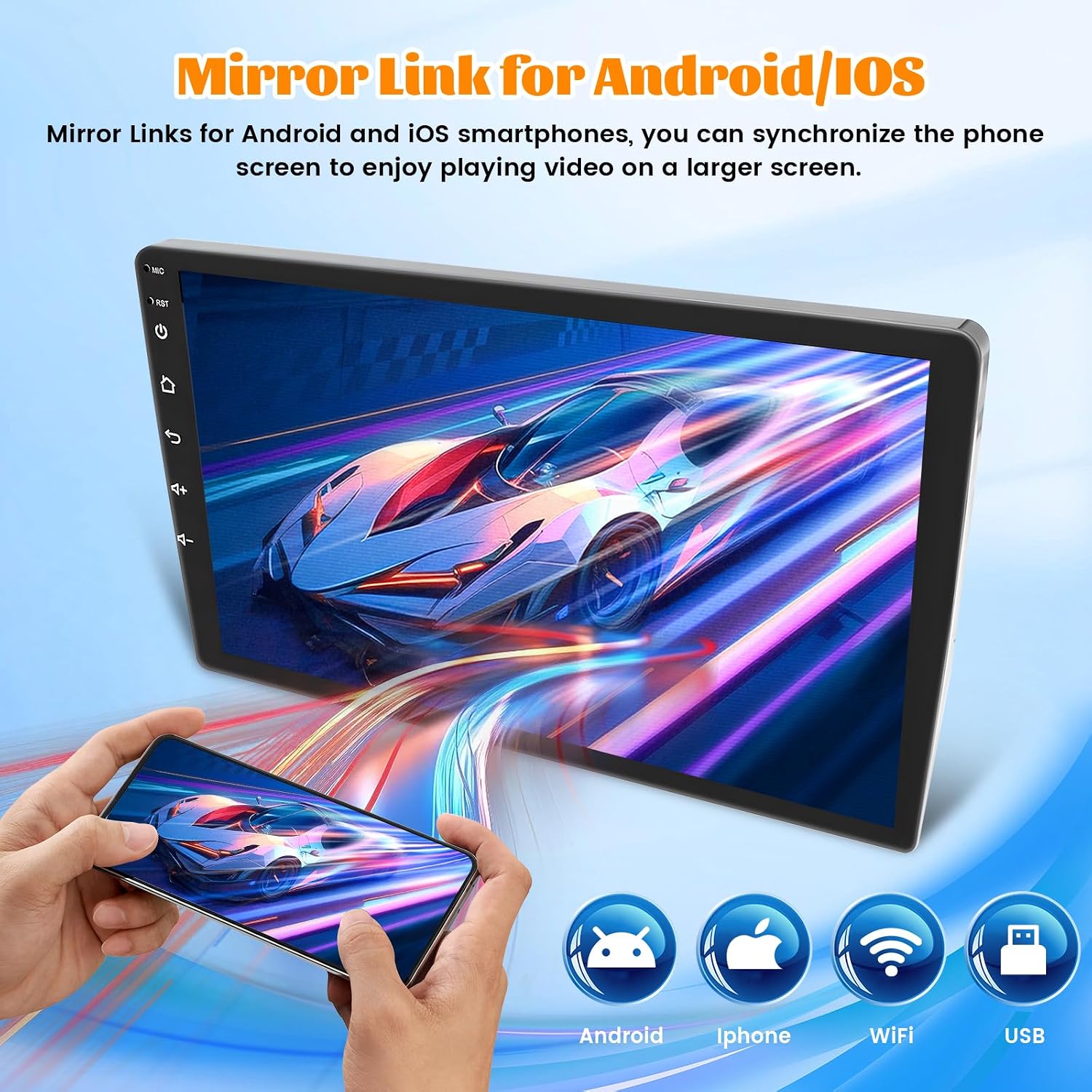
Figure 4.3: Mirror Link Functionality.
4.4. Wi-Fi & GPS Navigation
Connect the unit to Wi-Fi to download various applications from the Play Store, listen to online music, and watch videos from platforms like YouTube. The built-in GPS navigation allows you to download offline maps directly from the Play Store. Online maps can also be used perfectly when connected to Wi-Fi.

Figure 4.4: GPS Navigation and Wi-Fi Connection.
4.5. Audio Settings (DSP & EQ)
The unit features various sound effects with adjustable EQ settings and FM/RDS radio, providing a customizable audio experience. The Digital Signal Processor (DSP) enhances sound quality across different music modes.
4.6. Video Demonstration
For a visual guide on the UI functions, CarPlay, and Android Auto connection process, please refer to the video below:
Video 4.1: Demonstration of UI functions, CarPlay, and Android Auto connection on the Roinvou car stereo.
5. Specifications
| Feature | Detail |
|---|---|
| Brand | Roinvou |
| Display Size | 9 Inches |
| Resolution | 1024 x 600 |
| Item Weight | 3.41 pounds |
| Package Dimensions | 11.81 x 6.69 x 4.33 inches |
| Connectivity Technology | Bluetooth, Wi-Fi, USB |
| Special Features | Android Auto, Built-In Bluetooth, Apple CarPlay, Digital Display Screen |
| Map Type | North America |
| Audio Output Mode | Stereo |
| Mounting Type | Dashboard Mount |
| Voice Command | Touchscreen |
| Country of Origin | China |
6. Troubleshooting
If you encounter any issues with your Roinvou car stereo, please refer to the following common troubleshooting steps:
- No Power: Ensure all power cables are securely connected and the vehicle's fuse for the radio is intact.
- No Sound: Check speaker connections, audio settings (volume, mute, EQ), and ensure the correct audio source is selected.
- Bluetooth Disconnection: Verify that the reverse input cable is connected, as it can affect signal reception. Ensure your phone's Bluetooth is on and paired correctly. Try restarting both the stereo and your phone.
- CarPlay/Android Auto Issues: Ensure your phone's operating system is up to date. For wired connections, try a different USB cable. For wireless, ensure Bluetooth and Wi-Fi are enabled on your phone and the stereo.
- GPS Signal Loss: Ensure the GPS antenna is properly installed and has a clear view of the sky. Check GPS settings within the unit.
- Slow Interface: Close unused applications to free up system resources. Ensure the unit's firmware is up to date.
For persistent issues, please contact Roinvou customer support.
7. Warranty & Support
7.1. Warranty Information
Your Roinvou 2+64G Android 13 Car Stereo comes with a 1-Year Warranty from the date of purchase. This warranty covers manufacturing defects and malfunctions under normal use. Please retain your proof of purchase for warranty claims.
7.2. Customer Support
For technical assistance, troubleshooting beyond this manual, or warranty inquiries, please contact Roinvou customer support. You can typically find contact information on the product packaging, the Roinvou official website, or through the platform where you purchased the product.
When contacting support, please have your product model number (B0DBLND48N) and purchase details ready to expedite the process.


