
DOOGEE DOOGEE Blade 10 Ultra
DOOGEE Blade 10 Ultra Smartphone User Manual
Model: DOOGEE Blade 10 Ultra
1. Introduction
This manual provides comprehensive instructions for the safe and efficient use of your DOOGEE Blade 10 Ultra smartphone. Please read this manual carefully before using the device to ensure optimal performance and longevity.

Image: Front and back view of the DOOGEE Blade 10 Ultra smartphone, highlighting its rugged design and key features like NFC and Android 14.
2. Setup
2.1 Unboxing and Initial Inspection
Carefully unbox your DOOGEE Blade 10 Ultra and verify that all components are present and in good condition. The package should contain:
- 1 x DOOGEE Blade 10 Ultra Smartphone
- 1 x USB Type-C Cable
- 1 x Charger
- 1 x Tempered Glass Protector (pre-applied)
- 1 x User Manual
2.2 SIM Card and microSD Card Installation
To install your SIM card(s) and/or microSD card:
- Locate the SIM tray on the side of the device.
- Insert the SIM ejector tool into the small hole next to the tray to open it.
- Place your Nano-SIM card(s) and/or microSD card into the designated slots. Ensure the gold contacts are facing down. The device supports up to 2TB external storage via microSD.
- Gently push the tray back into the slot until it clicks into place.

Image: Illustration of the internal storage components, showing 8GB+12GB RAM and 256GB ROM, with support for up to 2TB microSD card.
2.3 First Power On and Basic Setup
Press and hold the power button until the DOOGEE logo appears. Follow the on-screen prompts to complete the initial setup, including language selection, Wi-Fi connection, Google account setup, and security settings.
2.4 Charging the Device
Connect the USB Type-C cable to the phone's charging port and the other end to the provided charger. Plug the charger into a power outlet. The battery indicator will show charging status. For optimal battery life, fully charge the device before first use.
3. Operating Your Smartphone
3.1 Overview of Android 14
Your DOOGEE Blade 10 Ultra runs on the latest Android 14 operating system, offering enhanced privacy features, improved security, and a more personalized user experience. Explore new customization options and streamlined notifications.

Image: The Android 14 system logo, emphasizing its smart, secure, and convenient features.
3.2 Display and Navigation
The device features a 6.56-inch HD+ IPS waterdrop display with a 90Hz refresh rate for smooth visuals. Navigate the interface using touch gestures: swipe, tap, pinch-to-zoom, and long-press.
3.3 Camera Usage
Capture high-quality photos and videos with the 50MP AI main camera and 8MP front camera. The Morpho Imaging Algorithm enhances your photography with various modes including HDR, Watermark, Video, Picture, Beauty, Pro Mode, Portrait, Gif, Panorama, and Filter.

Image: Visual representation of the 50MP main camera and 8MP front camera, detailing the various imaging modes available through the Morpho Imaging Algorithm.
3.4 Connectivity
Your smartphone supports a wide range of connectivity options:
- Wi-Fi: Connect to 2.4G and 5G networks (802.11ac/a/b/g/n).
- Bluetooth: BT5.0 for connecting to wireless accessories.
- NFC: For contactless payments and quick data sharing.
- OTG: On-The-Go support for connecting USB devices.
- Navigation: Integrated GPS, Glonass, Galileo, and Beidou for accurate positioning.
- Cellular Networks: Supports 2G GSM (B2/3/5/8), 3G WCDMA (B1/2/4/5/8), and 4G FDD (B1/2/3/4/5/7/8/18/19/20/25/26/28A/28B/66) bands.
3.5 Battery Management
The DOOGEE Blade 10 Ultra is equipped with a large 5150mAh battery, providing extended usage times. To maximize battery life:
- Optimize screen brightness.
- Close unused background applications.
- Disable Wi-Fi, Bluetooth, or GPS when not in use.
- Expected battery life: up to 470 hours standby, 111.9 hours music, 25.5 hours talk, 16.7 hours video, 7.6 hours web browsing.
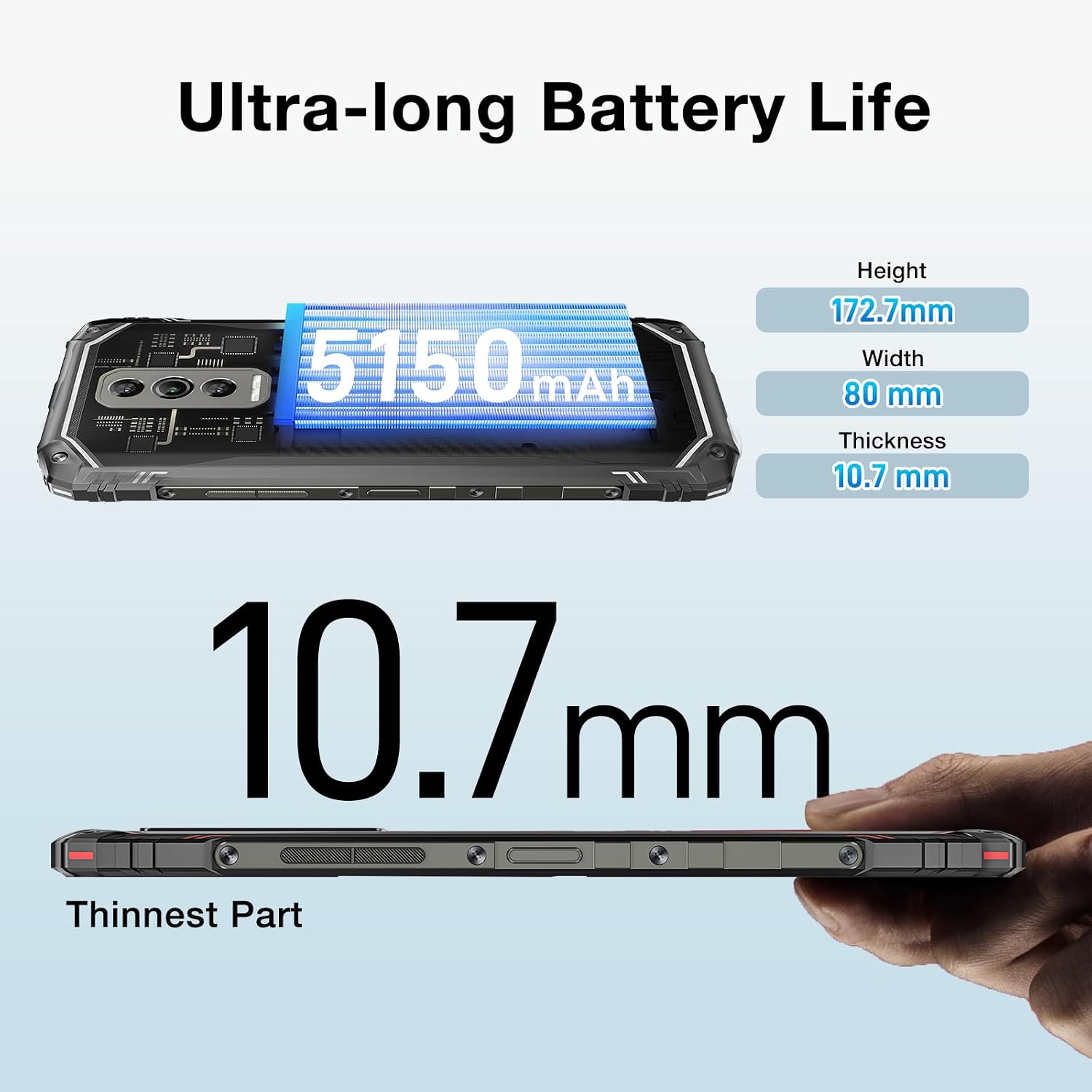
Image: The DOOGEE Blade 10 Ultra highlighting its 5150mAh battery capacity and physical dimensions (Height: 172.7mm, Width: 80mm, Thickness: 10.7mm).
3.6 Storage Management
The device comes with 256GB of internal storage (ROM) and up to 20GB of RAM (8GB physical + 12GB virtual). You can expand storage by up to 2TB using a microSD card. Regularly clear cache and unnecessary files to maintain optimal performance.
3.7 Widevine L1 Support
The DOOGEE Blade 10 Ultra supports Widevine L1, enabling high-definition streaming from popular platforms. Enjoy your favorite movies and shows in crisp, clear quality.
4. Maintenance
4.1 Cleaning Your Device
Use a soft, lint-free cloth to clean the screen and body of your phone. Avoid using harsh chemicals or abrasive materials that could damage the device. For stubborn smudges, slightly dampen the cloth with water or a screen cleaner.
4.2 Software Updates
Regularly check for and install software updates to ensure your device has the latest features, security patches, and performance improvements. Go to Settings > System > System update to check for updates.
4.3 Storage Optimization
To keep your phone running smoothly, periodically review and delete unnecessary apps, photos, videos, and files. Utilize cloud storage or transfer large files to a computer to free up internal space.
5. Troubleshooting
If you encounter issues with your DOOGEE Blade 10 Ultra, refer to the following common solutions:
| Problem | Solution |
|---|---|
| Device not powering on | Ensure the battery is charged. Connect to the charger for at least 10 minutes, then try powering on. If unresponsive, perform a forced restart by holding the power button for 10-15 seconds. |
| Charging issues | Check the USB cable and charger for damage. Try a different power outlet. Ensure the charging port is clean and free of debris. |
| Poor network connectivity | Check if airplane mode is off. Restart the device. Verify SIM card is properly inserted. Contact your network provider if the issue persists. |
| Applications crashing or freezing | Clear the app's cache and data (Settings > Apps > [App Name] > Storage). Update the app to the latest version. If the problem continues, uninstall and reinstall the app. |
| Device running slow | Close unused background apps. Clear cache and temporary files. Ensure sufficient storage space is available. Restart the device. |
5.1 Factory Reset
If other troubleshooting steps fail, you may need to perform a factory reset. Warning: This will erase all data on your phone. Back up important data before proceeding. Go to Settings > System > Reset options > Erase all data (factory reset) and follow the on-screen instructions.
6. Specifications
Detailed technical specifications for the DOOGEE Blade 10 Ultra:
| Feature | Specification |
|---|---|
| Model | DOOGEE Blade 10 Ultra |
| Operating System | Android 14 |
| Display | 6.56-inch HD+ IPS Waterdrop, 90Hz Refresh Rate |
| Processor | Spreadtrum T606 Octa-core 1.6GHz (12nm) |
| RAM | Up to 20GB (8GB physical + 12GB virtual) |
| Internal Storage (ROM) | 256GB |
| Expandable Storage | Up to 2TB via microSD card |
| Main Camera | 50MP AI |
| Front Camera | 8MP |
| Battery Capacity | 5150mAh |
| Network Bands | 2G GSM: B2/3/5/8; 3G WCDMA: B1/2/4/5/8; 4G FDD: B1/2/3/4/5/7/8/18/19/20/25/26/28A/28B/66 |
| Wi-Fi | 2.4G/5G (802.11ac/a/b/g/n) |
| Bluetooth | BT5.0 |
| NFC | Supported |
| OTG | Supported |
| Navigation | GPS | Glonass | Galileo | Beidou |
| Dimensions (H x W x T) | 172.7mm x 80mm x 10.7mm |
| Color | Black |

Image: Diagram illustrating the powerful Octa-core 1.6GHz processor, highlighting its boosted performance and reduced consumption.
7. Warranty and Support
For warranty information, please refer to the warranty card included in your product packaging or visit the official DOOGEE website. For technical support or further assistance, please contact DOOGEE customer service through their official channels.
Related documentsDOOGEE Blade 10 Ultra


Ask a question about this manual
Ask about setup, troubleshooting, compatibility, parts, safety, or missing instructions. Manuals+ will review the question and use this page’s manual context to help answer it.