
DockCase DOCKCASE Explorer Edition 10-in-1 USB C Hub
DOCKCASE Explorer Edition 10-in-1 USB C Hub User Manual
Model: DOCKCASE Explorer Edition 10-in-1 USB C Hub
1. Introduction
Welcome to the user manual for your DOCKCASE Explorer Edition 10-in-1 USB C Hub. This document provides essential information for setting up, operating, maintaining, and troubleshooting your device. Please read this manual thoroughly to ensure proper and safe use of your new USB-C hub.
2. Product Overview
2.1 Package Contents
- DOCKCASE Explorer Edition 10-in-1 USB C Hub
- USB-C to USB-C full-featured data cable (0.98ft)
- User Instruction Manual
2.2 Key Features
The DOCKCASE Explorer Edition 10-in-1 USB C Hub is designed to expand your device's connectivity, transforming your laptop or desktop into a versatile workstation. Its key features include:
- USB-C Power Delivery (PD) Input: Supports up to 100W power input for pass-through charging of your host device.
- Dual HDMI Output: Two HDMI ports supporting single-monitor display up to 8K@30Hz or dual-monitor display up to 4K@60Hz.
- High-Speed Data Transfer: One USB-C data port and one USB-A data port, both supporting up to 10Gbps transfer speeds.
- Additional USB Ports: Two USB-A 2.0 ports for connecting peripherals.
- Gigabit Ethernet: Provides a stable and fast wired network connection up to 1000Mbps.
- UHS-II Card Reader: Dedicated slots for SD and microSD cards, supporting UHS-II speeds up to 312MB/s.
- Smart Display: An integrated display with D-Key control for real-time monitoring of hub status and configuration.
2.3 Component Identification
Familiarize yourself with the various ports and components of your DOCKCASE Explorer Edition 10-in-1 USB C Hub:

Figure 2.3.1: DOCKCASE Explorer Edition 10-in-1 USB C Hub with connected devices.

Figure 2.3.2: Detailed view of the DOCKCASE Explorer Edition 10-in-1 USB C Hub with port labels.
- Host USB-C: Connects to your computer.
- Power In (100W PD): USB-C port for power adapter.
- HDMI (Up to 8K@30Hz / 4K@120Hz): Two HDMI output ports.
- USB-A (480Mbps): Two USB 2.0 Type-A ports.
- LAN (Gigabit Ethernet): RJ45 port for wired network.
- Data USB-C (10Gbps): USB 3.2 Gen2 Type-C data port.
- USB-A (10Gbps): USB 3.2 Gen2 Type-A data port.
- SD&TF Card Slot (UHS-II): Slots for SD and microSD cards.
- D-Key Control button: For navigating the smart display.
3. Setup
3.1 Initial Connection
To set up your DOCKCASE Explorer Edition 10-in-1 USB C Hub, follow these steps:
- Connect the provided USB-C to USB-C cable from the Host USB-C port on the hub to a compatible USB-C port on your computer.
- If your computer requires charging or if you are connecting power-intensive peripherals, plug your USB-C power adapter into the Power In (100W PD) port on the hub.
- Connect your HDMI monitors, Ethernet cable, USB peripherals, and SD/microSD cards to their respective ports on the hub.
3.2 Device Compatibility
Ensure your host device's USB-C port supports DisplayPort Alternate Mode (DP Alt Mode) for video output and Power Delivery for charging. The hub is compatible with a wide range of devices, but some specific models are not supported.

Figure 3.2.1: Check your laptop's USB-C port for compatibility.
Supported USB-C Port Types:
- Thunderbolt 4 / Thunderbolt 3
- USB-C with Data Transfer + DP Alt Mode + Charging capabilities
Incompatible USB-C Port Types:
- USB-C with Only Data Transfer
- USB-C with Only Charging
- USB-C with Only Data Transfer and Charging (without DP Alt Mode)

Figure 3.2.2: Devices not compatible with the DOCKCASE Explorer Edition hub.
Not Applicable To:
- Dell Alienware / G Series Laptops
- Microsoft All Surface Products

Figure 3.2.3: Examples of compatible devices.
Works With (Examples):
- Apple: iPhone 15/15Plus/15Pro/15ProMax, MacBook Air (2018-2023 models), MacBook Pro (13-inch, 2016-2022 models), MacBook Pro (14-inch, 2021/2022 models), MacBook Pro (15-inch, 2016-2023 models), MacBook Pro (16-inch, 2019-2023 models), MacBook (12-inch, 2015-2017 models), iPad Pro (11/12.9-inch, 2018-2022 models), iPad Air (4th/5th generation), iPad mini (6th generation), iPad 10th generation, iMac (2017-2021 models), iMac Pro 2017, Mac Studio (2022/2023 model), Mac mini (2018-2023 models), Mac Pro (2019/2023 model)
- Dell: XPS 13 9320/9315/9310/9305/9300/9380/7390, XPS 15 9560/9530/9520/9510, XPS 17 9720/9710, Latitude 13 9330, Latitude 14 5440/9430/9420/9410, Latitude 15 9520/9510
- Samsung: Galaxy S9/10/20/21/22/23 (Snapdragon processor version)
- Lenovo: Yoga 14s (2021, AMD/Intel version), ThinkPad E480 (i7-8565U version), ThinkPad X1 Carbon Gen 9, Xiaoxin Pad Pro (11.5 inches, 2021 model), Xiaoxin Pad Pro (12.6 inches, 2021 model)
- Other: Nintendo Switch, Nintendo Switch (OLED model), Steam Deck, ASUS ROG Ally
4. Operating Instructions
4.1 Smart Display Operation (D-Key Control)
The DOCKCASE Explorer Edition features a smart display and a D-Key control button for easy navigation and monitoring of the hub's status and settings.

Figure 4.1.1: D-Key control for navigating the smart display.
- Main Page: Displays an overview of connected devices and power status.
- Double Click: Rotates the display orientation.
- Long Press: Press and hold until the title of other function pages is displayed at the bottom of the screen, then release to enter the corresponding page.

Figure 4.1.2: D-Key control for function pages.
- Function Pages: Includes HDMI Configure, Power Configure, and DockOS 2.0 information.
- Double Click: Switches control options within a function page.
- Long Press: Press and hold for 3 seconds to confirm the use of a control option (a progress bar will appear).
4.2 Power Delivery (PD)
The hub supports up to 100W Power Delivery input, allowing you to charge your host device while using the hub's other functions. The hub itself consumes 5-25W, providing 75-95W output to your host device.

Figure 4.2.1: Power Delivery compatibility and power distribution.
- Provides up to 100W pass-through charging, allowing you to power your host device at 75-95W while simultaneously using the hub's other functions. Note: Charger not included.
- The operating power range of this product is 5-25W, adjustable to suit your needs.
- Some mobile devices, such as phones and tablets, only support a maximum of 18W or 27W for standard PD charging. Therefore, it is not recommended to use this hub to charge these devices or to use a higher-power PD fast charger with them.
4.3 Display Output
The hub features two HDMI ports for connecting external displays. It supports various resolutions and refresh rates depending on your operating system and display configuration.
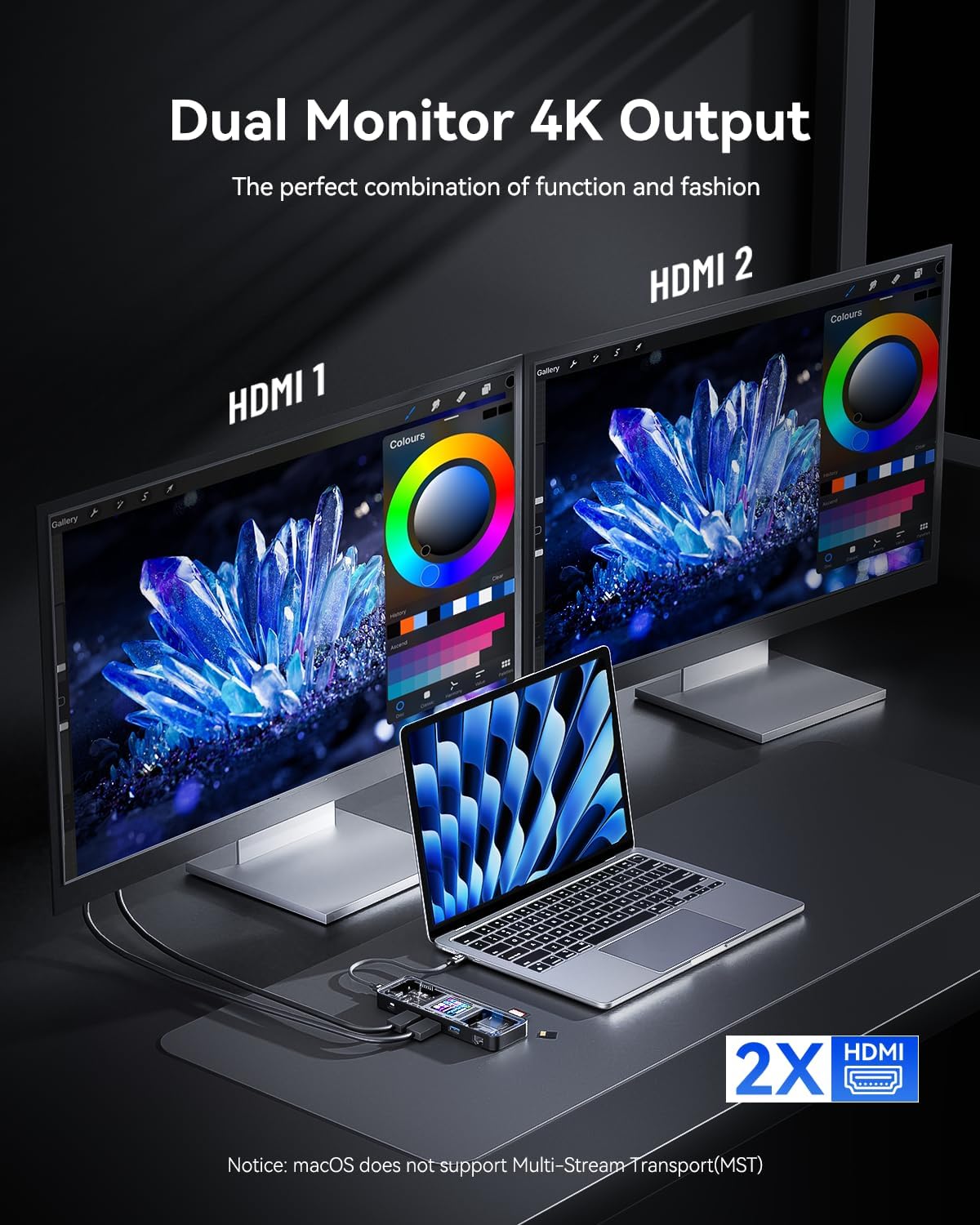
Figure 4.3.1: Dual monitor 4K output setup.
Windows Laptop & SteamDeck Display Configurations:

Figure 4.3.2: Windows/SteamDeck display output capabilities.
MacBook Display Configurations:
Figure 4.3.3: MacBook display output capabilities.
Important Notes on Display Output:

Figure 4.3.4: Key considerations for display performance.
- The maximum refresh rate listed in the table is based on test results and protocol bandwidth. Actual performance may be affected by the monitor's refresh rate settings and system/device compatibility. Some USB-C ports that support discrete graphics can achieve higher resolutions and refresh rates with DSC enabled.
- Using DP1.1/1.2/HBR2, HDMI1.X/2.0, or HDR10bit will reduce the maximum available resolution and refresh rate.
- MacBook supports mirroring or extending to two identical screens, while Windows supports both mirroring and extended modes.
- Our USB-C HUB is a portable device rather than a desktop docking station, and it requires a specific connection sequence: first, connect the USB-C hub to your computer, then plug in the PD power supply, and finally connect HDMI and other peripherals.
4.4 High-Speed Data Transfer
The hub provides multiple USB ports for connecting various peripherals and external storage devices, enabling fast data transfer.

Figure 4.4.1: High-speed data transfer capabilities.

Figure 4.4.2: USB port types and speeds.
- Equipped with USB-C and USB-A ports supporting up to 10Gbps transfer speed (USB 3.2 Gen2), you can transfer files, photos, and videos in seconds.
- Additional dual 480Mbps USB-A ports (USB 2.0) provide ample options for high-speed file transfers and connecting standard peripherals.
4.5 UHS-II SD & MicroSD Card Reader
The integrated card reader supports UHS-II speeds, allowing for rapid transfer of large media files.

Figure 4.5.1: UHS-II SD 4.0 card reader in use.

Figure 4.5.2: SD 4.0 transfer speeds.
- Smoothly reads UHS-II cards at speeds up to 312MB/s, significantly faster than UHS-I (104MB/s).
- Ideal for transferring 4K video and large photo files quickly.
4.6 Gigabit Ethernet Connection
For a stable and reliable internet connection, the hub includes a Gigabit Ethernet port.

Figure 4.6.1: Gigabit Ethernet connection.

Figure 4.6.2: Fast and stable Ethernet connection.
- Connect your wireless router to the hub's Ethernet port to access a stable wired internet connection of up to 1Gbps (1000Mbps).
5. Maintenance
To ensure the longevity and optimal performance of your DOCKCASE Explorer Edition 10-in-1 USB C Hub, follow these maintenance guidelines:
- Cleaning: Use a soft, dry, lint-free cloth to clean the hub. Avoid using abrasive cleaners, solvents, or strong chemicals, as they may damage the surface or internal components.
- Storage: Store the hub in a cool, dry place away from direct sunlight and extreme temperatures.
- Handling: Handle the hub with care. Avoid dropping it or subjecting it to strong impacts, which can damage the internal circuitry or the transparent casing.
- Port Care: Keep all ports free of dust and debris. If a port appears obstructed, use compressed air to gently clear it. Avoid inserting foreign objects into the ports.
- Cable Management: Avoid sharp bends or excessive pulling on connected cables to prevent damage to the cables or the hub's ports.
6. Troubleshooting
If you encounter issues with your DOCKCASE Explorer Edition 10-in-1 USB C Hub, refer to the following common problems and solutions:
| Problem | Possible Cause | Solution |
|---|---|---|
| Smart display UI freezes or crashes. | Temporary software glitch or power fluctuation. | Unplug the hub from all power sources and your computer, then reconnect it. This often resolves the issue. |
| No display output or flickering screen. | Incompatible USB-C port on host device; incorrect cable connection; monitor settings; driver issues. |
|
| High-pitched sound coming from the hub. | Power supply instability or component resonance under load. |
|
| USB devices not recognized or slow data transfer. | Loose connection; insufficient power; incompatible device; using a USB 2.0 port for high-speed transfer. |
|
| Ethernet connection unstable or not working. | Loose cable; network driver issue; router problem. |
|
| SD/microSD card not detected or slow. | Card not fully inserted; card format issue; card damage. |
|
7. Specifications
| Feature | Specification |
|---|---|
| Product Dimensions | 5.98 x 1.97 x 0.64 inches |
| Item Weight | 4.6 ounces |
| Brand | DockCase |
| Color | Black |
| Hardware Interface | MicroSD, USB Type C, USB, Ethernet, HDMI |
| Special Feature | Portable |
| Compatible Devices | Laptops (with compatible USB-C port) |
| Power Delivery | Up to 100W input, 75-95W output to host |
| HDMI Output | Single: up to 8K@30Hz; Dual: up to 4K@60Hz |
| USB Data Ports | 1x USB-C 10Gbps, 1x USB-A 10Gbps, 2x USB-A 480Mbps |
| Ethernet | Gigabit (1000Mbps) |
| Card Reader | SD & microSD, UHS-II (312MB/s) |
8. Warranty and Support
DOCKCASE provides a worry-free 12-month warranty for your Explorer Edition 10-in-1 USB C Hub. In case of any issues or questions, please contact our customer service team.
Our dedicated customer service is available 24 hours to assist you with any inquiries or support needs.
For further information and support, please visit the official DockCase website: https://www.dockcase.com/
Ask a question about this manual
Ask about setup, troubleshooting, compatibility, parts, safety, or missing instructions. Manuals+ will review the question and use this page’s manual context to help answer it.