
Introduction
This manual provides detailed instructions for the installation, operation, and maintenance of your Tenbaba 6.25" Wireless Motorcycle CarPlay and Android Auto Screen with Dual 2K Dash Cam. Please read this manual thoroughly before using the product to ensure proper function and safety.

Figure 1: Tenbaba 6.25 inch Wireless Motorcycle CarPlay and Android Auto Screen mounted on a motorcycle handlebar, displaying smartphone interface.
Safety Information
- Always prioritize safe riding. Do not operate the device in a manner that distracts you from the road.
- Ensure all wiring connections are secure and properly insulated to prevent short circuits and electrical hazards.
- Mount the device securely to avoid obstruction of your view or interference with motorcycle controls.
- Consult a professional for installation if you are unsure about electrical wiring or mounting procedures.
- The device is IP67 waterproof, but avoid prolonged submersion or high-pressure water jets.
What's in the Box
Verify that all components are present before beginning installation:
- Tenbaba 6.25" Wireless CarPlay & Android Auto Touch Screen with 1080P HD Dash Cam (Main Unit)
- Front Camera
- Rear Camera
- Remote Control
- Power Cable (ACC + 12V and Ground connections)
- Bracket Kits for Mounting
- Installation Tools (Allen keys, screws)
- 128GB TF Card
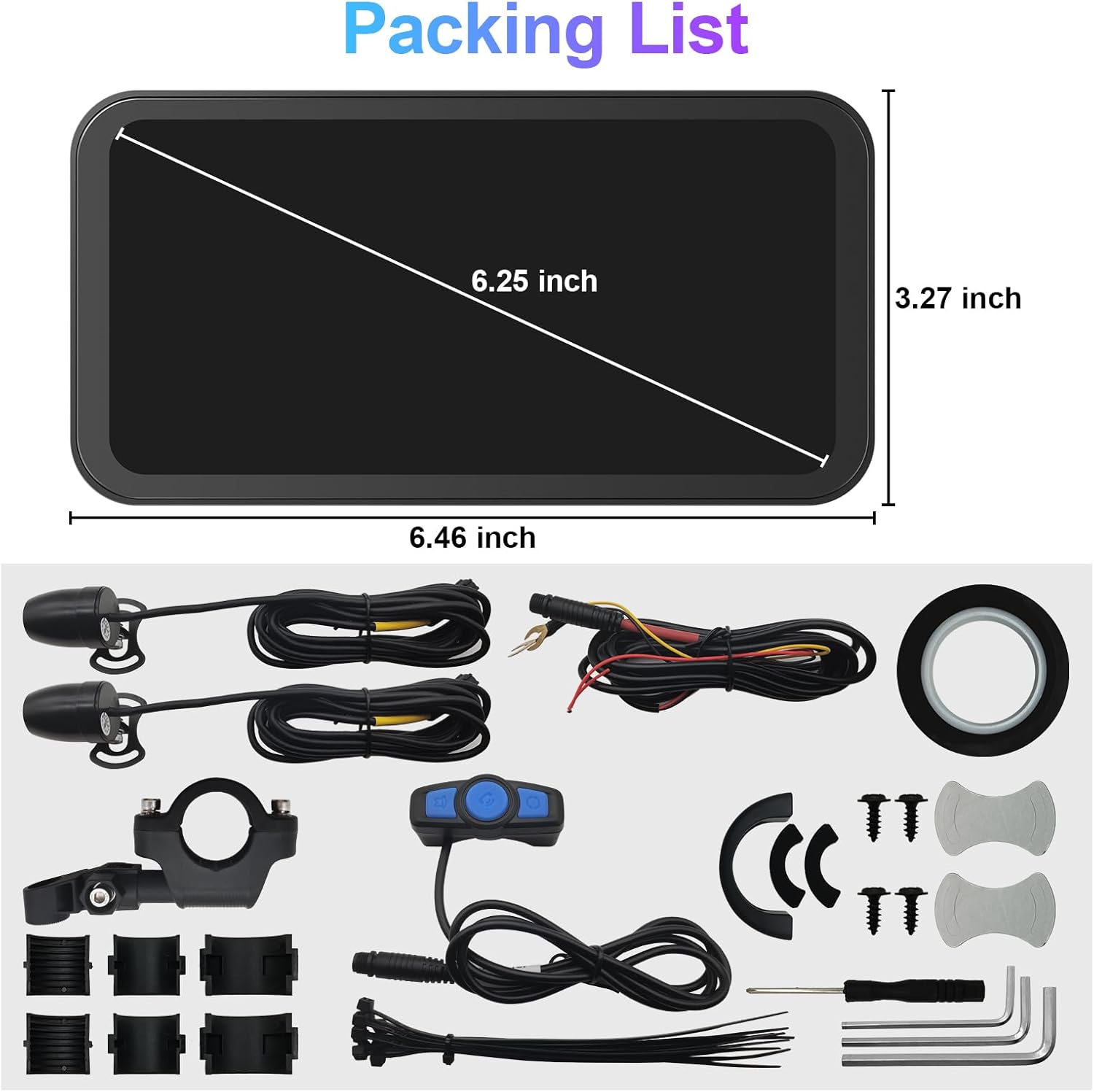
Figure 2: All components included in the package.
Setup
1. Component Connection
Connect the front and rear cameras, remote control, and power cable to the main unit. Ensure each connection is secure. The power cable requires connection to your motorcycle's ACC (Accessory) +12V and Ground.
2. Bracket Installation
Assemble the mounting bracket using the provided screws and Allen keys. Attach the bracket securely to the back of the main display unit. The bracket allows for adjustment to suit various handlebar configurations.
3. Mounting the Display
Mount the assembled display unit onto your motorcycle's handlebar. Use the appropriate handlebar clamps and ensure the display is positioned for optimal visibility without obstructing your view or controls. Tighten all screws firmly but do not overtighten.
4. Camera Installation
Install the front and rear cameras in suitable locations on your motorcycle, ensuring a clear field of view. Route the camera cables securely to the main unit, avoiding moving parts or heat sources.
5. Remote Control Installation
Attach the remote control to your handlebar in an easily accessible position. This allows for safe operation of key functions while riding.
6. Wiring Connections
Connect the power cable: the red wire to an ACC +12V source (switched power), and the black wire to a reliable ground point on your motorcycle. Ensure these connections are robust and insulated.
7. Initial Power On
Once all connections are made, turn on your motorcycle's ignition. The device should power on automatically. Follow any on-screen prompts for initial setup.
Video 1: This video demonstrates the screen and bracket installation process for the Tenbaba 6.25 inch Motorcycle DVR. It shows how to connect the cameras and power, and how to assemble and attach the mounting bracket to the main unit.
Operating Instructions
1. Wireless CarPlay and Android Auto Connection
- Bluetooth Pairing: On the device, navigate to the Bluetooth settings. On your smartphone, enable Bluetooth and search for the device (e.g., MT02-XXX). Pair your phone with the device.
- Wi-Fi Connection: After Bluetooth pairing, the device will prompt you to connect via Wi-Fi for CarPlay or Android Auto functionality. Ensure your phone's Wi-Fi is enabled.
- Accessing Functions: Once connected, you can access map navigation, make phone calls, play music, and send text messages directly from the device's touchscreen or via voice commands.

Figure 3: Wireless CarPlay and Android Auto functionality.
2. Dash Cam Operation (Dual 1080P Cameras)
- Automatic Recording: The dash cam automatically begins recording when the device powers on.
- Loop Recording: Footage is recorded in a loop, overwriting the oldest files when the 128GB TF card is full.
- Playback: Access recorded videos through the 'Playback' option on the main interface.
- Resolution: The cameras record in 1080P resolution. Settings for recording can be adjusted in the device menu.

Figure 4: Dual 1080P Dash Camera features.
3. Screen Brightness Adjustment
The device features an automatic light-sensing chip that adjusts screen brightness for optimal visibility. You can also manually adjust brightness through the device settings.
4. Remote Control Functions
The remote control provides convenient access to essential functions:
- Cycle Button: Used to cycle through different modes or answer phone calls.
- Camera Button: Activates camera functions or hangs up phone calls.
- Main Interface Button: Returns to the main menu or switches between applications.

Figure 5: Remote Control functions.
5. Bluetooth Helmet Connection
To connect your Bluetooth helmet or earphone:
- Search and pair with the device (e.g., MT02-XXX) on your phone. Both Wireless CarPlay and Android Auto connections work via Wi-Fi.
- Check and open the phone audio. Go to System settings >>> Phone Audio >>> ON.
- Go to "Bluetooth Emit" for searching and connecting your Bluetooth helmet.

Figure 6: Bluetooth connectivity for audio.
6. Siri / Google Assistant
Utilize voice commands for hands-free operation. Simply activate Siri or Google Assistant on your connected smartphone to control navigation, music, calls, and more.
Maintenance
1. Waterproofing and Temperature Resistance
The device is rated IP67 waterproof, ensuring durability in various weather conditions, including rain and sun. It operates flawlessly in temperatures ranging from -20°C to 70°C (-4°F to 158°F).

Figure 7: IP67 Waterproof and Temperature Resistance.
2. Cleaning
- Screen: Use a soft, lint-free cloth to gently wipe the touchscreen. Avoid abrasive cleaners or solvents.
- Cameras: Keep camera lenses clean for clear footage. Use a soft cloth, possibly dampened with lens cleaner, to remove dirt or smudges.
3. TF Card Management
The included 128GB TF card stores dash cam footage. Regularly back up important recordings and format the card periodically to maintain optimal performance and prevent data corruption.
Troubleshooting
- Device Not Powering On: Check all power connections (ACC +12V and Ground) to ensure they are secure and receiving power. Verify the motorcycle's ignition is on.
- Wireless CarPlay/Android Auto Not Connecting: Ensure Bluetooth is enabled on both the device and your smartphone. Confirm Wi-Fi is active on your phone. Try restarting both the device and your phone, then attempt to re-pair. Verify your phone supports wireless CarPlay or Android Auto.
- Dash Cam Not Recording or Footage is Corrupted: Check if the 128GB TF card is properly inserted. Try formatting the TF card through the device settings. If issues persist, try a different compatible TF card.
- Screen Visibility Issues: The device has an automatic brightness adjustment. If the screen is too dim or bright, check the brightness settings in the device menu for manual adjustment.
- Remote Control Not Responding: Ensure the remote control is properly connected to the main unit. Check for any physical obstructions or damage.
Specifications
| Feature | Specification |
|---|---|
| Model Name | TBB-Carplay-6.25 |
| Display Size | 6.25 Inches |
| Item Weight | 12.8 ounces |
| Product Dimensions | 0.78 x 6.48 x 2.82 inches |
| Dash Cam Resolution | Dual 1080P Cameras |
| Storage | 128GB TF Card Included |
| Waterproof Rating | IP67 |
| Operating Temperature | -20°C to 70°C (-4°F to 158°F) |
| Connectivity Technology | Bluetooth, Wi-Fi |
| Special Features | Android Auto, Apple CarPlay, Built-In Bluetooth, Built-In Wi-Fi, Screen Mirroring |
| Voice Command | Buttons, Touchscreen |
| Vehicle Service Type | Motorcycle |
Warranty
This Tenbaba product comes with a 1-Year Warranty from the date of purchase. This warranty covers manufacturing defects and malfunctions under normal use. Please retain your proof of purchase for warranty claims.
Support
For technical assistance, troubleshooting not covered in this manual, or warranty inquiries, please contact Tenbaba customer support through the retailer's platform or the official Tenbaba website. Provide your product model number (TBB-Carplay-6.25) and a detailed description of the issue for efficient support.