
1. Introduction
This manual provides detailed instructions for the installation, operation, and maintenance of your Uckazy 10.25-inch Touch Display Screen Car Stereo. This unit is designed to upgrade the original display screen in Mercedes Benz B-Class W246 and W245 models from 2011-2014, specifically those equipped with the NTG 4.5/4.7 system.
Important Compatibility Note: This device is compatible only with original radios featuring the NTG 4.5/4.7 system. It is not compatible with NTG 4.0 or NTG 5.0/5.1 systems. Please verify your vehicle's system before installation.

Figure 1.1: Compatible Models and NTG System Identification. This image illustrates how to identify compatible NTG 4.5/4.7 systems by checking the original radio's LVDS plug (4-pin) and button layout, distinguishing them from incompatible NTG 4.0 and NTG 5.0/5.1 systems.
2. Package Contents
Please check the package for the following items:
- 10.25-inch Display Screen
- Plug and Play Power Cable
- Bracket Frame
- USB/AUX Cable
- Installation Tools (including a touch pen)

Figure 2.1: Package Contents. This image displays all components included in the product package, such as the main display, frame, various cables, and tools.
3. Product Features
The Uckazy 10.25-inch Touch Display Screen offers a range of advanced features to enhance your driving experience:
- High-Definition Display: Features a 10.25-inch 1920x720 high-definition LED display with a multi-point capacitive touch screen and a wide 178-degree viewing angle.
- Dual System Integration: Seamlessly switch between the Linux system and your original car system with a single click. Retains all original car functions including radio, amplifier, steering wheel controls, iDrive knob, and original reverse camera.
- Wireless Connectivity: Supports wireless and wired Apple CarPlay, wireless and wired Android Auto, wireless MirrorLink for iOS and Android phones, Bluetooth, and Wi-Fi.
- Voice Control: Access navigation, phone contacts, email, notifications, and music using voice commands via Siri or Google Voice Assistant.
- Built-in DSP: Equipped with a Digital Sound Processor (DSP) featuring 16 EQ segments for detailed audio tuning and enhanced sound quality.
- Automatic Day/Night Mode: Adjusts screen brightness and display mode automatically based on your car's original headlights for optimal visibility.

Figure 3.1: Overview of Product Features. This image highlights the key functionalities and interfaces available on the Uckazy display.

Figure 3.2: Wireless CarPlay and Android Auto Support. This image demonstrates the wireless connectivity options for both Apple CarPlay and Android Auto, allowing access to various applications.

Figure 3.3: Voice Control Functionality. This image shows how to use voice commands like 'Hey Siri' and 'OK Google' for hands-free operation, including navigation and communication.

Figure 3.4: Day and Night Mode. This image illustrates the automatic adjustment of the display's light sensitivity according to the car's original headlights for optimal viewing.
4. Installation Guide
The Uckazy 10.25-inch Touch Display Screen is designed for plug-and-play installation. However, professional installation is recommended. Ensure the vehicle's power is off before beginning installation.
4.1 Fiber Optic Cable Transfer
If your original car system uses fiber optic cables, you will need to transfer them to the new power cable. This process ensures audio functionality.
Video 4.1: How to Transfer Fiber Optic Cables. This video demonstrates the correct procedure for transferring fiber optic cables from the original wiring harness to the new power cable, which is crucial for maintaining audio output.

Figure 4.1: Fiber Optic Cable Connection Diagram. This diagram illustrates the path and connection points for the fiber optic cables within the system.
4.2 Power Cable Connection
Connect the provided power cable to the original car's power cable. Ensure all connections are secure and correctly aligned.

Figure 4.2: ISO Harness Connection Diagram. This diagram shows how the ISO harness connects the new display unit to the original car's CD unit and power supply.
4.3 USB Connection for Wired CarPlay/Android Auto
For wired Apple CarPlay or Android Auto functionality, use the designated USB IN 1 port.

Figure 4.3: USB IN 1 for Wired Connectivity. This image highlights the specific USB port required for wired CarPlay and Android Auto connections.
4.4 Post-Installation Comparison

Figure 4.4: Before and After Installation. This image provides a visual comparison of the car's interior before and after the installation of the Uckazy 10.25-inch display, showcasing the enhanced screen size and interface.
5. Setup
5.1 Initial Power On and System Switch
Upon first power-on, the device will typically boot into the Linux system. You can switch between the Linux system and the original car system by pressing a designated button (refer to your vehicle's specific controls or the device's on-screen prompts).

Figure 5.1: System Switching. This image illustrates the transition from the original car system interface to the new Linux system interface.
5.2 Camera Settings
Access the setup menu to configure your original or aftermarket reverse camera settings.

Figure 5.2: Camera Settings Menu. This screenshot displays the options available for configuring both original and aftermarket cameras.
5.3 Screen Resolution Adjustment
Adjust the screen resolution in the settings menu to match your preference or the optimal display for your content.

Figure 5.3: Screen Resolution Settings. This screenshot shows the available resolution options within the setup menu.
5.4 Audio Output Settings
Configure audio output settings, including options for Harman Head Unit or Alpine Head Unit, and automatic AUX switching.

Figure 5.4: Audio Output Settings. This screenshot displays the audio configuration options, including specific head unit types and AUX switching.
6. Operating Instructions
6.1 Apple CarPlay and Android Auto
Connect your smartphone wirelessly or via USB to access Apple CarPlay or Android Auto. This allows you to use navigation, make calls, send messages, and play music directly from your phone's interface on the car stereo screen.

Figure 6.1: Apple CarPlay Interface. This image shows the familiar Apple CarPlay layout on the 10.25-inch display.

Figure 6.2: Android Auto Interface. This image displays the Android Auto interface on the 10.25-inch screen.
6.2 MirrorLink
Use MirrorLink to display your iOS or Android phone screen directly onto the car stereo. This feature allows you to mirror content such as videos or apps.

Figure 6.3: MirrorLink Functionality. This image demonstrates how a smartphone's screen content can be mirrored onto the car stereo display.
6.3 Digital Sound Processor (DSP)
The built-in DSP allows for precise audio customization. Access the EQ settings to adjust 16 segments, creating a personalized sound profile. You can also adjust speaker positioning (front, rear, left, right) to optimize the sound stage.

Figure 6.4: DSP Equalizer Settings. This screenshot shows the graphical interface for adjusting the 16-segment equalizer to fine-tune audio output.
6.4 Bluetooth Connectivity
Pair your phone via Bluetooth for hands-free calling and audio streaming. Access your phone contacts and make calls directly from the display.

Figure 6.5: Bluetooth Calling. This image illustrates the Bluetooth calling interface, allowing users to make and receive calls directly from the car stereo.
6.5 Retained Original Car Functions
The Uckazy display integrates seamlessly with your car's existing systems, retaining essential original functions:
- Steering Wheel Control: Continue to use your original steering wheel buttons for audio control and other functions.
- iDrive Control: The original iDrive knob remains fully functional for navigating the system.
- Original Reverse Camera: If your car has an original reverse camera, it will be supported and displayed on the new screen.
- Original CD Player: The functionality of your original CD player is retained.
- Original Car Stereo Sound: Audio output continues through your car's original sound system.
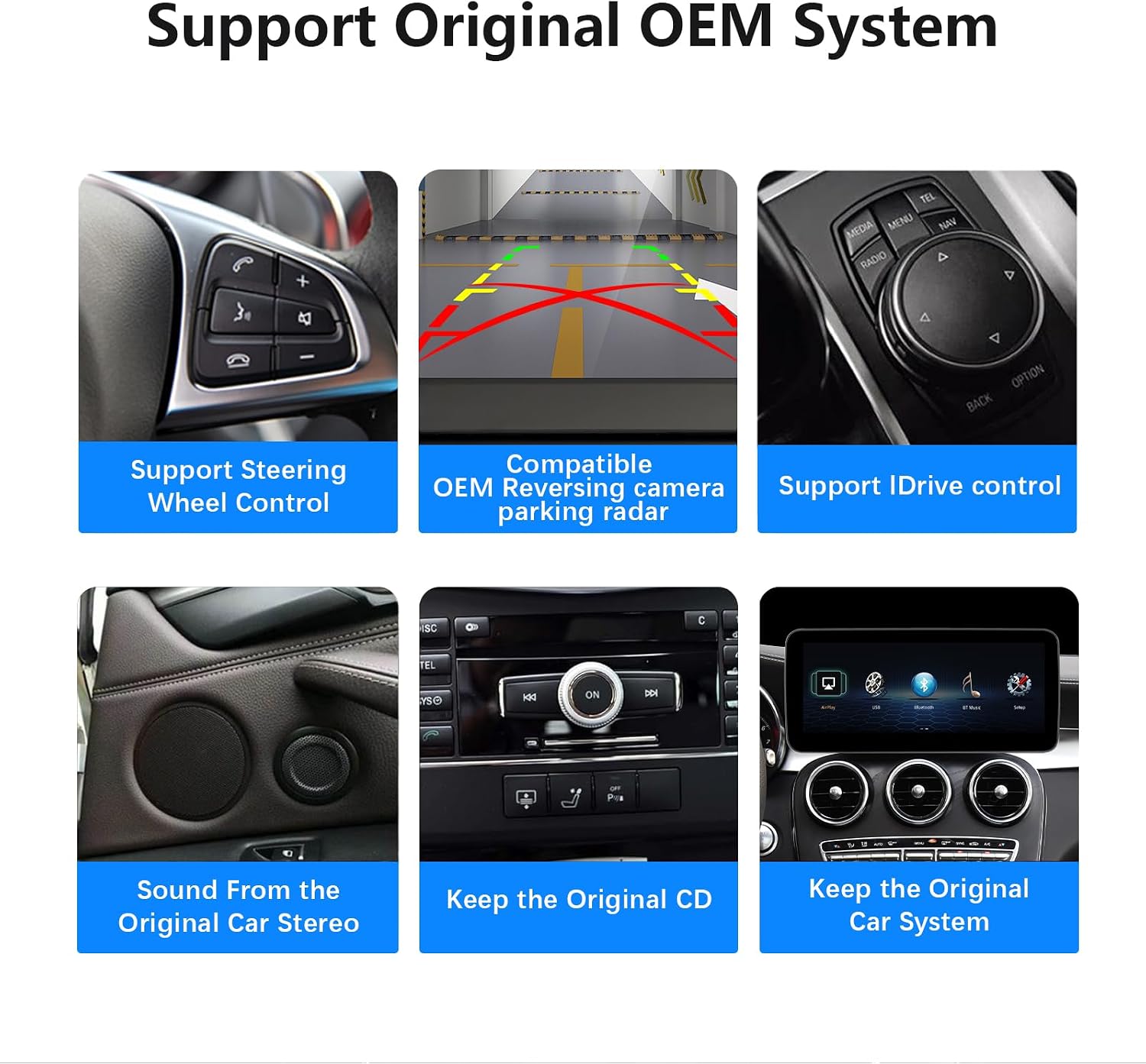
Figure 6.6: Original OEM System Support. This image collage demonstrates the continued functionality of various original car features after the display upgrade.
7. Maintenance
To ensure the longevity and optimal performance of your Uckazy car stereo, follow these maintenance guidelines:
- Screen Cleaning: Use a soft, lint-free cloth to gently wipe the screen. For stubborn smudges, slightly dampen the cloth with water or a screen-safe cleaner. Avoid harsh chemicals or abrasive materials.
- Software Updates: Periodically check for software updates from Uckazy to ensure you have the latest features and bug fixes. Follow the instructions provided with the update package carefully.
- Avoid Extreme Temperatures: Do not expose the device to extreme heat or cold for extended periods, as this can affect its performance and lifespan.
- Cable Management: Ensure all cables are properly secured and not pinched or strained, which can lead to damage or intermittent connections.
8. Troubleshooting
If you encounter issues with your Uckazy car stereo, refer to the following common problems and solutions:
- No Sound:
- Verify that the fiber optic cables are correctly transferred and connected (refer to Section 4.1).
- Check the audio output settings in the device's menu (refer to Section 5.4) to ensure the correct head unit or AUX input is selected.
- Ensure the volume is not muted or set too low on both the car stereo and your connected phone.
- Screen Not Turning On:
- Check all power cable connections to ensure they are secure.
- Verify that the car's ignition is on.
- If the screen remains black, contact customer support.
- CarPlay/Android Auto Not Connecting:
- For wired connections, ensure you are using the USB IN 1 port (refer to Section 4.3).
- For wireless connections, ensure Bluetooth and Wi-Fi are enabled on your phone and the car stereo.
- Restart both your phone and the car stereo.
- Ensure your phone's operating system is up to date.
- Original Car Functions Not Working:
- Double-check all wiring connections, especially those related to the original car harness.
- Ensure the device is correctly configured to integrate with your specific NTG system.
If these steps do not resolve the issue, please contact Uckazy customer support for further assistance.
9. Specifications
| Feature | Specification |
|---|---|
| Screen Size | 10.25 Inches |
| Display Type | LED |
| Resolution | 1920 x 720 |
| Connectivity Technology | Bluetooth, USB, Wi-Fi (for Wireless CarPlay/Android Auto) |
| Operating System | Linux System (Dual System with Original Car System) |
| Special Features | Wireless CarPlay, Wireless Android Auto, MirrorLink, Built-in DSP (16 EQ segments), Voice Control, Retains OEM functions |
| Color | Black |
| Item Weight | 4.2 pounds |
| Package Dimensions | 14.99 x 7.08 x 7.08 inches |
10. Warranty and Support
Uckazy products are designed for quality and reliability. For warranty information, please refer to the documentation included with your purchase or visit the official Uckazy website. If you require technical support or have questions not covered in this manual, please contact Uckazy customer service through the retailer where you purchased the product or via the contact information provided on the Uckazy brand store page on Amazon.
Uckazy Brand Store: Visit Uckazy Store on Amazon