
1. Introduction
This manual provides detailed instructions for the installation, operation, and maintenance of your Uckazy 10.25-inch Car Stereo. This unit is designed to upgrade the original display screen of Mercedes Benz GLK-Class X204 models from 2013-2015 with NTG 4.5/4.7 systems, integrating modern features such as Apple Carplay and Android Auto while retaining original vehicle functionalities.

Image: The Uckazy 10.25-inch car stereo unit, showcasing the Apple CarPlay interface with various app icons.
2. Compatibility
This car stereo is specifically designed for Mercedes Benz GLK-Class X204 vehicles manufactured between 2013 and 2015, equipped with the NTG 4.5/4.7 system. It is crucial to verify your vehicle's NTG system version before installation. The NTG 4.5 system is identified by a 4-pin LVDS plug for the display.
Important Note: This device is not compatible with original radios featuring NTG 4.0, NTG 5.0, or NTG 5.1 systems. Please consult the image below to confirm your vehicle's system type.
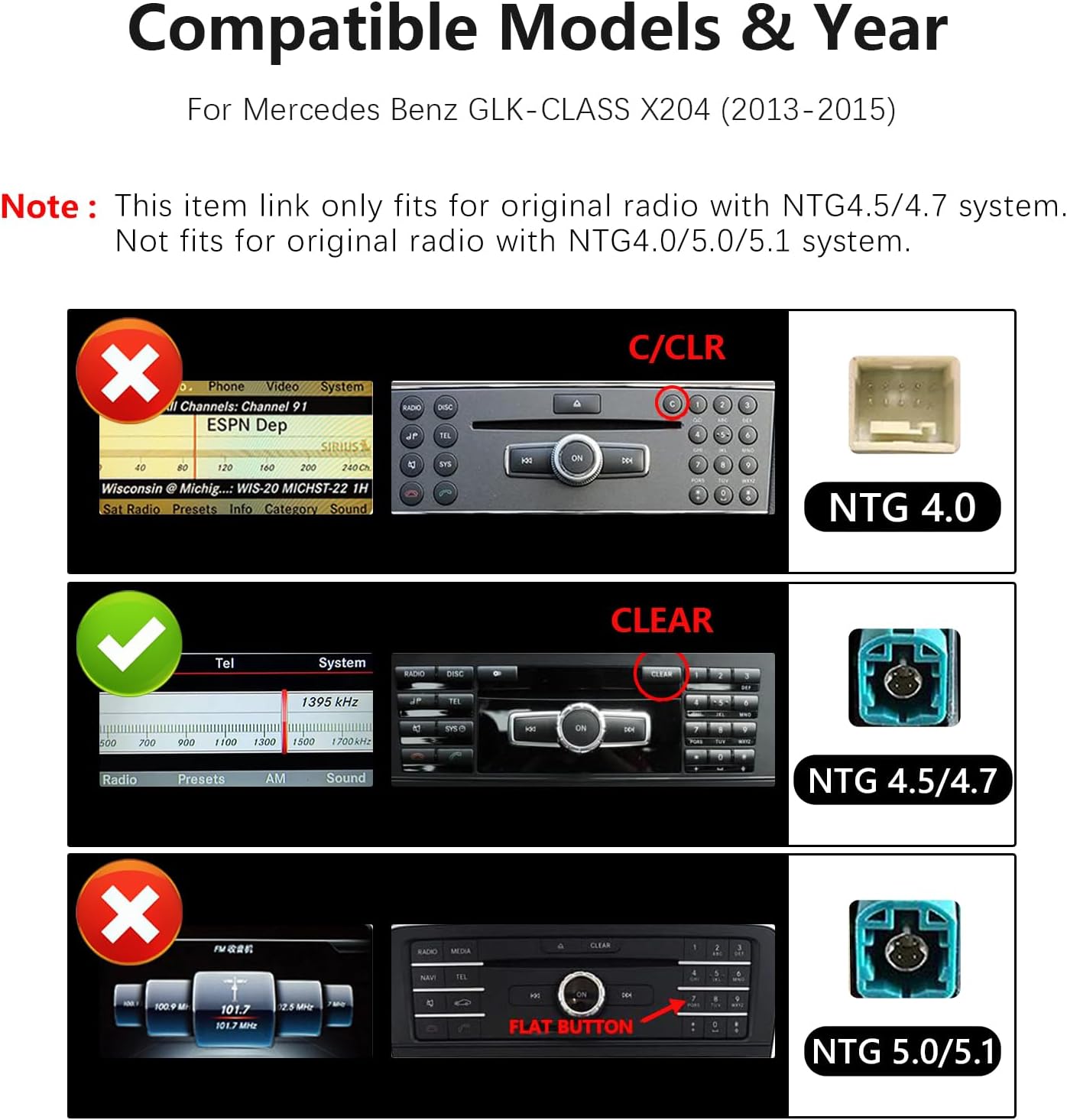
Image: A visual guide illustrating the differences between NTG 4.0, NTG 4.5/4.7, and NTG 5.0/5.1 systems, highlighting the correct LVDS plug for compatibility.
3. Product Features
- High-Definition Display: Features a 10.25-inch 1920x720 LED display with a multi-point capacitive touch screen, offering a wide 178-degree viewing angle and approximately 1.368 million pixels for a clear visual experience.
- Wireless Carplay & Android Auto: Supports both wireless and wired Apple Carplay and Android Auto, allowing access to navigation, phone contacts, email, notifications, and music via voice commands (Siri or Google Voice Assistant).
- Dual System Integration: Seamlessly switch between the new Linux system and the original car system with a single click. This upgrade retains all original functions, including the car radio, amplifier, steering wheel controls, original mouse knob, display of vehicle data (speed, fuel level, oil pressure, safety warnings), and original reverse camera. No software changes are made to the vehicle's control unit.
- Built-in DSP: Equipped with a Digital Sound Processor (DSP) featuring 16 EQ segments and various preset tuning methods. This allows for detailed adjustment of the system's overall sound quality, enhancing music playback and speaker positioning to suit personal preferences.
- Wireless Mirrorlink: Supports wireless mirrorlink functionality for both iOS and Android smartphones.
- Bluetooth & Wi-Fi: Integrated Bluetooth for hands-free calling and audio streaming, along with Wi-Fi connectivity for online features.

Image: The car stereo displaying both Wireless Carplay and Wireless Android Auto interfaces, along with icons for OEM Car Info, Carplay, Android Auto, HiCar, and Autolink.

Image: Demonstrates voice control functionality with Siri/Google Assistant, third-party map navigation, and mobile music playback on the stereo.

Image: Illustrates the retention of original OEM features such as steering wheel control, compatible OEM reversing camera, iDrive control, original car stereo sound, original CD player, and the original car system.

Image: Shows the automatic light sensitivity adjustment for day and night modes, adapting to the car's original headlights.
4. What's in the Box
Upon opening the package, please ensure all the following components are present and in good condition:
- 10.25-inch Display Screen
- Plug and Play Power Cable
- Bracket Frame (for Benz GLK-CLASS)
- USB/AUX Cable
- Installation Tools

Image: A visual representation of the package contents, including the 10.25-inch display, Benz GLK-CLASS frame, AUX cable, power/USB cable, and installation tools.
5. Setup and Installation
The Uckazy 10.25" Car Stereo is designed for plug-and-play installation for compatible Mercedes Benz GLK-Class X204 models. While the process is simplified, professional installation is recommended to ensure correct wiring and functionality. Always disconnect the vehicle's battery before beginning any electrical work.
5.1. Pre-Installation Check
- Confirm your vehicle is a Mercedes Benz GLK-Class X204 (2013-2015) with an NTG 4.5/4.7 system.
- Ensure all components listed in 'What's in the Box' are present.
- Gather necessary tools (installation tools are provided, but additional automotive tools may be required).
5.2. Wiring Connections
Follow the provided wiring diagrams carefully. Incorrect connections can lead to malfunction or damage.

Image: Diagram showing the connection of optical fiber cables for audio signal transfer.

Image: Diagram illustrating the connection of the ISO harness to the original CD unit and the new display.

Image: A simplified diagram showing general connections between components labeled A and B.

Image: Diagram indicating that wired Carplay and Android Auto must use the USB IN 1 port.
5.3. Post-Installation Check
- Reconnect the vehicle's battery.
- Turn on the ignition and verify that the new display powers on.
- Test all original car functions (radio, steering wheel controls, etc.) to ensure they are still operational.
- Test new functions such as Carplay, Android Auto, Bluetooth, and touch screen responsiveness.

Image: A side-by-side comparison showing the car's interior with the original small screen (before installation) and the upgraded 10.25-inch display (after installation).
6. Operating Instructions
6.1. Switching Between Systems
The unit allows for a one-click switch between the new Linux system and your original car's NTG system. Refer to the on-screen interface for the specific button or icon to perform this switch.

Image: A visual representation of the car stereo interface, showing the ability to switch between the original car system and the new Linux system.
6.2. Apple Carplay & Android Auto
- Wireless Connection: Enable Bluetooth and Wi-Fi on your smartphone. Follow the on-screen prompts on the car stereo to pair your device for wireless Carplay or Android Auto.
- Wired Connection: Connect your smartphone to the USB IN 1 port using a compatible USB cable. The system should automatically detect and launch Carplay or Android Auto.
- Voice Control: Activate Siri or Google Voice Assistant by pressing the designated voice command button on your steering wheel or the screen. Use voice commands for navigation, calls, messages, and music playback.

Image: A smartphone displaying the Apple CarPlay interface, mirroring to the car stereo screen.

Image: A smartphone displaying the Android Auto interface, mirroring to the car stereo screen.

Image: Depicts interaction with a voice assistant (Siri/Google) for navigation and other commands.
6.3. DSP Audio Settings
Access the DSP settings menu to customize your audio experience. You can adjust the 16-segment equalizer, select from various preset sound modes, and fine-tune speaker positioning (front, rear, left, right) to achieve your preferred sound quality.

Image: The car stereo screen displaying the DSP settings interface with a 16-band equalizer for audio customization.
6.4. Bluetooth Functions
Pair your phone via Bluetooth to enable hands-free calling and audio streaming. Access your phone contacts and dial directly from the stereo screen.

Image: The car stereo displaying a phone dialer interface and a smartphone making a call, indicating Bluetooth connectivity.
6.5. System Settings
Navigate to the 'Setup' menu to configure various system parameters, including camera settings, display resolution, and audio output options.

Image: Screenshot of the camera settings menu, allowing selection between original and aftermarket cameras.

Image: Screenshot of the resolution settings menu, showing various resolution options including 1920x720.

Image: Screenshot of the audio settings menu, including options for head unit type and auto-switch to AUX.
7. Maintenance
To ensure the longevity and optimal performance of your Uckazy car stereo, follow these maintenance guidelines:
- Cleaning: Use a soft, dry, anti-static cloth to clean the screen and unit. Avoid using harsh chemicals, abrasive cleaners, or solvents, as these can damage the display and finish.
- Temperature: Avoid exposing the unit to extreme temperatures, both hot and cold, for extended periods.
- Software Updates: Periodically check the manufacturer's website or contact support for any available software updates to improve performance and add new features.
- Power Management: Ensure the vehicle's electrical system is in good working order to prevent power fluctuations that could affect the stereo.
8. Troubleshooting
If you encounter issues with your Uckazy car stereo, please refer to the following common troubleshooting tips:
- No Power/Display: Check all power cable connections. Ensure the vehicle's ignition is on. Verify the fuse connected to the stereo.
- No Sound: Confirm that the volume is not muted or set to minimum. Check audio cable connections, especially the optical fiber and AUX connections. Ensure the correct audio source is selected.
- Carplay/Android Auto Not Connecting: For wireless connections, ensure Bluetooth and Wi-Fi are enabled on your phone and the stereo. For wired connections, ensure you are using the USB IN 1 port and a functional USB cable. Restart both your phone and the car stereo.
- Original Car Functions Not Working: Double-check all harness connections to the original car system. Ensure the dual system switch is functioning correctly.
- Screen Unresponsive: Perform a soft reset of the unit (refer to specific instructions if available, or disconnect/reconnect power). Ensure the screen is clean and free of debris.
- General Issues: Based on experience, many issues (approximately 85%) are due to incorrect wiring or settings. Please review the installation steps and settings configurations carefully.
If the problem persists after attempting these solutions, please contact Uckazy customer support for further assistance. When contacting support, provide a detailed description of the problem and any relevant pictures or videos.
9. Specifications
| Feature | Specification |
|---|---|
| Display Type | LED |
| Screen Size | 10.25 Inches |
| Resolution | 1920 x 720 |
| Operating System | Linux |
| Connectivity | Wireless/Wired Apple Carplay, Wireless/Wired Android Auto, Wireless Mirrorlink, Bluetooth, Wi-Fi |
| Audio Processing | Built-in DSP with 16 EQ segments |
| Color | Black |
| Item Weight | 4.2 pounds |
| Package Dimensions | 14.99 x 7.08 x 7.08 inches |
| Manufacturer | Uckazy |
| Model Number | Linux |

Image: A diagram illustrating the key product features and the physical dimensions of the 10.25-inch display unit.
10. Warranty and Support
Uckazy is committed to providing high-quality automotive electronic products. For any product-related inquiries or issues, please refer to the following:
- Product Support: If you encounter a problem with the product, please describe the issue clearly and provide clear pictures or videos if possible. This will help our support team provide guidance and resolve the problem efficiently.
- Compatibility Questions: For questions regarding compatibility with your specific vehicle, please carefully review the product details page or contact Amazon customer service for assistance.
Uckazy specializes in automotive electronic products, focusing on safety, performance, and convenience. Our goal is to provide solutions that enhance your driving experience.