
1. Introduction
The Xega 4G LTE Cellular Trail Camera XG-15 is designed for outdoor surveillance and wildlife monitoring in areas without Wi-Fi access. It features 2K video recording, solar power, color night vision, PIR motion detection, and two-way audio. This manual provides detailed instructions for setting up, operating, and maintaining your camera.
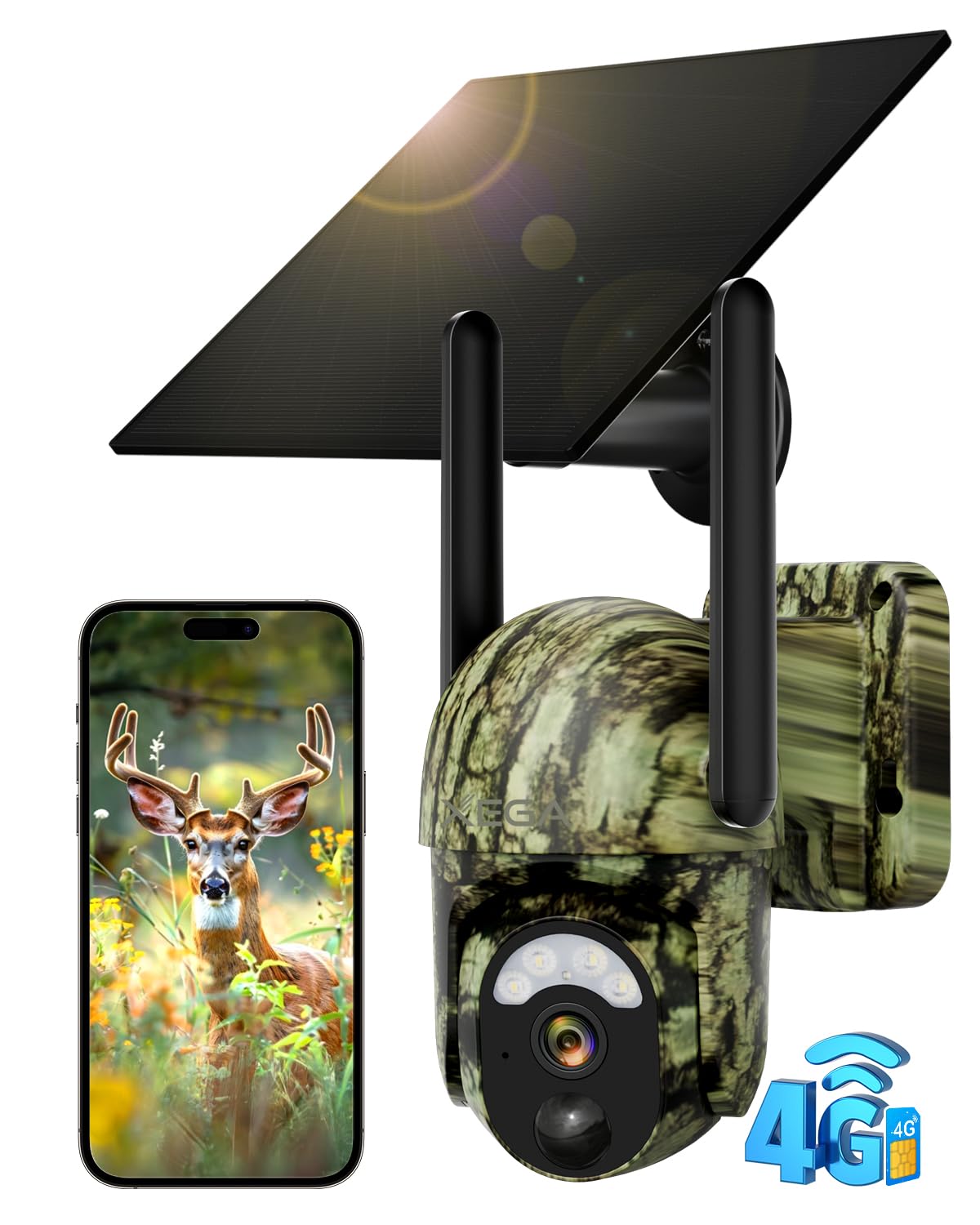
Image: Xega 4G LTE Cellular Trail Camera XG-15 with solar panel and antennas.
2. Package Contents
Verify that all items are present in your package:
- Xega 4G LTE Cellular Trail Camera XG-15
- Solar Panel (6W)
- Mounting Strap
- Mounting Bracket
- Mounting Screws
- Instruction Manual

Image: Contents of the Xega Trail Camera XG-15 package including camera, solar panel, strap, and manual.
3. Setup
3.1 SIM Card and Data Plan
The Xega XG-15 camera includes a built-in SIM card and does not support external SIM card slots. It operates on 4G LTE networks, making it suitable for locations without Wi-Fi. A 300MB trial data is included for initial testing (valid for 30 days). A monthly data plan is required for continuous 4G cellular coverage.

Image: Table showing unlimited cellular data plans for 30, 180, and 360 days with corresponding fees.
3.2 Charging
The camera is equipped with a 6W solar panel and a built-in 10400mAh battery for continuous power. Ensure the solar panel is positioned to receive adequate sunlight for optimal charging.
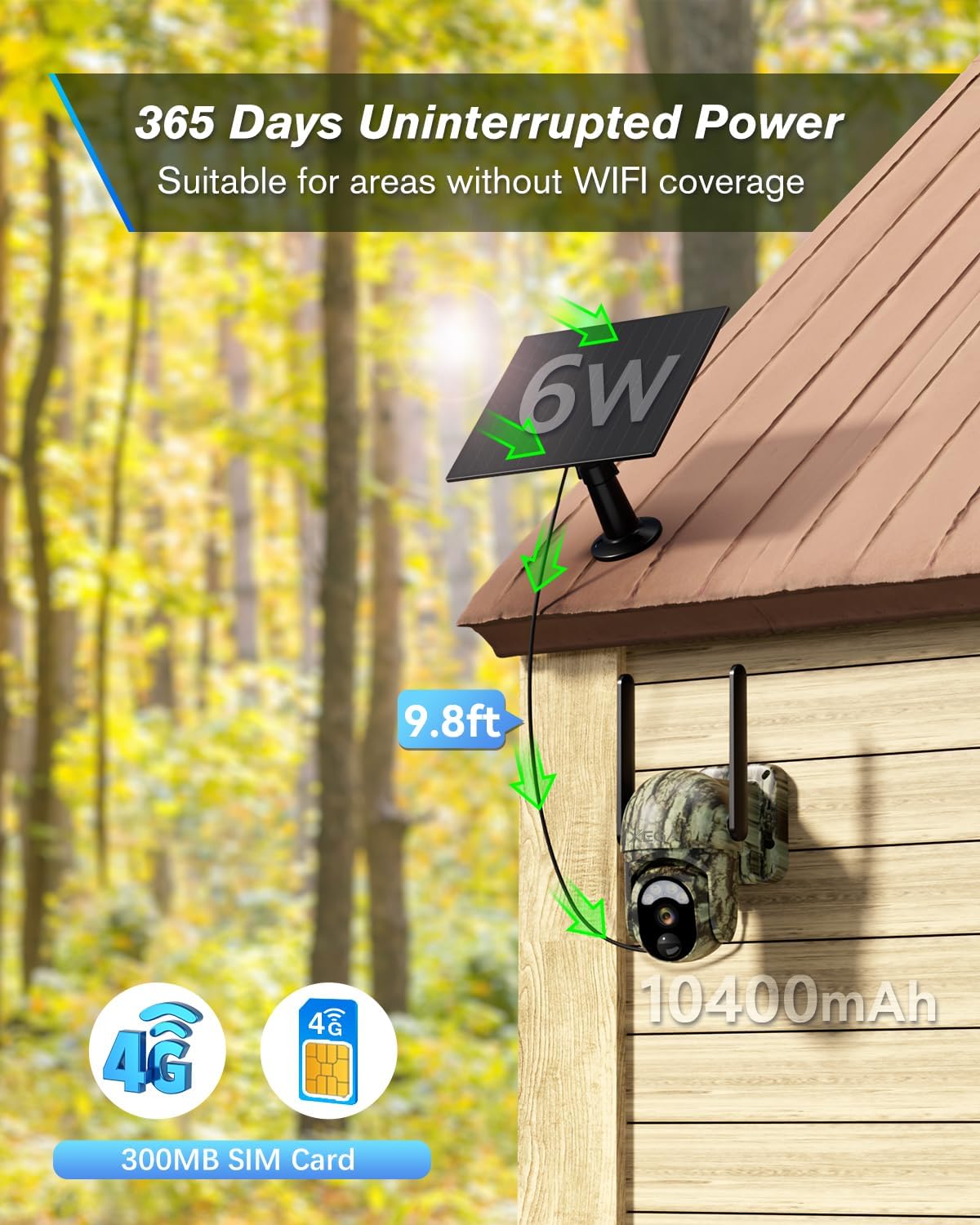
Image: Xega Trail Camera XG-15 mounted on a wall with its solar panel connected, illustrating continuous power.
3.3 App Installation and Connection
Download the UBOX app to your smartphone. Follow the in-app instructions to connect your camera. This typically involves scanning a QR code on the camera.

Image: Four-step guide showing how to download the UBOX app, insert the SIM card, scan a QR code, and view live footage.
3.4 Physical Installation
The camera can be mounted using the provided strap for trees or the bracket for walls/surfaces.
Video: This video demonstrates how to install the Xega XG-15 hunting camera using both a strap for tree mounting and a bracket for wall mounting, including connecting the solar panel.
Tree Mounting with Strap:
- Thread the mounting strap through the designated slots on the camera's base.
- Wrap the strap around the tree trunk at the desired height.
- Secure the strap tightly using the buckle mechanism.
Wall Mounting with Bracket:
- Attach the mounting bracket to a wall or sturdy surface using the provided screws.
- Align the camera with the bracket and secure it.
- Adjust the camera's angle as needed.
4. Operating Instructions
4.1 Live Streaming and Remote Access
Once connected via the UBOX app, you can access live video streams from your camera anytime, anywhere. You can also share the live view with family or friends.

Image: Illustration of multiple users accessing the camera's live view remotely from different locations.
4.2 Motion Detection and Alerts
The camera features PIR motion detection. When motion is detected, instant alerts will be sent to your phone via the UBOX app. Ensure app notification permissions are enabled on your device.

Image: Xega Trail Camera XG-15 detecting a deer at night with an instant alert notification on a smartphone.
4.3 Pan, Tilt, and Digital Zoom
Control the camera's viewing angle remotely through the app. It offers 350° horizontal pan, 90° vertical tilt, and 4X digital zoom to capture a wide field of view.
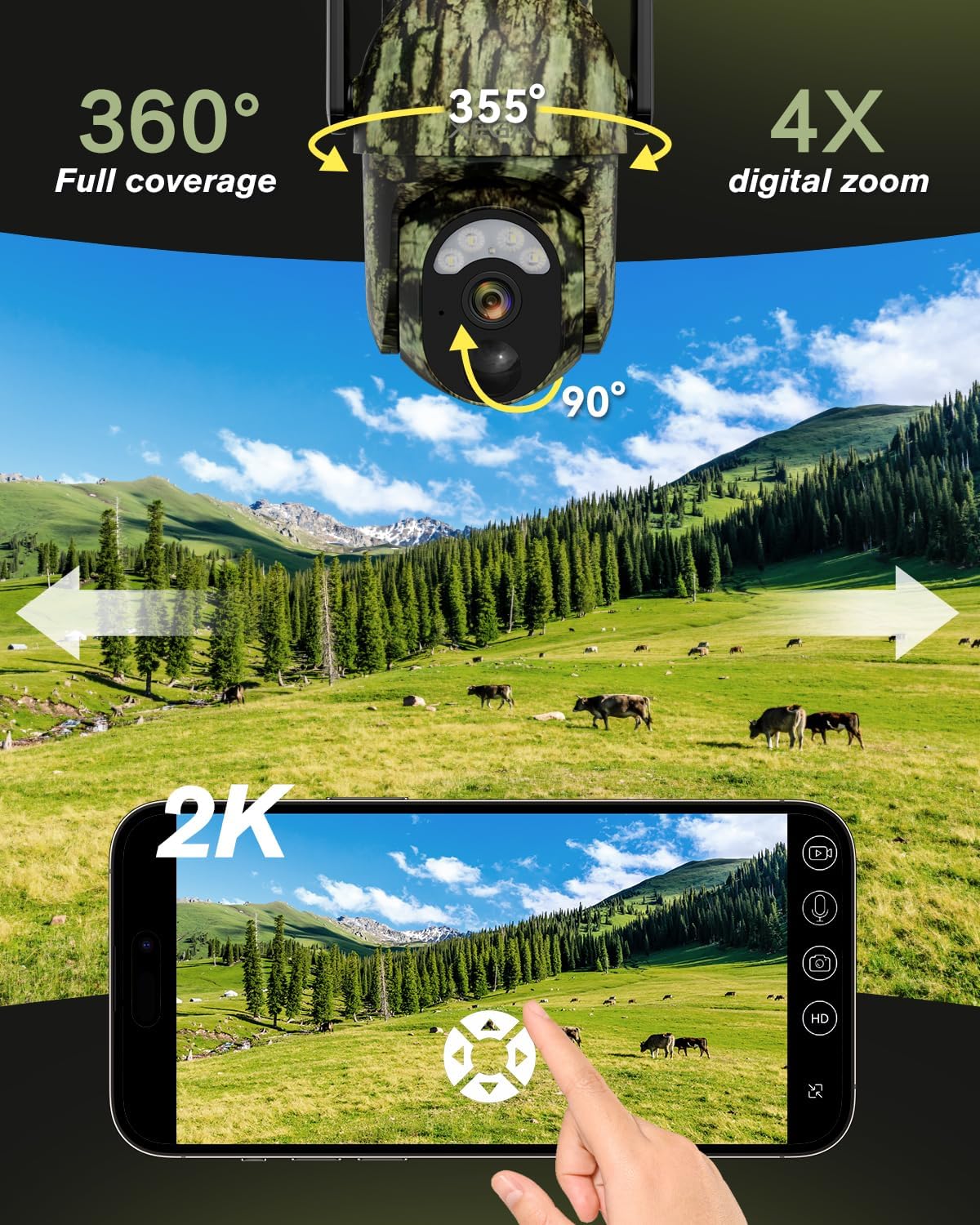
Image: Xega Trail Camera XG-15 demonstrating 360-degree coverage and 4X digital zoom, with a smartphone showing remote control options.
4.4 Night Vision Modes
The camera supports two HD night vision modes: color spotlight mode and infrared (IR) night vision. This allows for clear 2K footage up to 65ft in low-light conditions, either in full color or black and white.
Video: This video showcases the 2K night vision capabilities of the Xega Trail Camera, demonstrating clear footage of wildlife in low-light conditions.

Image: Comparison of color night vision and infrared night vision modes, showing an owl in both settings.
4.5 Two-Way Audio
Utilize the two-way audio feature to communicate through the camera, allowing you to listen and speak remotely via the app.

Image: Illustration of two-way audio feature, showing a person speaking into a phone and a person near the camera hearing the message.
4.6 Storage Options
The camera supports local storage via a TF card (up to 128GB, not included). Optional military-level cloud storage is also available, with a 30-day trial period. The camera automatically records and overwrites old videos.

Image: Image showing cloud storage and TF card options for video storage.
5. Maintenance
5.1 Weather Resistance
The camera has an IP66 waterproof rating, ensuring reliable operation in various weather conditions, including rain and snow.

Image: Xega Trail Camera XG-15 mounted on a tree in a rainy forest, demonstrating its IP66 waterproof capability.
5.2 Cleaning and Care
Regularly clean the camera lens and solar panel to ensure optimal performance. Use a soft, damp cloth. Avoid harsh chemicals.
6. Troubleshooting
- No Connectivity / Freezing / Delays: Ensure the camera is in an area with strong 4G LTE coverage. Check your data plan status. Poor signal can lead to connectivity issues and delays.
- Data Plan Expiration: If your service has expired, renew your monthly data plan for continued cellular coverage. The included 300MB trial data is valid for 30 days.
- Night Vision Glare: Ensure there are no reflective surfaces or obstructions directly in front of the camera's night vision sensors that could cause glare. Adjust the camera's position if necessary.
- Camera Only Records Videos, Not Pictures: Check the camera settings within the UBOX app. Ensure that the desired recording mode (photo, video, or both) is selected.
- No Wi-Fi Support: This camera is designed for 4G LTE cellular connectivity only and does not support Wi-Fi connections.
7. Specifications
| Feature | Specification |
|---|---|
| Model Name | XG-15 |
| Connectivity Technology | 4G LTE Cellular (Built-in SIM) |
| Video Capture Resolution | 2K (1440p) |
| Night Vision | Color Night Vision, IR Night Vision |
| Night Vision Range | Up to 25 Meters (65ft) |
| Optical Zoom | 4x Digital Zoom |
| Special Features | HD Resolution, Motion Sensor, PTZ Technology, Weather Proof, 2-Way Audio |
| Indoor/Outdoor Usage | Outdoor |
| Waterproof Rating | IP66 |
| Power Source | Solar Powered (6W Solar Panel), Built-in 10400mAh Battery |
| Storage | TF Card (up to 128GB, not included), Cloud Storage (optional) |
| Item Dimensions | 7.48 x 5.12 x 6.3 inches |
8. Warranty and Support
For warranty information and technical support, please refer to the manufacturer's official website or contact their customer service. You can find more information at www.xegatech.com.

Image: 24/7 Online Customer Support.

