
1. Introduction
Thank you for purchasing the ZDK GC06-B06 5G WiFi Full HD 1080P Projector. This manual provides essential information for the safe and efficient operation of your projector. Please read it thoroughly before use and retain it for future reference.
2. Safety Information
WARNING: To prevent fire or electric shock, do not expose this appliance to rain or moisture.
- Do not open the projector casing. Refer all servicing to qualified personnel.
- Ensure proper ventilation. Do not block any ventilation openings.
- Avoid direct eye exposure to the projector lens when the lamp is on.
- Place the projector on a stable, level surface.
- Use only the power adapter supplied with the projector.
- Unplug the projector during lightning storms or when unused for long periods.
3. Package Contents
Please check that all items are present in your package:
- ZDK GC06-B06 Projector
- Power Cable
- HDMI Cable
- Remote Control (batteries not included)
- User Manual
- Lens Cap
4. Product Overview
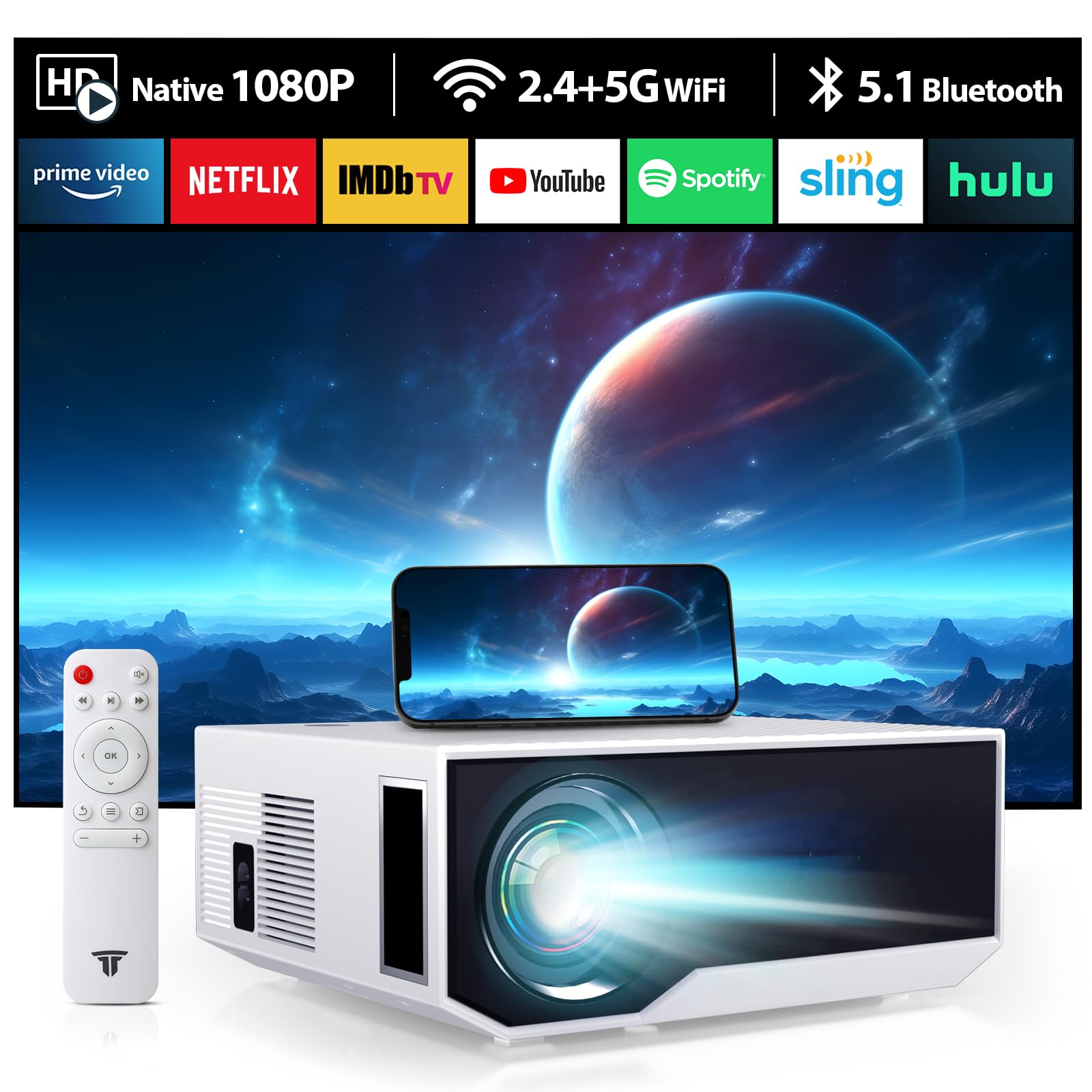
Image 1: Front view of the ZDK GC06-B06 Projector, showing the lens and ventilation.
Projector Parts:
- Lens: Projects the image onto the screen.
- Focus Ring: Adjusts image clarity.
- Keystone Correction: Adjusts image shape.
- Control Panel: Buttons for basic operation.
- Input Ports: HDMI, USB, Audio Out.
- Power Port: Connects to the power cable.
5. Setup
5.1 Placement
Place the projector on a flat, stable surface or mount it to a ceiling. Ensure the projector is perpendicular to the projection screen for optimal image quality. The ideal projection distance varies, typically between 1.5 to 5 meters.
5.2 Power Connection
- Connect the power cable to the projector's power port.
- Plug the other end of the power cable into a power outlet.
- The power indicator light will illuminate.
5.3 Connecting Devices
The projector supports various input sources:
- HDMI: Connect a TV stick, game console (PS5, XBOX), laptop, or Blu-ray player using an HDMI cable.
- USB: Insert a USB flash drive to play media files directly.
- Audio Out: Connect external speakers or headphones (3.5mm jack).
5.4 Focus and Keystone Adjustment
- Turn on the projector.
- Adjust the Focus Ring on the lens until the image is clear and sharp.
- If the image appears trapezoidal, use the Keystone Correction dial or digital keystone function in the menu to adjust the image to a rectangular shape.
6. Operating
6.1 Powering On/Off
- Power On: Press the power button on the projector or remote control.
- Power Off: Press the power button again. The projector will enter standby mode.
6.2 Menu Navigation
Use the navigation buttons on the projector or remote control to browse the on-screen menu. Press 'OK' or 'Enter' to confirm selections and 'Back' or 'Exit' to return to the previous menu.
6.3 Input Source Selection
Press the 'Source' button on the remote control or projector to select the desired input (e.g., HDMI1, HDMI2, USB, Screen Mirroring).
6.4 WiFi Connection
- Go to the 'Settings' menu and select 'Network' or 'WiFi'.
- Enable WiFi and select your desired network from the list.
- Enter the WiFi password using the on-screen keyboard.
- Confirm to connect.
6.5 Screen Mirroring (Smartphone/Tablet)
The projector supports wireless screen mirroring for compatible smartphones and tablets (Android/iOS). Refer to your device's manual for specific mirroring instructions (e.g., Miracast, AirPlay).
- Select 'Screen Mirroring' as the input source on the projector.
- On your smartphone/tablet, enable screen mirroring/casting and select the projector from the available devices.
6.6 Audio Settings
Adjust volume levels using the remote control. You can also select audio output options (internal speaker, external speakers via 3.5mm jack) in the 'Sound' settings menu.
7. Maintenance
7.1 Cleaning the Lens
Use a soft, lint-free cloth or lens cleaning paper to gently wipe the lens. Do not use abrasive cleaners or excessive force, as this may scratch the lens.
7.2 Cleaning the Air Filter (if applicable)
Some projectors have an air filter that needs regular cleaning. If your model has one, locate it and gently remove any dust buildup using a soft brush or vacuum cleaner. Refer to the product diagram for filter location.
7.3 Storage
When not in use, store the projector in a cool, dry place, away from direct sunlight and extreme temperatures. Use the lens cap to protect the lens from dust and scratches.
8. Troubleshooting
| Problem | Possible Cause | Solution |
|---|---|---|
| No image displayed | Power not connected; Incorrect input source; Device not connected properly | Check power cable; Select correct input source; Reconnect device cables |
| Image is blurry | Focus not adjusted; Projector too close/far from screen | Adjust focus ring; Adjust projection distance |
| Image is trapezoidal | Keystone not adjusted | Adjust keystone correction dial/setting |
| No sound | Volume too low; Muted; Incorrect audio output; Source device audio issue | Increase volume; Unmute; Check audio output settings; Check source device audio |
| Remote control not working | Batteries low/dead; Obstruction; Remote not pointed at IR receiver | Replace batteries; Remove obstructions; Point remote directly at projector |
9. Specifications
- Brand: ZDK
- Model: GC06-B06
- Connectivity: 5G WiFi
- Resolution: Full HD 1080P
- Brightness: 16000 Lumens (manufacturer's rating)
- Compatible Devices: Smartphone, TV Stick, TV Box, PS5, XBOX
- Mounting Type: Table Mount
- UPC: 085353592952
- ASIN: B0DBHMVCJM
10. Warranty and Support
This product comes with a standard manufacturer's warranty. Please refer to the warranty card included in your package for specific terms and conditions. For technical support or customer service inquiries, please contact your retailer or the manufacturer directly using the contact information provided with your purchase.