1. Introduction
This manual provides essential information for setting up, operating, maintaining, and troubleshooting your Acer Swift Go 16-2024 laptop. Designed for performance and portability, this laptop features a 16-inch WUXGA IPS touchscreen, Intel Ultra 9 185H processor, 32GB LPDDR5 RAM, 1TB SSD, Intel ARC Graphics, Thunderbolt 4, a backlit keyboard, and a fingerprint reader, running on Windows 11 Home.
2. What's in the Box
- Acer Swift Go 16-2024 Laptop
- AC Power Adapter (Charger)
- Quick Start Guide (if included)
3. Setup
3.1 Initial Power-up
- Unpack the laptop and power adapter from the box.
- Connect the power adapter to the laptop's charging port and then to a power outlet.
- Open the laptop lid. The system may power on automatically, or you may need to press the power button.
3.2 Connecting Peripherals
Connect external devices such as a mouse, external display, or USB drives to the available ports. Refer to the 'Ports and Connectors' section for port identification.
3.3 Windows 11 Home Setup
Follow the on-screen instructions to complete the Windows 11 Home initial setup. This includes selecting your region, connecting to a Wi-Fi network, and creating a user account.
3.4 Microsoft Office Redemption
To redeem your Microsoft Office license key, contact Acer support with your Amazon Order ID. Full instructions are typically included in the product package.
4. Operating Your Laptop
4.1 Power Management
- Power On: Press the power button located on the keyboard.
- Sleep Mode: Close the lid or select 'Sleep' from the Windows Start menu.
- Shut Down: Select 'Shut down' from the Windows Start menu.
4.2 Touchscreen Functionality
The 16-inch WUXGA IPS display supports touch input. Use gestures similar to a smartphone or tablet for navigation, zooming, and interaction with applications.
4.3 Keyboard and Fingerprint Reader
- Backlit Keyboard: Adjust keyboard backlight intensity using the dedicated function keys (Fn + F9 or similar, refer to keyboard icons).
- Fingerprint Reader: Set up Windows Hello in Windows Settings to use the integrated fingerprint reader for secure login.
4.4 Connectivity
- Wi-Fi: Connect to wireless networks via Windows network settings.
- Bluetooth: Pair Bluetooth devices such as headphones or mice through Windows Bluetooth settings.
- Thunderbolt 4: Utilize the Thunderbolt 4 port for high-speed data transfer, external displays, and power delivery.
4.5 AcerSense Software
The AcerSense software assists in managing battery health, storage optimization, and overall system performance. Access it through the Windows Start menu or taskbar icon.
5. Features Overview
The Acer Swift Go 16-2024 laptop is designed for efficient daily use and productivity, incorporating several key features:
- Performance: Powered by a 16-Core Intel Ultra 9 185H processor with Intel ARC Graphics, 32GB LPDDR5 RAM, and a 1TB SSD for smooth multitasking and fast data access.
- Display: Features a 16-inch WUXGA (1920 x 1200) IPS touchscreen display for clear visuals and interactive use.
- Connectivity: Equipped with Thunderbolt 4, multiple USB ports, HDMI, Wi-Fi 6, and Bluetooth 5.1 for versatile connections.
- Security: Includes a fingerprint reader for secure and convenient login.
- Audio: Stereo speakers with Acer TrueHarmony audio technology provide enhanced sound.
- Webcam: 720p HD webcam with temporal noise reduction for clear video calls.
- Sustainable Design: Features 100% recyclable packaging and a back cover made from 30% recycled plastic, holding Energy Star and EPEAT Silver certifications.
6. Product Images

Front view of the Acer Swift Go 16-2024 laptop, showcasing the display and keyboard.

Top-down view of the Acer Swift Go 16-2024 laptop's backlit keyboard and precision touchpad.
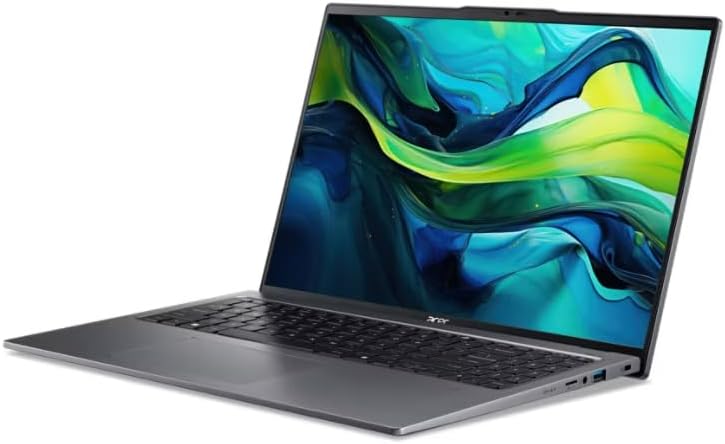
Left side view of the Acer Swift Go 16-2024 laptop, highlighting available ports such as USB and audio jack.

Right side view of the Acer Swift Go 16-2024 laptop, showing ports including HDMI and USB.

Top view of the Acer Swift Go 16-2024 laptop in a closed position, displaying its sleek profile.
7. Specifications
| Feature | Specification |
|---|---|
| Model Name | Swift Go 16-2024 |
| Display | 16-inch WUXGA (1920 x 1200) IPS Touchscreen |
| Processor | Intel Ultra 9 185H (16-Core, up to 3.9 GHz) |
| Graphics | Intel ARC Graphics |
| RAM | 32GB LPDDR5 |
| Storage | 1TB SSD |
| Operating System | Windows 11 Home |
| Wireless Connectivity | Wi-Fi 6 (802.11ax), Bluetooth 5.1 |
| Ports | Thunderbolt 4, USB-A, HDMI |
| Keyboard | Backlit Keyboard |
| Security | Fingerprint Reader |
| Webcam | 720p HD with Temporal Noise Reduction |
| Battery Life | Up to 10 hours (usage may vary) |
| Dimensions (W x D x H) | 14.3 x 9.4 x 0.78 inches |
| Weight | Approx. 3.81 lbs (1.73 kg) |
8. Maintenance
- Cleaning: Use a soft, lint-free cloth to clean the screen and chassis. Avoid harsh chemicals.
- Software Updates: Regularly update Windows and Acer drivers to ensure optimal performance and security.
- Battery Care: To prolong battery life, avoid extreme temperatures and fully discharging the battery frequently.
- Storage Management: Periodically clear unnecessary files and applications to maintain SSD performance.
9. Troubleshooting
| Problem | Possible Solution |
|---|---|
| Laptop does not power on | Ensure the power adapter is securely connected and the outlet is functional. Try a different power outlet. |
| System freezes or becomes unresponsive | Press and hold the power button for 10-15 seconds to force a shutdown. Restart the laptop. Check for system updates. |
| Wi-Fi connection issues | Restart your router and modem. Check Wi-Fi settings in Windows. Ensure Wi-Fi drivers are up to date. |
| Backlit keyboard not working | Ensure the backlight is enabled and adjusted using the dedicated function keys (e.g., Fn + F9). |
| Fingerprint reader not recognized | Ensure your finger is clean and dry. Re-register your fingerprint in Windows Hello settings. |
10. Warranty and Support
Your Acer Swift Go 16-2024 laptop comes with a standard manufacturer's warranty. For detailed warranty information, please refer to the documentation included with your product or visit the official Acer support website. For technical assistance, driver downloads, or service inquiries, please contact Acer customer support.
Acer Support Website: www.acer.com/support


