
1. Introduction
The Wbacon 8-in-1 External Blu-Ray Drive is a versatile optical drive designed for reading and writing Blu-ray, DVD, and CD discs. It also functions as a multi-port USB hub and card reader, offering expanded connectivity for your computer. This manual provides instructions for proper setup, operation, and maintenance of your device.

Image: Wbacon 8-in-1 External Blu-Ray Drive with included carrying bag and various USB adapters.
2. Package Contents
Verify that all items are present in your package:
- 1 x Wbacon 8-in-1 External Blu-Ray Drive
- 1 x Carrying Bag
3. Product Overview
The Wbacon 8-in-1 External Blu-Ray Drive features multiple ports and a compact design for portability and functionality.
3.1. Key Features
- 8-in-1 Functionality: Blu-ray/DVD/CD read and write, 1 USB 3.0 port, 1 USB 2.0 port, 2 Type-C 3.0 ports, 1 TF slot, 1 SD card slot.
- High-Speed Data Transfer: USB 3.0 and Type-C interface for fast performance.
- Wide Compatibility: Supports Windows 7/8/10/Vista/ME/SE/XP/2000, Linux, and macOS.
- Portable Design: Ultra-slim and lightweight with a built-in data cable.
3.2. Port Layout and Dimensions
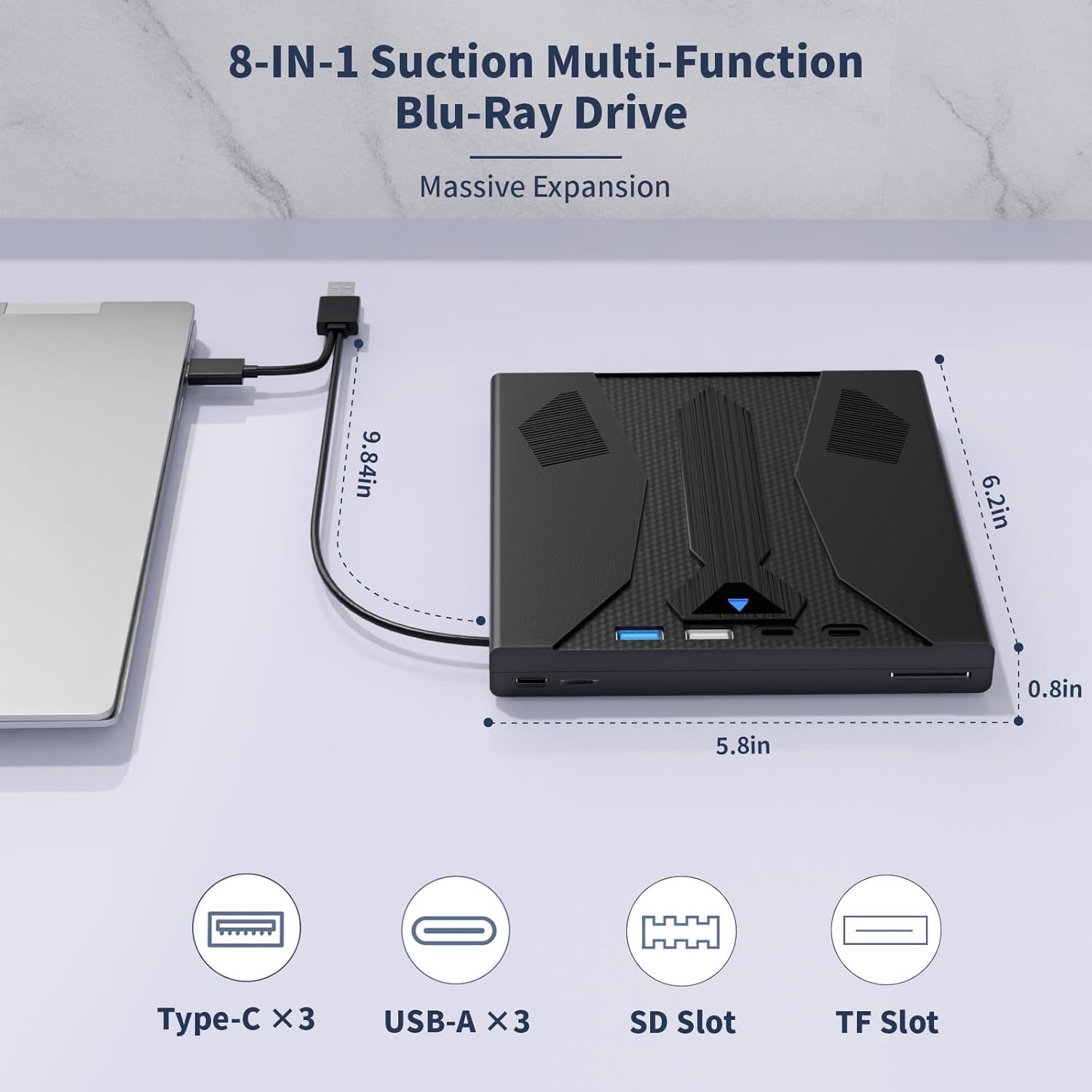
Image: Top-down view of the Wbacon 8-in-1 External Blu-Ray Drive showing dimensions and port labels.
- Top Panel: 2 x Type-C Ports, 2 x USB 3.0 Ports, Eject Button.
- Side Panel: SD Card Slot, TF Card Slot.
- Bottom Panel: Built-in 2-in-1 Type-C & USB 3.0 cable.
4. Setup
The Wbacon External Blu-Ray Drive is designed for plug-and-play functionality, requiring no additional drivers for basic operation.
4.1. Connecting the Drive
- Locate the built-in 2-in-1 Type-C and USB 3.0 cable on the bottom of the drive.
- Connect the appropriate end of the cable (USB-A or Type-C) to an available port on your computer (laptop or desktop).
- Ensure the connection is secure. The drive should be automatically recognized by your operating system.

Image: Wbacon 8-in-1 External Blu-Ray Drive connected to a laptop, showing the connection for stable data transfer.
4.2. Setup Demonstration Video
Video: This video demonstrates the unboxing, features, connection, disc insertion, and ejection process of the Wbacon 8-in-1 External Blu-Ray Drive, including a brief playback example.
5. Operating Instructions
5.1. Inserting and Ejecting Discs
- Inserting a Disc: Gently push the disc into the slot-loading mechanism until the drive automatically pulls it in.
- Ejecting a Disc (Method 1 - Eject Button): Press the physical eject button located on the top panel of the drive.
- Ejecting a Disc (Method 2 - Software Eject): On your computer, navigate to the optical drive icon (e.g., in 'This PC' on Windows or Finder on macOS), right-click, and select 'Eject'.

Image: Diagram illustrating the suction design of the Wbacon Blu-Ray drive for disc insertion.

Image: Two methods to eject a disc from the Wbacon Blu-Ray drive.
5.2. Reading and Writing Discs
The drive supports various disc formats and speeds:
- Read Speeds: CDs up to 24x, DVDs up to 8x, BDs up to 6x.
- Write Speeds: CDs up to 24x, DVDs up to 8x, BDs up to 6x.
- Supports burning normal CDs and DVDs (8.5GB, 4.7GB, 700MB), as well as 3D discs.

Image: Wbacon 8-in-1 External Blu-Ray Drive with speed specifications.
5.3. Using the USB Hub and Card Reader
The integrated USB hub and card reader allow for expanded connectivity:
- Connect USB devices such as external hard drives, mice, keyboards, or computer coolers to the USB 3.0 and Type-C ports.
- Insert SD or TF cards into the respective slots to transfer photo and video files from your camera or other devices to your computer.
5.4. Blu-Ray Playback Software
For playing copyrighted Blu-ray discs, dedicated third-party software is often required. Your operating system's default media player may not support Blu-ray playback directly. If copyrighted Blu-ray discs have zone-bit code protection, you may need to download shielding software (e.g., AnyDVD) to decode the zone-bit code.

Image: Wbacon 8-in-1 External Blu-Ray Drive connected to a monitor and laptop, showing multimedia use.
6. Compatibility
The drive offers broad compatibility with various operating systems and devices.
6.1. Supported Operating Systems
- Windows 7, 8, 10, Vista, ME, SE, XP, 2000
- Linux
- All versions of macOS
6.2. Unsupported Devices
The external Blu-ray burner is not compatible with the following devices:
- BD recorders
- Tablet iPads
- Surface tablets
- TVs
- Projectors
- Smartphones
- Cars

Image: Compatibility chart for Wbacon 8-in-1 External Blu-Ray Drive.
6.3. Blu-Ray Region Codes
Blu-ray discs use region codes, similar to DVDs. The optical drive allows for a limited number of region code changes (typically 5 times). If your optical drive is not working, the region code might be the problem. Ensure the drive's region matches the disc's region.

Image: Explanation of Blu-Ray region codes and change limits.
- Region 1: USA, Canada
- Region 2: Japan, Europe, South Africa, Middle East (including Egypt)
- Region 3: Southeast Asia, East Asia (including Hong Kong)
- Region 4: Australia, New Zealand, Pacific Islands, Central America, Mexico, South America, Caribbean
- Region 5: Eastern Europe (Former Soviet Union), India, Africa
- Region 6: China
- Region 7: Reserved
- Region 8: Airplane or Ship, etc.
7. Maintenance
Proper care ensures the longevity and optimal performance of your Blu-Ray drive.
- Cleaning the Drive: Use a soft, dry cloth to wipe the exterior of the drive. Avoid using liquid cleaners or abrasive materials. Do not attempt to clean the internal lens.
- Handling Discs: Always handle discs by their edges. Store discs in their cases to prevent scratches and dust accumulation.
- Storage: When not in use, store the drive in its carrying bag in a cool, dry place away from direct sunlight and extreme temperatures.
8. Troubleshooting
If you encounter issues with your Wbacon External Blu-Ray Drive, refer to the following common solutions:
- Drive Not Recognized:
- Ensure the USB cable is securely connected to both the drive and your computer.
- Try connecting the drive to a different USB port on your computer.
- Restart your computer.
- Verify that your operating system is supported (refer to Section 6.1).
- Disc Not Ejecting:
- Press the eject button firmly.
- Use the software eject function from your computer's operating system.
- If the disc is still stuck, gently power off your computer, then disconnect and reconnect the drive.
- Blu-Ray/DVD/CD Playback Issues:
- Ensure you are using compatible third-party playback software for Blu-ray discs (refer to Section 5.4).
- Check the disc for scratches or damage.
- Verify that the disc's region code matches the drive's region setting (refer to Section 6.3).
- Ensure your computer meets the minimum system requirements for Blu-ray playback.
- Slow Data Transfer:
- Ensure the drive is connected to a USB 3.0 or Type-C 3.0 port on your computer for optimal speeds. Connecting to a USB 2.0 port will result in slower transfer rates.
9. Specifications
| Feature | Detail |
|---|---|
| Brand | Wbacon |
| Model Number | 744316243583 |
| Hardware Platform | Laptop, PC |
| Operating System Support | Linux, Windows 98/Vista/XP/7/8/10, macOS |
| Item Weight | 1.26 pounds |
| Package Dimensions | 7.52 x 7.05 x 1.85 inches |
| Special Feature | Lightweight, Plug & Play |
| Hardware Interface | USB 3.0 Type A, USB 3.0 Type C |
| Optical Storage Write Speed | BD: 6X, DVD: 8X, CD: 24X |
| Optical Storage Read Speed | BD: 6X, DVD: 8X, CD: 24X |
10. Warranty and Support
Wbacon products are designed for reliability and performance. For warranty information or technical support, please refer to the contact details provided with your purchase or visit the official Wbacon website. Please retain your proof of purchase for warranty claims.