
1. Introduction
This manual provides detailed instructions for the installation, operation, and maintenance of your Uckazy HD 10.25-inch Wireless Carplay Android Auto multimedia system. This system is designed to enhance your driving experience by integrating modern connectivity features into your vehicle's existing setup. Please read this manual thoroughly before installation and use to ensure proper functionality and safety.
2. Product Compatibility
This Uckazy multimedia system is specifically designed for Mercedes Benz CLS W218 models manufactured between 2014 and 2017, equipped with the original NTG 5.0 or NTG 5.1 system. It is crucial to verify your vehicle's original system version before installation. This unit is not compatible with original radios featuring NTG 4.0, NTG 4.5, or NTG 4.7 systems.

Image: Compatibility chart illustrating the specific Mercedes Benz CLS W218 models and NTG system versions (5.0/5.1) that are compatible with this unit, and incompatible versions (4.0, 4.5, 4.7).

Image: Visual comparison of a Mercedes Benz CLS dashboard before and after the installation of the Uckazy 10.25-inch display, showing the integrated screen.
3. Product Features
The Uckazy HD 10.25-inch multimedia system offers a range of features designed to enhance your in-car experience:
- 10.25-inch HD Touch Screen: A high-resolution 1920x720 IPS display provides clear images and a wide viewing angle.
- Wireless Carplay & Android Auto: Seamless integration with your smartphone for navigation, music, calls, and more.
- Dual System Support: Retains the original OEM car system while adding the new Linux-based multimedia interface.
- DSP (Digital Signal Processor): Enhances audio quality for an improved listening experience.
- Original Car Functionality: Supports original steering wheel controls, iDrive control, OEM reversing camera, and retains the original car stereo sound.
- Multimedia Playback: Supports various media formats via USB and Bluetooth.
- Voice Control: Utilize voice assistants like Siri or Google Assistant for hands-free operation.

Image: The Uckazy 10.25-inch display showcasing both Apple Carplay and Android Auto interfaces, along with the main menu icons.
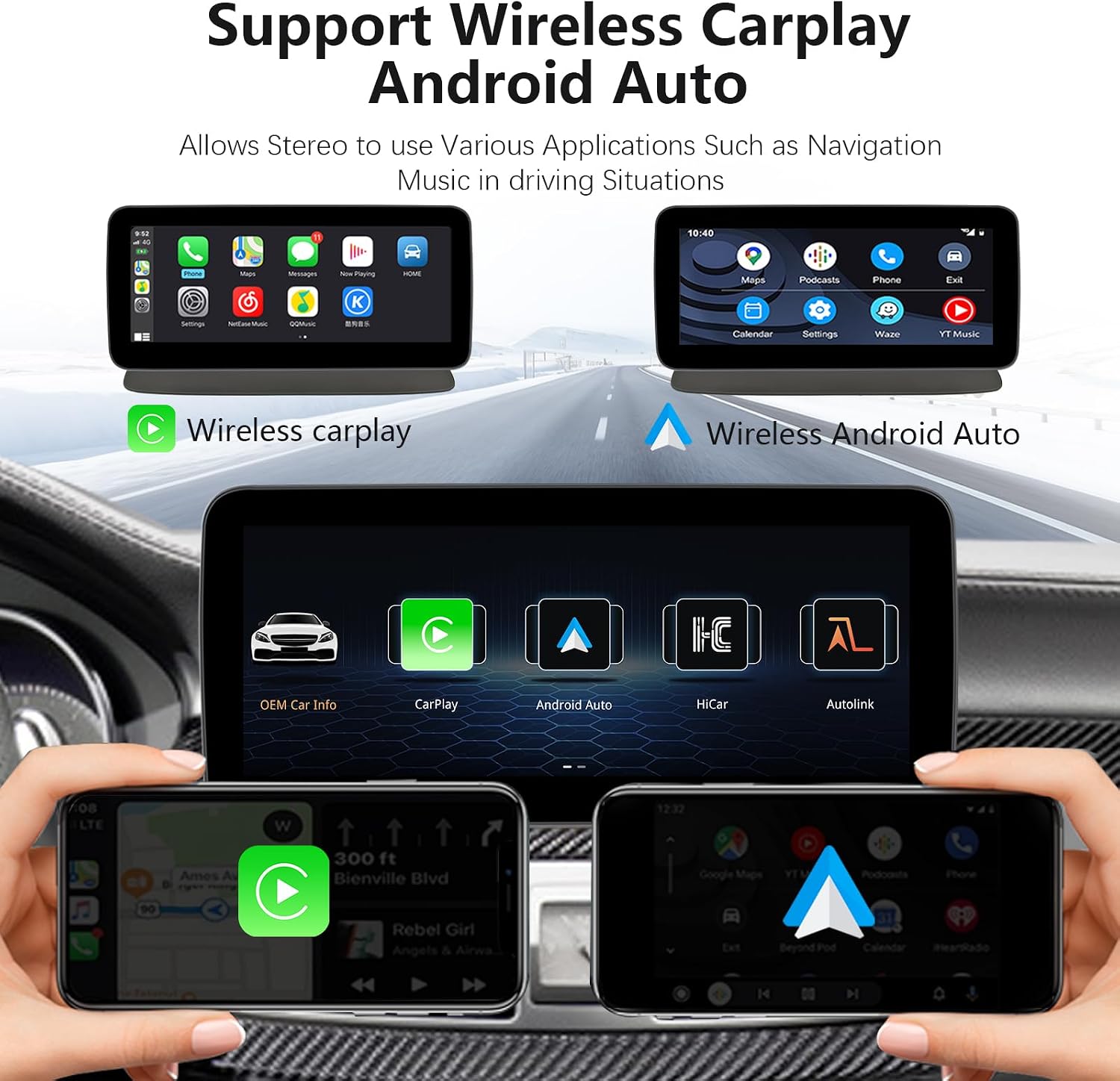
Image: A visual representation of wireless Carplay and Android Auto in action, showing smartphone integration with the car's display for navigation and apps.

Image: Demonstrates voice control capabilities for navigation and other functions, along with examples of third-party map applications and mobile music playback.

Image: A side-by-side comparison highlighting the superior clarity and detail of the 1920x720 IPS screen compared to a standard 800x480 display.

Image: Illustrates the retention of original car features such as steering wheel control, OEM reversing camera compatibility, iDrive control, original car stereo sound, and the ability to keep the original CD player and car system.

Image: Displays a set of icons representing various product features such as AirPlay, USB connectivity, Bluetooth, Bluetooth Music, and Setup options.
4. Setup and Installation
Professional installation is highly recommended for this product. Incorrect wiring or installation can lead to damage to the unit or your vehicle's electrical system. Ensure the vehicle's power is disconnected before beginning installation.
4.1. Package Contents
Verify that all components are present in the package:

Image: Displays the main unit (10.25-inch screen), the specific frame for Mercedes Benz C-CLS, AUX cable, power/USB cable, installation tools, and a touch pen.
- Uckazy 10.25-inch Display Unit
- Mercedes Benz C-CLS Frame
- AUX Cable
- Power/USB Cable
- Installation Tools
- Touch Pen
4.2. Wiring Diagram
Follow the provided wiring diagrams carefully. Pay close attention to connections for power, audio, and data. Incorrect connections can prevent the unit from functioning or cause damage.

Image: Detailed main wiring diagram showing connections for power, audio, and various input/output ports.

Image: Diagram illustrating the proper connection of the optical fiber cable, essential for audio signal transfer in some Mercedes Benz systems.

Image: Diagram showing the connection of the ISO harness to the original car's head unit and the new display.
For wired Carplay and Android Auto functionality, ensure the USB cable is connected to USB IN 1.

Image: Diagram indicating the correct USB port (USB IN 1) for connecting wired Carplay and Android Auto devices.
4.3. Initial Settings
After installation, access the system settings to configure the display resolution and other car-specific parameters. This may involve setting the correct screen resolution (e.g., 1920x720) and ensuring proper audio output via AUX.

Image: Screenshot of the system's camera settings menu, allowing selection between original and aftermarket cameras.

Image: Screenshot of the screen resolution settings, showing options like 800x480 and 1280x480, with 1920x720 being the optimal setting for this unit.

Image: Screenshot of the car settings menu, including the option to automatically switch to AUX for audio output.
5. Operating Instructions
5.1. Switching Between Systems
The unit allows seamless switching between the original Mercedes Benz NTG system and the new Linux multimedia system. Typically, a long press on a specific button (e.g., "C" or "Clear" on the original radio, or a dedicated button on the new unit) will toggle between the two interfaces. Refer to the installation guide for the exact method for your vehicle.

Image: Illustrates the ability to switch between the original car's radio interface and the new Linux system display.
5.2. Wireless Carplay and Android Auto
To use Wireless Carplay or Android Auto, ensure your smartphone's Bluetooth and Wi-Fi are enabled. Pair your phone with the Uckazy unit via Bluetooth first, then follow the on-screen prompts to establish the wireless connection. This allows access to navigation, music, messaging, and other compatible apps directly on the car's display.

Image: Screenshot of the Apple Carplay interface displayed on the Uckazy unit.

Image: Screenshot of the Android Auto interface displayed on the Uckazy unit.
5.3. Voice Control
Activate voice control by saying "Hey Siri" for Carplay or "OK Google" for Android Auto, or by pressing the voice command button on your steering wheel (if supported). You can use voice commands for navigation, making calls, sending messages, and playing music.

Image: Depicts the voice control interface, showing prompts for navigation and other commands.
5.4. Audio Settings (DSP)
The integrated DSP allows for fine-tuning of audio output. Access the equalizer settings within the system menu to adjust bass, treble, and other audio parameters to your preference.

Image: Screenshot of the DSP equalizer settings interface, showing various frequency bands and adjustment sliders.
5.5. Bluetooth Connectivity
Connect your phone via Bluetooth for hands-free calling and audio streaming. Access the Bluetooth menu to pair new devices and manage existing connections.

Image: Screenshot of the Bluetooth calling interface, showing a dial pad and contact list, with a phone connected via Bluetooth.
6. Maintenance
To ensure the longevity and optimal performance of your Uckazy multimedia system, follow these maintenance guidelines:
- Screen Cleaning: Use a soft, lint-free cloth specifically designed for electronics screens. Do not use abrasive cleaners or solvents.
- Software Updates: Periodically check the manufacturer's website for any available software updates to ensure optimal performance and access to new features.
- Avoid Extreme Temperatures: Do not expose the unit to extreme heat or cold for extended periods, as this can affect its electronic components.
- Protect from Liquids: Prevent any liquids from coming into contact with the unit.
7. Troubleshooting
If you encounter issues with your Uckazy multimedia system, please refer to the following common troubleshooting steps:
- No Power/Display:
- Check all power connections and fuses.
- Ensure the vehicle's ignition is on.
- No Audio:
- Verify that the AUX input is correctly selected on your original car radio.
- Check all audio cable connections, especially the optical fiber if applicable.
- Ensure the volume is not muted on either the Uckazy unit or the original car system.
- Carplay/Android Auto Not Connecting:
- Ensure Bluetooth and Wi-Fi are enabled on your phone.
- Try forgetting the device on both the phone and the Uckazy unit, then re-pair.
- For wired connections, ensure the USB cable is connected to USB IN 1.
- Restart both your phone and the Uckazy unit.
- Screen Flickering/Incorrect Resolution:
- Access the system settings and verify the screen resolution is set correctly (e.g., 1920x720).
- Check video cable connections.
- Original Car Functions Not Working:
- Ensure all original wiring harnesses are correctly reconnected.
- Verify that the system is correctly configured to integrate with OEM controls (steering wheel, iDrive).
Many issues, approximately 85%, are often resolved by verifying correct wiring and settings. If problems persist, please contact Uckazy customer support with a detailed description and clear pictures of the issue.
8. Specifications
| Screen Size | 10.25 inches |
| Resolution | 1920x720 IPS |
| Operating System | Linux System |
| Connectivity | Wireless Carplay, Wireless Android Auto, Bluetooth, USB |
| Audio Features | DSP (Digital Signal Processor), 4.0 Surround Sound Channel Configuration |
| Compatible Car Models | Mercedes Benz CLS W218 (2014-2017) with NTG 5.0/5.1 |
| Item Weight | 3.67 pounds |
| Package Dimensions | 15.12 x 7.17 x 6.77 inches |
| Manufacturer | Uckazy |
| Total HDMI Ports | 1 |
| Connector Type | RCA |
| Video Encoding | H.264, H.265/HEVC |
9. Warranty and Support
Uckazy is committed to providing high-quality automotive electronic products. For any product-related inquiries, technical assistance, or warranty claims, please contact Uckazy customer support. When contacting support, please provide your product model number (HD 10.25) and a detailed description of your issue, including any relevant pictures or videos.
For further assistance, you may visit the Uckazy Store on Amazon.